 Destinations
 Data sources
 AI insights
 About us
 Careers
 Security
 Customer reviews
 Contact us
 Affiliate program
 Solution partners
 Template gallery
 Looker Studio templates
 Power BI templates
 Excel templates
 Google Sheets templates
 Tableau templates
 Facebook Ads templates
 Google Ads templates
 Data fields & Metrics
 AI prompt library & Guides
 Product documentation
 API documentation
 Case studies
 Blog
Blog Data models
 Windsor vs Supermetrics
 Windsor vs Funnel.io
 Windsor vs Fivetran
 Windsor vs Rivery
 Windsor vs Portermetrics
 Windsor vs Coupler.io
 Last updated: 31 August 2026




The quickest way to connect Azure Table Storage to ChatGPT is Windsor.ai’s native ChatGPT app. Connect your Azure Table Storage account to Windsor.ai, install the Windsor.ai app inside ChatGPT, and you can start asking questions about your tables and entities in natural language, no code and no manual exports required.
Querying Azure Table Storage on its own usually means writing code against the Azure SDK or REST API, or exporting entities table by table through Azure Storage Explorer. That works for a one-off look, but it’s slow to repeat and keeps your data siloed from everything else in your reporting stack. Connecting through Windsor.ai skips both problems, your tables stay live and connected, and you can blend them with 350+ other data sources inside the same ChatGPT conversation.
2 steps to connect Azure Table Storage to ChatGPT
Takes under a minute, no code or manual CSV work required.
See the full walkthrough in Windsor’s ChatGPT integration documentation.
Prerequisites
- A Windsor.ai account (free forever plan, or paid plans from $19/month)
- An Azure Table Storage account, with your storage account name and access key or connection string on hand
- A ChatGPT account with access to install apps or connectors
Step 1. Connect Azure Table Storage to Windsor.ai
Start on the Windsor.ai side so your storage account is ready before you open ChatGPT.
- Create a free Windsor.ai account, or sign in, at the Azure Table Storage onboarding link
- Select Azure Table Storage from the list of data sources
- Enter your Azure storage account connection details (account name and access key or connection string) and authorize the connection
- Repeat the process if you want to connect more than one Azure storage account
Step 2. Connect the Windsor.ai app in ChatGPT
With your Azure Table Storage account linked, the last step happens entirely inside ChatGPT.
- Open ChatGPT and go to the apps or connectors section of settings
- Search for Windsor.ai and install the app
- Allow access when prompted, and Windsor.ai will confirm the connection is ready
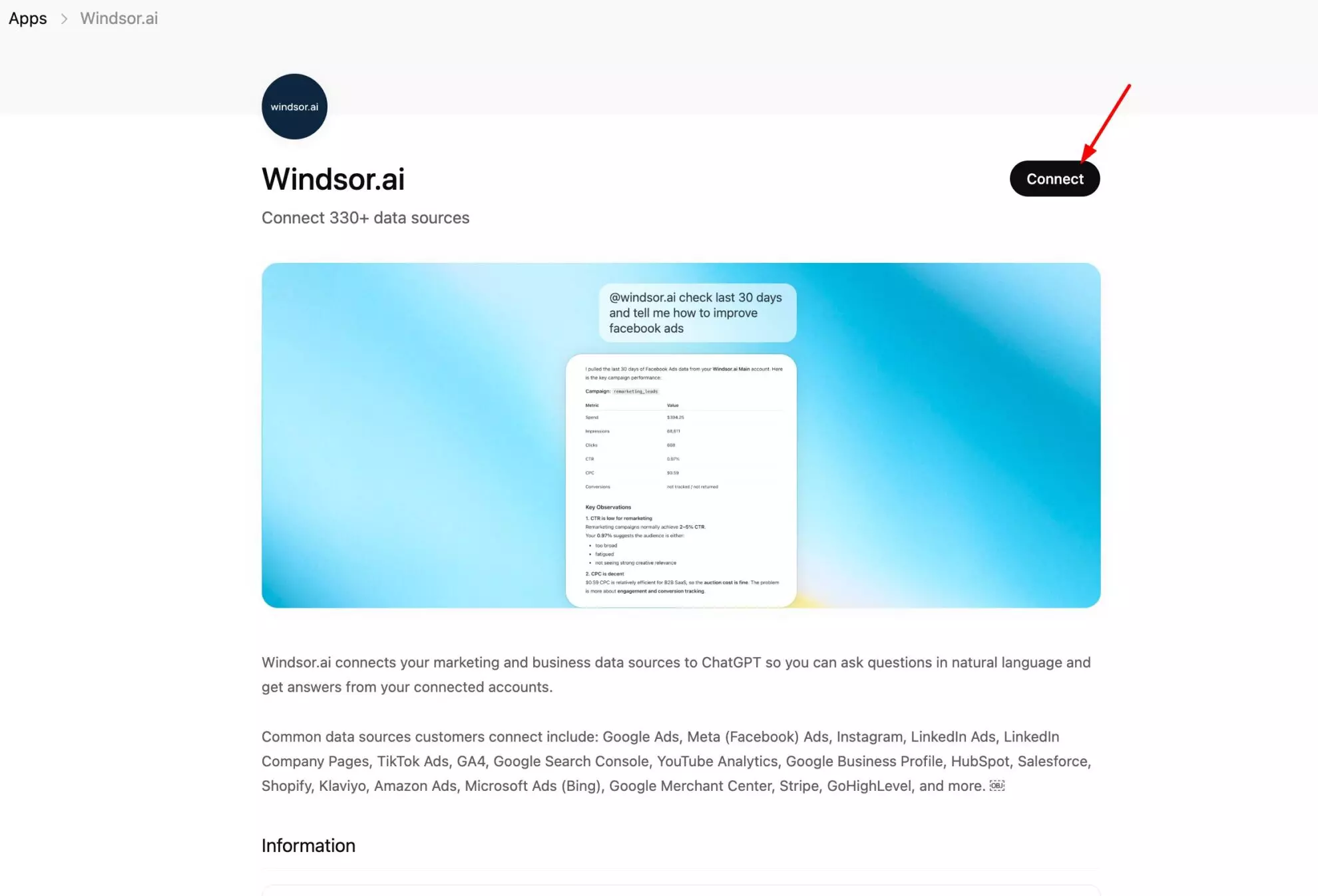
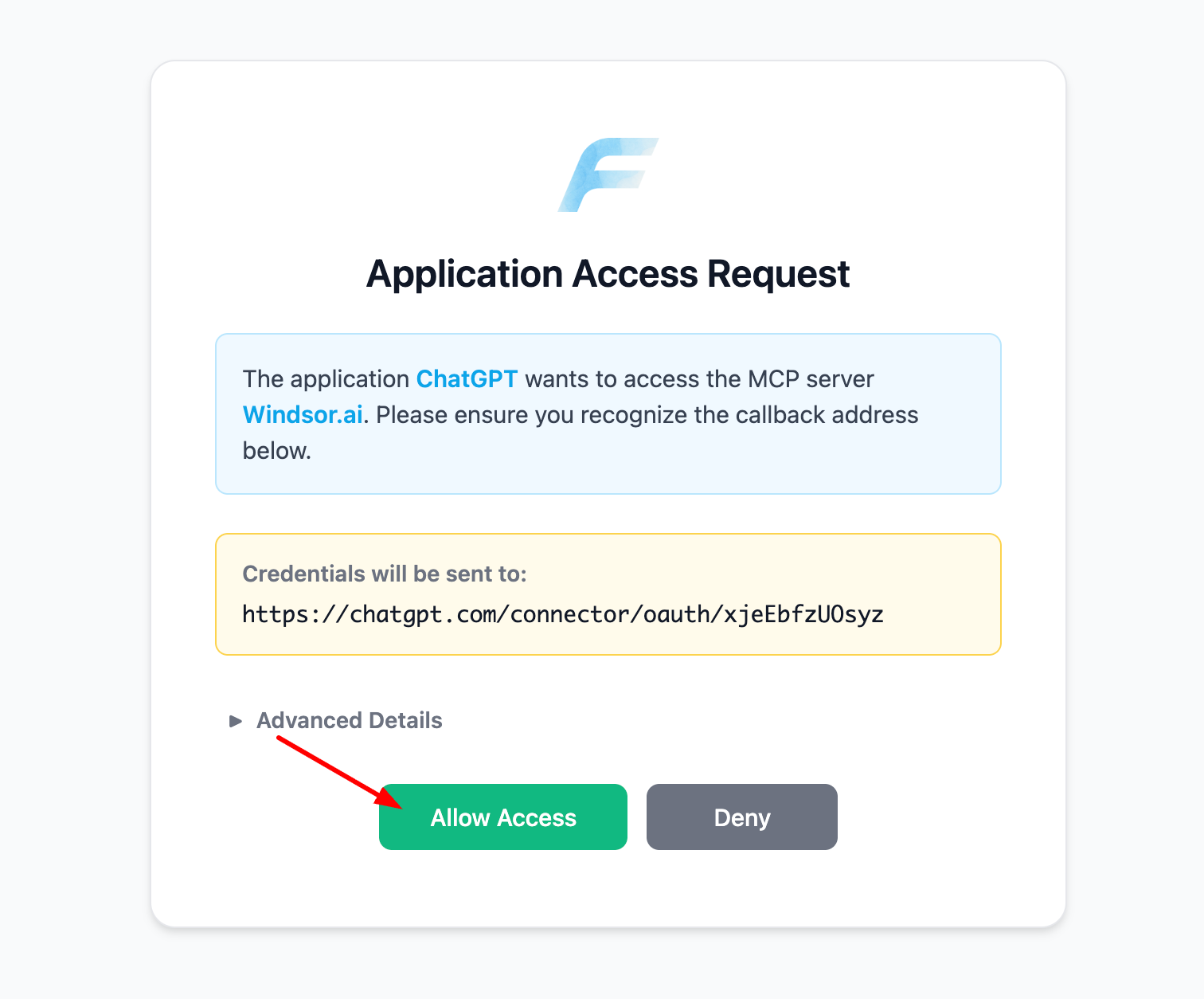
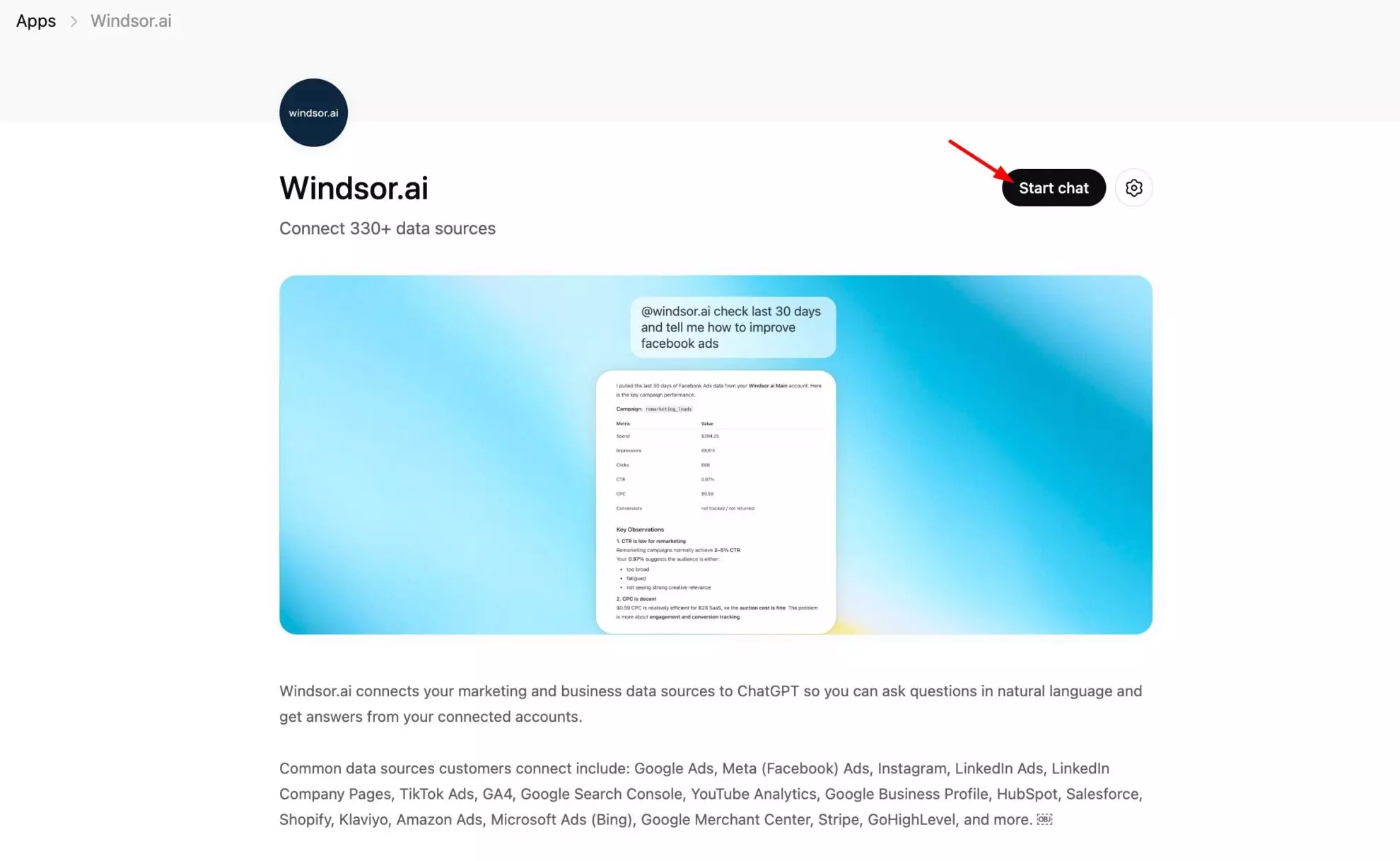
List the data sources connected to my Windsor account. Do you see Azure Table Storage there?If it shows up, you’re ready to query your tables in plain language.
The metrics that matter for Azure Table Storage
| Field | What it tells you |
|---|---|
| Table Name | Which of your Azure tables an entity belongs to, the first way to split data when one storage account holds several tables. |
| PartitionKey | The partition an entity is grouped under, Azure’s own scaling key and the fastest way to segment a large table into meaningful buckets. |
| RowKey | The unique identifier for an entity inside its partition, combined with PartitionKey it’s what makes a single row addressable. |
| Timestamp | Azure’s own system-managed last-modified time for the entity, separate from Windsor’s fetch time, tells you when the underlying record actually changed. |
| ETag | Azure’s concurrency-control version tag for an entity, useful for telling whether a record has been overwritten since you last checked it. |
| Entity Properties | The actual business columns you’ve defined per table (order IDs, sensor readings, user preferences, whatever you store), surfaced dynamically per connected account rather than a fixed list. |
| Data Source | The name of the Windsor connector returning the row, useful for telling Azure Table Storage rows apart once you’re blending several sources in one query. |
| Source | A second, equivalent tag for the connector returning the row, kept consistent across every Windsor connector for easier filtering. |
| Data Fetched At | The exact UTC time Windsor pulled that row from your storage account, so you know how fresh the entities you’re looking at are. |
| Now | The current timestamp attached to every row, handy for calculating how much time has passed since the data was fetched. |
| Today | Today’s date, useful for filtering or grouping entities by day without hardcoding one. |
What to ask ChatGPT: prompt ideas
This connection is read-only. Windsor doesn’t write data back to Azure Table Storage, it lets ChatGPT read and analyze what’s already there.
Table and entity overview
Show me every table in my connected Azure Table Storage account and how many entities are in each one.
Summarize entity counts by table so I can see where most of my data lives.
Partition and row structure
Show me the most common partition keys in the `orders` table and how entities are distributed across them.
List the row keys with the most recent Timestamp in the `customers` table.
Blended reporting
Combine entity data from my Azure Table Storage account with another connected source and give me a single blended summary.
Bonus: analyze Azure Table Storage alongside your full stack
Windsor connects 350+ sources, so Azure Table Storage doesn’t have to live in its own silo. A few realistic blends:
- Cross-channel reporting. Pull in your ad platforms, CRM, and e-commerce data alongside whatever’s already stored in Azure Table Storage, so operational data and marketing data show up in the same ChatGPT conversation instead of separate tools.
- Single source of truth. Treat Azure Table Storage plus Windsor’s other connectors as the one place every team queries, instead of juggling separate dashboards for each system.
- Blended ROAS. Combine the app or operational data you’ve stored in Azure Table Storage with live ad spend from platforms like Facebook Ads or Google Ads for a true blended return on ad spend number.
Other ways to connect Azure Table Storage to ChatGPT
Manual export
You can export entities from your Azure Table Storage tables to CSV using Azure Storage Explorer or the Azure CLI, then upload the file into a ChatGPT conversation. It works for a single quick look, but it’s a static snapshot from the moment you export it, and you’ll need to repeat the export by hand every time your data changes.
Zapier or Make
Zapier and Make can move records out of Azure Table Storage into other tools as part of a still-maintained automation, but that’s a workflow you have to build and keep updating, not a live connection ChatGPT can query directly.
Neither approach gives you the live, ask-anytime view that connecting Azure Table Storage directly to Windsor.ai does.
Conclusion
Connecting Azure Table Storage to ChatGPT through Windsor.ai takes two steps and no code: link your storage account to Windsor.ai, then install the Windsor.ai app in ChatGPT. From there, you can ask questions about your own tables and entities in plain language, and blend them with any of Windsor’s other 350+ connected sources.
🚀 Ready to connect Azure Table Storage to ChatGPT? Connect Azure Table Storage to Windsor.ai and start asking questions today.
FAQs
What's the fastest, native way to connect them?
Windsor.ai’s native ChatGPT app is the fastest way. It’s a one-click install inside ChatGPT rather than a custom connector you have to configure by pasting URLs.
Do I need to write any code to set this up?
No. Connecting your Azure storage account to Windsor.ai and installing the Windsor.ai app in ChatGPT are both point-and-click steps, no scripts or API calls required.
Can ChatGPT actually analyze my Azure Table Storage data, or just list it?
Once connected, ChatGPT can query the real tables and entity properties in your Azure Table Storage account and answer questions about them in plain language, not just list table names.
Can I connect more than one Azure storage account?
Yes. You can repeat the connection step in Windsor.ai for each additional Azure Table Storage account you want ChatGPT to access, useful if you manage storage for multiple projects or clients.
What fields or data will be available once I connect?
That depends entirely on your own Azure Table Storage account. Because Azure Table Storage is a flexible NoSQL store rather than a fixed-schema API, Windsor exposes whichever tables and columns or entity properties actually exist in your account, not a predetermined list of business metrics.
Do I need special Azure permissions to connect?
You need your Azure storage account’s connection details on hand, typically the account name and an access key or connection string, to authorize Windsor.ai during setup.
Is Windsor.ai free to use?
Windsor.ai has a free forever plan with no credit card required, and paid plans from $19 a month for higher usage.
How does this compare to exporting CSVs manually?
A manual CSV export from Azure Storage Explorer or the Azure CLI is a static snapshot from the moment you export it. Connecting through Windsor.ai keeps ChatGPT’s view of your tables live, so you don’t need to repeat the export every time your data changes.
Can I combine Azure Table Storage with other data sources in the same ChatGPT conversation?
Yes. Windsor.ai connects over 350+ data sources, so you can ask ChatGPT questions that blend your Azure Table Storage data with any other source you’ve connected, for one blended view instead of switching tools.
Can ChatGPT write or update data back into Azure Table Storage?
No. The connection is read-only. ChatGPT can query and analyze what’s already in your tables, but it can’t create, update, or push data back into Azure Table Storage.


