Destinations
 Data sources
 AI insights
 About us
 Careers
 Security
 Customer reviews
 Contact us
 Affiliate program
 Solution partners
 Template gallery
 Looker Studio templates
 Power BI templates
 Excel templates
 Google Sheets templates
 Tableau templates
 Facebook Ads templates
 Google Ads templates
 Data fields & Metrics
 AI prompt library & Guides
 Product documentation
 API documentation
 Case studies
 Blog
 Data models
 Windsor vs Supermetrics
 Windsor vs Funnel.io
 Windsor vs Fivetran
 Windsor vs Rivery
 Windsor vs Portermetrics
 Windsor vs Coupler.io
 Last updated: 26 November 2026




To connect Kommo to ChatGPT, create a long-lived token in Kommo, add it to Windsor.ai, then install the Windsor.ai plugin in ChatGPT. Setup needs no code, but you need administrator rights in Kommo.
After that, ChatGPT can answer questions about your Kommo leads, pipeline stages, loss reasons and sales reps without an export.
We tried the setup with 8 test leads in a Kommo trial account. The deal value answer was right the first time. Two other questions needed a second try, and one of them a third.
2 steps to connect Kommo to ChatGPT
For screenshots of the ChatGPT side of the setup, see Windsor.ai’s guide to integrating data into ChatGPT.
Prerequisites
- A Windsor.ai account. The free forever plan needs no credit card. Paid plans start at $19 a month, billed annually.
- Administrator rights in Kommo. Only an administrator can create the integration and its long-lived token. Kommo’s 14-day trial works too.
- A ChatGPT account. On ChatGPT Business, Enterprise or Edu, your workspace admin decides which plugins members can install (OpenAI’s admin guide to plugins).
Step 1. Connect Kommo to Windsor.ai
Windsor.ai connects to Kommo with a long-lived token, which you create in Kommo first.
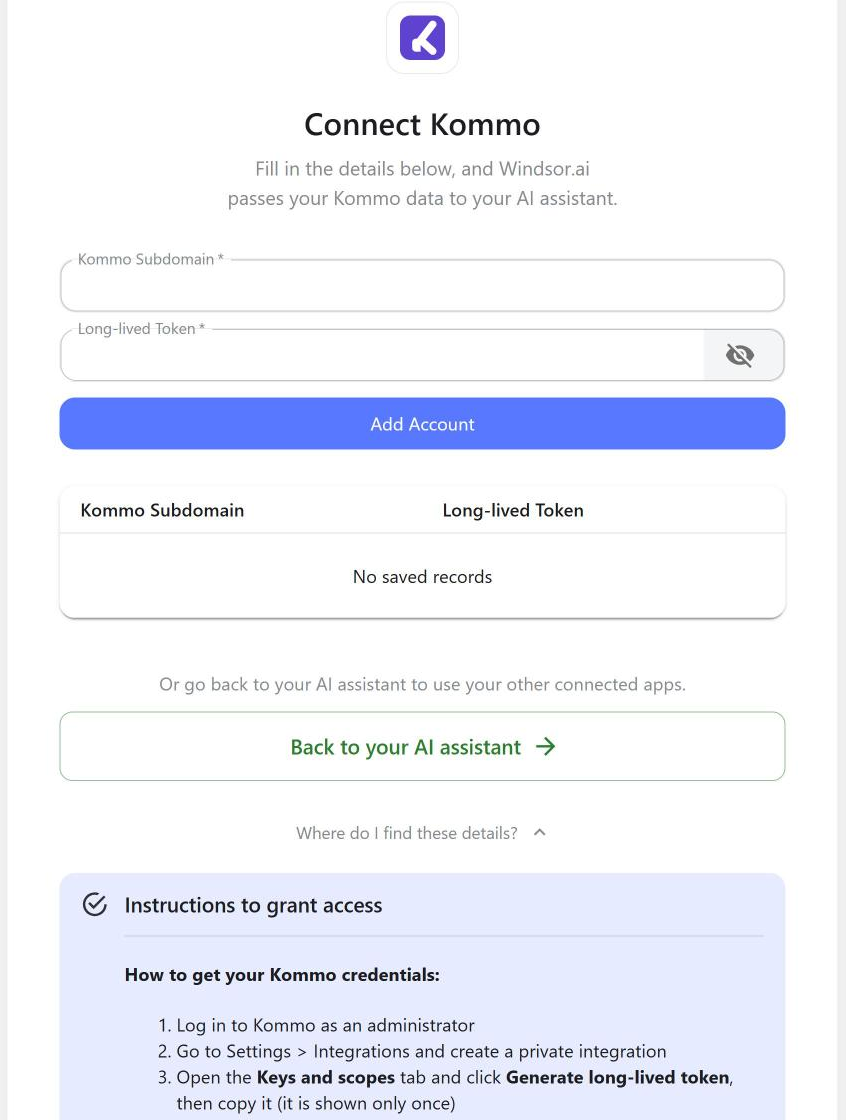
- Sign in to Kommo as an administrator. Go to Settings > Integrations and select Create integration.
- Give the integration a name and a description, tick the access it needs under Allow access, and save it. On a Kommo technical account, also choose Private.
- Open the integration’s Keys and scopes tab and select Generate long-lived token. Pick an expiry date (from 1 day up to 5 years) and copy the token. Kommo shows it only once.
- Open the Kommo page in Windsor.ai. Enter your Kommo subdomain (the yourcompany part of yourcompany.kommo.com), paste the token and select Add Account.
The token works with the rights of the administrator who created it. When it expires, generate a new token in Kommo, remove the Kommo account in Windsor.ai and add it again with the new token. Kommo’s long-lived token docs have the details.
Step 2. Install the Windsor.ai plugin in ChatGPT
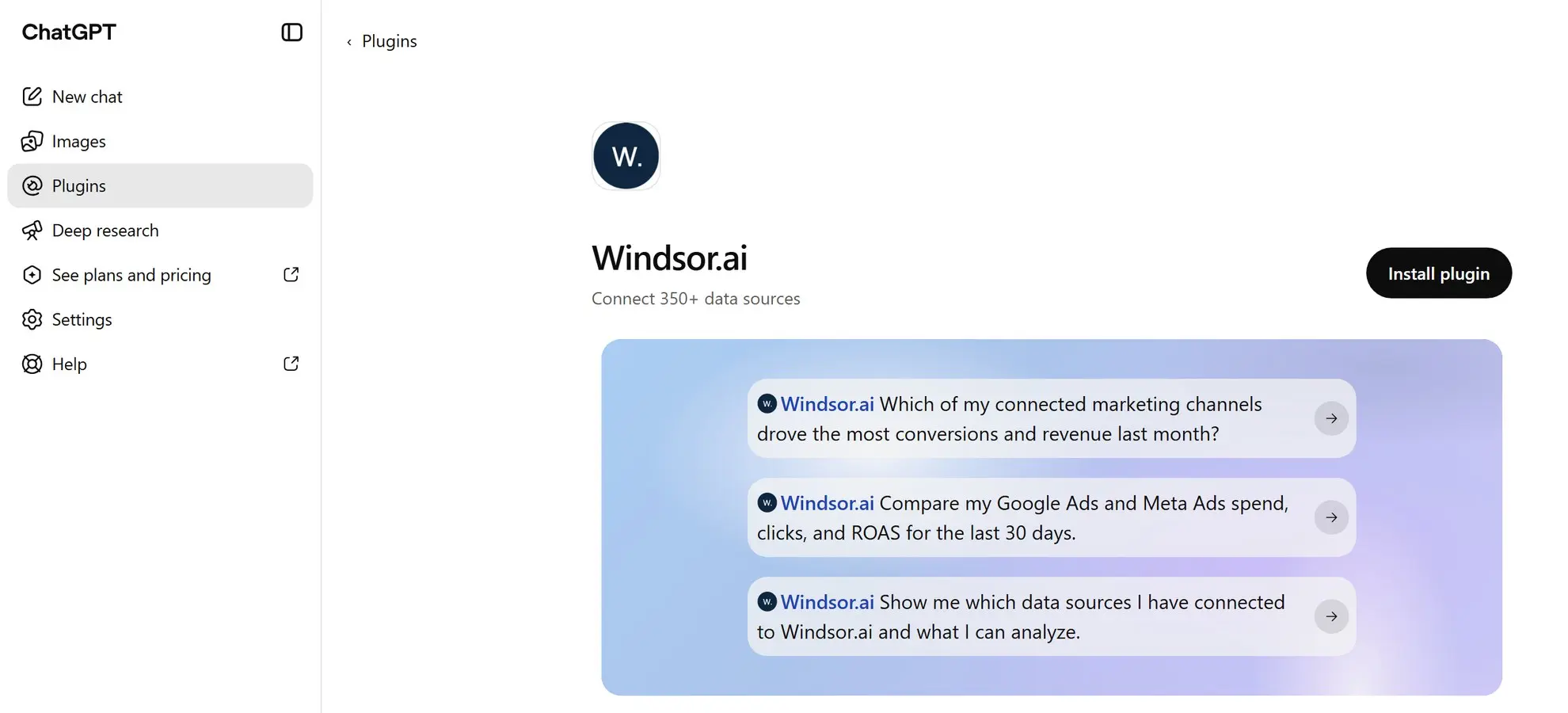
In ChatGPT, select Plugins in the sidebar, search for Windsor.ai and select Install plugin. You can also open the Windsor.ai plugin page.
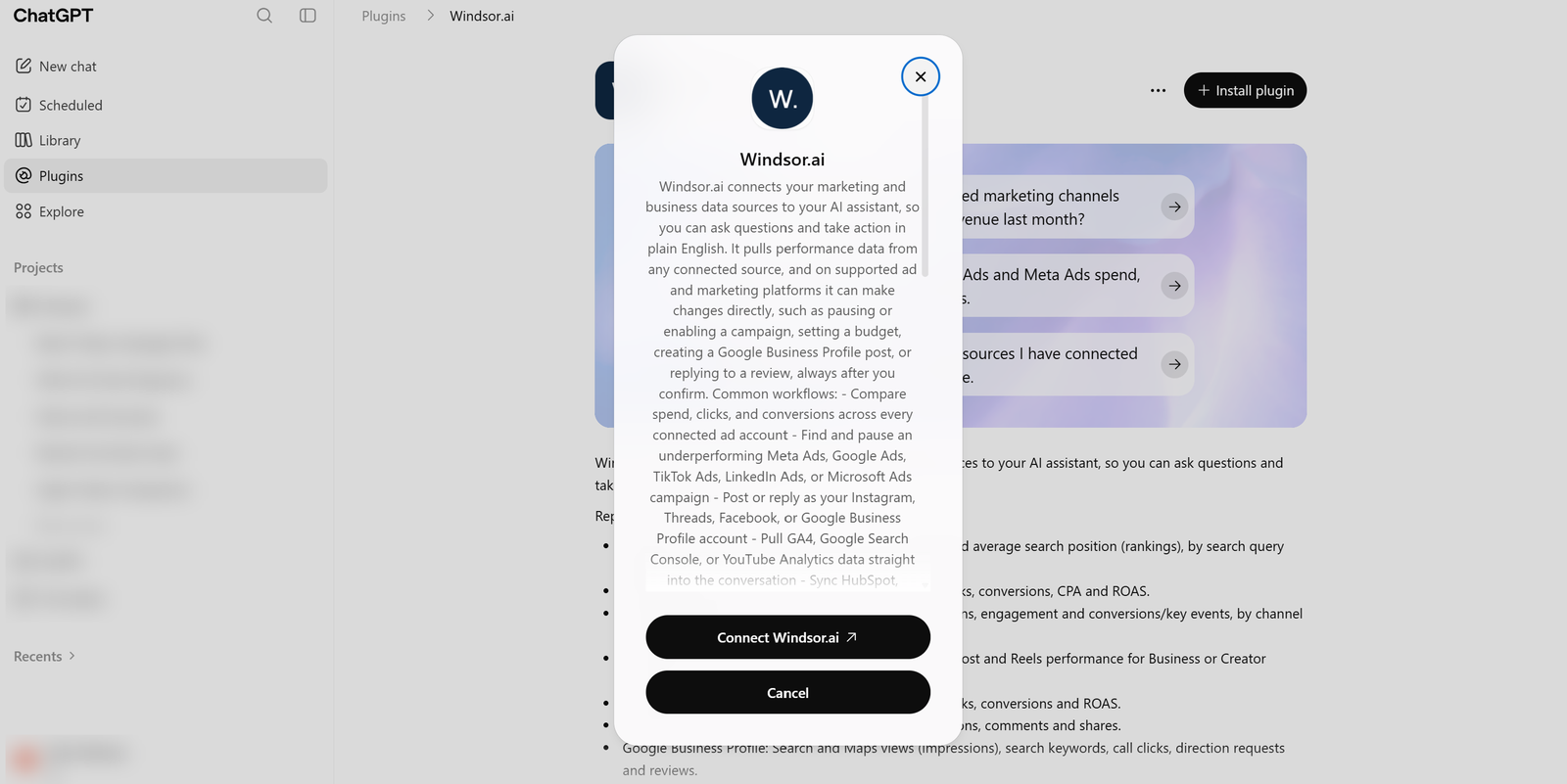
Then select Connect Windsor.ai, sign in to Windsor.ai and select Back to ChatGPT.
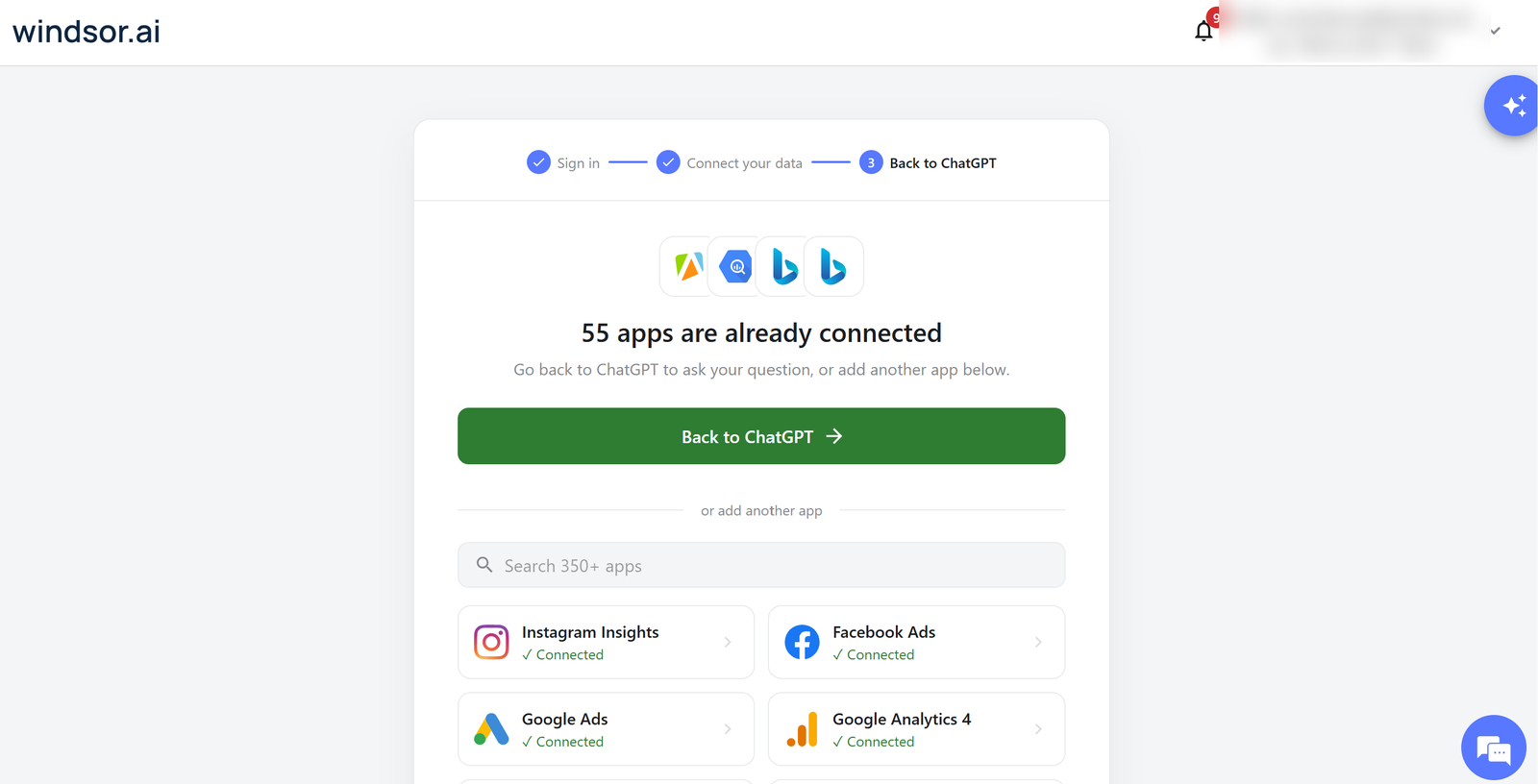
In a new chat, pick Windsor.ai from the + menu or type @Windsor.ai, then check the connection:
Which Kommo accounts are connected to my Windsor.ai account?
In our test on 25 November 2026, ChatGPT listed 1 connected Kommo account by its account ID, which is the Kommo subdomain we added in Step 1.
What we tested in ChatGPT
On 25 November 2026 we added 8 test leads to a Kommo trial account through Kommo’s API, with creation dates 3 to 20 days earlier. They were in 7 stages of one pipeline: 1 won, 2 lost with a loss reason, and the rest open. Then we asked ChatGPT questions through the Windsor.ai plugin and checked each answer against the data in Windsor.ai.
Deal value by stage. We asked: “Show the total Lead Price by Stage Name for my Kommo leads created in the last 30 days.” ChatGPT looked up the Stage Name for each Lead Stage ID and returned 7 stages with a total of 29,100. Every figure matched the data in Windsor.ai.
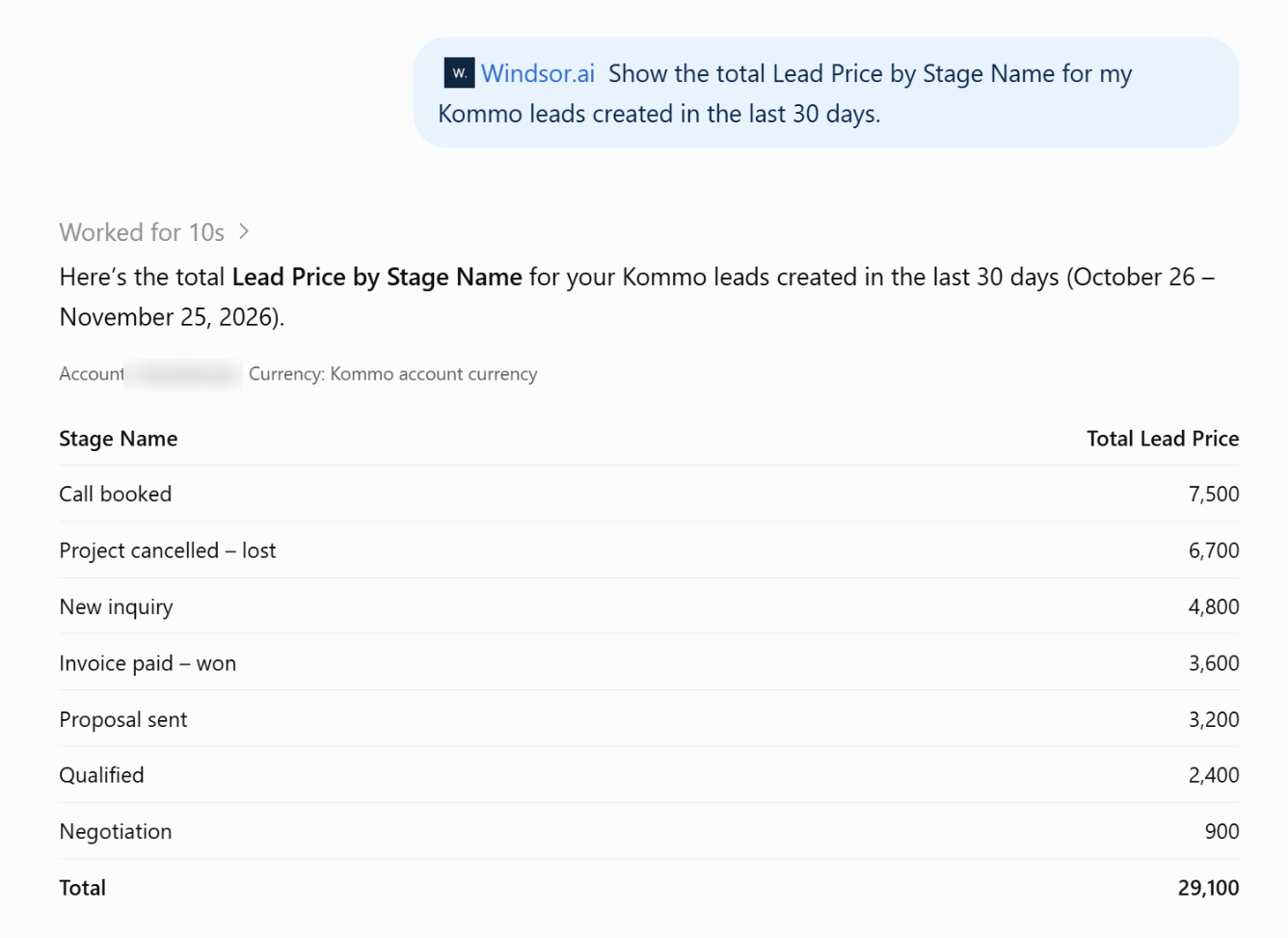
One detail needed a second look. ChatGPT described the period as ending that day, but Windsor.ai’s “last 30 days” ends yesterday. The account also had 3 leads created that day. They were not in the total. Add “including today” to the question when today’s leads matter.
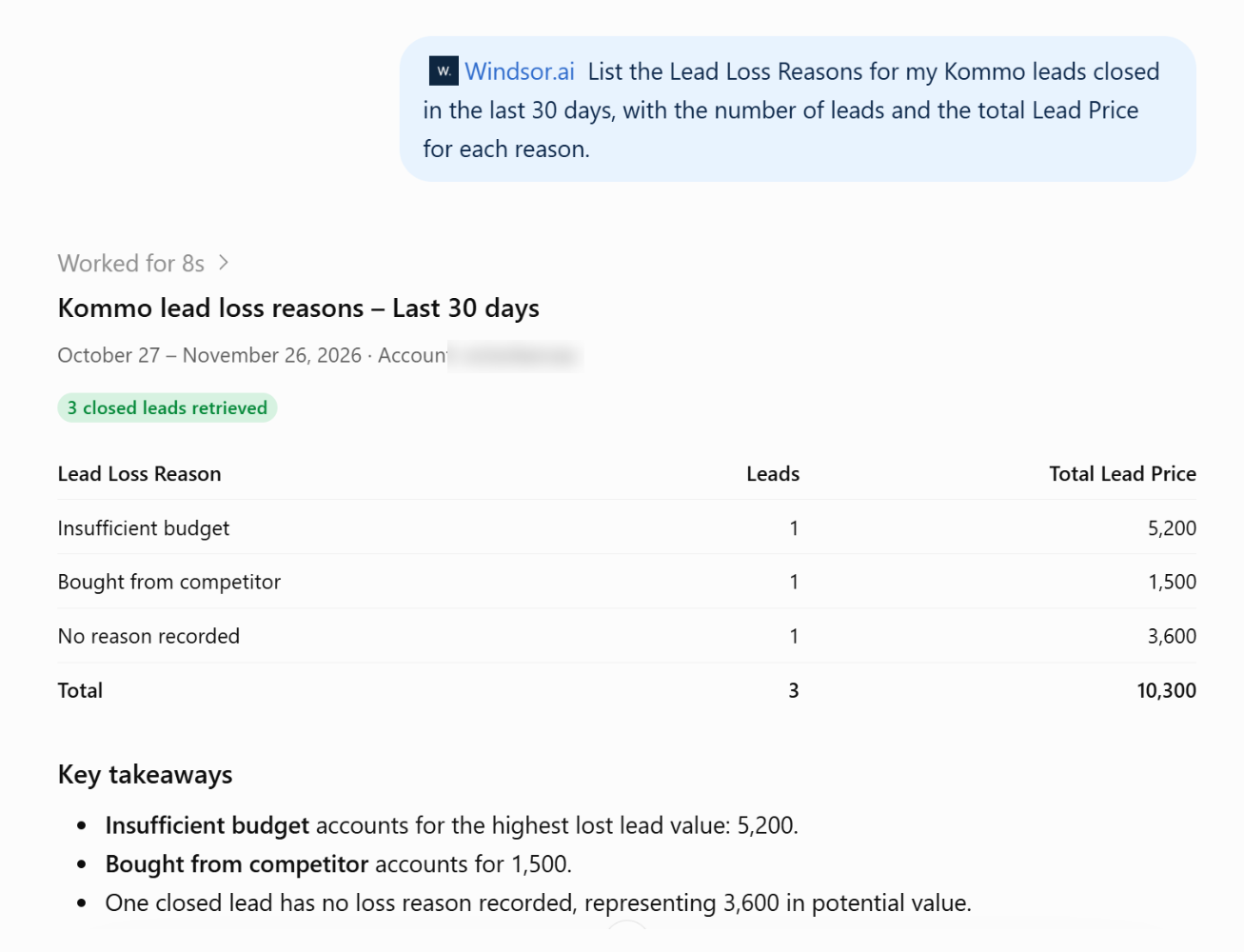
Loss reasons, first try. We asked: “List the Lead Loss Reasons for my Kommo leads closed in the last 30 days, with the number of leads and the total Lead Price for each reason.” ChatGPT counted every closed lead, including the won one. The won lead (3,600) showed up in the table as “No reason recorded”, which made lost value look like 10,300.
Loss reasons, second try. We added “lost” and “Count only leads in a lost stage” to the same question. ChatGPT returned the 2 lost leads: Insufficient budget at 5,200 and Bought from competitor at 1,500, a total of 6,700. That matched the data in Windsor.ai.
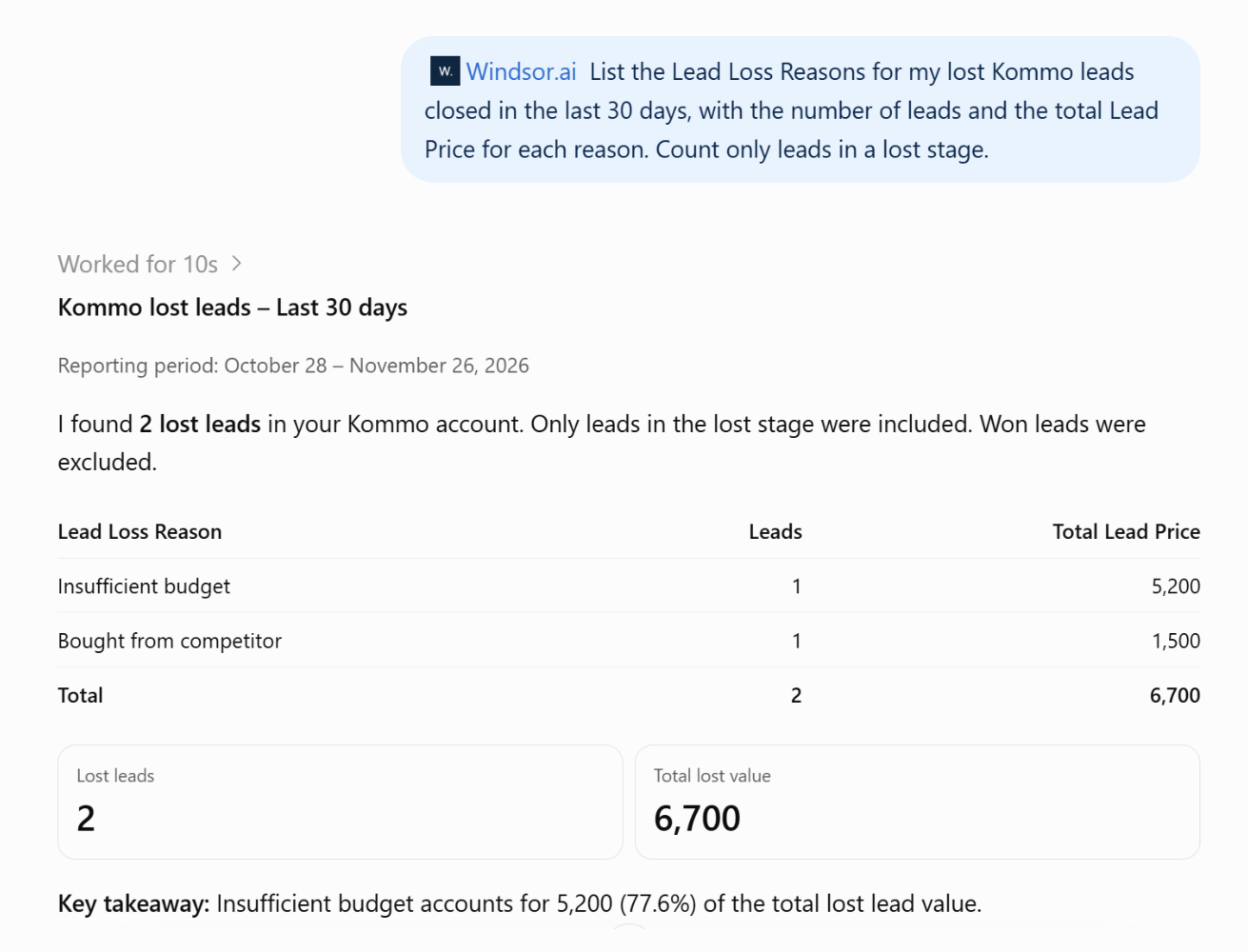
In Kommo, “closed” covers both won and lost leads, so a question about lost leads needs the word “lost” or the name of your lost stage.
Won leads by close date. On 26 November 2026 we asked: “How many Kommo leads were won in the last 7 days by Lead Closed At, and what is their total Lead Price?” ChatGPT answered 0 won leads. It had filtered on the text “won” and said the filter might need Kommo’s won stage ID instead.
We replied: “The won stage has Lead Stage ID 142. Try again with that ID.” The answer was still 0. ChatGPT offered to pull a wider set of leads and filter them by Lead Closed At.
We replied: “Yes, pull my Kommo leads created in the last 30 days, then keep only those in stage 142 with a Lead Closed At in the last 7 days.” ChatGPT returned 1 won lead with a Lead Price of 3,600 and a Lead Closed At of 23 November 2026. That matched the data in Windsor.ai.
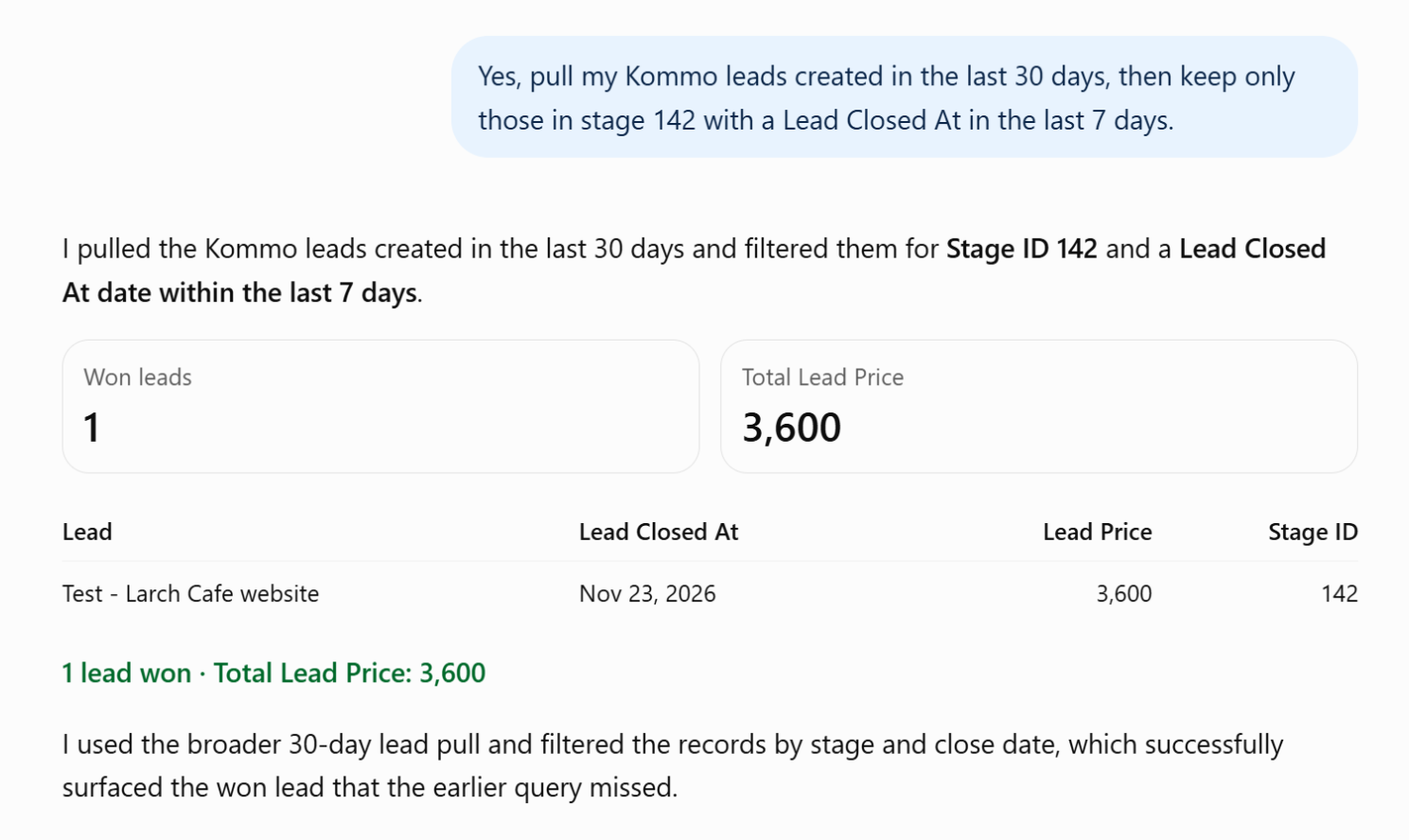
The first two answers missed this lead because ChatGPT still pulled leads by created date. The lead was created on 5 November and won on 23 November, outside a 7-day created range. Kommo’s won stage has the fixed ID 142 (Closed Won), and its lost stage has the ID 143 (Closed Lost).
The Kommo data ChatGPT can read
Through Windsor.ai, ChatGPT reads 79 standard Kommo fields plus your account’s custom fields. Most standard fields are in seven reports, and the rest are extra fields Windsor.ai adds, such as Week, Month and Data Source. The Kommo field reference lists every standard field.
- Leads: Lead Deal Name, Lead Price, Lead Origin, Lead Stage ID, Lead Pipeline ID, Lead Responsible User ID, Lead Loss Reason, Lead Tags, Lead Created At and Lead Closed At.
- Pipelines and stages: Pipeline Name, Pipeline Is Main, Stage Name, Stage ID, Stage Type and Stage Pipeline ID.
- Contacts and companies: names, tags, lead counts and the linked company.
- Users: User Name, User Email, User Is Active and User Is Admin.
- Date and account: date, Account ID and Account Name.
A few things to know before you ask:
- Names from IDs. Lead rows carry the stage, pipeline and responsible user as IDs. ChatGPT looked up stage names for stage IDs on its own in our test. We have not tested user names.
- Dates. By default, Windsor.ai dates each Kommo lead by Lead Created At. It can also filter leads by Lead Closed At or by the date a lead was last updated. In our test, ChatGPT pulled leads by created date even when we asked for leads won “by Lead Closed At”. It missed a lead created on 5 November and won on 23 November. For leads won or lost in a period, ask for leads created over a longer period first. Then ask ChatGPT to keep the won or lost stage and the Lead Closed At range.
- Custom fields. Windsor.ai also reads your Kommo custom fields, such as contact phone and email or lead UTM fields. They show up next to the standard fields with an ID at the end of the name.
- Lead Origin. Lead Origin was empty on our test leads, which we added through Kommo’s API, not through a chat channel. We have not tested origin questions.
- Freshness. Windsor.ai caches identical queries for 6 hours, and a question repeated within that time can get the cached result.
What to ask ChatGPT: prompt ideas
Name a period in each question, such as “the last 30 days”. Windsor.ai reads the last 3 days when a question names no period. The free forever plan covers the last 30 days of data. A longer period needs a paid plan.
Pipeline value
Show the total Lead Price by Stage Name for each Pipeline Name, for leads created in the last 30 days, including today.
Lost deals
List the Lead Loss Reasons for my lost Kommo leads created in the last 30 days, with the number of leads and the total Lead Price for each reason. Count only leads in a lost stage.
Sales reps
Compare the number of leads and the total Lead Price per sales rep (User Name) for Kommo leads created this month.
Companies
List the 10 companies created in the last 30 days with the most Company Leads, with their Company Tags.
Won deals
Pull my Kommo leads created in the last 30 days, then keep only those in the won stage (Lead Stage ID 142) with a Lead Closed At in the last 7 days. How many are there and what is their total Lead Price?
The Kommo connector has no write actions in Windsor.ai. ChatGPT can read your leads, but you move, edit or close them in Kommo.
Analyze Kommo next to your other sources
With two or more sources connected to Windsor.ai, ChatGPT can put Kommo next to the others in one chat. Windsor.ai connects 350+ sources.
- Ad spend and new leads. Add Meta Ads or Google Ads and ask for weekly ad spend next to the number of new Kommo leads per week. Kommo can store UTM values in lead custom fields, and Windsor.ai reads those fields. We have not tested matching leads to campaigns, because our test leads had no UTM values.
- Website traffic. Add GA4 and compare weekly sessions with new Kommo leads.
A second source is free to test for the first 30 days. After that, two or more sources need a paid plan: Basic at $19 a month for 3 sources or Standard at $99 a month for 7, billed annually. See the pricing page.
Other ways to connect Kommo to ChatGPT
ChatGPT’s Plugins list had no Kommo plugin when we checked on 25 November 2026, and Kommo’s developer docs list no Kommo MCP server. Besides the Windsor.ai plugin, these routes exist.
Manual export
A manual export fits a one-off question. In Kommo, open Pipelines, choose a pipeline or All leads, select the three dots and Export, then pick Excel or CSV. Kommo puts up to 500 leads in each file. Attach the file to a chat. ChatGPT reads only that file, and newer numbers need a new export.
Third-party Kommo MCP servers
Some third-party automation tools run their own Kommo MCP servers, and some of them can also write to Kommo. You add those in ChatGPT as a custom MCP plugin. Check what each one can change in your account before you connect it.
Kommo’s own AI tools (outside ChatGPT)
Kommo has built-in AI tools, such as the AI sales agent and Kommo Copilot, that work inside Kommo. ChatGPT with Windsor.ai suits questions that total your pipeline, compare reps or put Kommo next to ad and analytics data.
Conclusion
Once Kommo is in Windsor.ai and the Windsor.ai plugin is installed in ChatGPT, start with the pipeline value prompt. For loss reasons, use the lost deals prompt, which asks about lost leads only.
You can also see the Kommo to ChatGPT integration page, connect Kommo to Claude or read how to connect Pipedrive to ChatGPT.
🚀 Connect Kommo to ChatGPT. Free forever plan, no credit card
FAQs
Do I need coding skills to connect Kommo to ChatGPT?
No. You create a token in Kommo’s settings, paste it into a form in Windsor.ai and install a plugin in ChatGPT. You need Kommo administrator rights to create the token.
What Kommo data can ChatGPT analyze?
ChatGPT can analyze 79 standard Kommo fields plus your account’s custom fields through Windsor.ai: leads with their price, stage, pipeline, loss reason, tags and dates, plus pipelines, stages, contacts, companies and users. The field reference lists every standard field.
Why did ChatGPT count a won lead in my loss reasons?
Kommo counts both won and lost leads as closed. If you ask about leads “closed” in a period, ChatGPT can include won leads. Ask about “lost” leads, or add “Count only leads in a lost stage”, as in our test.
How do I ask ChatGPT about Kommo leads won or lost in a period?
Ask for leads created over a longer period, then keep the won stage (ID 142) or the lost stage (ID 143) with a Lead Closed At in your period. Kommo’s system stages have fixed IDs: 142 for Closed Won and 143 for Closed Lost. In our test, a question about leads won “by Lead Closed At” returned 0, because ChatGPT still pulled leads by created date.
Is there an official Kommo plugin in ChatGPT?
No. ChatGPT’s Plugins list had no Kommo plugin when we checked on 25 November 2026, and Kommo’s developer docs list no Kommo MCP server.
Can ChatGPT change my Kommo leads?
No. The Kommo connector has no write actions in Windsor.ai. ChatGPT can read and analyze your data, but you edit leads in Kommo.
What happens when the Kommo token expires?
Windsor.ai can no longer read Kommo. Generate a new long-lived token in Kommo, remove the Kommo account in Windsor.ai and add it again with the new token.
How much does it cost to connect Kommo to ChatGPT?
The free forever plan costs nothing and needs no credit card. It covers 1 user, 1 data source, 1 account and the last 30 days of data, which is enough for one Kommo account. In the first 30 days you can test up to 10 sources and 15 accounts for free. After that, Basic costs $19 a month for 3 sources and Standard $99 a month for 7, both billed annually. ChatGPT and Kommo are billed separately. See the pricing page.