Destinations
 Data sources
 AI insights
 About us
 Careers
 Security
 Customer reviews
 Contact us
 Affiliate program
 Solution partners
 Template gallery
 Looker Studio templates
 Power BI templates
 Excel templates
 Google Sheets templates
 Tableau templates
 Facebook Ads templates
 Google Ads templates
 Data fields & Metrics
 AI prompt library & Guides
 Product documentation
 API documentation
 Case studies
 Blog
 Data models
 Windsor vs Supermetrics
 Windsor vs Funnel.io
 Windsor vs Fivetran
 Windsor vs Rivery
 Windsor vs Portermetrics
 Windsor vs Coupler.io
 Last updated: 18 November 2026




To connect Microsoft Clarity to ChatGPT, create a Data Export API token in your Clarity project, add it to Windsor.ai, then install the Windsor.ai plugin in ChatGPT. ChatGPT can then answer questions about your Clarity sessions, rage clicks, dead clicks, scroll depth and popular pages in a normal chat. No code is needed.
Clarity’s API returns only the last 1 to 3 days, and each project allows 10 API requests per day. Prompts for ChatGPT work best when they ask about the last 3 days and keep the number of questions small. For longer periods, Windsor.ai can store Clarity data every day in a warehouse or a spreadsheet.
Before you start
- A Windsor.ai account. The free forever plan, no credit card, covers 1 data source and the last 30 days of data.
- Admin access to a Microsoft Clarity project. Only a project admin can create the API token.
- A ChatGPT account. The Windsor.ai plugin works on ChatGPT’s Free plan.
Step 1: Create a Clarity API token
- In Microsoft Clarity, open the project you want ChatGPT to read.
- Go to Settings, then Data Export.
- Click Generate new API token, give it a name and copy the token.
Keep the token private. Microsoft recommends replacing the token when a person with access leaves the project.
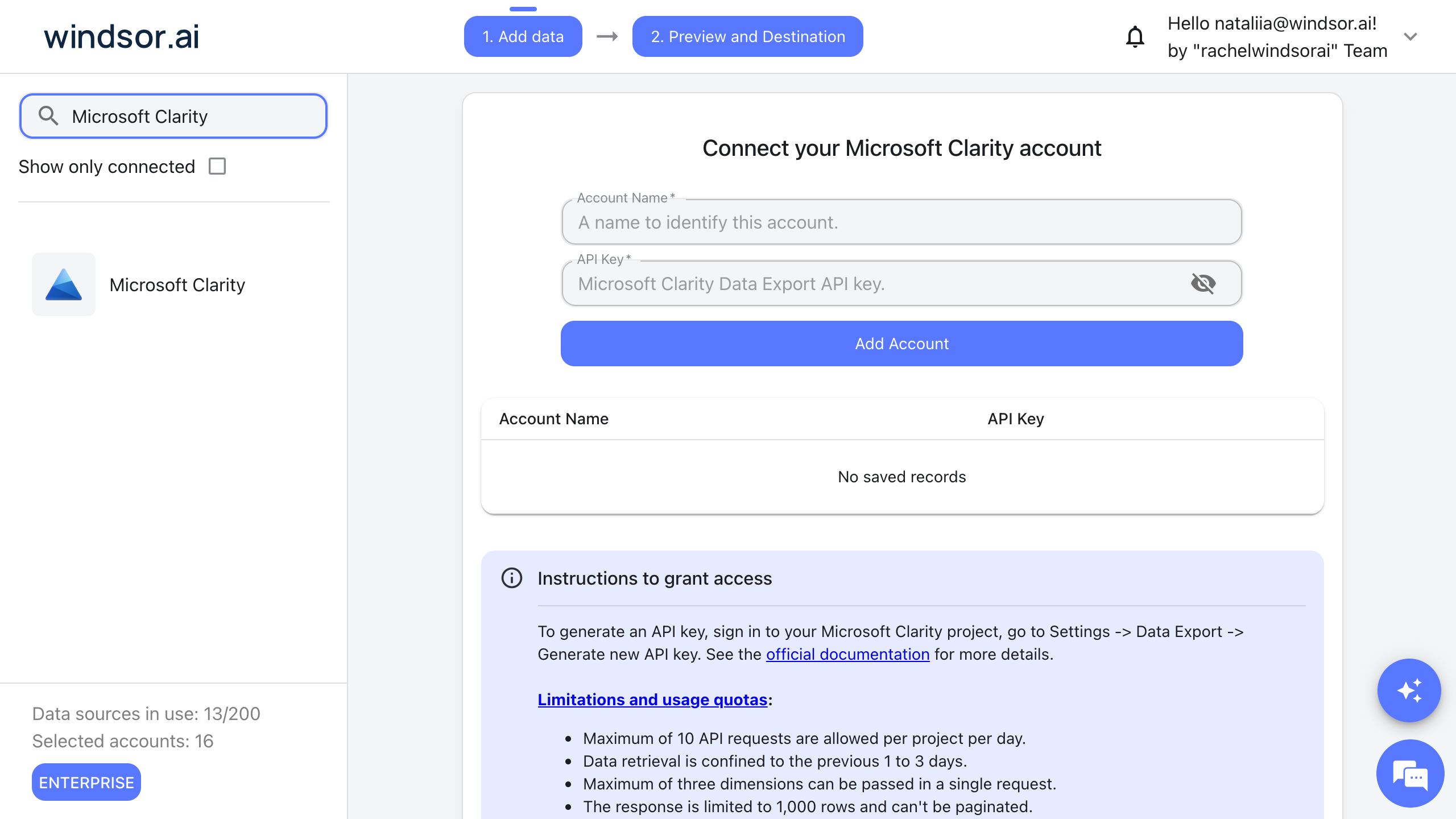
Step 2: Connect Clarity in Windsor.ai
- Open onboard.windsor.ai/app/microsoft_clarity and sign in to Windsor.ai, or create a free account.
- Under Account Name, enter a name for the project (for example, your site name), and paste the Clarity API token under API Key.
- Click Add Account.
Step 3: Add the Windsor.ai plugin in ChatGPT
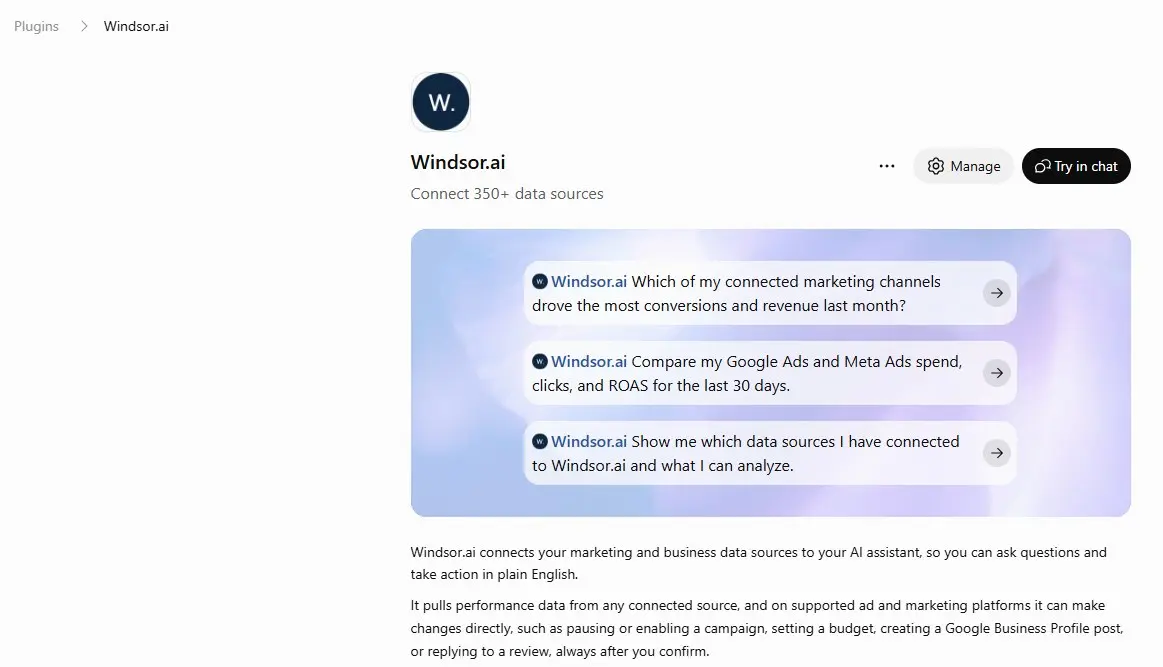
Open the Windsor.ai plugin page in ChatGPT and click Install plugin. Sign in to Windsor.ai and approve the access when ChatGPT asks. Once it is connected, the page shows Manage and Try in chat.
Step 4: Check the connection
In a new chat, click + and choose Windsor.ai, or type @Windsor.ai. Then ask:
Which Microsoft Clarity accounts are connected to my Windsor.ai account? For the last 3 days, show total sessions, distinct users and rage click sessions.
If ChatGPT lists your project and returns numbers, the setup is done. This first question uses one of the project’s 10 daily API requests.
The limits that shape every Clarity question
Microsoft sets these limits on the Clarity Data Export API that the Windsor.ai connector uses (Microsoft Learn: Clarity Data Export API):
- The last 1, 2 or 3 days only. A request covers the 24, 48 or 72 hours before it runs. Clarity cannot return last week or last month in one request.
- 10 API requests per project per day. After the tenth, Clarity returns an error until the next day.
- Up to three dimensions per request, such as device, country and URL.
- Up to 1,000 rows per response, with no paging.
When ChatGPT asks for more than 3 days, Windsor.ai returns an error and no rows. Ask for the last 3 days instead. Windsor.ai can return cached data for an identical query repeated within 6 hours, which also saves requests. Our guide to the Clarity “last 1 to 3 days” error explains how to keep more than 3 days of data with a daily export to BigQuery or Google Sheets.
What ChatGPT can read from Clarity
The Microsoft Clarity connector returns 70 fields. These are the ones most questions use. The full list is on the Microsoft Clarity fields page.
- Traffic: total_session_count, distinct_user_count, total_bot_session_count and pages_per_session_percentage.
- Engagement: active_time, total_time and average_scroll_depth.
- Frustration signals: rage clicks, dead clicks, error clicks, quick back clicks, excessive scrolling and script errors. For each one the connector returns the number of sessions and the percentage of sessions where it happened.
- Pages: url, pagetitle and referrer_url for popular pages.
- Breakdowns: device, browser, os, country, channel, source, medium and campaign.
The Microsoft Clarity connector is read only. ChatGPT cannot change your Clarity project through it. The current actions for every connector are in the Windsor.ai write actions list.
Clarity’s session recordings and heatmaps are not part of the Data Export API. ChatGPT gets the numbers only. Open the recordings in Clarity for the pages ChatGPT flags.
What to ask ChatGPT
Each prompt below uses one API request. Put the breakdown you want in the same question rather than asking several short ones.
Find the pages that frustrate visitors
For the last 3 days, break down Microsoft Clarity rage click sessions and dead click sessions by URL. List the 10 URLs with the highest share of sessions with a rage click.
Compare devices
For the last 3 days, compare mobile and desktop in Clarity: sessions, average scroll depth, active time and the share of sessions with a quick back click.
Check traffic quality
For the last 3 days, show Clarity sessions and bot sessions by channel and source. Which sources bring the most bot sessions?
Find script errors
For the last 3 days, list the URLs with the highest share of sessions with a script error, with the browser for each.
Combine Clarity with your other data
With more sources connected, ChatGPT can put Clarity next to traffic and conversion data for the same days:
- Clarity and GA4: compare rage click sessions on a landing page with its GA4 conversions in GA4 in ChatGPT.
- Clarity and Google Ads: check scroll depth and quick back clicks on the pages your Google Ads campaigns send people to.
- Clarity and Search Console: compare frustration signals on the pages that get the most organic clicks in Search Console in ChatGPT.
Ask for Clarity separately for the last 3 days when a question covers several sources over a longer period. Using more than one source needs a paid plan, from $19/month for 3 sources or $99/month for 7.
If something does not work
- “Microsoft Clarity API only supports the last 1 to 3 days”: the question asked for more than 3 days. Ask for the last 3 days.
- Daily limit error: the project has used its 10 requests for the day. Wait until the next day, or repeat a question asked within the last 6 hours, which Windsor.ai can answer from cache.
- Token error: the token was removed or the person who made it lost admin access. Create a new token in Clarity and update it in Windsor.ai.
- ChatGPT answers without your data: make sure Windsor.ai is selected in the chat (click + and choose Windsor.ai, or type @Windsor.ai).
Other ways to use Clarity data with AI
- Copilot in Clarity: Clarity has its own chat inside the dashboard. Open a project and select the Copilot icon at the top right (Microsoft Clarity blog). It answers about that project in Clarity, without your other sources.
- The Clarity MCP server: Microsoft publishes an MCP server for Claude Desktop, Cursor and other MCP clients (Microsoft Clarity blog). It runs on your computer with Node.js and uses the same API token and the same daily limits.
The Windsor.ai plugin installs from the ChatGPT plugin directory with no server to run. It also puts Clarity next to the other sources you connect.
FAQs
Can ChatGPT get a week or a month of Clarity data?
No, not in one request. Clarity’s API returns the last 1 to 3 days. To report on longer periods, store Clarity data every day with a Windsor.ai export to BigQuery or Google Sheets.
Can ChatGPT watch Clarity session recordings or see heatmaps?
No. The Data Export API returns numbers, such as sessions, scroll depth and rage clicks, not recordings or heatmaps.
How many questions can I ask about Clarity per day?
Clarity allows 10 API requests per project per day. Each new Clarity question in ChatGPT uses one, and an identical question repeated within 6 hours can be answered from Windsor.ai’s cache.
Can ChatGPT change my Clarity settings?
No. The Microsoft Clarity connector is read only.
Can I connect more than one Clarity project?
Yes. Add one API token per project in Windsor.ai. More than one account needs a paid plan, because the free forever plan includes 1 account.
How much does it cost?
Windsor.ai has a free forever plan, no credit card: 1 user, 1 data source, 1 account and the last 30 days of data. Paid plans start at $19/month for 3 sources (Basic) and $99/month for 7 (Standard), billed annually. See the pricing page. Clarity itself is free.