 Destinations
 Data sources
 AI insights
 About us
 Careers
 Security
 Customer reviews
 Contact us
 Affiliate program
 Solution partners
 Template gallery
 Looker Studio templates
 Power BI templates
 Excel templates
 Google Sheets templates
 Tableau templates
 Facebook Ads templates
 Google Ads templates
 Data fields & Metrics
 AI prompt library & Guides
 Product documentation
 API documentation
 Case studies
 Blog
 Data models
 Windsor vs Supermetrics
 Windsor vs Funnel.io
 Windsor vs Fivetran
 Windsor vs Rivery
 Windsor vs Portermetrics
 Windsor vs Coupler.io
 Last updated: 26 November 2026





To connect SurveyMonkey to ChatGPT, register an app in the SurveyMonkey developer portal, add its credentials to Windsor.ai, then install the Windsor.ai plugin in ChatGPT. Setup needs no code. A new SurveyMonkey app works for 90 days, and keeping it longer needs a SurveyMonkey Enterprise plan.
Once it is set up, ChatGPT can list your surveys and compare response counts without a CSV export. You can also ask it about your collectors, which our test did not cover.
We tried the setup on 26 Nov 2026 with a free SurveyMonkey account. Windsor.ai returned the one survey the account held when we pulled it, with 20 responses and 4 questions. Two pulls from the responses table failed.
2 steps to connect SurveyMonkey to ChatGPT
Connecting SurveyMonkey to ChatGPT takes two steps. The video and Windsor.ai’s guide to integrating data into ChatGPT show the ChatGPT side.
Prerequisites
- A Windsor.ai account. The free forever plan needs no credit card. Paid plans start at $19 a month, billed annually.
- A SurveyMonkey account, which you also use to sign in to the SurveyMonkey developer portal. To keep the connection past 90 days, you need a SurveyMonkey Enterprise plan, which includes direct API access.
- A ChatGPT account. On ChatGPT Enterprise or Edu, a workspace admin usually has to switch the Windsor.ai plugin on before members can use it (OpenAI’s admin guide to plugins).
Step 1. Add your SurveyMonkey app credentials to Windsor.ai
- In the SurveyMonkey developer portal, select My Apps, then Add a New App.
- Enter an App Nickname and your email as App Creator, choose Private App and select Create App.
- On the app’s Settings page, under Scopes, set View Surveys, View Collectors, View Responses and View Response Details, then select Update Scopes.
- Under Credentials, copy the Client ID, Secret and Access Token.
- Open the SurveyMonkey page in Windsor.ai and paste this into SurveyMonkey Authorization Method, with your own values:
{"auth_method": "oauth2.0", "access_token": "...", "client_id": "...", "client_secret": "..."}
- Select Add Account, then Next.

A draft app works for 90 days and only on your own SurveyMonkey account. After that, SurveyMonkey disables it unless you deploy it, which needs an Enterprise plan.
If you skip the scopes in step 3, Windsor.ai returns “The following scopes have not been granted: View your surveys and those shared with you”.
Step 2. Install the Windsor.ai plugin in ChatGPT
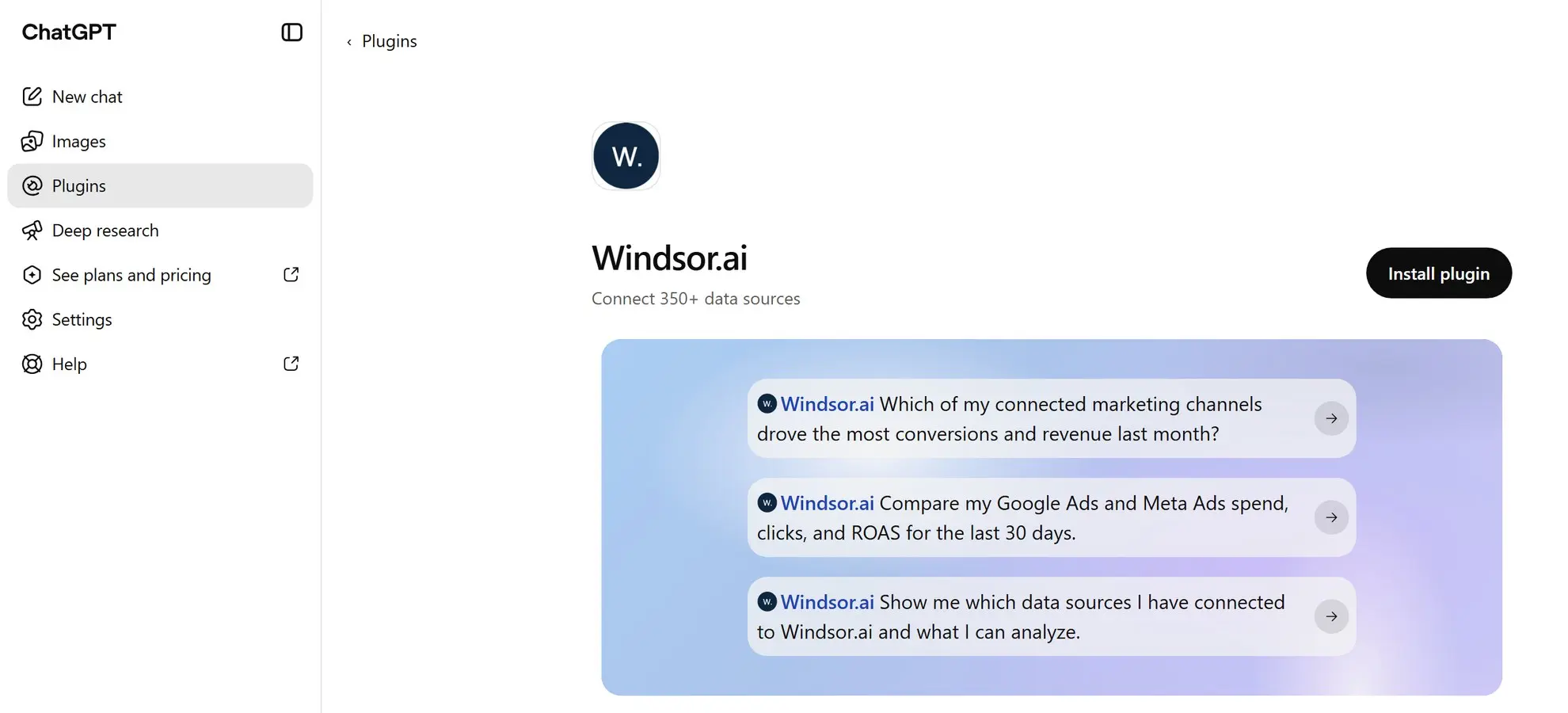
In ChatGPT, select Plugins in the sidebar, search for Windsor.ai and select Install plugin. You can also open the Windsor.ai plugin page.
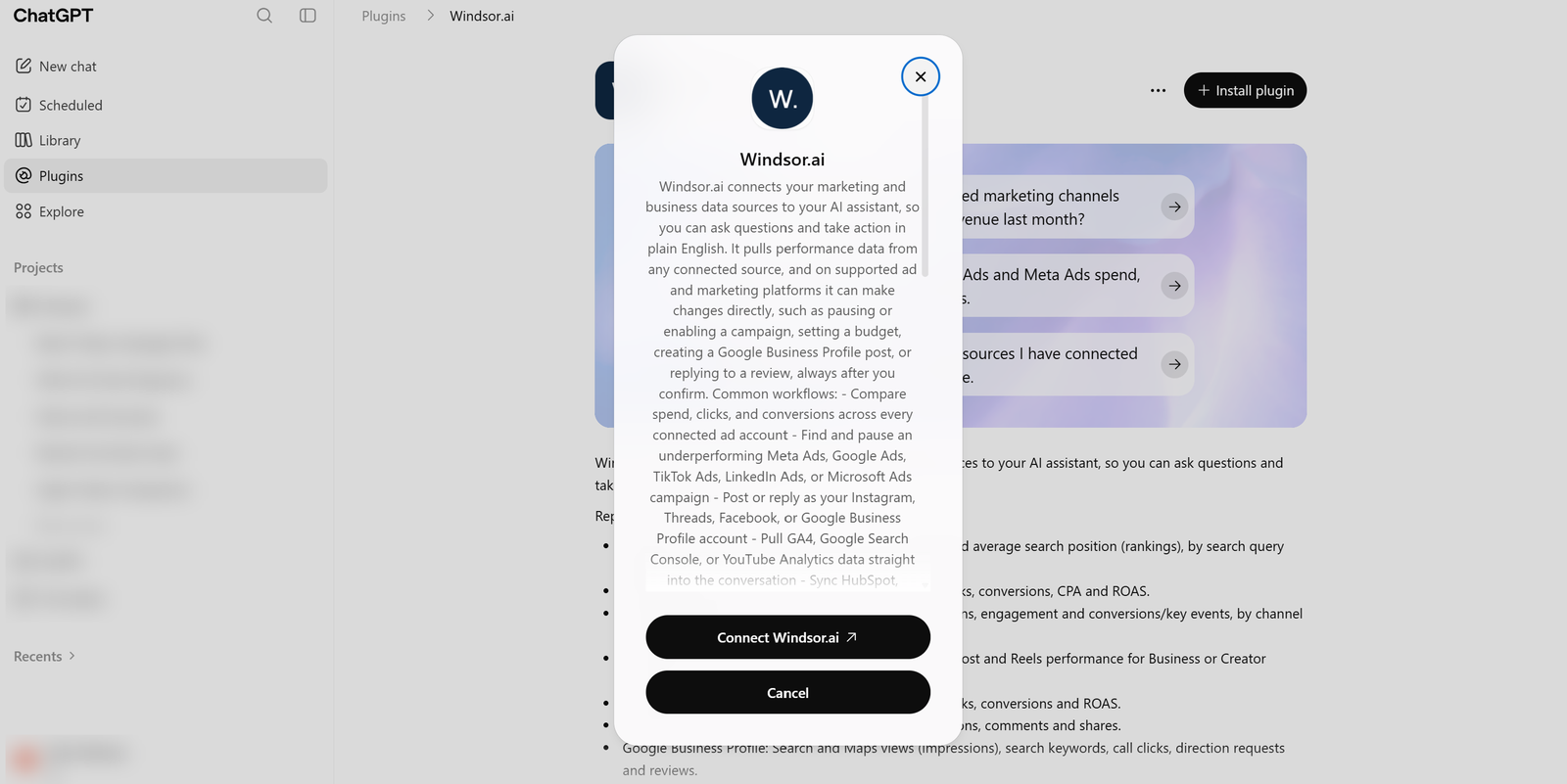
Then select Connect Windsor.ai, sign in to Windsor.ai and select Back to ChatGPT.
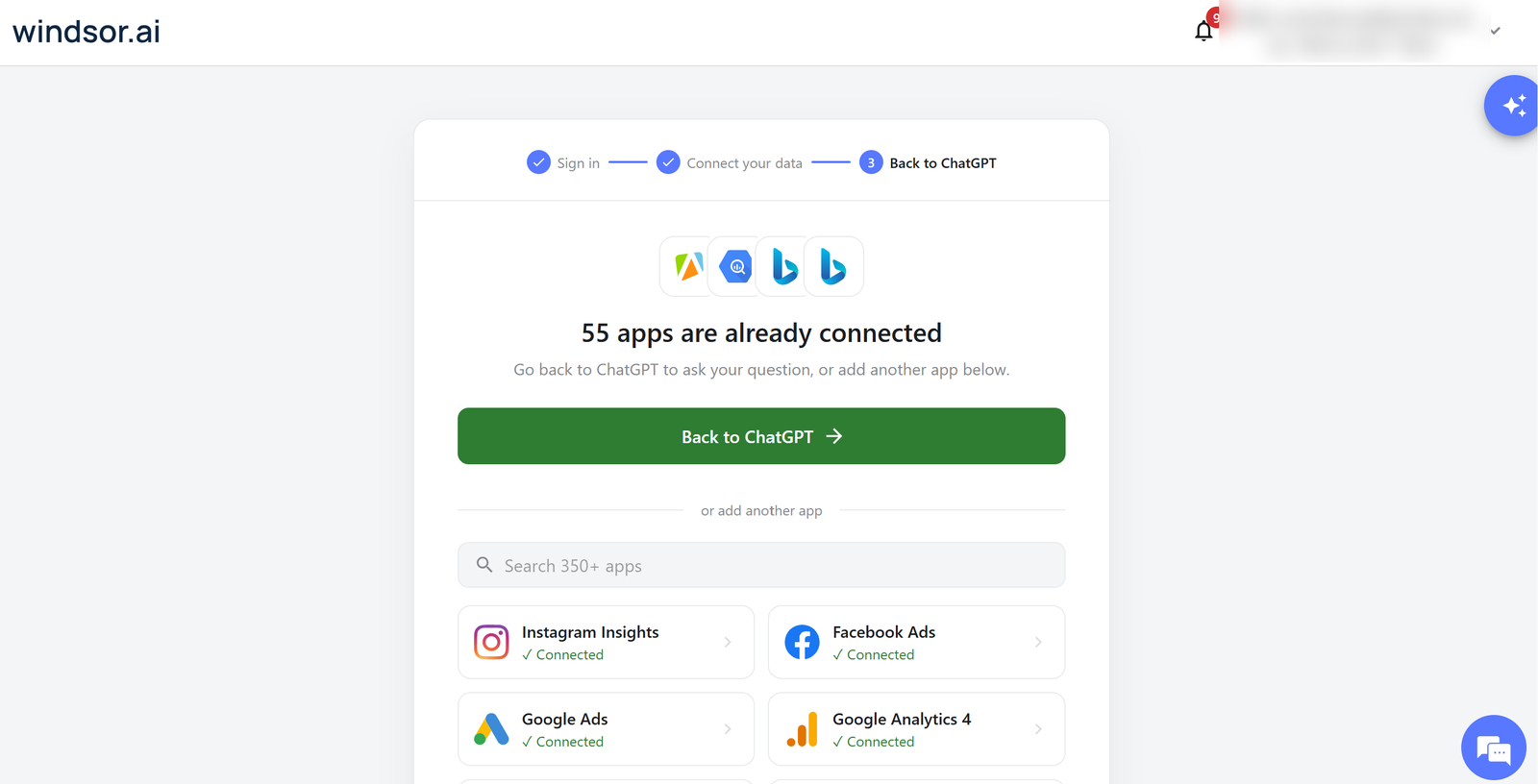
In a new chat, pick Windsor.ai from the + menu or type @Windsor.ai, then check the connection:
List the data sources connected to my Windsor.ai account. Do you see SurveyMonkey there?
When SurveyMonkey appears in the list, you can ask about your surveys.
The SurveyMonkey data ChatGPT can read
Through Windsor.ai, ChatGPT can query 97 SurveyMonkey fields. Every field is in the SurveyMonkey field reference.
- Surveys: title, category, language, response count, question count, page count, and when each survey was created and last modified.
- Pages and questions: page titles and positions, and each question’s family, subtype and whether it is required.
- Collectors: collector name, type (such as weblink or email), status, response limit, close date and redirect URL.
- Responses: response status (completed, partial, disqualified or over quota), the collector each response came from, total time, page path, collection mode and custom variables. In our test on a free SurveyMonkey account, both pulls from the responses table failed.
- Universal fields: data source and the time the data was fetched.

Example ChatGPT answer from a different SurveyMonkey account, built from survey-level fields (response, page and question counts).
A few things to know before you ask:
- Response details on a free plan. SurveyMonkey’s API gives free (Basic) accounts the details of up to 25 responses per survey, and paid plans have no limit.
- Custom variables. These are a paid SurveyMonkey feature and work with Web Link collectors only.
- Read-only. ChatGPT can’t create or edit surveys through Windsor.ai. See the list of write actions.
- Freshness. Windsor.ai fetches the data when ChatGPT asks and reuses a result for up to 6 hours if the same query repeats.
What we found in our test
On 26 Nov 2026 we connected a free SurveyMonkey account with a draft app. The account held one test survey during all our pulls.
- Survey list: worked. Windsor.ai returned that survey with its response count (20) and question count (4).
- Responses: failed. Both pulls from the responses table (status, page path, completion time) failed with “Failed to authorize request. Please update your access token”. The survey had 20 responses, under the 25 response details per survey that SurveyMonkey’s API allows free (Basic) accounts, so that limit does not explain the error.
- Account status after each failure. The SurveyMonkey account showed as inactive in Windsor.ai after each failed responses pull. Adding it again with a new token brought back the survey list until the next responses pull.
We do not know what caused the failures. Until the cause is known, the survey list is the part to rely on.
What to ask ChatGPT: prompt ideas
Name a period in each response question, such as “the last 30 days”. The free forever plan covers the last 30 days of data, and a longer period needs a paid Windsor.ai plan.
Surveys and collectors
List my SurveyMonkey surveys with their response count, question count and last modified date, newest first.
Which of my SurveyMonkey collectors are still open? Show the survey each one belongs to, its type and its close date.
Compare page count and question count across my SurveyMonkey surveys, grouped by language.
We have not tested the collector prompt.
Responses
Break down response status (completed, partial, disqualified, over quota) by collector for the last 30 days.
Which page did partial responses from the last 30 days stop on most often, and how many questions does that page have?
Compare the median completion time of my surveys in the last 30 days with their number of questions.
We could not test these three prompts because both pulls from the responses table failed on our free SurveyMonkey account.
Analyze SurveyMonkey next to your other sources
Add a second source from the 375+ that Windsor.ai connects, and ChatGPT can put SurveyMonkey next to it in one chat.
- CRM. Add HubSpot and list your surveys by created date next to the HubSpot contacts created in the same weeks.
- Other forms. Add Gravity Forms to compare each survey’s response count with the number of entries per Gravity Forms form.
- Support. Add Intercom to compare the surveys you created or changed in a month with the Intercom conversations opened in that month.
A second source is free to test for the first 30 days. After that, two or more sources need a paid plan: Basic at $19 a month for 3 sources or Standard at $99 a month for 7, billed annually. See the pricing page.
Other ways to connect SurveyMonkey to ChatGPT
SurveyMonkey’s own ChatGPT plugin
SurveyMonkey launched its own plugin in ChatGPT on 12 Aug 2026. According to SurveyMonkey’s help article, it can find, create and edit surveys, make a shareable link and summarize results, on ChatGPT Plus, Teams or Enterprise. To edit a live survey, you sign in to SurveyMonkey.
Use SurveyMonkey’s plugin to build, edit and share a link to surveys from a chat. Windsor.ai is read-only for SurveyMonkey (see the list of write actions) and puts it next to HubSpot, GA4 or ad platform data from the 375+ sources Windsor.ai connects.
Manual export
A manual export fits a one-off question. On a paid SurveyMonkey plan, export your results from the Analyze results page and attach the file to a chat. ChatGPT reads only the attached file, and newer responses need a new export.
Conclusion
Once your SurveyMonkey app credentials are in Windsor.ai and the Windsor.ai plugin is installed in ChatGPT, start with the prompt that lists your surveys.
You can also see the SurveyMonkey to ChatGPT integration page, connect SurveyMonkey to Claude or read how to connect Google Sheets to ChatGPT.
🚀 Connect SurveyMonkey to ChatGPT. Free forever plan, no credit card
FAQs
Do I need coding skills to connect SurveyMonkey to ChatGPT?
No. You fill in a form in the SurveyMonkey developer portal, paste one line of JSON into Windsor.ai and install a plugin in ChatGPT.
Do I need a paid SurveyMonkey plan?
Yes, to keep the connection past 90 days. A new SurveyMonkey app works for 90 days as a draft, and deploying it needs a SurveyMonkey Enterprise plan with direct API access. On a free plan, SurveyMonkey’s API gives the details of up to 25 responses per survey.
What SurveyMonkey data can ChatGPT analyze?
ChatGPT can query 97 SurveyMonkey fields through Windsor.ai: surveys, pages, questions, collectors and responses. Both pulls from the responses table failed in our test on a free SurveyMonkey account. See the SurveyMonkey field reference for the full list.
Why does Windsor.ai say a SurveyMonkey scope has not been granted?
Your SurveyMonkey app is missing a scope Windsor.ai needs. On the app’s Settings page, set View Surveys, View Collectors, View Responses and View Response Details, then select Update Scopes.
Can ChatGPT edit my SurveyMonkey surveys through Windsor.ai?
No. The SurveyMonkey connection in Windsor.ai is read-only (see the list of write actions). SurveyMonkey’s own ChatGPT plugin can create and edit surveys.
Does SurveyMonkey have its own ChatGPT plugin?
Yes. SurveyMonkey launched it on 12 Aug 2026. It finds, creates and edits surveys, shares links and summarizes results, and SurveyMonkey says it can combine past surveys with external data. The Windsor.ai plugin puts SurveyMonkey next to HubSpot, GA4 or ad platform data from your other Windsor.ai sources in the same chat.
How much does it cost to connect SurveyMonkey to ChatGPT with Windsor.ai?
Windsor.ai has a free forever plan with no credit card. For the first 30 days you can connect up to 10 sources, and after that the free forever plan covers 1 source. Paid plans start at $19 a month for 3 sources, and Standard is $99 a month for 7, billed annually. See the pricing page.


