 Destinations
 Data sources
 AI insights
 About us
 Careers
 Security
 Customer reviews
 Contact us
 Affiliate program
 Solution partners
 Template gallery
 Looker Studio templates
 Power BI templates
 Excel templates
 Google Sheets templates
 Tableau templates
 Facebook Ads templates
 Google Ads templates
 Data fields & Metrics
 AI prompt library & Guides
 Product documentation
 API documentation
 Case studies
 Blog
Blog Data models
 Windsor vs Supermetrics
 Windsor vs Funnel.io
 Windsor vs Fivetran
 Windsor vs Rivery
 Windsor vs Portermetrics
 Windsor vs Coupler.io
 Last updated: 31 August 2026




The fastest way to connect Trello to ChatGPT is to install Windsor.ai’s native ChatGPT app: link your Trello account to Windsor once, then add the Windsor.ai app inside ChatGPT so it can read your boards, cards, and due dates directly in the chat, no code required.
The alternative is opening Trello board by board, scrolling through lists to see what’s overdue or unassigned, then typing that status into an update by hand. That works for a single board, but it breaks down once you’re tracking several boards or reporting to people who don’t have Trello open. Connecting Trello to Windsor keeps your card and board data live and queryable in ChatGPT instead.
2 steps to connect Trello to ChatGPT
Takes under a minute, no code or manual CSV work required.
See the full walkthrough in the Windsor.ai documentation.
Prerequisites
- A Windsor.ai account (free forever plan, no credit card, or paid from $19/month)
- A Trello account with at least one active board
- A ChatGPT account that can install apps or connectors
Step 1. Connect Trello to Windsor.ai
Start on the Windsor.ai side:
- Create a free Windsor.ai account, or log in if you already have one
- Go to onboard.windsor.ai/app/trello and select Trello
- Authorize Windsor to access your Trello account
- Repeat the process to connect additional Trello accounts or workspaces if you manage more than one
Step 2. Connect the Windsor.ai app in ChatGPT
Now install the native app inside ChatGPT:
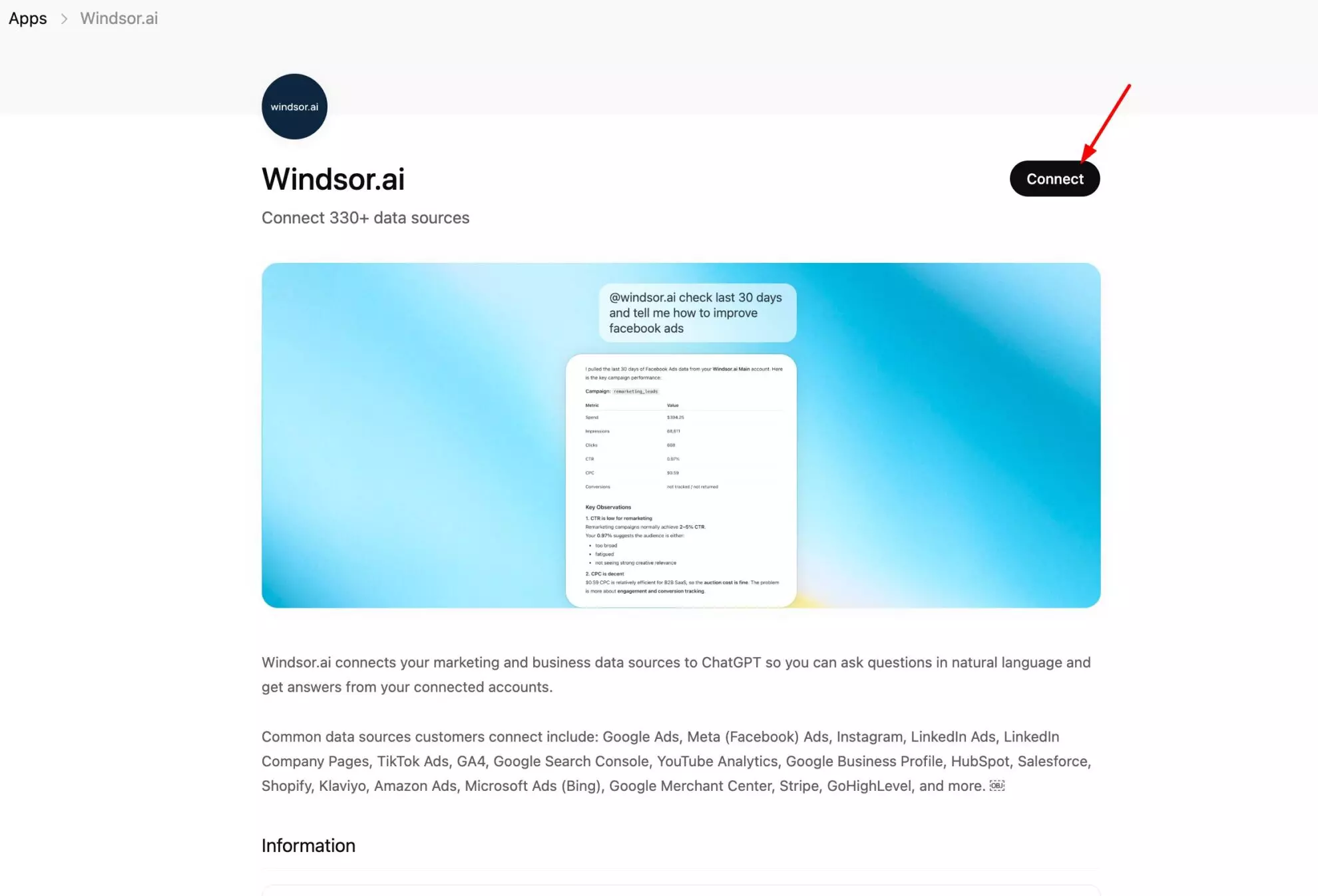
- Open ChatGPT and go to Settings > Connectors (or Apps)
- Search for “Windsor.ai” and install it
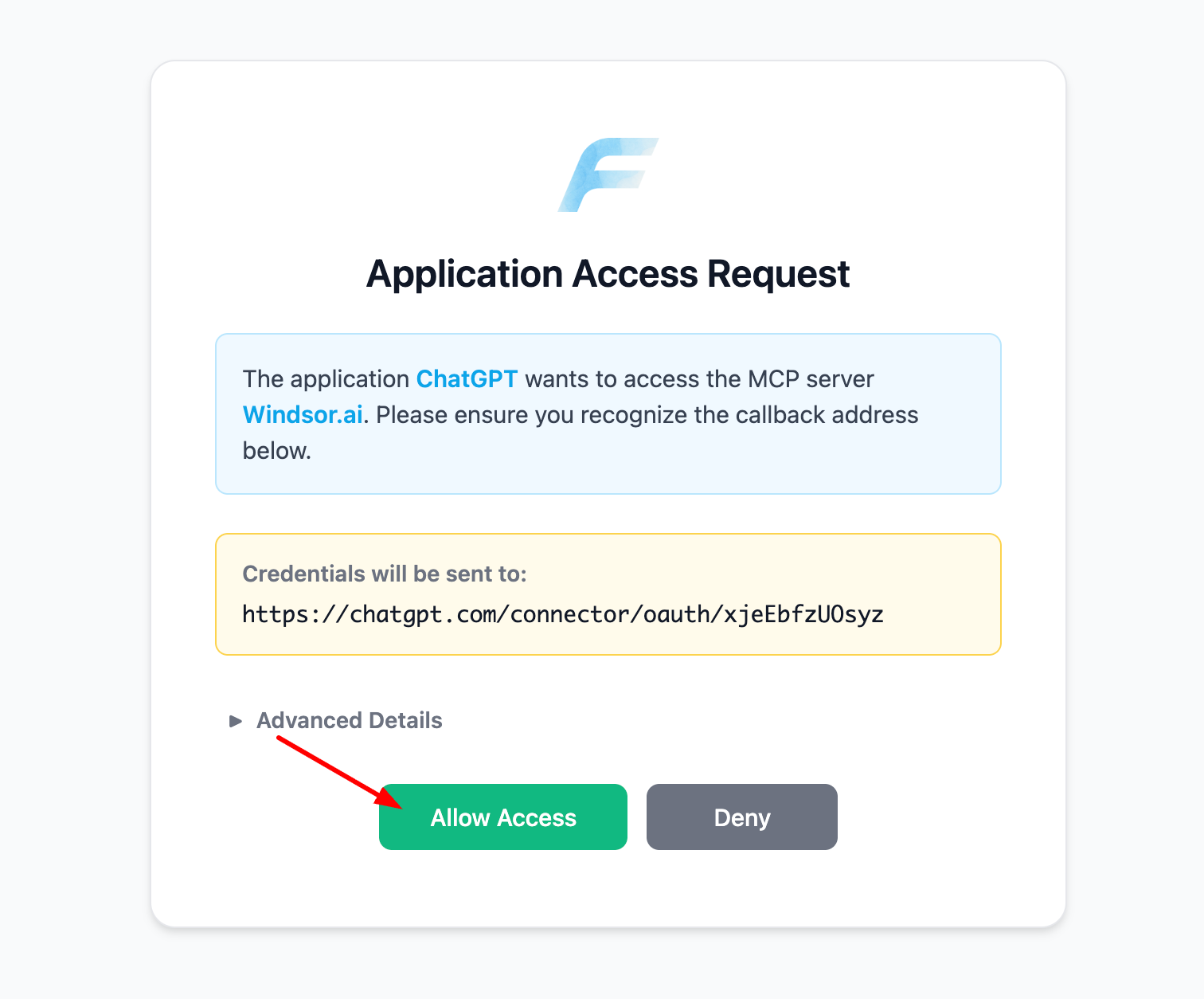
- Allow Windsor.ai access when prompted
- Confirm the app appears in your connected apps list
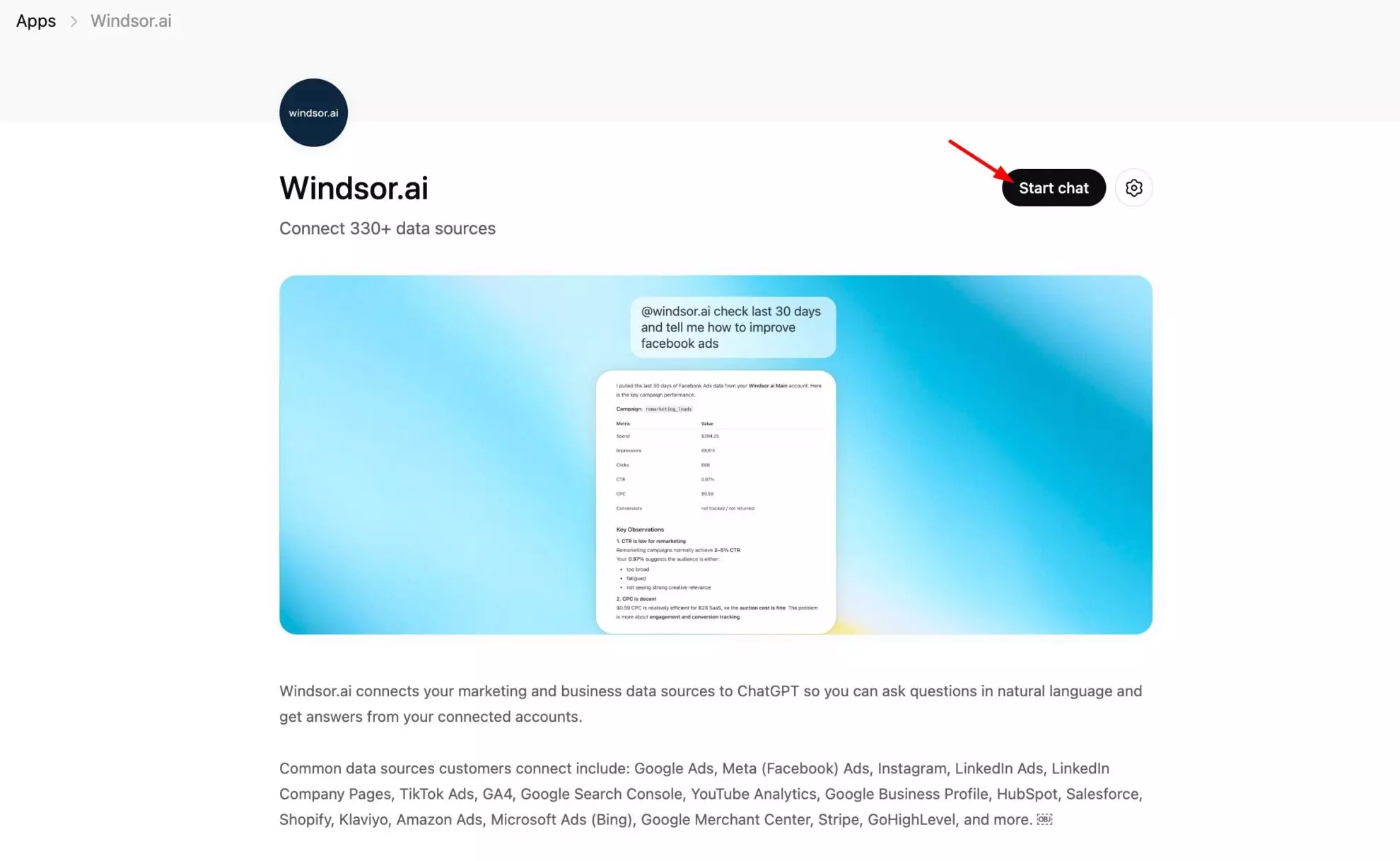
Confirm the connection is live by asking ChatGPT:
List the data sources connected to my Windsor account. Do you see Trello there?If Trello shows up, you’re ready to query your board and card data in plain English.
The metrics that matter for Trello
| Metric | What it tells you |
|---|---|
| Card Name | The title of an individual task or work item, the first thing you scan to know what a card is about. |
| List Name | The column a card sits in, such as “To Do,” “In Progress,” or “Done,” showing what stage of work it’s at. |
| Board Name | Which project or team board a card belongs to, useful once you’re tracking more than one board. |
| Due Date | The deadline set on a card, the basis for spotting what’s coming up or already overdue. |
| Due Complete | Whether the due date item has been checked off, so you can separate finished work from open items that missed their date. |
| Card Closed | Whether a card has been archived, letting you filter old or abandoned work out of what’s actually active. |
| Card Members | The Trello members assigned to a card, the quickest way to see who owns what and spot workload imbalances. |
| Card Labels | The colored tags applied to a card, commonly used for priority, task type, or category. |
| Last Activity Date | When a card was last updated, a simple way to flag cards that have gone stale. |
| Action Type | The kind of activity logged against a card or board, such as a comment or a move between lists, giving you an audit trail of what happened and when. |
| Organization Member Count | The total number of people in a Trello workspace, a quick read on team size. |
What to ask ChatGPT: prompt ideas
Board and card status
Summarize every card on my Marketing board by list, and tell me which ones look stuck in the same stage for too long.
List every card that's been closed or archived across my boards this month.
Deadlines and overdue tracking
Show me every card with a due date in the next 7 days that isn't marked complete.
List overdue cards across all my boards, sorted by how many days late they are.
Team workload
Break down open cards by assigned member across my boards so I can see who's carrying the most work.
The Trello connection through Windsor is read-only. ChatGPT can analyze your boards, cards, and activity, but it can’t create, move, or edit anything inside Trello itself.
Other ways to connect Trello to ChatGPT
Manual CSV export
You can export a Trello board’s data (as JSON from the board menu, or as CSV using a Power-Up) and upload it to ChatGPT for a one-off analysis. It works, but it’s a static snapshot: every time you want an updated view you have to re-export and re-upload the file by hand.
Zapier or Make
Zapier or Make can move Trello card and board data into a spreadsheet or database on a schedule. That’s a reasonable automated workflow, but it still needs to be built and maintained separately, and it doesn’t give ChatGPT a live, queryable connection to Trello the way the native Windsor.ai app does.
Neither approach gives you the same live view as connecting Trello to Windsor directly.
Conclusion
Connecting Trello to ChatGPT through Windsor.ai takes two steps: link your Trello account to Windsor, then install the Windsor.ai app in ChatGPT. From there you can ask plain-language questions about your boards, cards, and due dates, and see what’s overdue or stuck without opening Trello itself.
🚀 Ready to connect Trello to ChatGPT? Connect your Trello account to Windsor.ai and start querying your boards in minutes.
FAQs
What's the fastest way to connect Trello to ChatGPT?
The native Windsor.ai app is the fastest way. It takes under a minute, connects Trello natively, and doesn’t require exporting or uploading any files.
Do I need any coding or technical setup?
No. Connecting Trello to ChatGPT through Windsor.ai is a no-code process: authorize the Trello connection, then install the app in ChatGPT.
Can ChatGPT actually analyze my Trello boards?
Yes. Once connected, you can ask ChatGPT plain-language questions about your boards, lists, cards, due dates, members, and labels, and it will pull the live data through Windsor.
Can I connect multiple Trello accounts or workspaces?
Yes. You can connect multiple Trello accounts to Windsor.ai, which is useful if you manage boards across more than one workspace or for multiple clients and want to see them all from the same ChatGPT conversation.
Which Trello fields are available in Windsor?
Windsor returns Trello fields including card name, description, due date, due complete status, closed status, list, board, assigned members, and labels, along with board and list details and organization member counts.
How much does it cost to connect Trello to Windsor.ai?
Windsor.ai has a free forever plan with no credit card required, which covers connecting Trello to ChatGPT. Paid plans start from $19/month for higher usage needs.
Is this better than exporting Trello data manually?
A manual export is a static snapshot that goes out of date the moment a card moves or a due date changes. Connecting Trello to Windsor keeps the data live, so ChatGPT is always working from current boards instead of a one-time file.
Can I combine Trello with data from my other tools?
Yes. Windsor connects to 350+ data sources, so you can blend Trello alongside tools like Google Sheets or your CRM in the same ChatGPT conversation for a single, cross-tool view of your projects instead of checking each tool separately.
Is the connection secure, and can ChatGPT change anything in my Trello account?
The Trello connection through Windsor is read-only. ChatGPT can analyze your boards, cards, and activity, but it cannot create, move, or edit anything inside Trello.


