Destinations
 Data sources
 AI insights
 About us
 Careers
 Security
 Customer reviews
 Contact us
 Affiliate program
 Solution partners
 Template gallery
 Looker Studio templates
 Power BI templates
 Excel templates
 Google Sheets templates
 Tableau templates
 Facebook Ads templates
 Google Ads templates
 Data fields & Metrics
 AI prompt library & Guides
 Product documentation
 API documentation
 Case studies
 Blog
 Data models
 Windsor vs Supermetrics
 Windsor vs Funnel.io
 Windsor vs Fivetran
 Windsor vs Rivery
 Windsor vs Portermetrics
 Windsor vs Coupler.io
 Last updated: 23 November 2026




To connect Trello to Claude, add your Trello API key and API token to Windsor.ai, then connect Windsor.ai in Claude. Claude can then read your boards, lists, cards, checklists, members and card activity. Ask it in plain English, for example which cards are overdue.
The connection is read-only. Claude reports on your boards but can’t create, move or comment on cards through Windsor.ai (Trello has no write actions in Windsor.ai, checked on 23 November 2026).
Windsor.ai or the Trello MCP server
Trello runs its own MCP server at mcp.trello.com. You connect it with OAuth and grant access per Workspace. Use it when you want Claude to work inside Trello.
Use Windsor.ai when you want Trello in the same Claude chat as your other data, such as GA4 traffic or HubSpot deals, through one connector.
Before you start
- A Trello API key and API token. The Help section of the Windsor.ai Trello form links Trello’s guide to creating both.
- A Windsor.ai account. Windsor.ai has a free forever plan with 1 data source and the last 30 days of data. Paid plans start at $19/month for 3 sources, billed annually (pricing).
- A Claude account that can add connectors. In a Claude Team or Enterprise workspace, your admin may limit which connectors you can add.
Step 1. Add Trello to Windsor.ai
- Go to onboard.windsor.ai/app/trello and sign in or create a Windsor.ai account.
- Enter your API key and API token.
- Click Add Account. The account then appears in the table under the form.
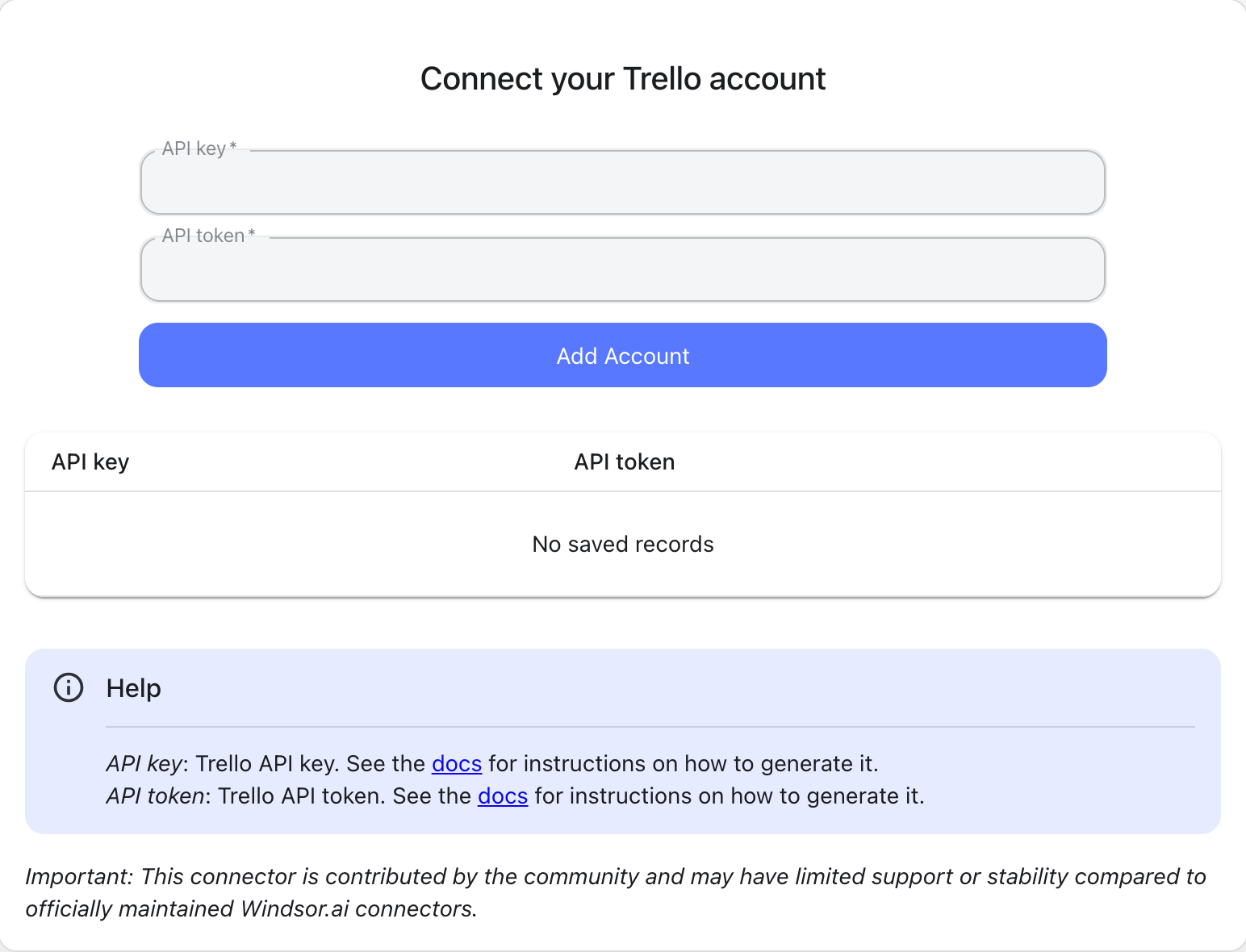
Enter the API token in the Windsor.ai form only. Never paste it into a Claude chat.
Step 2. Connect Windsor.ai in Claude
- In Claude, open Customize in the sidebar, then Connectors, or open the Windsor.ai listing in the Claude directory.
- Search for Windsor.ai and click Connect.
- Sign in to Windsor.ai with the account you added Trello to.
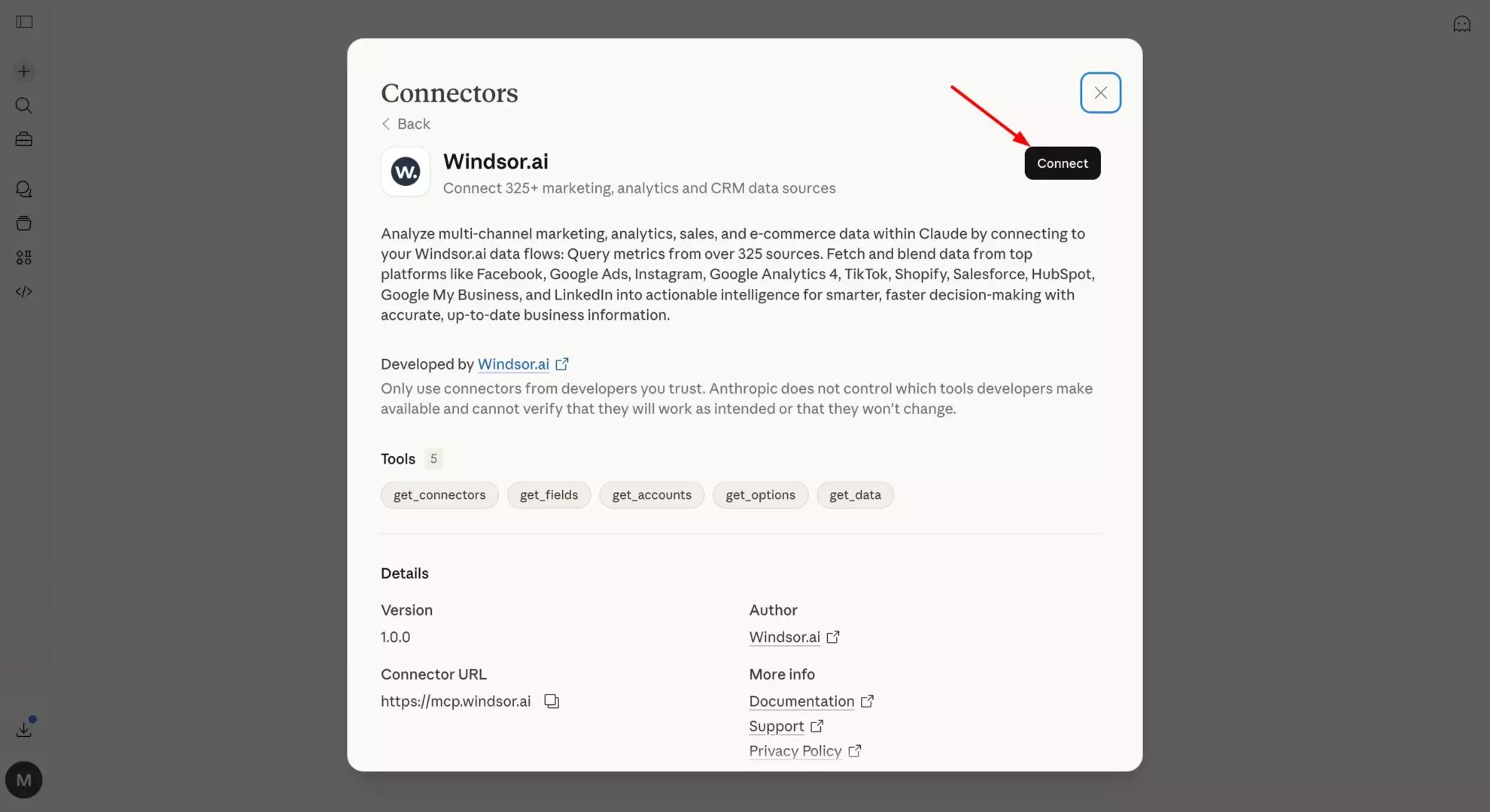
The Windsor.ai Claude setup guide shows each setup screen.
Test it: find overdue cards in Claude
On 23 November 2026 we asked Claude, in a new chat, about our own Windsor.ai Test Board. It is a small test board with 7 marketing cards in To Do, Doing and Done:
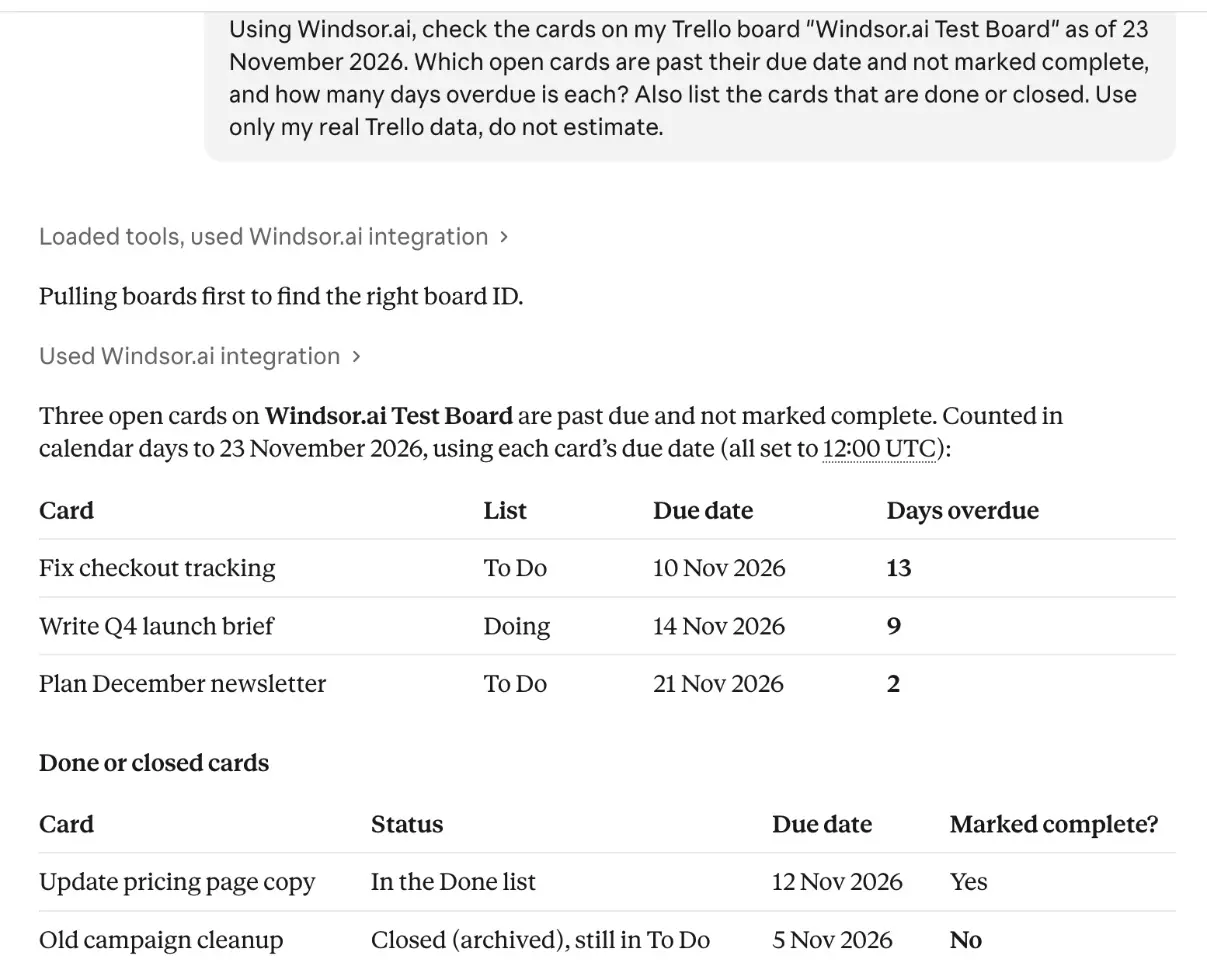
Using Windsor.ai, check the cards on my Trello board "Windsor.ai Test Board" as of 23 November 2026. Which open cards are past their due date and not marked complete, and how many days overdue is each? Also list the cards that are done or closed. Use only my real Trello data, do not estimate.
Claude found the board, pulled its cards and lists through Windsor.ai and answered:
- Fix checkout tracking: To Do, due 10 November, 13 days overdue.
- Write Q4 launch brief: Doing, due 14 November, 9 days overdue.
- Plan December newsletter: To Do, due 21 November, 2 days overdue.
It also listed Update pricing page copy as done and Old campaign cleanup as archived without being marked complete. We pulled the same cards and lists from Windsor.ai ourselves and every card, list and date matched.
If Claude can’t find your board, check that the API token belongs to a Trello account that can see that board. Name the board in your question.
Trello data Claude can read through Windsor.ai
Through the Windsor.ai connector, Claude can read 174 Trello fields (4 metrics, 170 dimensions). The full list is in the Trello field reference.
- Boards: name, description, last activity, closed and starred status.
- Lists: name, board and position.
- Cards: name, description, list, labels, members, start and due dates, due complete, closed status and last activity.
- Checklists: items and their states.
- Actions: card activity such as moves and comments, with date and type.
- Workspaces and members: names and member counts.
Cards refer to their list and members by ID. Claude joins them with the lists and members tables to show names.
Trello prompts to try in Claude
-
Which open cards on my Marketing board are past their due date, and by how many days?
-
Count open cards per list and per member on my main board.
-
List cards with no activity in the last 7 days, with their list and due date.
-
Which cards are due in the next 7 days and still in To Do?
-
Show checklist progress for every card in Doing.
-
Draft a short weekly update from the cards in Done and Doing.
Combine Trello with other sources in Claude
With Trello and your other tools in the same Windsor.ai account, Claude can put them side by side in one answer. For example, ask for launch cards and their due dates next to sessions from GA4 for the same weeks. More than one source kept long term needs a paid plan.
Next steps
- The Trello to Claude connector page lists more use cases and prompt ideas.
- To use the same Trello data in ChatGPT, see how to connect Trello to ChatGPT.
To start, add your Trello API key and token to Windsor.ai on the free forever plan, then connect Windsor.ai in Claude.
FAQs
Where do I get my Trello API key and token?
The Help section of the Windsor.ai Trello form links Trello’s guide to creating both.
Can Claude create or move Trello cards through Windsor.ai?
No. The Windsor.ai connection is read-only (write actions list, checked on 23 November 2026). Claude can draft text for you to add in Trello yourself.
Should I use Windsor.ai or the Trello MCP server?
Use the Trello MCP server to work inside Trello from Claude. Use Windsor.ai to analyze Trello next to other sources, such as GA4 or HubSpot, in the same chat through one connector.
How much does it cost?
Windsor.ai has a free forever plan with 1 data source and the last 30 days of data. Paid plans start at $19/month for 3 sources, billed annually (pricing).