BigQuery
Data integration
Data Pipelines
Google Ads
How to's

Got insights from this post? Give it a boost by sharing with others!

How to Get Google Ads Data into BigQuery: 4 Methods (Manual & Automated)

google ads to bigquery integration

If you manage Google Ads campaigns, you need more than just surface-level metrics to understand what actually drives results and what wastes budget. Google’s built-in reports are fine for quick checks, but they quickly hit a wall when you want deeper historical or ML-powered analysis or cross-channel reporting.

That’s why many marketers and data teams export Google Ads data into external analytical tools, with Google BigQuery being one of the most popular options. As a modern cloud data warehouse, BigQuery makes it much easier to store, query, and join large-scale Google Ads datasets.

The next question is: how do you connect Google Ads to BigQuery? 

In this guide, we’ll explore four common methods to implement this integration, from no-code to dev-first.

  1. No-code, automated Google Ads to BigQuery integration (via third-party connector)
  2. Manual Google Ads to BigQuery export (via CSV upload)
  3. Using Google BigQuery Data Transfer Service (native Google tool)
  4. Custom Google Ads Scripts/Google Ads API → BigQuery (developer-friendly method)

Read on to define the right method for your use case, depending on your objectives, level of technical proficiency, and available resources.

Things to know before moving Google Ads Data to BigQuery

Before you start loading Google Ads data into BigQuery, it’s worth understanding a few basics:

  • Native integration options
  • API limitations
  • Data schema 

These things directly impact how clean, reliable, and usable your integrated Google Ads data will be. Get them right, and you’ll avoid messy reports and endless cleanup later.

1. Google’s native integration options

Google offers two primary ways to move Google Ads data:

1) BigQuery Data Transfer Service (DTS)

Native no-code tool for scheduled sync. It’s good for daily automated loads, but:

  • The schema is fixed and not very customizable
  • Refresh is daily only (no intraday updates)

2) Google Ads Scripts

Short JavaScript snippets that run inside Google Ads. They work well for small, recurring tasks, but:

  • Hit execution and runtime limits quickly
  • Become hard to maintain as data complexity and volume grow

2. Google Ads API limitations

For a custom pipeline, you’ll rely on the Google Ads API (GAQL). It’s powerful, but has a learning curve and some constraints:

  • Query language: You must learn and write queries in GAQL.
  • Rate limits: The API enforces limits based on developer tokens. You must monitor your quota and implement effective back-off strategies, or your pipeline will stall.
  • Data latency: Most performance data is available in a few hours, but reporting delays still exist and must be accounted for in your loading schedule.

3. Data schema and custom columns

Google Ads data is nested and relational, and custom columns add another layer of complexity:

  • Custom columns need clear, consistent logic before you map them.
  • Calculated metrics are usually better defined and maintained inside BigQuery, where you fully control the logic.
  • If you pull data from multiple report types (e.g., Campaign, Keyword, Click Performance), you must design a schema that lets these tables join cleanly without duplicates or broken relationships.

Planning through these points upfront will make your Google Ads to BigQuery setup more reliable and much easier to work with over time.

Types and formats of Google Ads data supported by BigQuery 

Make sure your data format and types align with BigQuery’s requirements before any data transfer.

Supported file formats

BigQuery is quite flexible and supports the following file formats:

  • ORC
  • Avro
  • Parquet
  • CSV
  • JSON (Newline-delimited JSON)

You can use one of these standard formats for manually loading files or setting up custom pipelines. Parquet and Avro are often preferred for optimal performance with large datasets.

Compatible data types

Google Ads returns data in its own formats. You have to match those to the supported BigQuery types. If a field’s type doesn’t match, your load can fail or produce inaccurate data.

Make sure your metrics and dimensions are aligned with these BigQuery types:

  • STRING (plain text, like campaign names or ad titles)
  • INTEGER (whole numbers, such as impressions or clicks)
  • FLOAT (numbers with decimals, used for metrics like CTR or average CPC)
  • BOOLEAN (true or false values, usually for status fields)
  • STRUCT (nested data, similar to a RECORD when you’re dealing with complex API responses)
  • TIMESTAMP (a specific point in time)

If you’re unsure, check the BigQuery docs for the full type-mapping details. Get the structure right up front, and your upload will run smoothly.

Google Ads data extraction: tools, APIs, and setup

The first step in Google Ads to BigQuery integration is data extraction from the source system. 

If you skip Google’s native DTS and third-party no-code connectors, you’ll need to pull data from Google Ads API yourself. That means choosing the right client libraries, working with GAQL, and setting up secure authentication.

Primary extraction tools and SDKs

The easiest way to work with the Google Ads API is via Google’s official client libraries, which handle authentication and requests for you:

  • Python SDK (used most often for ETL pipelines)
  • Java SDK
  • PHP SDK
  • Node.js SDK

You can make direct REST requests without using a full SDK, but authentication and querying will be more complicated.

Google Ads API & GAQL

Custom exports are powered by the Google Ads API using Google Ads Query Language (GAQL) instead of standard SQL.

You write queries in GAQL to get access to specific resources (entities) and fields (metrics/attributes), for example:

  • Resources: campaign, ad_group, keyword_view, click_view
  • Metrics: impressions, clicks, cost_micros, etc.

Authentication and security

Google Ads uses OAuth 2.0 for authentication. You need a Developer Token for API access and a Client ID and Secret for OAuth.

Keep in mind that if tokens aren’t refreshed correctly, your pipeline will start failing. A production-ready setup always includes robust auth handling and retry logic.

Limitations of Google BigQuery Data Transfer Service (DTS) for Google Ads data integration

Even though DTS provides a simple, no-code way to connect Google Ads data to BigQuery, you must be aware of the following limitations:

  • A big limitation is the refresh rate. DTS only runs once per day. That means your data can sit up to 24 hours behind.
  • You can’t run live reports or make changes by the hour. This delay becomes a significant blocker when trying to get Google Ads data into BigQuery for real-time analysis and fast decisions.
  • Customization is limited. You can’t choose specific fields or apply filters before loading the data. Google decides the table and column names for you. As a result, you pull in extra data you don’t need, and your BigQuery storage costs skyrocket.
  • DTS doesn’t handle transformations. You have to clean, convert, and normalize the data after it arrives in BigQuery. This slows down your analytical workflow and makes queries more expensive, especially if you’re loading Google Ads data into BigQuery at scale.

⚙️ No-code ELT platforms like Windsor.ai overcome all these challenges by fully automating data ingestion and normalization, while giving you flexibility, customization, and near-real-time updates.

4 methods to integrate Google Ads data into BigQuery

Google Ads and BigQuery can be connected in several ways. The four most common approaches are:

  1. Using a no-code automated connector (Windsor.ai) 
  2. Manual CSV export 
  3. Using Google BigQuery Data Transfer Service (DTS) (native method)
  4. Using Google Ads API and custom scripts

Let’s walk through how each method works, its pros and cons, and when it makes the most sense to use.

Method 1: Using a no-code automated connector (Windsor.ai)

  • Prerequisites: a Google Cloud BigQuery project, a Windsor.ai account, and access to Google Ads
  • Integration tools used: A no-code ELT/ETL platform like Windsor.ai 
  • Type of solution: Fully managed, automated, no-code
  • Best suited for: Performance marketers, data teams, agencies, and analysts who want fast setup, scalable pipelines, and reliable reporting
  • Limitations: You’ll need a paid Windsor subscription (or use our Forever Free plan)

Manual data integration means staying on top of the API, handling schema updates, and maintaining pipelines yourself. No-code ELT tools like Windsor.ai fully automate all stages of the process, removing engineering overhead and opening the door for both technical and non-technical users. 

As a result, with the Windsor connector, you can get Google Ads data into BigQuery in less than 3 minutes, already normalized and prepared for further analysis. 

Here are all the tasks that Windsor.ai automates for you:

  • Data extraction, transformation, and loading
  • Schema handling and metric normalization
  • Incremental loading
  • Scheduled syncs (daily/hourly/15-min)
  • Historical backfilling
  • Continuous monitoring, error handling, and retries
  • Multi-account support across hundreds of ad accounts
  • Data blending with 325+ other sources (Facebook Ads, GA4, TikTok Ads, Shopify, HubSpot, etc.)

How it works:

You start by securely connecting your Google Ads account to Windsor and choosing the required reporting metrics and dimensions (select from over 2000 fields). The system then converts them all into a clean, BigQuery-ready structure through the automated data mapping system.

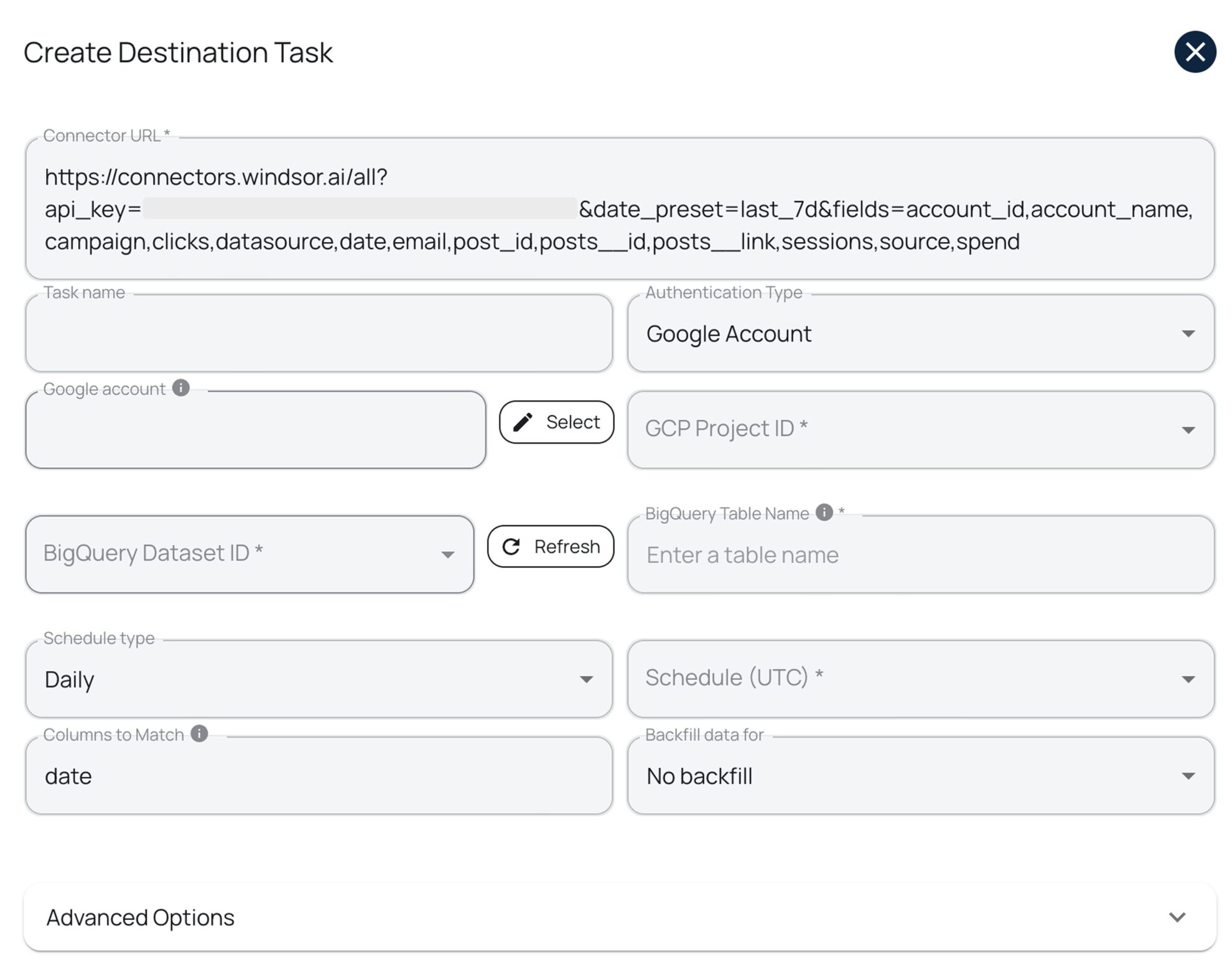
Choose BigQuery from the list of destinations and create a destination task for your sync (set the date range and refresh interval, and apply backfilling/partitioning/clustering if needed). Save and run the task.

Windsor handles schema creation, table setup, and metric cleanup under the hood, delivering your normalized Google Ads data to BigQuery and keeping it up to date with scheduled syncs.

Watch our video tutorial to see what the Google Ads to BigQuery setup looks like with Windsor:

✅️ Build your first Google Ads to BigQuery integration via Windsor for free now: https://onboard.windsor.ai/app/google_ads.

Method 2: Manual Google Ads to BigQuery export via CSV upload

  • Prerequisites: A Google Cloud BigQuery project, access to Google Ads
  • Integration tools used: CSV files
  • Type of solution: Manual Google Ads data export using CSV uploads
  • Best suited for: One-time data exports, small datasets, or quick checks.
  • Limitations: No automation. No incremental updates. Scalability is hard to manage. High risk of mistakes. 

This is a quick and simple way to send Google Ads data to BigQuery, suitable for one-time uploads. You export your Google Ads account data to a spreadsheet (CSV) and upload it into your BigQuery dataset. 

The process is free and doesn’t require a complex technical setup, but it becomes painful when you need to run regular, scalable reports and generate fresh data.

How it works:

Step 1: Export your Google Ads report

  • Sign in to Google Ads.
  • Open the campaign, ad group, keyword, or performance report you need.
  • Set the date range and pick the columns.
  • Click Download, then CSV, and save the file.

Step 2: Open your BigQuery project

  • Open the Google Cloud Console.
  • Go to BigQuery.
  • Choose your project and the dataset where you want to create a table.

Step 3: Upload the CSV to BigQuery

  • To start, click ‘Create table.’
  • Under Source, choose ‘Upload.’
  • Select your CSV file.
  • Let BigQuery detect the schema or define it yourself.
  • Click ‘Create’ to load the data.

BigQuery will create the table containing your uploaded data. 

But the issues start right after that:

  • No auto-refresh and scheduled runs
  • Manual effort every time (both to export and clean data)
  • Large files are hard to manage
  • Errors happen frequently

This is a one-time method only. If you need daily, hourly, or near-real-time data, consider automating the process with Windsor. 

Method 3: Using Google BigQuery Data Transfer Service (DTS)

  • Prerequisites: A Google Cloud BigQuery project, access to Google Ads
  • Integration tools used: BigQuery Data Transfer Service 
  • Type of solution: An automated Google Ads BigQuery pipeline with limited flexibility
  • Best suited for: Teams that want a simple, Google-native setup with no third-party tools and are ok with daily refreshes and standard fields
  • Limitations: There is only a daily refresh. No field selection. No schema control. No transformations. 

Google BigQuery Data Transfer Service is a native Google tool that allows you to set up scheduled jobs to export Google Ads data to BigQuery. DTS pulls data daily using built-in schemas and updates your dataset.

How it works:

DTS lets you configure jobs right inside the BigQuery Console. Steps to follow:

  1. Open BigQuery and go to Data Transfers -> click ‘Create a transfer.’
  2. Select Google Ads as the source.
  3. Pick your Google Ads account.
  4. Set the refresh window (up to 30 days).
  5. Configure the remaining settings (refresh schedule, service account, transfer config name) and save the job.

bigquery data transfer service google ads integration

After setup, DTS loads fresh Google Ads data into your table at your scheduled time.

There are no custom scripts, no manual uploads, and no API calls. But this ease comes at a cost:

  • The schema stays locked. 
  • You can’t choose specific fields or reshape the data. 
  • You can’t blend data from other sources. 
  • You can’t run frequent syncs. 
  • Advanced logic is off the table. 
  • Multi-account setups turn rigid fast.

⚡ If you need flexible schemas, faster refreshes, or data blending with other sources, Google Ads to BigQuery integration through Windsor is your go-to way.

Method #4: Google Ads Scripts / Google Ads API → BigQuery

  • Prerequisites: A Google Cloud BigQuery project, access to Google Ads, Google Ads API developer token
  • Tools used: Google Cloud Functions or Cloud Run, the BigQuery API, GAQL, Google Ads Scripts
  • Type of solution: Custom code-based setup
  • Best suited for: Engineering teams that need full control, custom schemas, or highly specific reporting requirements
  • Limitations: Requires extensive coding skills. The pipeline must be continuously monitored and fixed. Every Google Ads API or schema change can break parts of the system. Scaling reporting across multiple accounts adds even more risk and complexity.

You write a script or API-based code to pull Google Ads data using GAQL language. The code pushes that data into BigQuery through REST or client libraries.

This method gives you maximum flexibility and control over the schema, but it also puts all the maintenance on you.

You build everything from scratch, covering data extraction, transformation, loading, as well as scheduling and error tracking. Google updates its API often. Even a small change can break your pipeline and force you to implement urgent fixes. 

You also need to deal with MCCs, pagination, rate limits, retries, and monitoring. Over time, the effort adds up, and scaling becomes a real headache.

How it works:

Teams usually choose between these two custom approaches:

  1. Using Google Ads Scripts for simple, lightweight automation
  2. Using Google Ads API (GAQL) for bigger, more complex, multi-account setups

You write code that:

  • Authenticates your Google Ads account through OAuth or a service account
  • Pulls data from Google Ads using GAQL
  • Shapes the data into the format supported by BigQuery
  • Pushes the normalized data into BigQuery through the InsertAll API or a client library
  • Runs updates on a schedule using Cloud Functions, Cloud Run, or a cron job

Steps to implement this integration:

Step 1. Set up Google Ads API.

1. Enable Google Ads API access:

2. Create API credentials:

  • Go to Google Cloud Console → APIs & Services → Credentials.
  • Create an OAuth 2.0 Client ID for API authentication.
  • Generate a Refresh Token to access the Google Ads API using the created credentials via the cloud.

3. Get required credentials:

  • Developer Token from Google Ads API Console.
  • Client ID and Client Secret from Google Cloud Console.
  • Refresh Token from Google OAuth Authentication.
  • Google Ads Customer ID for data extraction from the Google Ads account.

Step 2. Extract Google Ads data.

Use the Google Ads API to fetch campaign data. The API query language, Google Ads Query Language (GAQL), allows you to retrieve relevant insights.

1. First, get the Access Token needed to authorize the Google Ads API request. You can get it using the following API call.

curl \
–data “grant_type=refresh_token” \
–data “client_id=CLIENT_ID” \
–data “client_secret=CLIENT_SECRET” \
–data “refresh_token=REFRESH_TOKEN” \
https://www.googleapis.com/oauth2/v3/token

2. You can extract Google Ads data by using the Google Ads API. You can edit the query to get what data you want from the API.

curl -i -X POST https://googleads.googleapis.com/v18/customers/CUSTOMER_ID/googleAds:searchStream \ -H “Content-Type: application/json” \ -H “Authorization: Bearer ACCESS_TOKEN” \ -H “developer-token: DEVELOPER_TOKEN” \ -H “login-customer-id: LOGIN_CUSTOMER_ID” \ –data-binary ‘{ “query”: “SELECT campaign.id, campaign.name, metrics.impressions, metrics.clicks, metrics.conversions FROM campaign WHERE segments.date DURING LAST_30_DAYS” }’

You’ve set up the Google Ads API and got your campaign data. Now, let’s get this data into the BigQuery table.

Step 3. Set up Google BigQuery.

1. Enable BigQuery API:

  • Go to the Google Cloud Console.
  • Select your project or create a new one.
  • Navigate to APIs & Services -> Library.
  • Search for BigQuery API and click Enable.

2. Create a BigQuery Dataset and Table:

  • Go to the BigQuery Console.
  • Click on your project in the left panel.
  • Click Create Dataset and provide a name.
  • Click Create Table inside the dataset.
  • Define the schema based on your data structure.

3. Create a Service Account for BigQuery:

  • Navigate to IAM & Admin -> Service Accounts.
  • Click Create Service Account.
  • Assign BigQuery Admin role.
  • Click Create Key and select JSON format.
  • Download the key file for authentication.

Step 4. Load data into BigQuery.

1. You can upload the data to the BigQuery table using the BigQuery API URL.

Here is a sample API URL that is called via the curl command. Replace {PROJECT_ID}{DATASET_ID}, and {TABLE_ID} with your actual BigQuery details and “google_ads_data.json” file with your ads data file.

curl -i -X POST https://googleads.googleapis.com/v18/customers/CUSTOMER_ID/googleAds:searchStream \ -H “Content-Type: application/json” \ -H “Authorization: Bearer ACCESS_TOKEN” \ -H “developer-token: DEVELOPER_TOKEN” \ -H “login-customer-id: LOGIN_CUSTOMER_ID” \ –data-binary ‘{ “query”: “SELECT campaign.id, campaign.name, metrics.impressions, metrics.clicks, metrics.conversions FROM campaign WHERE segments.date DURING LAST_30_DAYS” }’

2. You can go to your GCP console and query the data from your BigQuery table to verify that Google Ads data is present.

Cheers, you’ve sent your Google Ads data to Google BigQuery!

💡 If you want a full Google Ads to BigQuery pipeline automation without writing and maintaining code, Windsor removes all of the complexity for you. Extract data from hundreds of accounts and send it to BigQuery, fully normalized and analysis-ready, and schedule updates at your preferred interval, all in minutes. 

Step-by-step: How to connect Google Ads to BigQuery using Windsor.ai (in 3 minutes)

Windsor.ai allows you to transfer data from Google Ads to BigQuery with just a few clicks. Follow these quick steps to build your first integration through our connector.

📑 How to integrate data into BigQuery through Windsor.ai: Full Documentation.

Prerequisites:

  • A Google Ads account with the right permissions
  • A Google Cloud Platform (GCP) account with BigQuery enabled
  • An active Windsor.ai account (you can start with the 30-day free trial)

Integration steps:

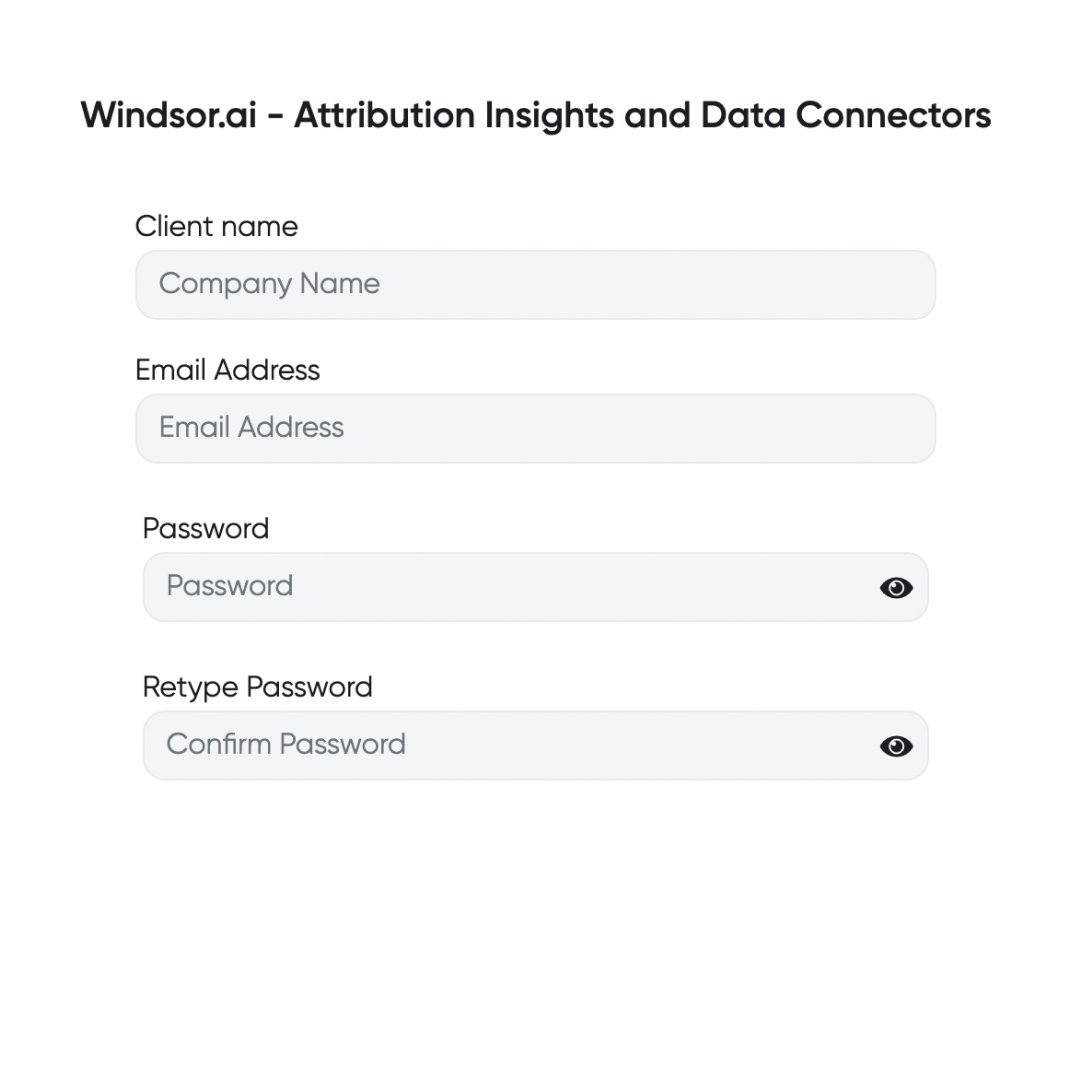
1. Register and log in to Windsor.ai.

Create a new Windsor.ai account or log in if you already have one.
2. Connect Google Ads.

On the left-hand panel with data sources, select Google Ads and connect your account(s). Pick the ones you want to pull data from.

connect google ads windsor

3. Configure your dataset.

Click ‘Next’ to move forward. On the Preview and Destination screen, in the Filters area, choose your desired reporting date range and pick the fields you want to sync, such as Campaign, Ad Group, Keywords, Conversions, etc. You can preview your retrieved data before loading it into BigQuery.

google ads integration windsor

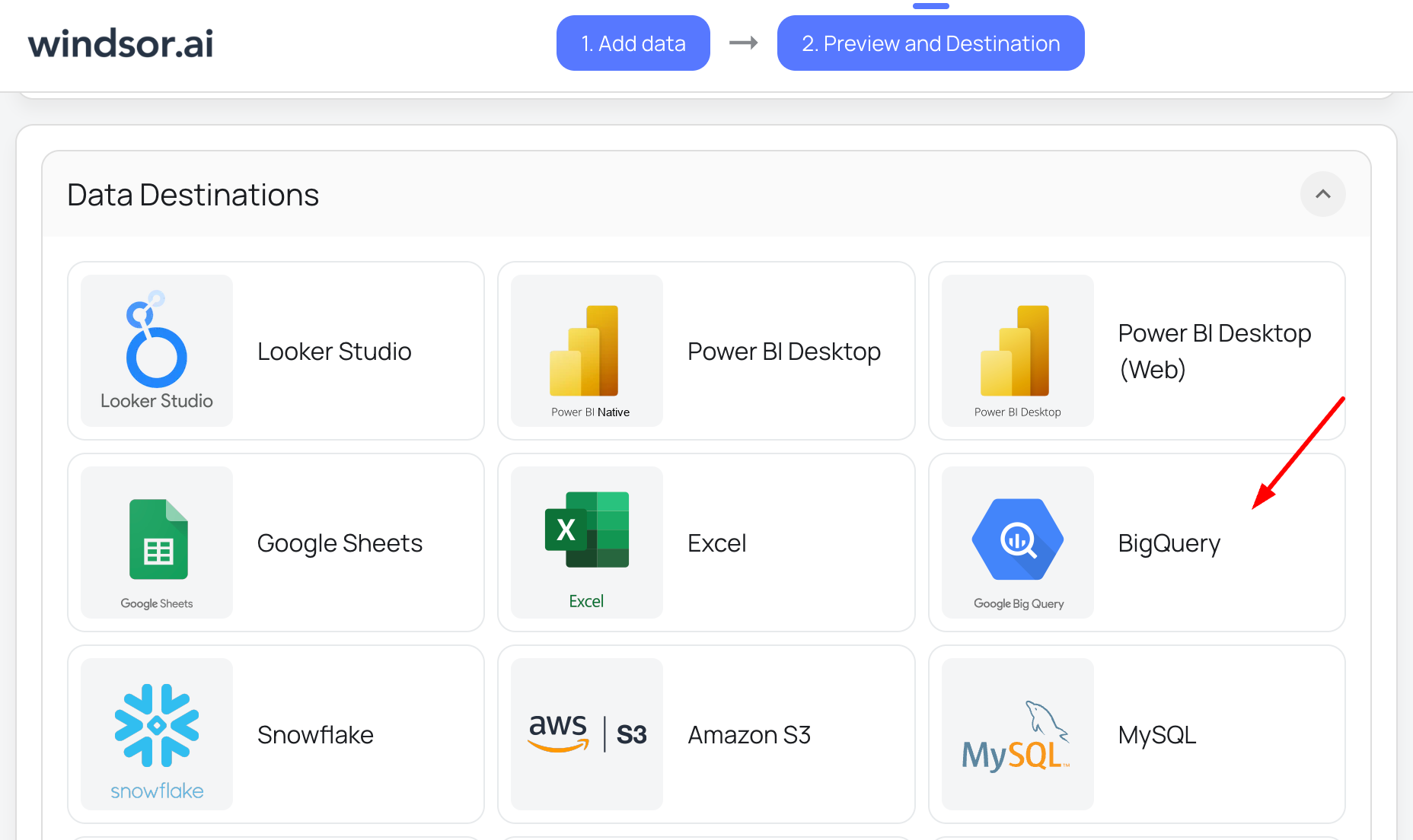
4. Choose BigQuery as the destination.

Scroll to the Data Destinations section. Select BigQuery from the list.

hubspot to bigquery windsor

5. Create a destination task.

Click ‘Add Destination Task’ and enter your details:

  • Task name (keep it descriptive).
  • Authentication method: via Google login or a service account file.
  • Project ID (copy it from your Google Cloud Console).
  • Dataset ID (copy it from your BigQuery project).
  • Table name (Windsor will create the one for you, if it’s not there yet).
  • Schedule: hourly, daily, every 30 minutes, or every 15 minutes.
  • Backfill (select this option if you want to retrieve historical data).

bigquery integration

Notes:

  • Windsor builds the table structure on the first run.
  • If you want to make any changes to this pipeline later, either rerun the task or create a new destination task.

6. Advanced options (optional).

The advanced options help optimize your BigQuery performance and cost: 

  • Apply partitioning to split data by date. This keeps your queries fast.
  • Use clustering to group rows by fields such as campaign or account. This reduces the cost.

clustering and partitioning bigquery

7. Test, save, and run.

  • Click ‘Test Connection.’
  • If it passes, click ‘Save.’
  • The task will start running and uploading your Google Ads data to BigQuery.

destination task bigquery windsor

You’ll see the task running in the destination panel. A green “ok” status means everything is working correctly. 

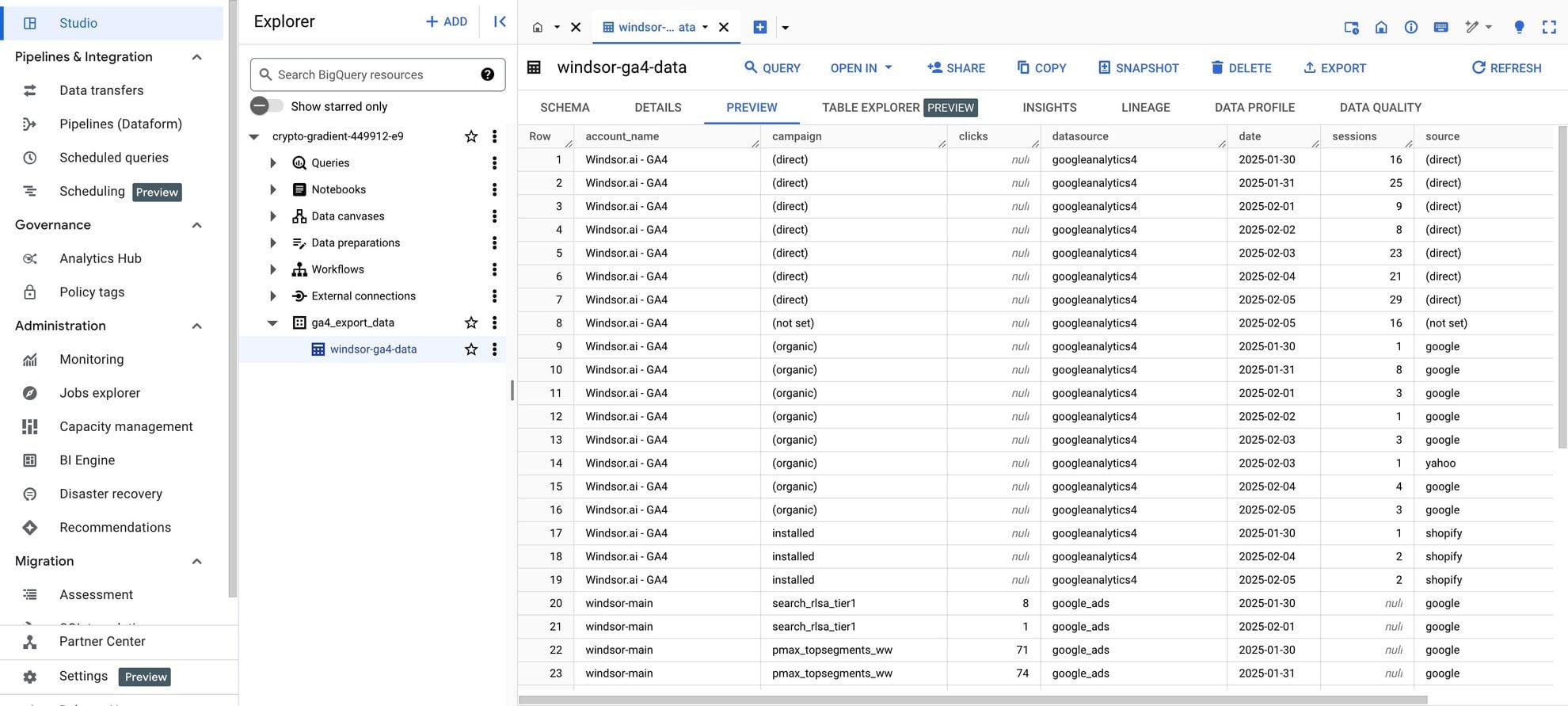
Now open your BigQuery project. Your Google Ads data will be there and ready to use.

Summary: Windsor.ai vs other integration methods

FeatureNo-code ELT tool (Windsor.ai)Manual CSV uploadBigQuery Data Transfer Service (DTS)API + custom script
Technical skills neededNo coding; UI onlyNo coding; just Google Ads & BigQuery UILow; basic BigQuery console setupHigh; GAQL + Python/Java/Node + GCP
AutomationFully automated with scheduled destination tasksNone – every export & upload is manualAutomated daily jobsAutomated only if you build and maintain scheduling
Refresh frequency / real-timeNear real-time via scheduled syncs (down to every 15 minutes)Not possibleDaily only (no intraday refresh)Possible; you can build frequent batch or near-real-time jobs
ScalabilityScales smoothly across many accounts and large datasetsPainful as data & accounts growOK for a few accounts; rigid for complex or multi-account setupsScales if engineered well, but needs ongoing care
CustomizationFlexible field selection, filters, mappings, and in-app transformationsVery limited (whatever is in the exported CSV)Very limited; fixed schema, no field selection or filtersFull control over schema, filters, and logic in code
Setup difficultyVery simple; guided no-code setupTime-consuming but conceptually simpleModerate; UI wizard + permissionsComplex; auth, GAQL, jobs, monitoring
Ongoing workLow; Windsor manages schema changes, retries, and monitoringHigh and repetitive (exports, uploads, fixes)Moderate; monitor jobs and handle schema changes downstreamHigh; constant fixes, API updates, monitoring
CostBigQuery costs + Windsor Forever Free plan or paid plans from $19/monthFree tool-wise; BigQuery storage/query costs still applyBigQuery storage/query costs + DTS transfer costsDeveloper time + infra + BigQuery costs
Data cleanup & normalizationDone automatically (schema handling, normalization, incremental loads)Manual in spreadsheets or SQLDone later in BigQuery with your own SQL/dbtDone in your code (and must be maintained)
Best forMarketers, analysts, and data teams wanting fast, fully automated Google Ads → BigQuery setupsOne-off uploads and very small accountsTeams that are ok with daily data, standard fields, and a Google-only stackEngineering teams needing full control and very custom reporting

Why load Google Ads data into BigQuery?

Centralized reporting

Integrating Google Ads with BigQuery allows marketers to combine ad performance with CRM, website analytics, and other business data for a single source of truth and data-driven decisions.

Advanced analytics

Teams can perform ROI calculation, bid optimization, and audience segmentation at scale using BigQuery’s extensive analytical capabilities.

Automated reporting

Automated pipelines in BigQuery powered by Windsor.ai eliminate manual exports and errors, enabling near-real-time campaign reporting for timely optimizations.

Downstream analysis

After conducting advanced data transformations within BigQuery, you can stream that dataset to BI tools and build tailored Google Ads dashboards in Looker Studio, Power BI, or Tableau to monitor trends and identify underperforming campaigns.

Predictive insights

Use BigQuery’s machine learning and predictive modeling capabilities to optimize ad targeting and budget allocation.

Conclusion

Connecting Google Ads to BigQuery helps you uncover deeper insights and optimize your campaigns and budget.

You have four main ways to integrate your Google Ads data into BigQuery: 

  1. Use Windsor.ai connector for fully automated, no-code pipelines with scheduled syncs;
  2. Send data via Google’s native Data Transfer Service for basic daily reporting; 
  3. Perform manual API uploads for one-time exports; 
  4. Write custom scripts for complete control and flexibility over the pipeline. 

Each method serves different needs and technical skill levels, so choose the one that fits your use case best.

🚀 Try Windsor.ai for free today: https://onboard.windsor.ai/, and experience the power of fully automated Google Ads to BigQuery integration.


FAQs

What are the main ways of exporting Google Ads data to BigQuery?

The most common methods to connect Google Ads to BigQuery are the following:

  1. No-code, automated Google Ads to BigQuery integration (via third-party connector)
  2. Manual Google Ads to BigQuery export (via CSV upload)
  3. Using Google BigQuery Data Transfer Service (native Google tool)
  4. Custom Google Ads Scripts/Google Ads API → BigQuery (developer-friendly method)

How do I export Google Ads data to BigQuery automatically?

You have two main automated options: using the native BigQuery Data Transfer Service (for scheduled daily syncs) or using a fully managed, no-code ELT tool like Windsor.ai. Windsor offers greater flexibility, more frequent updates (hourly/near-real-time), and supports transformations and cross-channel unification.

What is the best way to get real-time Google Ads data into BigQuery?

The best method is using a modern, managed ELT platform like Windsor. Unlike DTS, which supports only daily refreshes, Windsor can provide hourly or 15-minute/30-minute streaming updates. This ensures your dashboards and ML models are always working with the freshest data, which is essential for high-velocity optimization and bidding strategies.

When should I use BigQuery Data Transfer Service (DTS) instead of a third-party tool?

Use DTS if you want a simple, Google-native setup, are fine with daily refreshes, and don’t need custom schemas or field selection. It’s good for basic reporting in a Google-only stack, but not workable for near-real-time data, cross-channel blending, or heavy customization.

When does manual CSV export make sense?

Manual CSV export + BigQuery upload is fine for:

  • One-off reporting
  • Very small datasets
  • Quick adhoc checks

It’s not suitable for ongoing reporting because it has no automation, no incremental updates, and often becomes error-prone.

When is Google Ads API + custom script the best solution?

Custom pipelines via Google Ads API + GAQL are best for engineering teams that:

  • Need full control over schema, logic, and scheduling
  • Are comfortable with OAuth, GAQL, rate limits, and GCP services
  • Can maintain code when Google updates APIs or schemas

This method is powerful but requires continuous monitoring, maintenance, and fixes.

Why choose Windsor.ai over DTS or a custom script?

Sending data from Google Ads to BigQuery via Windsor.ai:

  • Requires no code
  • Supports scheduled syncs down to every 15 minutes
  • Automatically handles schema creation, normalization, and incremental loads
  • Lets you select fields, filter data, and blend Google Ads with 325+ other sources
  • Removes most of the ongoing maintenance that DTS or custom scripts require

It’s a perfect fit for marketers, analysts, and data teams who want reliable, near-real-time reporting without engineering overhead.

What file formats and data types does BigQuery support for Google Ads exports?

For files, BigQuery supports CSV, JSON (newline-delimited), Parquet, Avro, and ORC.

Align Google Ads fields to these BigQuery types:

  • STRING – names, IDs, text fields
  • INTEGER – impressions, clicks, conversions
  • FLOAT – CTR, CPC, conversion rate
  • BOOLEAN – status flags
  • STRUCT – nested objects/records
  • TIMESTAMP – event or conversion times

Matching types correctly prevents load errors and inaccurate data.

Can I start with a manual or DTS setup and later move to Windsor?

Yes. Many teams start with CSV export or DTS and later switch to Windsor.ai when they outgrow daily refreshes or fixed schemas. You can recreate your existing reports by matching fields in Windsor, pointing destination tables to BigQuery, and then updating your dashboards to read from the new, automated tables.

Tired of juggling fragmented data? Get started with Windsor.ai today to create a single source of truth

Let us help you automate data integration and AI-driven insights, so you can focus on what matters—growth strategy.
g logo
fb logo
big query data
youtube logo
power logo
looker logo