How to Integrate Facebook Ads into BigQuery: Top 3 Methods

If you’re running Facebook advertising campaigns, accurately evaluating their performance is essential for optimizing ad spend and maximizing ROI. Since Meta’s built-in tools can be limited, many turn to external solutions like Google BigQuery for deeper insights.
BigQuery is a powerful, scalable data warehouse that streamlines the storage and analysis of large datasets, making it an ideal choice for handling Meta Ads data alongside other marketing and business data sources. By centralizing your Facebook Ads data in BigQuery, you unlock advanced querying capabilities, machine learning features, and the ability to blend data into a single source of truth.
The question is: how do you send Facebook Ads data to BigQuery? A task that can be especially challenging for those without coding experience, as it requires dealing with complex API structures, authentication requirements, and ongoing maintenance.
This integration can be implemented in three ways, each with different levels of complexity, resource requirements, and automation:
Method 1. Using ETL/ELT tools like Windsor.ai for a fully automated Facebook Ads to BigQuery data integration
Method 2. Manual data export and upload
Method 3. Using API + custom script
Whether you’re looking for a quick no-code solution or a dev-first approach with full control over your data pipeline, we’ll walk you through each method with detailed implementation steps.
Let’s get started.
Before you transfer Facebook Ads data to BigQuery: things to know
Moving Facebook Ads data into BigQuery requires two key steps: preparing data in supported formats and selecting the right extraction approach. Meta’s Marketing API enables data access via SDKs, direct API requests, scheduled reports, or real-time webhooks, making it possible to build anything from simple exports to fully automated data pipelines.
Types and formats of Facebook Ads data that BigQuery supports
Before uploading your Facebook Ads data to BigQuery, make sure it’s in a supported format. For instance, if the API provides data in XML, you’ll need to convert it to a format that BigQuery can read.
Currently, BigQuery supports the following file formats:
- CSV (Comma-Separated Values)
- JSON (JavaScript Object Notation)
- Avro
- Parquet
- ORC (Optimized Row Columnar)
For most Facebook Ads integrations, CSV and JSON are the most commonly used formats due to their simplicity and wide API support.
In addition to format, it’s essential to ensure that the data types used in your dataset are compatible with BigQuery. Using unsupported or mismatched data types can lead to errors during the import process.
BigQuery supports these data types:
- STRING
- INTEGER (INT64)
- FLOAT (FLOAT64)
- BOOLEAN
- RECORD (nested structures)
- TIMESTAMP
- DATE
- NUMERIC
- ARRAY
If you’re unsure how to properly prepare your data, refer to the official BigQuery documentation. It provides step-by-step instructions to help you format and structure your data correctly, making the upload process smoother and error-free.
Facebook Ads data extraction: tools, APIs, and setup
Meta offers a robust Marketing API to pull comprehensive data for reporting and analytics. However, with this power comes complexity—the API consists of multiple components and enforces strict rules, including rate limits, authentication requirements, and versioning protocols you need to understand before implementation.
Accessing the API typically happens through Facebook’s official SDKs, including:
- PHP SDK
- Python SDK
You can also use community-supported SDKs for languages like:
- R
- JavaScript
- Ruby
For a customized setup, you can make direct RESTful requests using tools like:
- cURL
- Postman
- HTTP clients (e.g., Apache HttpClient for Java, Spray-client for Scala, Hyper for Rust, Ruby rest-client)
All ad data comes through the Graph API, which exposes specific endpoints (called “edges”) to retrieve insights for different ad objects, including:
- ad account/insights
- campaign/insights
- ad set/insights
- ad/insights
These endpoints return performance data for each object level.
If you require large or recurring reports in CSV or XLS format, Facebook offers asynchronous report generation using the Ad Report Run API. After initiating a report, Facebook provides a report_run_id, which you can use to poll the status. Once the report is ready, you can download it from a URL using that ID along with your access token.
If you need live updates, you can set up a real-time data stream using Facebook Webhooks. Webhooks enable your system to listen for data changes and automatically pull new information, helping keep your data warehouse continuously synced with the latest ad results.
Understanding all these tools and methods is essential to building an effective data extraction workflow from Facebook Ads into your analytics environment, like BigQuery.
3 methods to move Facebook Ads data to BigQuery
Moving data from Meta Ads to BigQuery is quite a straightforward task if you pick the right method and follow the provided setup steps. Available options include third-party ETL/ELT platforms, manual data extraction and uploads, and custom API-driven scripts. The best option depends on your specific needs and expertise.
Let’s review each method in detail, examining the prerequisites, tools, mechanisms, ideal use cases, and potential limitations.
Method 1: Using ETL/ELT tools for automated Facebook Ads to BigQuery data integration
- Prerequisites: Facebook Ads access, BigQuery project in Google Cloud, Windsor.ai account
- Tools used: ETL/ELT platform like Windsor.ai
- Type of solution: Fully managed, automated, and no-code
- Mechanism: Connect your Facebook Ads account to Windsor.ai, and it will automatically transfer your data to BigQuery, supporting auto-refreshes, schema mapping, and incremental updates. No manual steps or coding involved
- Best suited for: Marketing teams, analysts, and data engineers who need a quick and reliable setup that scales easily and doesn’t require constant maintenance
- Limitations: Product subscription required
While manual methods of syncing Facebook Ads data with BigQuery can be time-consuming and demand technical expertise, ETL/ELT platforms offer a much faster and easier alternative, accessible to both technical and non-technical users.
Here’s how Windsor.ai automates the entire Meta Ads to BigQuery data pipeline:
- Data extraction, transformation, and loading (ETL/ELT)
- Schema mapping and formatting
- Data blending with other sources (325+ integrations)
- Dataset refreshes on a set schedule
- Continuous error monitoring and logging
- Incremental loading + partitioning and clustering to optimize BQ costs and performance
- Backfilling for access to historical data
- Scalability as your data volume and reporting needs grow
With Windsor.ai’s no-code ETL/ELT connectors, you can import your Meta Ads data into BigQuery in just minutes with no programming skills required. After a quick three-step setup, Windsor takes care of the entire process, including authentication, schema mapping, error handling, and scheduled refreshes.
Windsor securely accesses your Facebook Ads account via OAuth and allows you to extract hundreds of Meta metrics and dimensions, including campaign performance, audience insights, and account-level data. Then, it automatically transforms this data into a BigQuery-compatible structure, ready for analysis.
Here’s what your Facebook Ads to BigQuery integration looks like with Windsor.ai:
✅ Connect your Facebook Ads account securely with one click
✅ Automate data formatting and schema mapping for BigQuery
✅ Schedule data updates as often as you need (hourly, daily, custom intervals)
✅ Enhance performance with backfill, clustering, or partitioning options
✅ Blend Facebook Ads data with 325+ other sources within the same BigQuery project
✅ Eliminate manual token refresh with automated authentication
🚀 Try your first Facebook Ads integration through Windsor.ai with a 30-day free trial. Unlock more data sources for only $19/month.
Method 2: Manual data export and upload
- Prerequisites: Facebook Business Manager account with Marketing API access, Facebook App with Ads Management permission, Google Cloud Platform (GCP) account with BigQuery enabled, Service account credentials with BigQuery Admin role
- Tools used: Facebook Marketing API, Google Cloud Console, BigQuery REST API, curl (or scripts)
- Type of solution: Manual, code-based integration using public APIs and GCP tools
- Mechanism: Extract Facebook Ads data through the Facebook Marketing API and manually upload it into BigQuery using REST API calls or scripts.
- Best suited for: Technical users who enjoy hands-on coding and prefer building custom solutions. If you like full control over your data pipeline—your system, your rules—this method offers maximum flexibility without relying on third-party tools
- Limitations: Takes time to set up and requires ongoing maintenance. Real-time or scheduled updates aren’t available out of the box; you’ll need to build and maintain automation scripts yourself
Step 1: Set up Facebook Marketing API
- Go to the Facebook Developers site.
- Click “New app” and select “Business” as the type to get started.
- Next, add the Marketing API to your application.
- Create an access token with ads_read permission.
- Record the following credentials:
- The Access Token
- Your Ad Account ID (formatted as act_1234567890)
Step 2: Extract Facebook Ads data
Use the Meta Graph API to fetch campaign performance data.
Example request to retrieve campaign details:
https://graph.facebook.com/v23.0/act_YOUR_AD_ACCOUNT_ID/campaigns?fields=id,name,status,start_time,end_time,daily_budget&date_preset=last_30d&access_token=YOUR_ACCESS_TOKEN
This request returns campaign data in JSON format, including the campaign ID, name, status, start and end times, and daily budget for the last 30 days.
To fetch data for other ad objects, whether ad sets, ads, or insights, change the endpoint path and query parameters accordingly. Visit Meta’s Graph API documentation for expanded field options and supported parameters.
Step 3: Set up a Google BigQuery project
1. Turn on the BigQuery API:
- Navigate to your Google Cloud Console
- Click on “APIs & Services,” then open the “Library.”
- Find and enable the BigQuery API
2. Create your Dataset and Table:
- Open the BigQuery Console.
- Select your project and click “Create Dataset.”
- Once created, open it and click “Create Table.”
- You can upload your schema manually or let BigQuery auto-detect it based on your Facebook data structure.
3. Create a BigQuery Service Account:
- In the Cloud Console, go to “IAM & Admin” and select “Service Accounts.”
- Create a new service account and assign the BigQuery Admin role to it.
- Generate and download a JSON key file.
- Store this file securely—you’ll need it for API authentication.
Step 4: Load data into BigQuery
After transforming the Facebook Ads JSON into the required format, use the BigQuery API’s insertAll method to insert the data:
curl -X POST -H "Authorization: Bearer $(gcloud auth print-access-token)" \
-H "Content-Type: application/json" \
--data-binary @facebook_ads_data.json \
"https://bigquery.googleapis.com/upload/bigquery/v2/projects/{PROJECT_ID}/datasets/{DATASET_ID}/tables/{TABLE_ID}/insertAll"Notes:
- Replace {PROJECT_ID}, {DATASET_ID}, and {TABLE_ID} with your actual GCP project ID, dataset name, and table name.
- facebook_ads_data.json must be a local file containing a valid JSON object in the format BigQuery expects.
- The JSON must wrap your rows inside a rows array, where each item has a JSON key containing your column data.
Example structure:
{
"rows": [
{ "json": { "campaign_name": "Test Campaign", "impressions": 1234, "spend": 45.67 } }
]
}Make sure your service account or user account has the bigquery.dataEditor role for the target dataset.
Optional automation:
You don’t need to repeat these steps manually each time. You can automate the process by setting up a cron job, Google Cloud Function, or using Cloud Scheduler.
Just make sure your automation script:
- Fetches data from Facebook Graph API
- Transforms it into BigQuery-compatible format
- Loads it to BigQuery
- Handles errors and retries appropriately
- Manages token refresh before expiration
Method 3. API + custom script
- Prerequisites: Facebook Developer App with ads_read permission, Google Cloud project with BigQuery enabled, Service account with BigQuery Admin role, knowledge of APIs, Python, and Google Cloud tools
- Tools used: Facebook Graph API, Python (requests, google-cloud-bigquery), Google Cloud Console
- Type of solution: Fully customizable, code-driven integration
- Mechanism: Write a script that pulls data from the Facebook Graph API, processes and formats the data as needed, and then uploads it to BigQuery using the appropriate Google Cloud client library. This approach gives you full control over every step of the pipeline
- Best suited for: Technical users and data engineers who need full flexibility and control over their data pipelines, custom transformations, and advanced automation
- Limitations: Requires coding skills and a solid understanding of authentication, scheduling, error handling, and API rate limits. Token management, retry logic, and code maintenance are additional complexities you’ll need to handle yourself
This method is ideal for implementing custom data workflows, advanced automation, and scalable long-term solutions. It gives you full control over the data pipeline: when to upload, how to clean, what transformations to apply, and how to handle edge cases are up to you.
However, keep in mind that token management, retry logic, and code maintenance are additional complexities you’ll need to handle yourself.
Step 1. Set up Facebook Ads API
- Navigate to the Facebook Developers. site, that’s your starting point.
- Create a new app and select “Business” as the app type
- Add the Marketing API to your app configuration
- Generate an access token with ads_read permission
- Record the following credentials:
- App ID
- App Secret
- Ad Account ID (formatted as act_1234567890)
Step 2: Set up your Google Cloud project
- Log in to Google Cloud Console
- Enable the BigQuery API for your project
- Go to IAM & Admin → Service Accounts
- Create a new service account
- Assign the BigQuery Admin role
- Download the JSON key file for authentication
Step 3: Prepare your environment
Choose where you want the script to run: on your local machine, server, or cloud environment.
Install the required Python libraries:
pip install requests google-cloud-bigquery pandasEnsure Python 3.7+ is installed and properly configured in your environment.
Step 4: Fetch Facebook Ads data
You can fetch data manually by exporting reports from Ads Manager or using a Python script like this:
import requests
import pandas as pd
# --- Configuration ---
AD_ACCOUNT_ID = 'act_1234567890'
ACCESS_TOKEN = '<YOUR_ACCESS_TOKEN>'
API_VERSION = 'v23.0'
FIELDS = 'impressions,clicks,spend,reach,cpc,cpm'
DATE_PRESET = "last_30d"
LEVEL = "campaign"
# --- API URL ---
url = f"https://graph.facebook.com/{API_VERSION}/act_{AD_ACCOUNT_ID}/insights"
params = {
'fields': FIELDS,
'access_token': ACCESS_TOKEN,
'date_preset': DATE_PRESET,
'level': LEVEL
}
# --- Make Request ---
response = requests.get(url, params=params)
data = response.json()
# --- Convert to DataFrame and Save ---
df = pd.DataFrame(data['data'])
df.to_csv("facebook_ads_insights.csv", index=False)
print("Data extracted successfully and saved to CSV")This script creates a CSV file containing Facebook Ads insights data. You can add more fields, custom date ranges, or filters based on your specific needs.
Note: Before inserting data into BigQuery, you may need to clean empty records, handle null values, and ensure the data matches your predefined schema.
Step 5: Prepare data for BigQuery import
Choose which columns you need to transfer. Common fields include:
- date
- campaign_id
- campaign_name
- clicks
- impressions
- spend
- cpc
- cpm
- conversions
Ensure data types align with your BigQuery table schema to prevent import errors.
Step 6: Upload data to BigQuery
Use a service account key to authenticate the BigQuery client in a Python script, then load your CSV data into the target table:
from google.cloud import bigquery
import pandas as pd
# Authenticate BigQuery Client with service account key
client = bigquery.Client.from_service_account_json("path/to/your_service_account_key.json")
# Table ID format: "project_id.dataset_id.table_id"
table_id = "my_project.my_dataset.facebook_ads_table"
# Read data from CSV
data = pd.read_csv("facebook_ads_insights.csv")
# Load the data into BigQuery
job = client.load_table_from_dataframe(data, table_id)
job.result() # Wait for the job to finish
print("Data successfully uploaded to BigQuery")Once the upload completes, preview your data in BigQuery using the console and run test queries to verify that the data matches your expectations.
Step 7: Automate the process
- On Linux or a server: Use a cron job to schedule script execution.
- For serverless: Deploy via Google Cloud Scheduler with Cloud Functions or Cloud Run.
- Set it to run daily, hourly, or at custom intervals based on your needs.
- Implement token refresh logic to prevent authentication failures.
- Add error handling for API rate limits, network issues, and data validation errors.
Step-by-step guide: How to use Windsor.ai to connect Facebook Ads to BigQuery
If you’re wondering whether it’s really possible to integrate Meta Ads data into BigQuery with Windsor.ai in 4 minutes, this guide will show you exactly how to do it, step by step.
📝 Windsor.ai’s BigQuery Integration Documentation: https://windsor.ai/documentation/how-to-integrate-data-into-google-bigquery/.
1. Sign up for Windsor.ai and start your 30-day free trial.
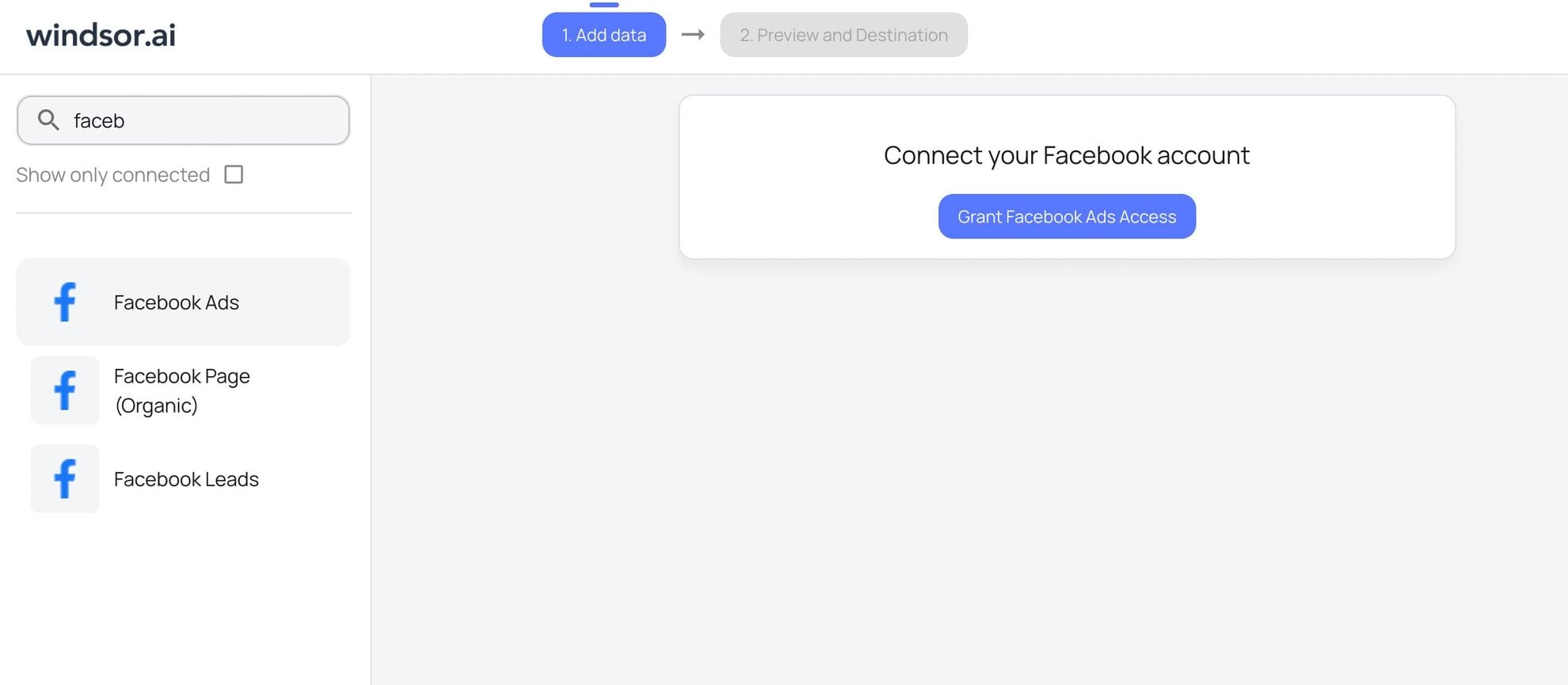
2. In the data sources list, select Facebook Ads and grant access to your account(s):

3. The connection is completed. View the list of your available Facebook Ads account(s) and select the necessary one(s) from which you want to pull data:

4. Click on the “Next” button to proceed with moving Facebook Ads data to BigQuery.
5. Next, configure your dataset by selecting the desired date range and specific fields you want to stream into BigQuery. Preview your extracted data in Windsor.

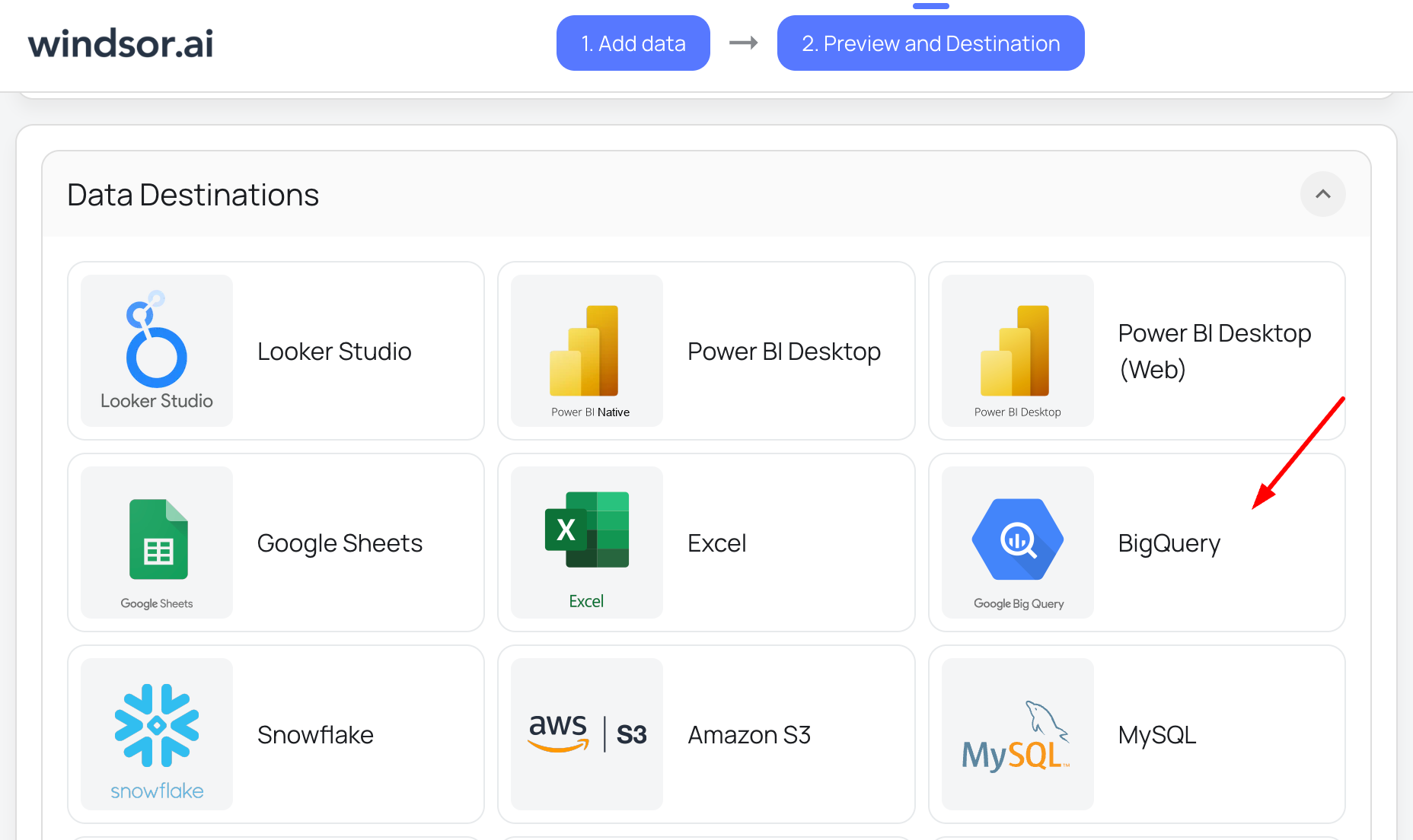
6. Scroll down to the Data Destinations section and choose BigQuery from these options:

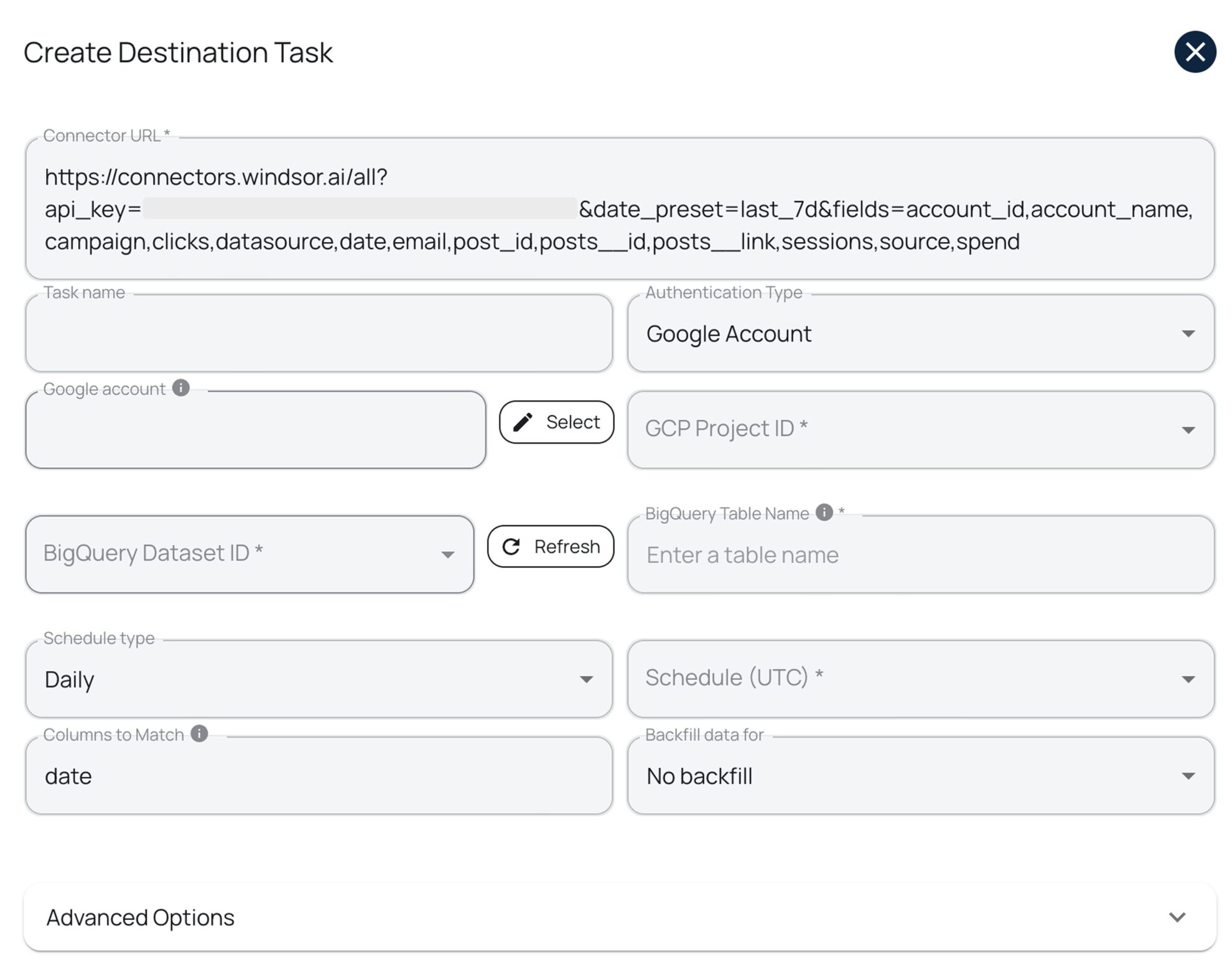
7. Click “Add Destination Task” and enter the following details:
- Task name: Enter any name you wish.
- Authentication type: You can authorize via a Google Account (OAuth 2.0) or a Service Account file.
- Project ID: This can be found in your Google Cloud Console.
- Dataset ID: This can be found in your BigQuery project.
- Table name: Windsor.ai will create this table for you if it doesn’t exist.
- Backfill: You can backfill historical data when setting up the task (available only on the paid plans).
- Schedule: Define how often data should be updated in BigQuery (e.g., hourly, daily; available on Standard plans and above).

Keep in mind that if you add new fields or edit the query after the table was initially created, you must manually edit your schema and add or update those fields in your BigQuery table. Alternatively, you can create a new destination task, and Windsor.ai will auto-create a new table with the updated schema.
Note: While Windsor.ai auto-creates the table schema on first setup, it does not automatically update the schema when new fields are added or edited later.
8. Select advanced options (optional).
Windsor.ai supports clustering and partitioning for BigQuery tables to help you improve query performance and reduce costs by optimizing how data is stored and retrieved:
- Partitioning: Segments data only by date ranges (either by date column or by ingestion time, e.g., a separate partition for each month of data). Learn more about partitioned tables.
- Clustering: Segments data by column values (e.g., by source, account, campaign). Learn more about clustered tables.
You can combine table clustering with table partitioning to achieve finely-grained sorting for further query optimization and cost reduction.
9. When completed, click “Test connection.” If the connection is set properly, you’ll see a success message at the bottom; otherwise, an error message will appear with details. If successful, click “Save” to activate the destination task and begin data transfer to BigQuery.
10. Monitor the task status in the selected data destination section. The green ‘upload‘ button with the status ‘ok‘ indicates that the task is active and running successfully.
Now, when you open your specified BigQuery project, you should see your Meta Ads data uploaded there.
Summary: Windsor.ai vs other integration methods
The following comparison illustrates how Windsor.ai compares to manual and custom integration methods in terms of ease of use, automation, scalability, and long-term maintenance.
| Feature | Via ETL/ELT tools (Windsor.ai) | Manual method | API + custom script |
|---|---|---|---|
| Technical skills needed | No coding – ready to use | Basic API knowledge | Requires coding expertise |
| Automation | Fully automated and fully managed | Manual process only | Fully automated with scripts |
| Real-time data sync | Near real-time (scheduled syncs) | Not available | Real-time updates possible |
| Scalability | Highly scalable with 325+ connectors | Not scalable (manual repetition) | Highly scalable |
| Customization | Advanced filters & mappings for extensive customization | Limited options | Fully customizable with code |
| Setup complexity | Very simple (even for non-technical users) | Medium | Very complex (API setup required) |
| Ongoing maintenance | No maintenance required; handled by the tool | High effort required (repetitive) | Some upkeep required (script updates, token refresh) |
| Cost | Paid subscription; starts from $19/month | Free (excluding labor time) | Depends on the engineering resources |
| Data transformation | Automatic formatting & cleaning | Manual adjustments needed | Can be automated with code |
| Token management | Automated token refresh | Manual refresh every 60 days | Requires custom refresh logic |
| Error handling | Built-in error monitoring and alerts | Manual troubleshooting | Custom retry logic needed |
| Ideal use case | Marketing and data teams that need automated, scalable pipelines with no code | One-time or rare transfers | Tech teams that need full control over the pipeline and custom workflows |
Why send Facebook Ads data to BigQuery?
Sending Facebook Ads data to BigQuery unlocks advanced analytics, unified reporting, and custom attribution models, helping teams move beyond Meta Ads Manager and make more data-driven marketing decisions.
Integrating Facebook Ads with BigQuery helps you overcome the limitations of Meta’s native analytics while unlocking several key benefits:
- Deeper insights and control: By sending your Facebook Ads data to BigQuery, you can run advanced SQL queries to uncover trends, patterns, and better understand relationships between different metrics that aren’t visible in Facebook Ads Manager.
- Unified data source: You can combine Facebook Ads data with other platforms such as Google Ads, GA4, CRMs, email marketing tools, and more into one unified data warehouse. This helps you create a single source of truth to measure cross-channel impact and overall business performance.
- Time-series analysis: BigQuery enables tracking performance over extended periods based on the historical data to identify long-term trends, seasonality patterns, and year-over-year comparisons.
- Machine learning capabilities: BigQuery offers powerful ML features through BigQuery ML to predict outcomes, refine targeting, forecast budgets, and optimize campaigns for better results without requiring separate ML infrastructure.
- Cost efficiency: Store historical data cost-effectively with BigQuery’s columnar storage and only pay for the queries you run, unlike expensive proprietary analytics platforms.
- Advanced attribution modeling: Build custom attribution models that go beyond last-click, allowing you to understand the true impact of your Facebook Ads across the customer journey.
- Real-time dashboards: Connect BigQuery to visualization tools like Looker Studio, Power BI, or Tableau to create dynamic, real-time dashboards for stakeholders.
Limitations of Facebook Ads Data Transfer
Although BigQuery provides a built-in Facebook Ads data transfer, it’s designed for basic, batch-level reporting. Limitations around refresh frequency, schema flexibility, incremental loading, transfer timeouts, and token expiration can restrict advanced analytics and automation workflows.
BigQuery provides native Data Transfer Services to sync Facebook Ads data. However, when using it, it’s important to be aware of a few limitations that may affect your setup and scheduled data updates:
- The shortest time allowed for repeating data transfers is 24 hours, so the refresh window for updating tables is limited to one day. You can’t set Facebook Ads transfers to happen more frequently than once per day, which may not be sufficient for teams requiring near real-time insights. With Windsor.ai, you can schedule updates daily, hourly, or every 15/30 minutes, giving you more flexibility and control over your data syncs.
BigQuery Data Transfer Service for Facebook Ads only supports a fixed set of predefined tables, such as AdAccounts, AdInsights, and AdInsightsActions. It does not support importing custom reports or additional fields beyond the standard schema. Any custom metrics or fields outside this supported list will not be ingested automatically. As a workaround, you’ll need to use API + custom script or third-party ETL tools like Windsor.ai, which supports 560+ metrics and 150+ dimensions from Meta API.
Each transfer comes with a time limit of six hours. If your data volume or processing complexity exceeds this timeframe, the transfer will fail. Monitor your data size and optimize accordingly to prevent timeout errors.
The AdInsights and AdInsightsActions tables don’t support incremental updates. Every time you schedule a transfer for these tables, BigQuery pulls the full dataset for the selected date, even if some of that data was already transferred earlier. This can lead to increased processing costs and longer refresh times. Using Windsor.ai helps you overcome this limitation with efficient incremental loading.
Long-lived user access tokens required for Facebook Ads transfers expire after 60 days. Once expired, you must manually generate a new token by editing your existing transfer and following the same steps listed in the Facebook Ads setup instructions. This manual maintenance requirement can disrupt automated workflows.
Lastly, if your virtual machine and network attachment are in different regions, data will move between them, which can slow performance and potentially lead to extra egress charges depending on your cloud provider’s pricing model.
Use cases of Facebook Ads to BigQuery integration
Connecting Facebook Ads to BigQuery enables advanced use cases such as unified attribution, predictive ROI modeling, automated monitoring, and executive-level reporting, all from a single data warehouse.
Let’s explore a few practical ways of leveraging Meta Ads analytics with BigQuery:
- Audience segmentation and targeting optimization: Integrating Facebook Ads with BigQuery enables you to fine-tune for better user response and engagement by revealing certain patterns in demographics and user behavior. By segmenting audiences and delivering relevant messaging to each group, you can develop more effective and personalized marketing strategies.
- Cross-channel attribution analysis: Combine Facebook Ads data with data from Google Ads, email campaigns, organic search, and other channels in BigQuery to build comprehensive attribution models. This unified view helps you understand which touchpoints contribute most to conversions and how Facebook Ads fit into your broader marketing ecosystem, enabling smarter budget allocation decisions
- Competitive benchmarking: Use industry benchmarks or publicly available datasets to perform competitive analysis. By comparing your Facebook attribution data with external performance metrics, you can identify how your ads stack up against the competition. These insights reveal performance or content gaps and highlight areas for strategic improvement
- ROI and performance forecasting: Leverage BigQuery ML to build predictive models based on historical Facebook Ads performance data. These models can forecast future campaign performance, predict customer lifetime value, and optimize bidding strategies to maximize return on ad spend
- Anomaly detection and alerting: Set up automated queries in BigQuery to detect unusual patterns in your Facebook Ads data—such as sudden drops in conversion rates, unexpected spikes in CPC, or campaign delivery issues. Integrate these queries with alerting systems to receive real-time notifications when performance deviates from expected baselines
- Custom reporting for stakeholders: Create tailored reports that combine Facebook Ads metrics with business KPIs from your CRM, sales data, or customer support systems. This holistic view helps demonstrate the true business impact of advertising efforts beyond standard platform metrics
Conclusion
Connecting Facebook Ads to BigQuery helps you gain deep insights and make smarter decisions.
To cover the integration, you’ve got three options: Windsor.ai for ultimate automation; manual API uploads for one-time tasks, or custom scripts for total flexibility. Each approach works for different needs and skill levels. Pick what fits you best.
For data engineers managing multiple client projects or internal stakeholders, Windsor.ai eliminates the burden of manual data wrangling and script maintenance. With just a few clicks, you can build stable, automated data pipelines that free up your time to focus on analysis and strategic insights rather than infrastructure management.
🚀 Try Windsor.ai for free today with a 30-day trial: https://onboard.windsor.ai/ and get your Meta Ads data into BigQuery in minutes.
FAQs
Is there an automated way to extract data from the Meta Marketing API?
Yes, you can use Windsor.ai to connect your Facebook Ads account and automatically extract campaign data without writing code. The platform handles authentication, data extraction, transformation, and loading entirely through its no-code interface.
How do I sync Facebook Ads with BigQuery?
There are three main ways to integrate Facebook Ads data with BigQuery: using ETL/ELT tools like Windsor.ai, uploading data manually via API exports, or building a custom pipeline with the API and scripts. Windsor.ai offers the easiest path: thanks to its no-code setup, your Meta Ads data can start flowing into BigQuery in minutes. No technical complexity, no maintenance headaches; just smooth, automated data transfer with built-in error handling.
Why should I choose Windsor to connect Facebook Ads to BigQuery?
Windsor.ai takes care of the entire data integration process from start to finish. It extracts data from your Facebook Ads account, maps fields automatically, monitors for errors, and keeps your data updated on your chosen schedule. You don’t need to worry about token refresh, API rate limits, or schema changes.
Compared to other popular ETL/ELT solutions like Supermetrics, Coupler.io, Stitch, Fivetran, and others, Windsor.ai’s pricing plans for data integration into BigQuery are significantly more affordable, starting at just $19/month, making it accessible for teams of all sizes.
How often can the data transfer from Facebook Ads to BigQuery be run?
You choose with Windsor.ai: sync 15/30-min refreshes for near real-time insights, hourly or daily for regular updates, or set custom intervals based on your specific needs. Unlike BigQuery’s native Data Transfer Service, which limits you to once per day, Windsor.ai gives you full flexibility to match your reporting requirements. Either way, your data stays fresh and ready for analysis whenever you need it.
Can I send Facebook Ads data to BigQuery without coding?
Yes. Using an ETL/ELT tool like Windsor.ai, you can move Facebook Ads data to BigQuery with a no-code setup. Authentication, schema mapping, scheduling, and error handling are fully automated.
What Facebook Ads data levels are supported in BigQuery?
You can load data at multiple levels, including:
- Ad account
- Campaign
- Ad set
- Ad
- Creative and audience data
This allows flexible reporting and granular analysis in BigQuery.
Which data formats work best for Facebook Ads data in BigQuery?
CSV and JSON are the most commonly used and easiest formats for Facebook Ads data. BigQuery also supports Avro, Parquet, and ORC for advanced use cases.
Can I blend Facebook Ads data with other marketing or business data in BigQuery?
Yes. Once in BigQuery, Facebook Ads data can be combined with data from Google Ads, GA4, CRMs, e-commerce platforms, and more to create a single source of truth for analysis. For a more streamlined cross-channel analytics, consider blending data before loading it into BigQuery right in windsor.ai.
Does BigQuery support near-real-time Facebook Ads data?
BigQuery itself supports real-time querying, but update frequency depends on the integration method. Windsor.ai allows hourly, daily, or 15/30-min refresh schedules, while BigQuery’s native Data Transfer Service is limited to daily updates.
What are the main limitations of BigQuery’s native Facebook Ads Data Transfer?
Key limitations include:
- Minimum refresh interval of 24 hours
- Fixed schemas with limited fields
- No incremental updates for some tables
- Manual token refresh every 60 days
These constraints often lead teams to use third-party ETL tools.
Is Facebook Ads API rate limiting a concern?
Yes. The Meta Marketing API enforces rate limits. Manual scripts must handle retries and throttling, while ETL tools like Windsor.ai manage rate limits automatically.
Can I automate historical backfills of Facebook Ads data?
Yes. With ETL tools like Windsor.ai, you can backfill historical data during setup. Manual and custom-script approaches require additional logic to handle backfills.
What happens if Facebook Ads permissions change after setup?
If permissions change, data sync may stop. Reauthorizing the connection refreshes permissions and restores data flow. Windsor.ai simplifies this by prompting reauthorization when needed.
Which method is best for scaling Facebook Ads data pipelines?
For scalability, automated ETL/ELT tools are best. Manual exports don’t scale, and custom scripts require ongoing maintenance as APIs, schemas, and auth rules change.
Do I need a Facebook Developer App to use Windsor.ai?
No. Windsor.ai uses secure OAuth authorization, so you don’t need to create or manage your own Facebook Developer App.