Data integration
Data Pipelines
Data Visualisation
Google Ads
How to's
Looker Studio

Contents

Got insights from this post? Give it a boost by sharing with others!

How to Automate Google Ads Reporting in Looker Studio: 3 Easy Methods

google ads to looker studio integration

Manual Google Ads reporting is often laborious and error-prone, especially when you try to extract deeper insights in Google Sheets. You export CSVs, update figures, and refresh charts again and again. It’s inefficient and time-consuming.

A better approach is to automate Google Ads reporting using Looker Studio.

With the Google Ads to Looker Studio integration, you connect your ad account once, and your dashboards update automatically, on schedule or on demand. However, setting up this connection can be tricky if you’re aiming for full automation.

In this guide, you’ll learn three proven ways to connect Google Ads to Looker Studio automatically. We’ll start with a zero-code solution via Windsor.ai, then explore Google’s native connector, and finally review a developer-focused method using Ads Scripts.

Let’s get started.

3 methods to automate Google Ads reporting in Looker Studio

Method 1: Zero-сode, fully automated solution – use a third-party ELT connector (Windsor.ai)

Windsor.ai is a no-code ELT connector that eliminates all the hassle related to manual Google Ads performance tracking and allows you to unlock in-depth insights in Looker Studio in minutes.

With Windsor, you can connect Google Ads to Looker Studio in just a few clicks. After the initial setup, the platform handles updates on its own. Data flows automatically from Google Ads into Looker Studio on your preferred schedule, be it every 15 minutes, hourly, or daily. No code. No scripts. No maintenance.

By supporting over 2,000 Google Ads reporting metrics and dimensions, Windsor enables you to build highly customized reports and track what matters most: impressions, clicks, CTR, conversions, spend, and more.

You can also start instantly with pre-built Google Ads templates for Looker Studio, designed for different reporting needs and use cases, saving hours of dashboard setup time:

As a result, with Windsor.ai’s native connector, you spend less time creating and managing reports, and more time optimizing performance.

Why Windsor.ai is a top solution for automating Google Ads reports in Looker Studio

  • No-code ELT: Set up your data pipeline once, and let Windsor handle automatic updates based on your chosen fields and schedule.
  • Auto-updating dashboards: Data refreshes at your preferred interval without manual input.
  • Data blending: Combine Google Ads data with 325+ other analytics, CRM, or social media sources for cross-channel insights in Looker Studio.
  • Custom filters: Include only the fields and filters you need for the most precise reporting.
  • Pre-built templates: Apply free professional dashboards to visualize Google Ads performance in Looker Studio immediately.

In short, Windsor.ai gives you full control and flexibility over Google Ads reporting without any coding overhead or the need for an in-house BI or data engineering team.

How to connect Google Ads to Looker Studio using Windsor.ai: 6 quick steps


Let’s walk through the setup process. It only takes a few minutes:

1. Start your free 30-day trial at Windsor.ai.

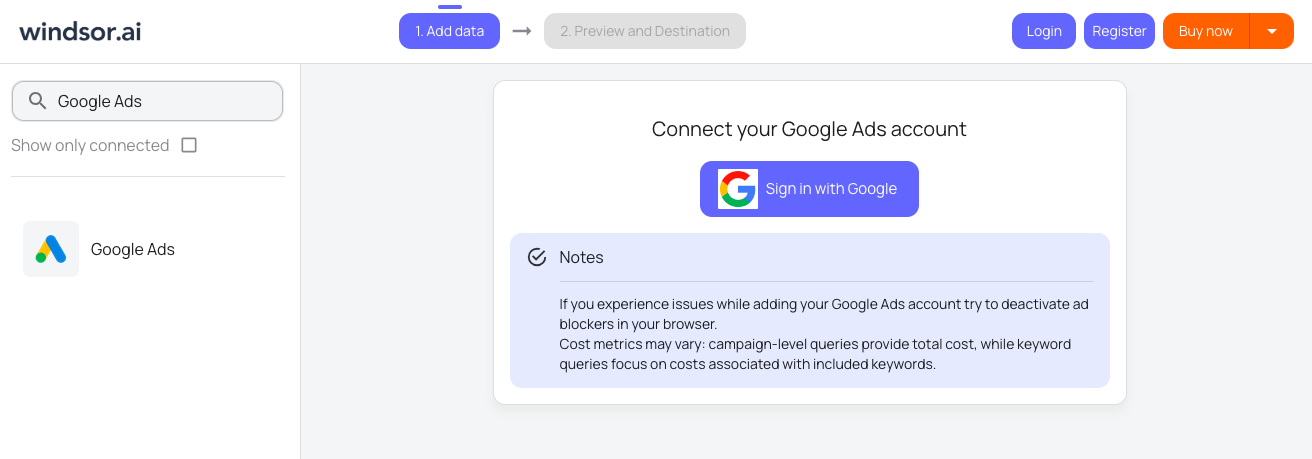
2. Select Google Ads data source and authenticate your account(s) using your Google credentials.

connect google ads windsor


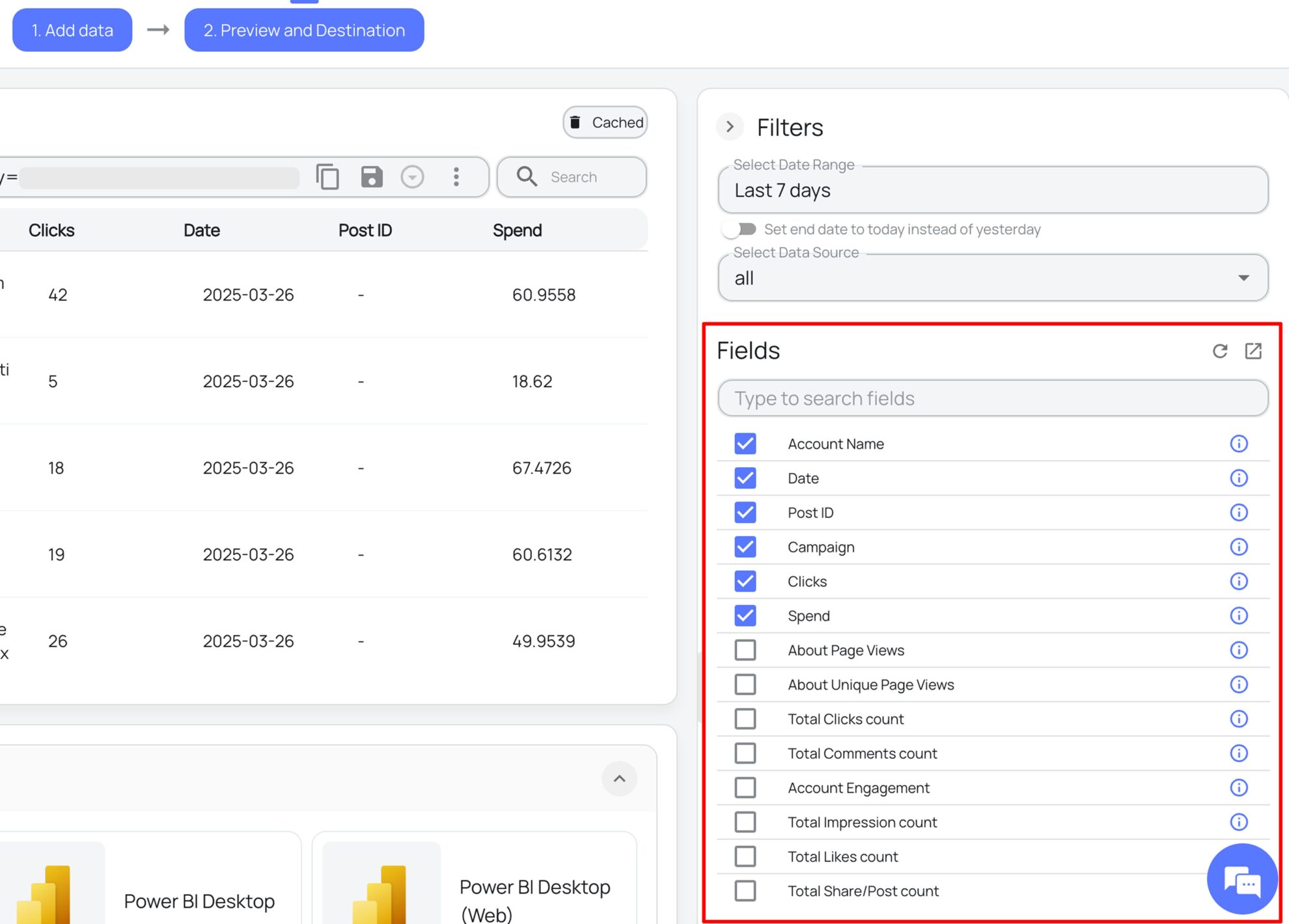
3. Choose your reporting metrics: clicks, conversions, cost, impressions, etc.

google ads reporting fields

4. Select Looker Studio as the data destination.

looker studio destination

5. Authorize the connection between Windsor.ai and Looker Studio: Select the required account(s), use a pre-built template for instant visualization (optionally), and click Connect.

google ads looker studio connector windsor

6. Click Create Report and see the dashboard with your campaign data.

google ads reporting in looker studio

✅ That’s it! Your Google Ads dashboard in Looker Studio is now automated.

Method 2: The Google ecosystem approach – Use the native Google Ads connector

If you prefer staying within the Google ecosystem, the native Google Ads connector in Looker Studio is your available option. It’s completely free, easy to access, and built directly into Looker Studio. You don’t need any third-party tools.

Steps to connect Google Ads to Looker Studio via the native connector

1. Open Looker Studio, click Add Data Source, and select Google Ads from the list of available connectors. 

google ads connector in looker studio

2. Next, sign in with your Google account, choose your desired ad account, and authorize data access. 

3. Once connected, you can start building your report using available metrics and dimensions.

This connector works well if you’re managing a single Google Ads account and need basic insights. 

Limitations of the native connector for advanced reporting

While the native Google Ads connector is convenient for basic dashboards, it starts to show limitations when you scale up to advanced analytics or large multi-client reporting.

1. The first challenge is restricted scheduling. Native connectors in Looker Studio have limited automation options for data refreshes. Background data refreshes are only available in Looker Studio Pro, and even then, they depend on each connector’s refresh policy (often fixed at every 12 hours or daily). “Live” or real-time syncing isn’t natively supported; data updates only occur during manual refresh or within the report’s open session.

2. Another major limitation is no cross-channel data unification. The Google Ads connector only provides access to Google Ads data. It doesn’t natively merge with data from Facebook Ads, HubSpot, or other marketing platforms; blending must be done manually or via third-party tools. For teams tracking omnichannel performance, this becomes a serious drawback.

3. For agencies or teams managing multiple client accounts, onboarding each new Google Ads account manually becomes time-consuming. Each account requires a separate connection setup, permission approval, and sometimes distinct reports, which is especially difficult if you’re not leveraging pre-built templates or automation.

4. Lastly, performance can drop when you’re handling large datasets or complex reports. High-volume Google Ads accounts or multi-dimensional queries may cause slow dashboard loading, long refresh times, or even timeouts. This limits scalability for enterprise-grade reporting.

The native Google Ads connector is fast, free, and easy to use, which works well for basic reporting. But if you require automated updates, multi-source blending, management of multiple reports, or enterprise-level reliability, you’ll quickly outgrow its capabilities.

Method 3: The developer-focused solution – Export via Google Ads scripts & Google Sheets

If you prefer full control, the developer solution using Google Ads Scripts + Google Sheets offers flexibility to extract, transform, and visualize data exactly how you want. It’s a powerful option for engineers and analysts who want to define their own automation rules and data structure.

However, unlike plug-and-play connectors, this method relies on custom scripts and requires regular upkeep

How it works

Google Ads Scripts use JavaScript to extract metrics directly from your Google Ads account. With these scripts, you can query performance data such as impressions, clicks, cost, and conversions. And export it automatically to Google Sheets.

Advantages of this method:

  • Provides granular control over the data you collect and how it’s structured.
  • Allows you to filter campaigns or metrics before exporting.
  • Enables custom scheduling, so data refreshes automatically at chosen intervals.
  • Supports conditional logic, like sending email alerts for budget or KPI thresholds.

Disadvantages of this method:

  • High maintenance: Scripts may break when Google updates its API or your Ads account changes.
  • Code dependency: Non-technical users can’t easily modify or troubleshoot issues.
  • Manual data cleaning: The exported data often needs formatting or transformation.
  • Scalability issues: Large datasets can slow down both Google Sheets and Looker Studio.

Steps to automate Google Ads reporting in Looker Studio with scripts

This setup isn’t beginner-friendly and requires you to:

  • Know both JavaScript and the Google Ads Script ecosystem.
  • Have API understanding to handle rate limits and schema updates.
  • Spend time on debugging and validation to ensure data accuracy.

Here are the actual integration steps:

1. Run your custom script in Google Ads to export data into Google Sheets.

Example Google Ads Script to export data to Google Sheets:

function exportGoogleAdsData() {
var sheetUrl = 'https://docs.google.com/spreadsheets/d/your-sheet-id/edit';
var sheet = SpreadsheetApp.openByUrl(sheetUrl).getSheetByName('Data');

var report = AdsApp.report(
"SELECT CampaignName, Clicks, Impressions, Cost, Conversions " +
"FROM CAMPAIGN_PERFORMANCE_REPORT " +
"DURING LAST_7_DAYS"
);

report.exportToSheet(sheet);

Logger.log('Google Ads data successfully exported to Google Sheets.');
}

This script retrieves core performance metrics (Clicks, Impressions, Cost, and Conversions) from the last seven days and exports them directly into a specified Google Sheet.

2. Confirm that the sheet includes all necessary metrics and dimensions.

3. Open Looker Studio and choose Google Sheets as your data source.

4. Select your exported sheet and link it.

5. Build your visual dashboard with charts and scorecards.

While this method offers flexibility, it requires technical setup, debugging, and maintenance whenever Google Ads or Sheets APIs change. With Windsor.ai, you can skip all scripting and connect Google Ads to Looker Studio automatically, in just a few clicks.

Conclusion

Now you know exactly how to connect Google Ads to Looker Studio using three different methods: via a third-party ELT connector like Windsor.ai, via the native Google Ads connector, and using Google Ads scripts with Sheets. Each option works, but the right one depends on your technical skills and reporting needs.

If you want speed, simplicity, and reliability, Windsor.ai is the best option. It lets you connect Google Ads to Looker Studio automatically, keep your dashboards synced on a custom schedule, and use pre-built templates to visualize performance instantly. Set it up once — and it updates itself forever.

If you prefer to stay entirely within the Google ecosystem, the native connector provides a free, basic setup for simple reporting.

And if you’re a developer who needs full control and customization, Google Ads Scripts allow deep flexibility for tailored automation.

🚀 Ready to save hours on reporting?

Get started with Windsor.ai right now, connect Google Ads to Looker Studio in minutes, and let your dashboards update automatically.


FAQs

How do I set up a Google Ads performance dashboard in Looker Studio?

Open Looker Studio and add Google Ads as a data source. Choose key metrics like clicks, cost, and conversions and create custom charts to track performance. To automate the process and eliminate dashboard creation from scratch, you can use pre-built Google Ads templates by Windsor.ai and start visualizing your campaign data in just seconds:

How can I send Google Ads data to Looker Studio?

You can connect Google Ads to Looker Studio using the native Google connector. Another option is using a third-party tool like Windsor.ai which gives complete automations and brod customization options. You can also export data to Google Sheets and link it to Looker Studio manually.

Can I connect Google Ads to Looker Studio and combine it with my Facebook Ads data?

Yes, you can combine multiple data sources using Windsor.ai connector. Our platform let you merge Google Ads with Facebook Ads and 325+ other data sources to create one unified performance dashboard.

How often can I update Google Ads data in Looker Studio using Windsor.ai?

Windsor.ai refreshes your Google Ads data automatically at scheduled intervals (every 15 minutes/hourly/daily). This ensures you always see up-to-date data without manual uploads.

Do I need coding skills to use Windsor.ai to sync Google Ads data to Looker Studio?

No, coding is not required. Windsor.ai is a fully automated solution with an intuitive interface that allows you to connect your Google Ads account to Looker Studio in just a few clicks.

How much does it cost to use Windsor.ai native connectors for Looker Studio?

Windsor.ai offers several pricing plans. Costs depend on the number of sources and accounts you connect and the preferred refresh schedule. You can start with a free 30-day trial and upgrade as your reporting needs grow. The Basic plan starts at just $19 per month. 

Tired of juggling fragmented data? Get started with Windsor.ai today to create a single source of truth

Let us help you streamline data integration and marketing attribution, so you can focus on what matters—growth strategy.
g logo
fb logo
big query data
youtube logo
power logo
looker logo