 Destinations
 Data sources
 AI insights
 About us
 Careers
 Security
 Customer reviews
 Contact us
 Affiliate program
 Solution partners
 Template gallery
 Looker Studio templates
 Power BI templates
 Excel templates
 Google Sheets templates
 Tableau templates
 Facebook Ads templates
 Google Ads templates
 Data fields & Metrics
 AI prompt library & Guides
 Product documentation
 API documentation
 Case studies
 Blog
 Data models
 Windsor vs Supermetrics
 Windsor vs Funnel.io
 Windsor vs Fivetran
 Windsor vs Rivery
 Windsor vs Portermetrics
 Windsor vs Coupler.io
 Last updated: 26 November 2026





To connect Typeform to ChatGPT, create a personal access token in Typeform, add it to Windsor.ai, then install the Windsor.ai plugin in ChatGPT. You don’t write any code.
After that, ChatGPT can answer questions about your Typeform responses: answers grouped by a hidden field such as utm_source, rating and NPS counts, how long people take to finish, and what they wrote in open questions.
We tried the setup with a test survey and 10 responses. ChatGPT got the completion times right, and the source breakdown once we asked for promoter, passive and detractor counts instead of NPS. It listed every written answer correctly but miscounted the blank ones, and two prompts that named the form returned no responses. Both problems are described below, with a way around each.
2 steps to connect Typeform to ChatGPT
For screenshots of the ChatGPT side of the setup, see Windsor.ai’s guide to integrating data into ChatGPT.
Prerequisites
- A Windsor.ai account. The free forever plan needs no credit card. Paid plans start at $19 a month, billed annually.
- A Typeform account. Any plan works, free or paid. We tested with a free account.
- A ChatGPT account. On ChatGPT Business, Enterprise or Edu, your workspace admin decides which plugins members can install (OpenAI’s admin guide to plugins).
Step 1. Connect Typeform to Windsor.ai
Windsor.ai connects to Typeform with a personal access token, which you create in Typeform first.
- Sign in to Typeform. In the menu next to your username, select Account, then Personal tokens.
- Select Generate a new token and give the token a name.
- Give it the read scopes: accounts:read, forms:read, responses:read, themes:read, images:read, webhooks:read and workspaces:read. Then select Generate token and copy the token. It starts with tfp_.
- Open the Typeform page in Windsor.ai. In Authorization Method, paste
{"auth_type": "access_token", "access_token": "YOUR_TOKEN"}with your token in place of YOUR_TOKEN. - Select Add Account, then Next.

Anyone with the token can read your Typeform data, so keep it private. Typeform’s personal access token guide shows how to regenerate or delete a token.
Step 2. Install the Windsor.ai plugin in ChatGPT
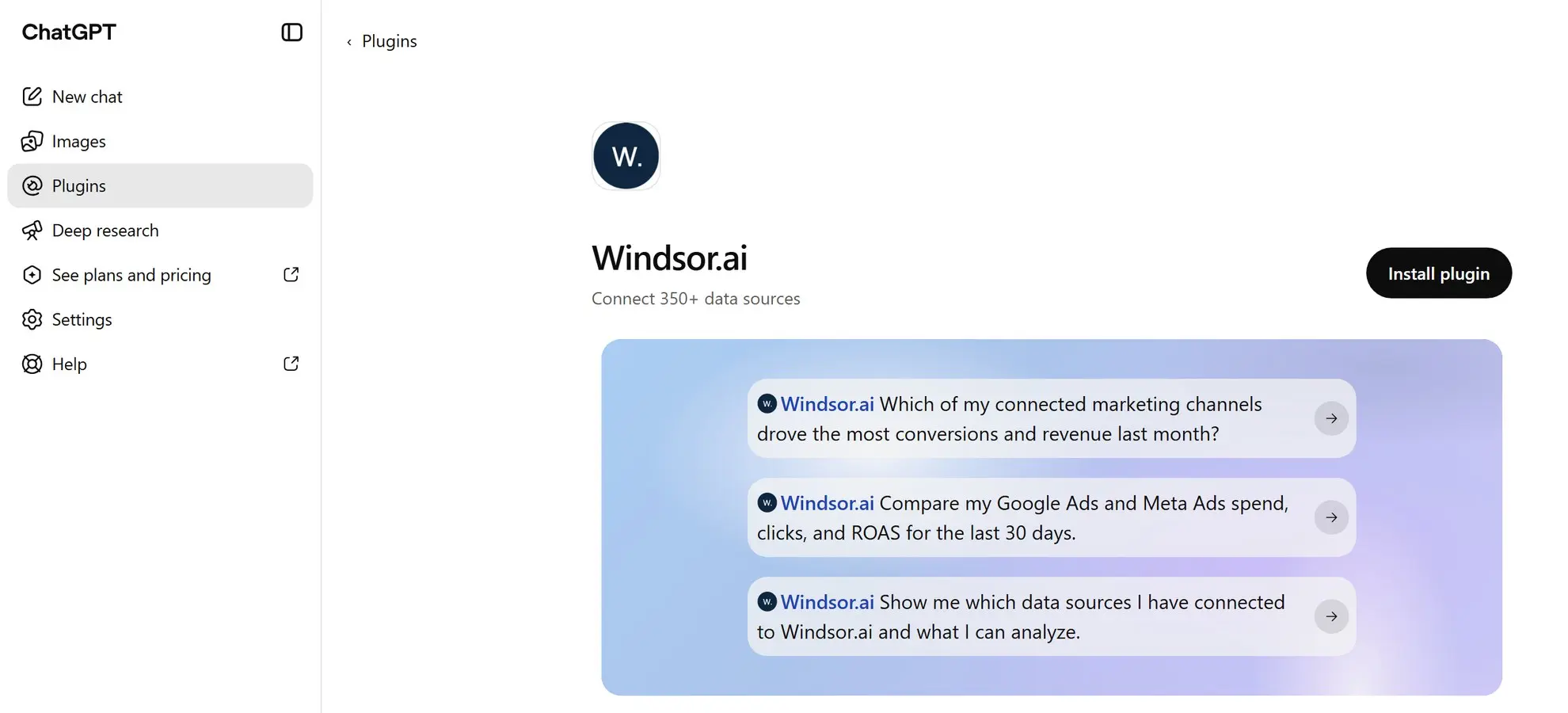
In ChatGPT, select Plugins in the sidebar, search for Windsor.ai and select Install plugin. You can also open the Windsor.ai plugin page.
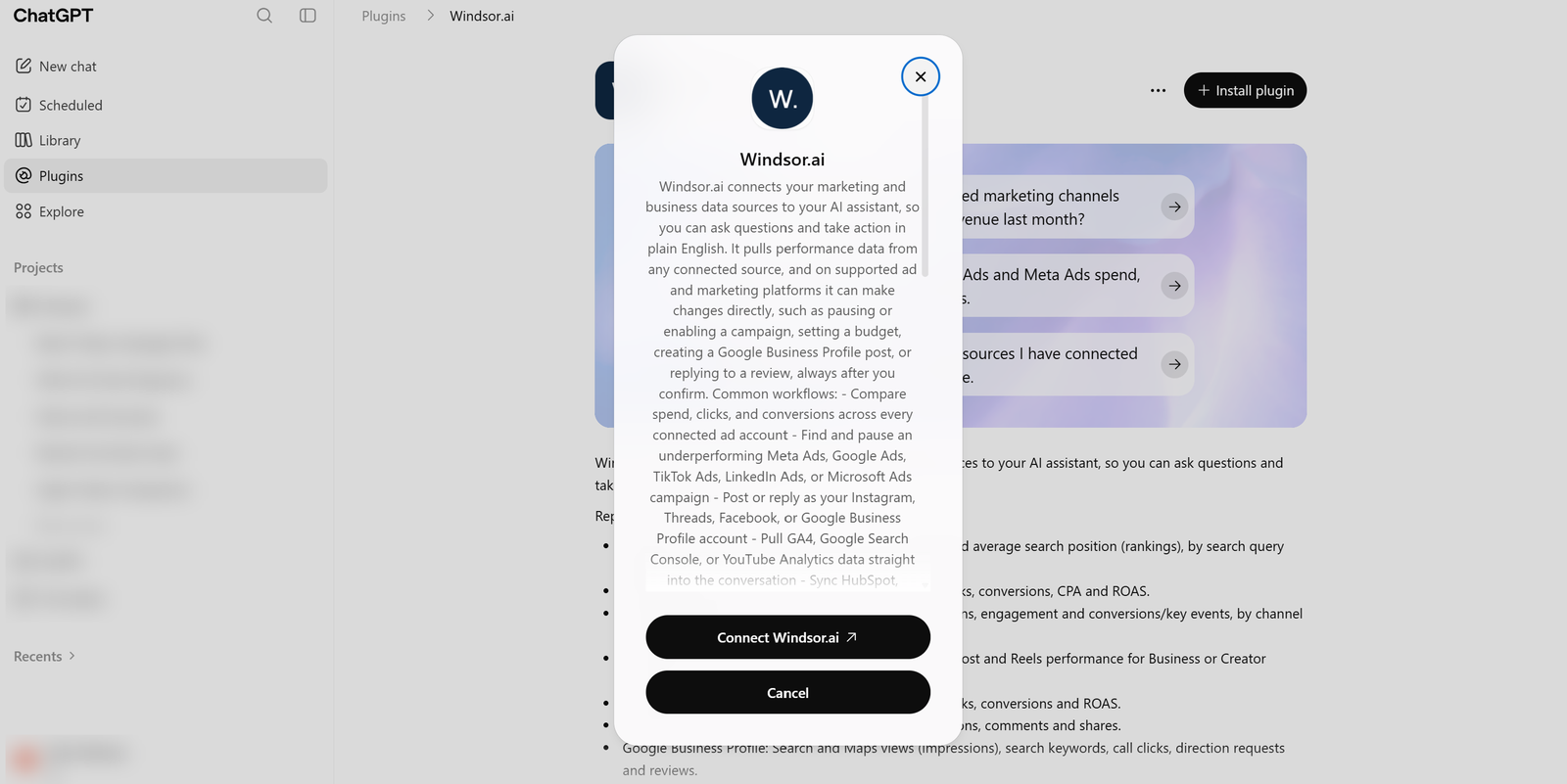
Then select Connect Windsor.ai, sign in to Windsor.ai and select Back to ChatGPT.
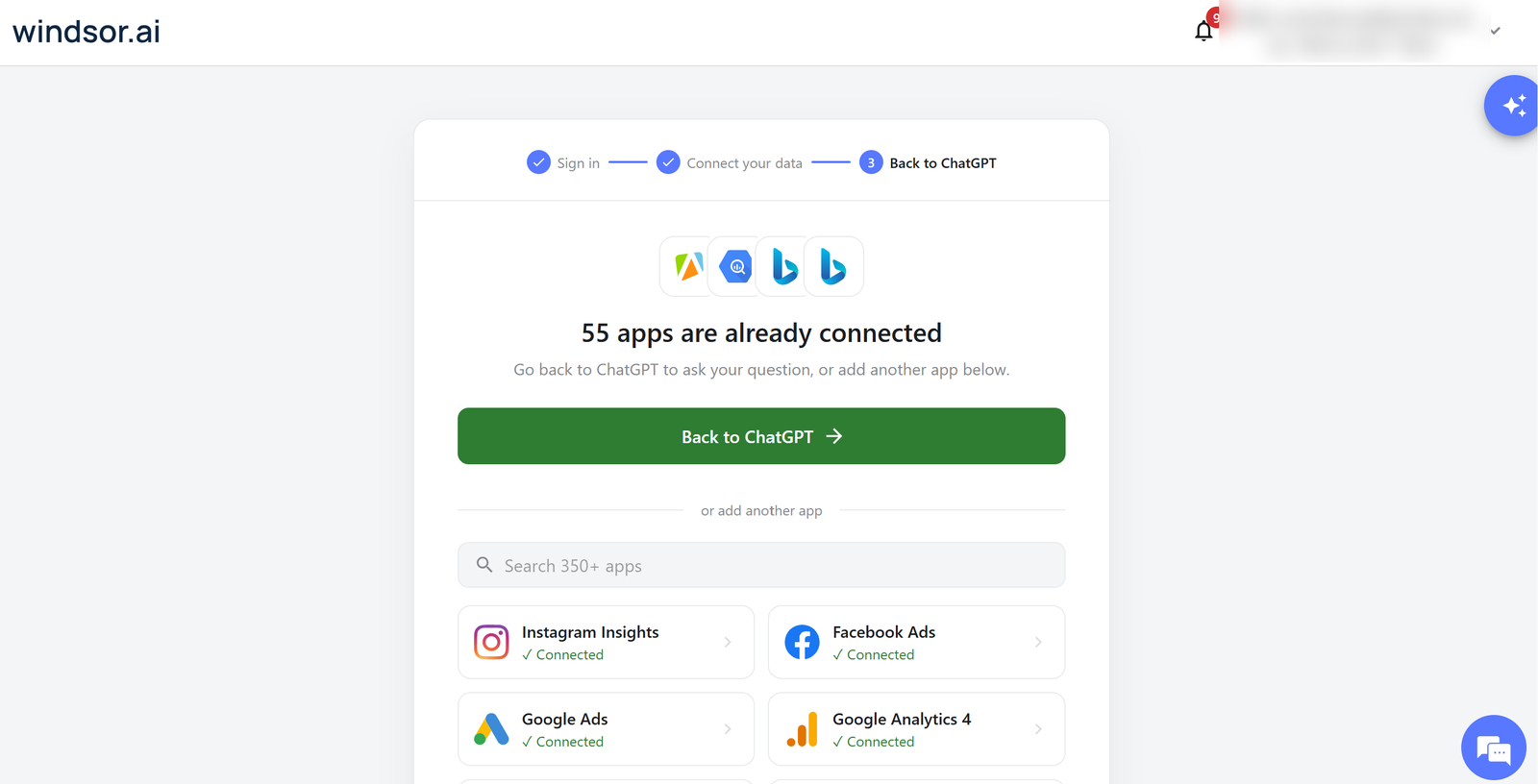
In a new chat, pick Windsor.ai from the + menu or type @Windsor.ai, then check the connection:
Which Typeform accounts are connected to my Windsor.ai account?
In our test on 26 November 2026, ChatGPT listed 1 connected Typeform account by its account ID, with no account name, and said it was connected and available in Windsor.ai.
What we tested in ChatGPT
On 26 November 2026 we created a test survey in a free Typeform account: “Product feedback survey (test data)”. It asks how people heard about us, a 5-star satisfaction rating, an NPS question (0 to 10) and an optional “What should we improve first?”. A hidden field, utm_source, takes its value from the form link. We sent 10 responses through form links with four utm_source values: google, linkedin, newsletter and referral.
Then we asked ChatGPT questions through the Windsor.ai plugin and checked each answer against the data in Windsor.ai.
Responses by UTM source. We asked: “Group my completed Typeform responses from the last 7 days, including today, by the utm_source hidden field. For each source, show the number of responses, the average satisfaction rating (1-5), and how many promoters (9-10), passives (7-8) and detractors (0-6) it has on the recommend question.”
ChatGPT returned a table by source: newsletter had the highest satisfaction (4.67 out of 5, 2 promoters out of 3), LinkedIn the lowest (3.00). The totals were 10 responses, an average of 4.00, 5 promoters, 2 passives and 3 detractors, an NPS of +20. Every figure matched the data in Windsor.ai.

An earlier version of the question asked ChatGPT for the NPS of each source directly. Its table showed Google at +33 and the total at +30, and it only corrected the total to +20 further down the answer. Those numbers fit a score of 6 counted as a passive instead of a detractor. Asking for the promoter, passive and detractor counts, with the score ranges in the question, gave the right numbers.
Completion time. We asked: “What’s the median time between landing and submitting in my completed Typeform responses from the last 7 days, including today? Also show the 3 responses that took longest.”
ChatGPT answered 21 seconds and listed the three slowest responses: 4 minutes 48 seconds, 47 seconds and 35 seconds. That matched the landed-at and submitted-at times in Windsor.ai. We asked twice and got the same answer both times.

Open-text answers. We asked ChatGPT three times, with two slightly different prompts, to list or sum up the answers to “What should we improve first?” and group similar requests. Each time it listed all 7 written answers correctly and grouped them, for example reporting (more templates, more export formats), performance, integrations, a mobile app and a clearer pricing page.
The blank answers were harder. 3 of the 10 responses skipped the question. ChatGPT got that right once. In the other two tries it said 2 (once it said 1 first, then corrected itself to 2). Typeform leaves a skipped optional question out of the response. If you need the number of blanks, take the total number of responses and subtract the number of written answers.
Naming the form. Two prompts that named the survey by its title returned no responses. One came back with the form record only. The other filtered the responses by form title and found none. Each Typeform response carries the form ID, not the title. Prompts that asked for responses from a date range worked, and ChatGPT named the form in its answer.
The Typeform data ChatGPT can read
Through Windsor.ai, ChatGPT reads 66 Typeform fields. The Typeform field reference lists them all.
- Responses (12 fields): answers, hidden fields, landed-at and submitted-at times, response type, calculated scores, variables and the form ID. These cover answers by source, ratings, NPS, completion time and comments.
- Forms (14 fields): title, type, questions, logic, settings, welcome and thank-you screens, theme, workspace, and created, published and last-updated dates.
- Webhooks (8 fields): URL, on/off status, tag, form ID, SSL verification and dates, so you can see which forms send data to other tools.
- Themes (12 fields), images (8) and workspaces (7): theme settings, uploaded images, and workspace names and sharing.
- Other (5 fields): today’s date, the current time, the connector name (two fields) and the time the data was fetched.
A few things to know before you ask:
- Response types. Each response has a response type: completed, partial or started. Ask for completed responses when you want finished answers only, or compare the three to see how many people began a form without submitting it. Our test had completed responses only.
- Answers by question. Answers come keyed by question ID. ChatGPT matched them to the question text on its own in our tests.
- Calculated scores. Calculated scores come from Typeform’s scoring. Our survey had no scoring, so they were 0.
- Read-only. Through Windsor.ai, ChatGPT can’t create or edit forms or change responses (see the write actions list).
- Today’s data. Windsor.ai’s “last 7 days” or “last 30 days” ends yesterday, so add “including today” when today’s responses matter. The same query repeated within 6 hours can return cached data.
Prompt ideas for Typeform in ChatGPT
- Group my completed Typeform responses from the last 30 days, including today, by the utm_source hidden field, with the number of responses for each source.
- What’s the median time between landing and submitting in my completed Typeform responses from the last 30 days, including today? Show the 3 that took longest.
- For the NPS question in my completed Typeform responses from the last 30 days, including today, how many promoters (9-10), passives (7-8) and detractors (0-6) came from each utm_source?
- Sum up the answers to “What should we improve first?” in my completed Typeform responses from the last 30 days, including today, and group similar requests.
- How many started, partial and completed Typeform responses did each form get in the last 30 days, including today?
- Which of my Typeform forms are published, and which webhooks are turned off?
Combine Typeform with other sources
Windsor.ai connects 350+ data sources, and you can ask about any connected source next to Typeform in the same chat.
- Typeform and GA4: put form responses next to sessions from the same traffic source, for example responses per 100 sessions from LinkedIn.
- Typeform and Mailchimp: check responses from newsletter links against the campaigns you sent that week.
We haven’t tested these combinations. A second source is free to test for the first 30 days. After that, two or more sources need a paid plan: Basic at $19 a month for 3 sources or Standard at $99 a month for 7, billed annually. See the pricing page.
Other ways to connect Typeform to ChatGPT
Besides the Windsor.ai plugin, Typeform has its own ChatGPT plugin, built on Typeform’s MCP server. We haven’t tested it.
Typeform’s own ChatGPT plugin
Typeform’s ChatGPT plugin is published by Typeform and described as “Build forms, analyze responses” (checked 26 November 2026). It’s listed in ChatGPT’s Plugins directory.
Typeform’s MCP server
Typeform’s MCP server docs (read 26 November 2026) describe the server behind Typeform’s ChatGPT plugin, at https://api.typeform.com/mcp, with OAuth 2.0 sign-in. Developers can use it to build their own integrations.
Use Typeform’s plugin to build forms from a chat, and the Windsor.ai plugin to compare Typeform answers with data from your other sources, such as GA4 or Mailchimp.
Conclusion
Connecting Typeform to ChatGPT takes a personal access token pasted into Windsor.ai and the Windsor.ai plugin in ChatGPT. In our test, ChatGPT answered source breakdowns, NPS counts and completion times correctly and listed every comment. Ask for counts with the score ranges in the question, give a date range instead of the form title, and check blank counts yourself.
You can also see the Typeform to ChatGPT integration page, connect Typeform to Claude, or read how to connect GA4 to ChatGPT and Mailchimp to ChatGPT.
🚀 Connect Typeform to ChatGPT. Free forever plan, no credit card
FAQs
Do I need coding skills to connect Typeform to ChatGPT?
No. You create a token in Typeform’s account settings, paste it into a one-line template in Windsor.ai and install a plugin in ChatGPT.
Does Typeform have its own ChatGPT plugin?
Yes. ChatGPT’s Plugins directory lists a Typeform plugin by Typeform, described as “Build forms, analyze responses” (not tested by us). Use Typeform’s plugin to build forms from a chat, and the Windsor.ai plugin to compare Typeform answers with data from your other sources, such as GA4 or Mailchimp.
Can ChatGPT see people who started a form but didn't finish it?
Yes. Windsor.ai reads completed, partial and started responses, and each has a response type. ChatGPT can count started or partial responses per form next to completed ones.
Why did ChatGPT find no responses when I named my form?
Typeform responses carry the form ID, not the form title. In our test, prompts that filtered by the title returned no responses. Ask for your responses from a date range instead, and ChatGPT names the form in its answer.
What Typeform data can ChatGPT analyze?
ChatGPT can analyze 66 Typeform fields through Windsor.ai: responses with answers, hidden fields, response type and landed-at and submitted-at times, plus forms, webhooks, themes, images and workspaces. The field reference lists them all.
How much does it cost?
Windsor.ai has a free forever plan with no credit card (1 user, 1 data source, 1 account, 30 days of history), which is enough for one Typeform account. A second source is free to test for the first 30 days. After that, two or more sources need a paid plan: Basic at $19 a month for 3 sources or Standard at $99 a month for 7, billed annually. See the pricing page.


