 Destinations
 Data sources
 AI insights
 About us
 Careers
 Security
 Customer reviews
 Contact us
 Affiliate program
 Solution partners
 Template gallery
 Looker Studio templates
 Power BI templates
 Excel templates
 Google Sheets templates
 Tableau templates
 Facebook Ads templates
 Google Ads templates
 Data fields & Metrics
 AI prompt library & Guides
 Product documentation
 API documentation
 Case studies
 Blog
Blog Data models
 Windsor vs Supermetrics
 Windsor vs Funnel.io
 Windsor vs Fivetran
 Windsor vs Rivery
 Windsor vs Portermetrics
 Windsor vs Coupler.io
 Last updated: 1 September 2026




Meta Business Suite is useful for basic monitoring of Facebook Page performance, but it offers limited flexibility for in-depth analysis, automated reporting, and cross-platform KPI tracking, especially when managing multiple Facebook Pages.
Many teams prefer importing Facebook Page Insights (Meta Organic) into Google Sheets to build shared dashboards, apply advanced formulas, compare time periods, and combine organic Facebook data with Meta Ads and other marketing channels in one place.
You may ask now: “How do I import Facebook Page data into Google Sheets?” The available methods vary in complexity, automation level, and technical effort, from manual CSV exports and custom API scripts to end-to-end automation via third-party connectors like Windsor.ai.
The fastest way to connect Facebook Pages to Google Sheets automatically is to use a no-code connector like Windsor.ai. It pulls data directly from the official Facebook Insights API and keeps your spreadsheet updated on a schedule (daily, hourly, or every 15/30 minutes) without manual operations or scripts.
In this tutorial, you’ll learn how to move Facebook Page Insights data into Google Sheets using Windsor.ai and create an auto-refreshing reporting setup with minimal maintenance. We’ll cover two integration methods:
Method 1: Using the Windsor.ai Google Sheets extension
Method 2: Creating a destination task in the Windsor.ai app
Let’s build a Facebook Page Insights to Google Sheets integration in just 4 minutes.
2 ways to sync Facebook Page Insights to Google Sheets automatically
You can automatically sync Facebook Page Insights to Google Sheets using Windsor.ai’s no-code connector. It offers two integration options: one managed directly inside Google Sheets and another configured in the Windsor.ai app via a destination task. Both methods deliver clean, structured data and keep your spreadsheet updated on a schedule.
Windsor.ai allows you to stream your Facebook Organic data into Google Sheets in two ways:
1) Using the Windsor.ai Google Sheets add-on: This method is handled directly inside Google Sheets. You connect your Facebook Page data to Windsor and then configure data import settings using the Windsor.ai add-on within the spreadsheet.
2) Creating a destination task in the Windsor.ai app: This method runs entirely in the Windsor.ai dashboard. You connect your Facebook Pages, select reporting fields, and create a destination (export) task to Google Sheets.
📄 Step-by-step instructions: How to integrate data into Google Sheets using Windsor.ai.
Which method should you choose?
The difference comes down to where you prefer to manage the workflow.
If your team works primarily inside Google Sheets, the add-on fits your approach better. If you have multiple Sheets integrations or clients, managing everything from the Windsor.ai dashboard is a more convenient option.
Method 1: Connect Facebook Pages to Google Sheets via the add-on
This method uses the Windsor.ai Google Sheets add-on to connect Facebook Page Insights (along with 350+ other data sources) to Google Sheets.
You connect your Facebook Page data to Windsor.ai, install the Google Sheets add-on, and create custom queries inside your spreadsheet. The add-on pulls the refined data into Google Sheets within a minute.
Once you set a refresh schedule, your spreadsheet updates on autopilot with no need to repeat the process.
Prerequisites:
- A Facebook Page with admin or analyst access
- A Windsor.ai account (free or paid)
- A Google Sheets file
- The Windsor.ai Google Sheets add-on
How to connect Facebook Page data to Google Sheets via the Windsor.ai add-on:
Step 1. Connect your Facebook Organic account(s) to Windsor.ai
Log in to the Windsor.ai app and select Facebook Page (Organic) from the list of available data sources.
Authenticate with your Meta account to view all connected Facebook Pages, then select the pages you want to import data from.

💡 Quick tip: You can connect Facebook Page data to Windsor immediately without registering. Your Windsor.ai account is created automatically after the first successful sync.
Step 2. Preview your Facebook data before import
Then, click Next to go to the Preview and Destination screen.
Here, you can verify that your Facebook Page Insights data is correct by selecting a date range and choosing the fields you want to export (follower count, post reach, views, reactions, audience insights, etc.).

If the data appears as expected, the connection is successful, and your Facebook Page data has been extracted correctly from the Meta API.
Step 3. Install the Google Sheets add-on
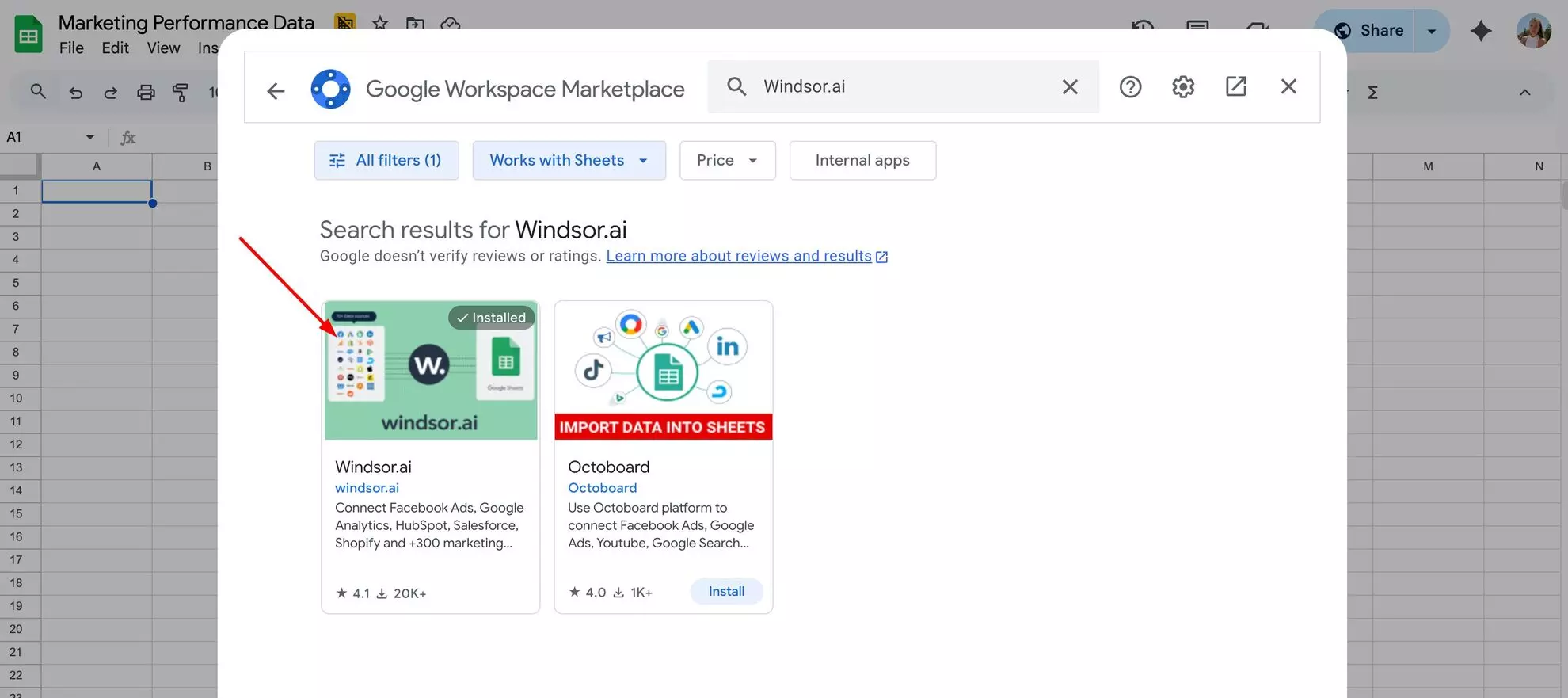
Open Google Sheets and create a new spreadsheet. Go to Extensions → Add-ons → Get add-ons.

Search for Windsor.ai and install the extension, giving all the required permissions.
Step 4. Log in with your Windsor.ai API key
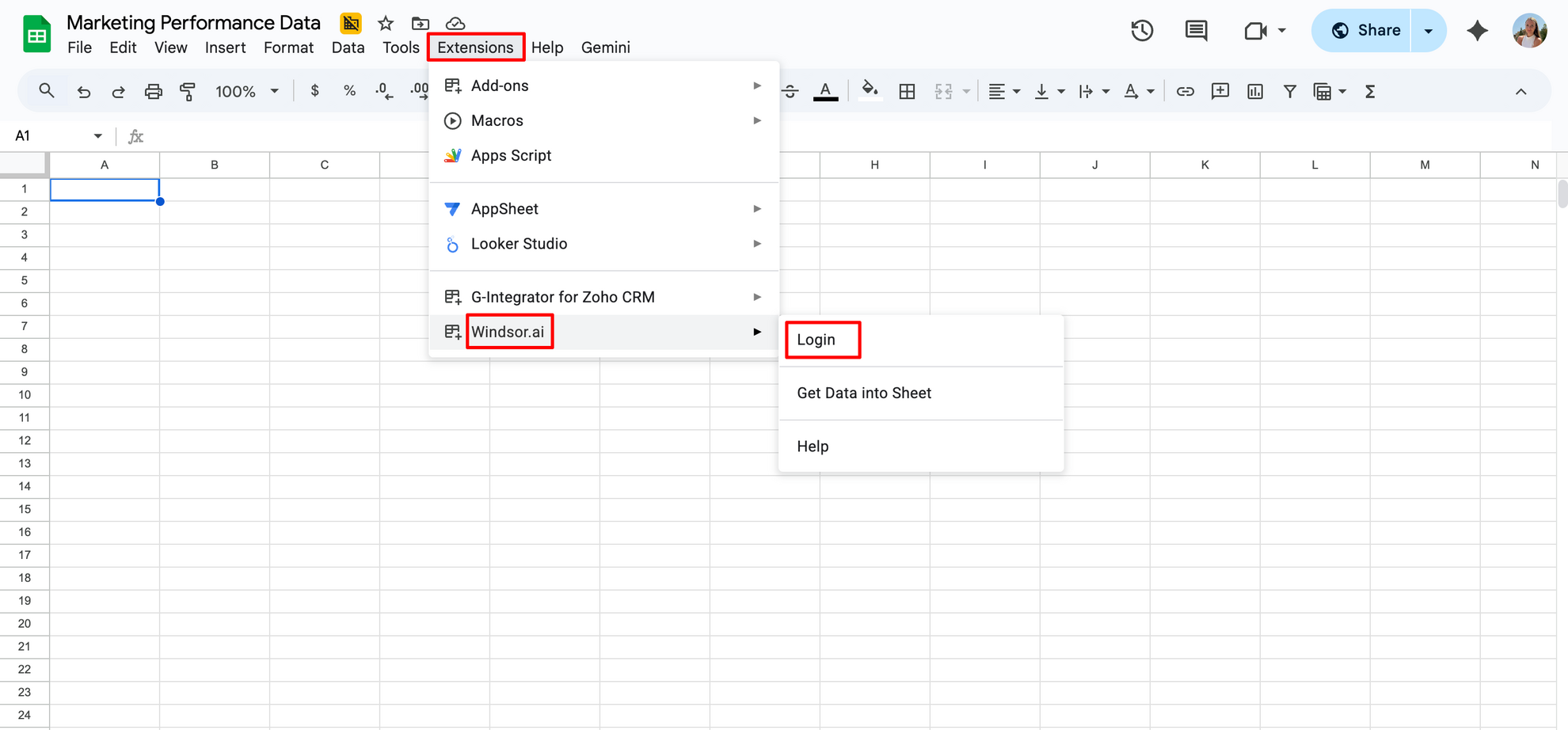
Once the add-on is installed, open Extensions, select Windsor.ai, and click Login.
You’ll be required to paste your Windsor.ai API key to create a direct connection between Google Sheets and the Windsor.ai platform.
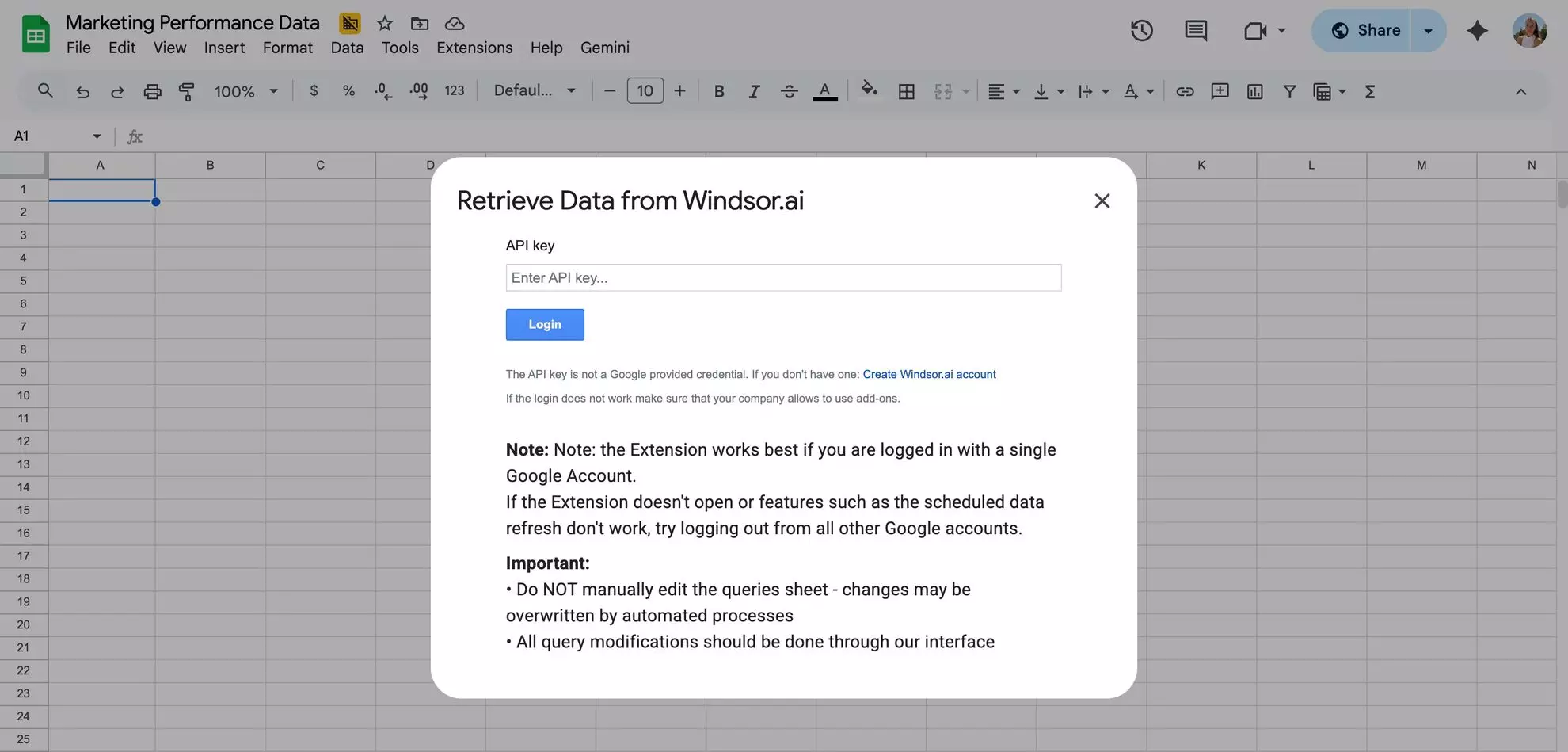
Find your unique API key in the Windsor.ai dashboard in the connector URL tab.

Once the connection is established, you can start streaming Facebook Organic data to Google Sheets.
Step 5. Customize your dataset
Open Extensions → Windsor.ai → Get Data into Sheet. Click the + Add new query button on the right-hand panel. This is a workspace where you set import settings.
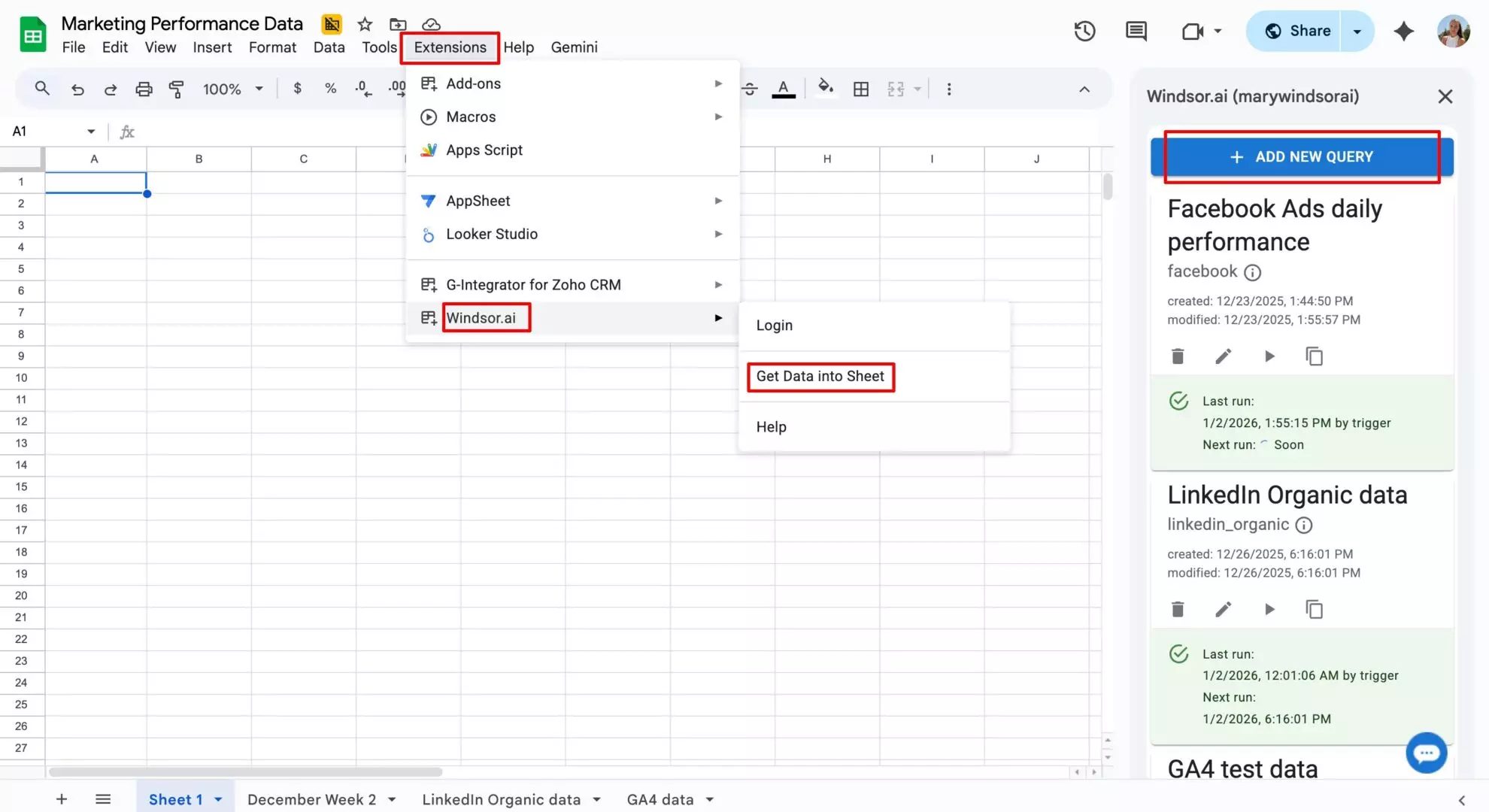
A query builder will open, which gives you control over your Facebook page dataset. You can customize your data before import by choosing a date range, data fields, optional filters, and refresh interval.
Configure the following query parameters:
- Query name (for example, Facebook daily performance)
- Target sheet name (select an existing sheet or create a new tab where the data should be loaded)
- Data source (choose Facebook Page (Organic))
- Accounts (select the account(s) you want to pull data from)
- Date range (define the reporting period)
- Fields (select the metrics and dimensions you need, such as profile meta data, followers count, post clicks, comments, captions, audience age, etc.). Windsor.ai supports 200+ metrics and 115+ dimensions from the Facebook Insights API.
- Add filters if necessary to segment your data.

💡 Pro tip: You can create multiple queries for different reports (e.g., profile stats, audience insights, top posts, etc.).
Step 6. Schedule auto-refresh
To fully automate Facebook Page Insights reporting in Google Sheets, set a scheduled refresh. You can choose daily, hourly, or every 15- or 30-minute updates. Windsor.ai will automatically refresh your spreadsheet at the selected interval without manual intervention.

You can change the refresh schedule at any time, and updates take effect with the next sync.
For active campaigns, shorter refresh intervals are preferred, as they help you track performance more closely in near-real time.
Step 7. Run the sync
Review your query configuration and click Schedule and load data to start the sync.
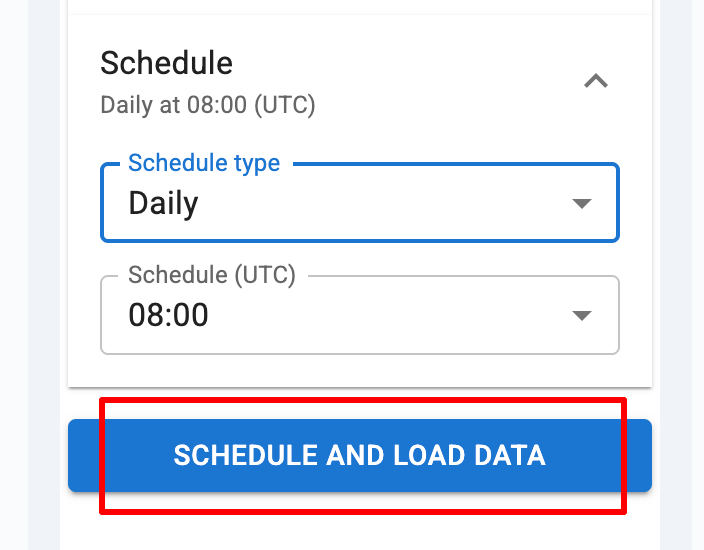
Note: You may be prompted to authenticate with your Google account and grant Windsor.ai access to the target Google Sheets file. Approve the permissions to proceed. If an error occurs, simply click Schedule and load data again.
Within a minute, your spreadsheet will populate with Facebook Page Insights data using consistent naming and formatting, ready for analysis and visualization.

Future syncs preserve your existing charts, formulas, and pivot tables. Data is only overwritten if you intentionally change the query parameters.
Step 8. Managing and editing the sync
After the import completes, your query is saved in the Windsor.ai Google Sheets add-on panel. You can edit the sync settings at any time by clicking the pencil icon on the query card.

If scheduled refresh is enabled, the sync also appears as a destination task in your Windsor.ai dashboard under the Google Sheets destination.
From the dashboard, you can also adjust sync parameters (refresh intervals, reporting fields, date range), even if the data was originally imported via the add-on.

This setup makes long-term Facebook Page (Meta Organic) reporting in Google Sheets easy to maintain. Your data stays up to date automatically, without manual exports or rework.
Method 2: Load Facebook Pages data into Google Sheets via Windsor.ai destination task
In this method, you prepare your Facebook Page dataset and configure import settings directly in the Windsor.ai app. All active syncs are displayed in a centralized task manager, making this approach ideal for teams that manage multiple data pipelines, such as digital agencies.
You connect your Facebook Page (Organic) data source, customize your query in the Windsor.ai dashboard, and create a destination task for Google Sheets through a simple form. Within a minute, your Facebook Page Insights data is loaded into a spreadsheet and ready for use.
Prerequisites:
- A Facebook Page with admin or analyst access
- A Windsor.ai account (free or paid)
- A Google Sheets file
How to import Facebook Page Insights data into Google Sheets via a destination task:
Step 1. Connect your Facebook data to Windsor
Create a Windsor.ai account and connect your Facebook Pages. Select Facebook Page (Organic) as the data source and choose the account(s) you want to aggregate data from.
Step 2. Refine your dataset
Open the Preview and Destination page to customize the dataset you want to send to Google Sheets.
Here, you can:
- select the data source (Facebook Page or Blended Data for cross-channel reporting)
- set a date range
- choose reporting fields (metrics and dimensions)
- optionally apply filters (for example, include only posts with 5+ clicks)

This step lets you tailor the Facebook Page Insights dataset to your reporting needs before it is streamed to Google Sheets.
✨ Pro tip: If you’re unsure which fields to select, use Windsor MCP for AI-assisted guidance. It connects your Meta Organic data to tools like ChatGPT, Claude, or others, to help identify the most relevant fields for your reporting goals.

Step 3. Select Google Sheets as the destination
Scroll down to the Data Destinations section and select Google Sheets. This opens the Google Sheets destination dashboard, where you can manage all spreadsheet pipelines.

Click Add Destination Task to build your first Facebook Organic to Google Sheets data pipeline.
You’ll be prompted to grant access to your Google account and select the Google Sheets file where the data should be loaded.
Then, fill in the rest form details:
- Select the target spreadsheet and provide a name for the new sheet (tab). Windsor.ai will automatically create the tab with this name inside the selected file.
- Review your query and confirm that all required fields and metrics are included. Modify if necessary.
- Enter a task name (for example, Facebook daily performance) and define the starting cell where the data should load.
- To automate updates, choose a refresh interval (daily, hourly, every 30 minutes, or every 15 minutes) and set the preferred run time.

You can also optionally enable:
- Column matching to keep existing fields aligned on every refresh
- Backfilling to pull historical data for long-term trend or YoY analysis
Step 4. Run the sync and verify your data in Sheets
After completing the destination task form, click Test connection. Once the test is successful, click Save to start the sync.
The task will appear as active in the Google Sheets destinations section. A green upload icon with an OK status confirms that the sync is running correctly. You can modify your pipeline settings anytime by clicking on the pencil icon.

Open your connected spreadsheet to verify that your Facebook Page Insights (Meta Organic) data is loading as expected. Check that all selected fields are present and that the column order looks correct.

You can then create charts and graphs on top of this raw data in a separate tab. These visuals update automatically with each scheduled sync, while preserving your existing formulas, charts, and layout.
Why use the Windsor.ai connector to sync Facebook Page Insights to Google Sheets
Windsor.ai connects directly to the Facebook Page Insights API, ensuring that all metrics are accurate, consistent, and fully normalized. This eliminates manual exports, CSV uploads, and spreadsheet cleanup, while keeping reporting dashboards continuously up to date.
Here are the core benefits of using the Meta Organic Google Sheets connector:
- Direct API connection: Windsor.ai retrieves data directly from Meta’s official API, reducing data discrepancies caused by manual copy-pasting, CSV imports, or formatting issues.
- Stable data schema: Column structures remain consistent across refreshes, ensuring formulas, pivot tables, and charts continue to work without reconfiguration.
- Scheduled auto-refresh: Set automatic refresh intervals so your Google Sheets dashboards always reflect the latest Facebook Page Insights data.
- Multi-page reporting: Combine data from multiple Facebook Pages in a single spreadsheet, making the connector ideal for agencies, franchises, and multi-brand teams.
- Historical data backfilling: Pull extended historical data using custom date ranges to analyze long-term organic performance trends.
- Cross-channel data blending: Blend Facebook Page Insights with data from 350+ other marketing platforms supported by Windsor.ai, creating unified dashboards across paid and media platforms as well as social, analytics, e-commerce, and CRM systems.
Bonus: Use a pre-built Facebook Pages Google Sheets template
Windsor.ai also provides ready-made Google Sheets templates that let you start reporting immediately without building dashboards, modeling data, or designing charts from scratch.
Our dashboard templates come with all essential Facebook Page Insights KPIs and a pre-designed layout, making it easy to set up automated Facebook organic reporting in just a few minutes. Just connect your data and schedule a refresh, and the template will update automatically using live data from the Facebook Page Insights API.
This ready-made solution is ideal for marketers and agencies that want fast, standardized, and scalable Facebook reporting in Google Sheets.
Available Windsor.ai’s Facebook Pages Google Sheets template
🔗 Template link: Facebook Organic Google Sheets Dashboard Template.
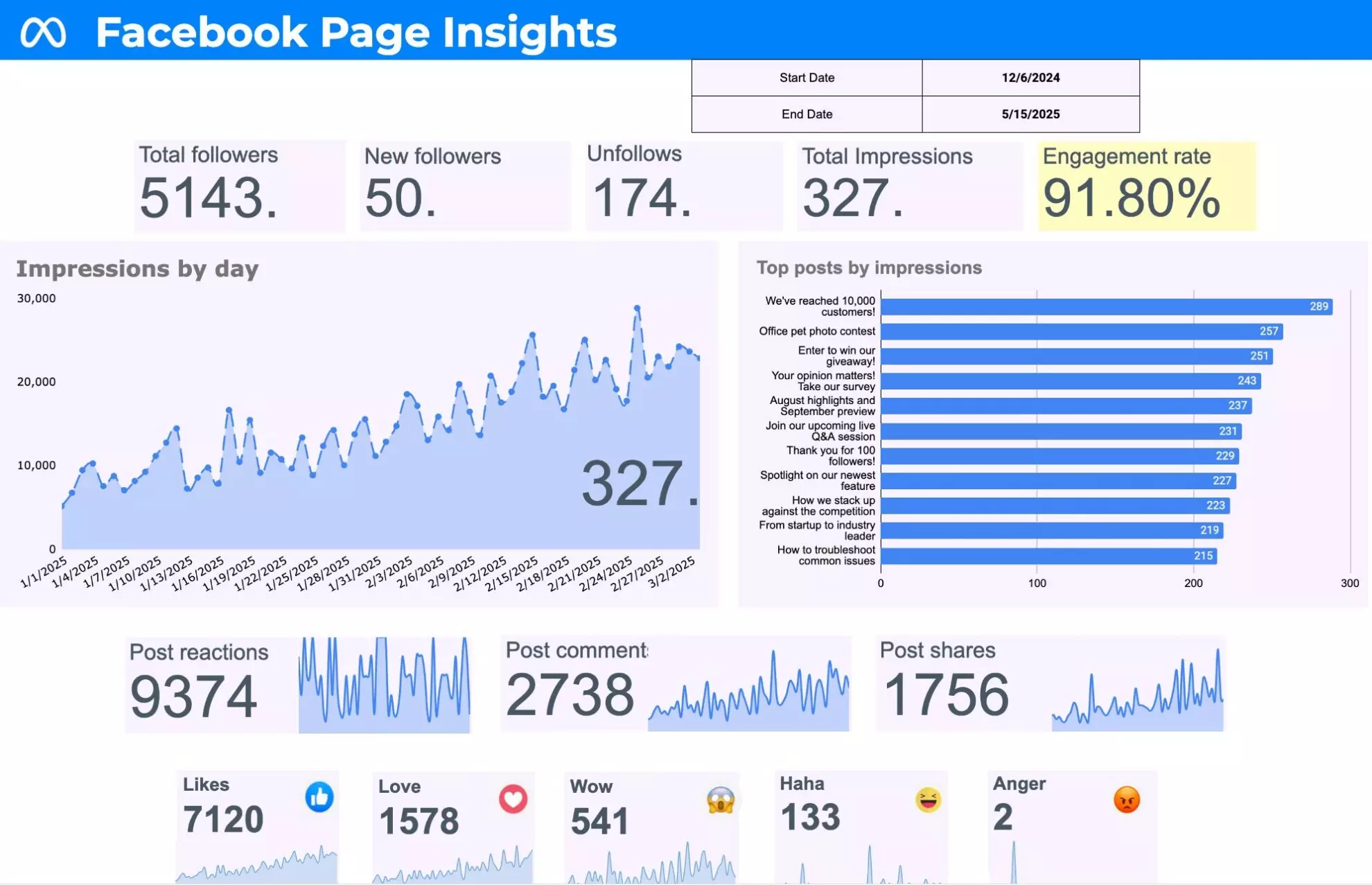
This is a ready-to-use, auto-refreshing dashboard that pulls Facebook Page Insights data into Google Sheets to track organic page performance.
What it’s for:
It’s designed to help marketers and teams track, analyze, and optimize Facebook organic performance without manual exports or complex setup through these features:
- A high-level overview of page growth and performance trends
- Post-by-post analysis to identify top-performing content
- Automated, client-ready reporting in Google Sheets
Essential KPIs included:
- Reach and impressions
- Actions (reactions, comments, shares)
- Engagement rate avg.
- Follower growth (fans, new followers, unfollows)
- Post-level performance by content type
How to use this template:
- Open the template and make a copy of this file.
- Connect your data by following the instructions in the tab Instructions.
- Schedule a refresh and load data; your real metrics will replace the placeholders.
- Customize the dashboard with your colors and logo. You can also adjust the charts and raw metrics.
This is the fastest way to transfer Meta Organic data to Google Sheets in a ready-to-use dashboard.
Challenges of manual Facebook Organic reporting
Manual Facebook Page Insights reporting does not scale. Regular CSV exports quickly become outdated, introduce human error, and make historical analysis difficult to maintain over time. As the number of Facebook Pages grows, managing multiple files and versions by hand becomes increasingly inefficient.
Automating the sync of Facebook Page Insights to Google Sheets keeps all data fresh and accurate and creates a single source of truth. Charts and dashboards update automatically, removing data integration and reporting bottlenecks and reducing manual effort.
Manual vs automated Facebook Page Insights reporting
| Feature | Manual method (CSV Exports) | Automated method (Windsor.ai) |
| Data freshness | Becomes outdated after each upload | Near real-time updates (up to 15 minutes) |
| Data accuracy | High risk of copy-paste and formatting errors | Accurate data due to the direct API extraction |
| Historical data | Requires combining multiple files over time | Backfill years of data with one click |
| Scalability | Difficult to manage more than a few pages | Easily supports reporting from 100+ Facebook Pages |
| Visuals & dashboards | Requires building charts from scratch | Instant reporting with pre-built Google Sheets templates |
Key Facebook Organic metrics to track
📝 Windsor.ai supports hundreds of Meta Organic metrics and dimensions directly from the Meta Insights API, including reach, engagement, clicks, follower growth, and post performance, with flexible field selection and automated integration into Google Sheets.
The following Facebook Organic metrics help you extract meaningful insights rather than generate data noise that goes unused:
1. Reach & visibility
- Organic reach: post_impressions_organic_unique
- Organic impressions: post_impressions_organic
2. Engagement
- Total engagements: page_post_engagements
- Reactions: post_reactions_total
- Comments: post_comments_total
- Shares: post_activity_by_action_type_share
- Engagement rate: engagements ÷ impressions (calculated)
3. Traffic & actions
- Post clicks: post_clicks
- Link clicks: post_clicks_by_type_link_clicks
4. Audience growth
- Total followers: page_follows
- New followers: page_daily_follows
- Unfollows: page_daily_unfollows
5. Video & Reels (Organic)
- Video views (organic): post_video_views_organic
- Video completion (95%): post_video_complete_views_organic
- Reels plays: fb_reels_total_plays
Reach, impressions, and engagement rate indicate how widely your content is viewed. The number of followers indicates long-term interest in the audience. Post-level performance helps determine which content formats produce the best results.
Measuring the right metrics keeps your Facebook data valuable and decision-oriented.
💡 Google Sheets is not the only destination for Facebook Page data. The same connector also feeds AI tools, so you can analyze reach, engagement and follower growth in plain language: Facebook Page Insights to Claude and Facebook Page Insights to ChatGPT.
Conclusion
Automating the import of Facebook Page Insights into Google Sheets turns static spreadsheets into a dynamic growth tool. Trends become easier to spot, helping teams make smarter content, audience, and optimization decisions using accurate, always fresh data pulled directly from the Meta Insights API.
With Windsor.ai, Facebook Page reporting in Google Sheets becomes faster and more reliable. No more manual exports or complex workflows, allowing teams to focus on deep analysis instead of data preparation.
🚀 Automatically get Facebook Page Insights data into Google Sheets in less than 4 minutes with Windsor.ai: https://onboard.windsor.ai/.
FAQs
Can I connect multiple Facebook Pages to Google Sheets for multi-account reporting?
Yes. Windsor.ai lets you merge data from all your Facebook Pages into a single spreadsheet. It is particularly helpful when agencies manage reports for multiple clients or brands.
Does the data in Google Sheets auto-refresh?
Yes. Windsor.ai allows you to schedule automatic refreshes (daily, hourly, or every 15/30 minutes). Your Facebook Page Insights will automatically update, sending the latest Facebook Organic data to Google Sheets without manual intervention.
Is my Meta Page data secure when I use Windsor.ai connectors?
Yes. Windsor.ai uses OAuth 2.0 authentication with read-only access, ensuring that your Meta Page data is securely accessed and cannot be modified.
What Facebook Page metrics can I import into Google Sheets?
You can import key organic metrics, including page reach, impressions, engagement, reactions, comments, shares, video views, and follower growth.
Can I backfill historical Facebook Page Insights data?
Yes. You can choose an extended date range according to your needs when creating a destination task for Google Sheets. Use the backfilling option to pull the historical data from your Facebook page.
How often should I refresh Facebook Page data in Google Sheets?
A daily refresh is the gold standard for most teams, providing reliable and up-to-date performance tracking. Hourly refreshes are useful for pages with frequent posting or rapidly growing audiences that require more careful monitoring.
Can I share Facebook Page reports in Google Sheets with my team or clients?
Yes, you can share the reports with others by giving them the appropriate Google Sheets permissions, such as the Viewer or Editor.
Do I need a developer account or a Facebook app setup for this integration?
No. One does not need to create a Facebook app or deal with developer permissions. The Windsor.ai connector handles all the technical requirements under the hood.
Is this method suitable for agencies and large teams?
Yes. This method is scalable and helps agencies deal with numerous Facebook pages and clients. Centralized automation through the in-app destination tasks helps reduce reporting overhead.


