 Destinations
 Data sources
 AI insights
 About us
 Careers
 Security
 Customer reviews
 Contact us
 Affiliate program
 Solution partners
 Template gallery
 Looker Studio templates
 Power BI templates
 Excel templates
 Google Sheets templates
 Tableau templates
 Facebook Ads templates
 Google Ads templates
 Data fields & Metrics
 AI prompt library & Guides
 Product documentation
 API documentation
 Case studies
 Blog
Blog Data models
 Windsor vs Supermetrics
 Windsor vs Funnel.io
 Windsor vs Fivetran
 Windsor vs Rivery
 Windsor vs Portermetrics
 Windsor vs Coupler.io
 Last updated: 8 September 2026




Manually exporting Google Analytics 4 (GA4) data, whether to a spreadsheet, a BI tool, or a warehouse, often leads to broken formulas, stale numbers, and hours lost to CSV wrangling. GA4’s own event-level data retention makes this worse over time: standard properties keep raw event data for 2 or 14 months depending on your settings (GA4 360 properties can go further), and once that window closes, Explorations and other non-aggregated reports simply can’t see data beyond it anymore. Standard aggregated reports aren’t affected by this limit, but anyone building funnels, cohort analysis, or long-term trend reports on raw events needs their own copy of the data before it ages out.
Windsor.ai’s GA4 connector solves both problems at once: scheduled, automated exports to whichever destination you actually use, so your own historical archive keeps growing past GA4’s retention window, no scripts, no GA4 API setup, no manual exports.
No scripts, no GA4 API setup, no manual exports.
This guide covers exporting GA4 data to Google Sheets in detail, plus a section for each other major destination, Excel, Power BI, Looker Studio, BigQuery, Snowflake, and Tableau, each linking straight to its own connect guide.
Export GA4 data to Google Sheets
In this guide, we’ll go through two ways to export Google Analytics 4 data to Google Sheets using Windsor.ai:
Method 1: Via the Windsor.ai extension (add-on) for Google Sheets
Method 2: Via a destination task created in the Windsor.ai dashboard
We’ll also briefly explore why manual GA4 reporting in Google Sheets becomes painful and how Windsor.ai’s automated connectors remove the hassle.
2 ways to export GA4 data to Google Sheets automatically
At Windsor.ai, we support two Google Analytics 4 Google Sheets integration methods:
- You can send your GA4 data to Sheets using the Windsor.ai Google Sheets extension (add-on). This method runs primarily inside the Google Sheets interface, allowing you to manage reporting queries and load GA4 data directly into a spreadsheet. It’s ideal if you prefer working within Google Sheets.
- Another method lets you connect your GA4 to Google Sheets from the Windsor.ai dashboard (in-app flow) by creating a destination task. Without leaving our app, you can customize your dataset, set a refresh schedule, and run the sync. Your data is then loaded and automatically updated in the target spreadsheet in the background. Then, you manage all your active syncs (tasks) directly from the Windsor.ai interface.
📄 Step-by-step instructions: How to integrate data into Google Sheets using Windsor.ai.
Which method should you choose?
Both integration methods keep your GA4 data accurate, normalized, and consistently up-to-date in Google Sheets, without requiring any code or ongoing maintenance.
The best-fit option depends on how you prefer to work.
Some teams want to work directly in Google Sheets and manage everything through a familiar interface. Others prefer a more structured workflow inside Windsor.ai, where they select reporting fields and configure export tasks using a simple setup form.
Method 1: Export GA4 data via the Windsor.ai Google Sheets add-on
This method relies on the Windsor.ai add-on that allows you to connect Google Analytics 4 (and 350+ other data sources) to Google Sheets.
You just connect your GA4 property to Windsor.ai, install our extension in Google Sheets, and configure the export from there.
Prerequisites:
- Google Analytics 4 property with the required permissions
- Google Sheets file
- Windsor.ai account (free or paid)
- Windsor.ai Google Sheets extension
How to connect Google Analytics 4 data to Google Sheets via the Windsor.ai add-on:
Step 1. Connect your GA4 account(s) to Windsor.ai
First, register and log in to your Windsor.ai account. Then choose Google Analytics 4 as your data source and authenticate using your associated Google account.
You’ll see all available accounts; select only those GA4 properties you’d like to pull data from.

💡 Quick tip: You can immediately connect GA4 to Windsor, and your Windsor.ai account will be created automatically after the sync.
Note: This connection uses read-only access. Your data stays secure throughout the process thanks to the OAuth 2.0 (Open Authorization) protocol.
Step 2. Preview your GA4 data in Windsor.ai
Click Next to go to the Preview and Destination screen.
Here, you can preview your data before export by choosing the metrics and dimensions that matter most. Make sure the numbers match your original report. This is the confirmation of a successful connection and that your GA4 data was correctly extracted.

Step 3. Open Google Sheets
The next step is to create a new spreadsheet for this data transfer. Give the file a descriptive name so it’s easy to recognize it later.
💡 Quick tip: In case you want to blend data from multiple platforms in a single sheet, use separate tabs for each data source. This will help you keep things clear and well-organized.
Step 4. Install the Windsor.ai Google Sheets add-on
In Google Sheets, click Extensions → Add-ons → Get add-ons. Type Windsor.ai in the search bar.

Install the Windsor.ai add-on and allow access. This process takes just a few seconds and requires no technical setup.
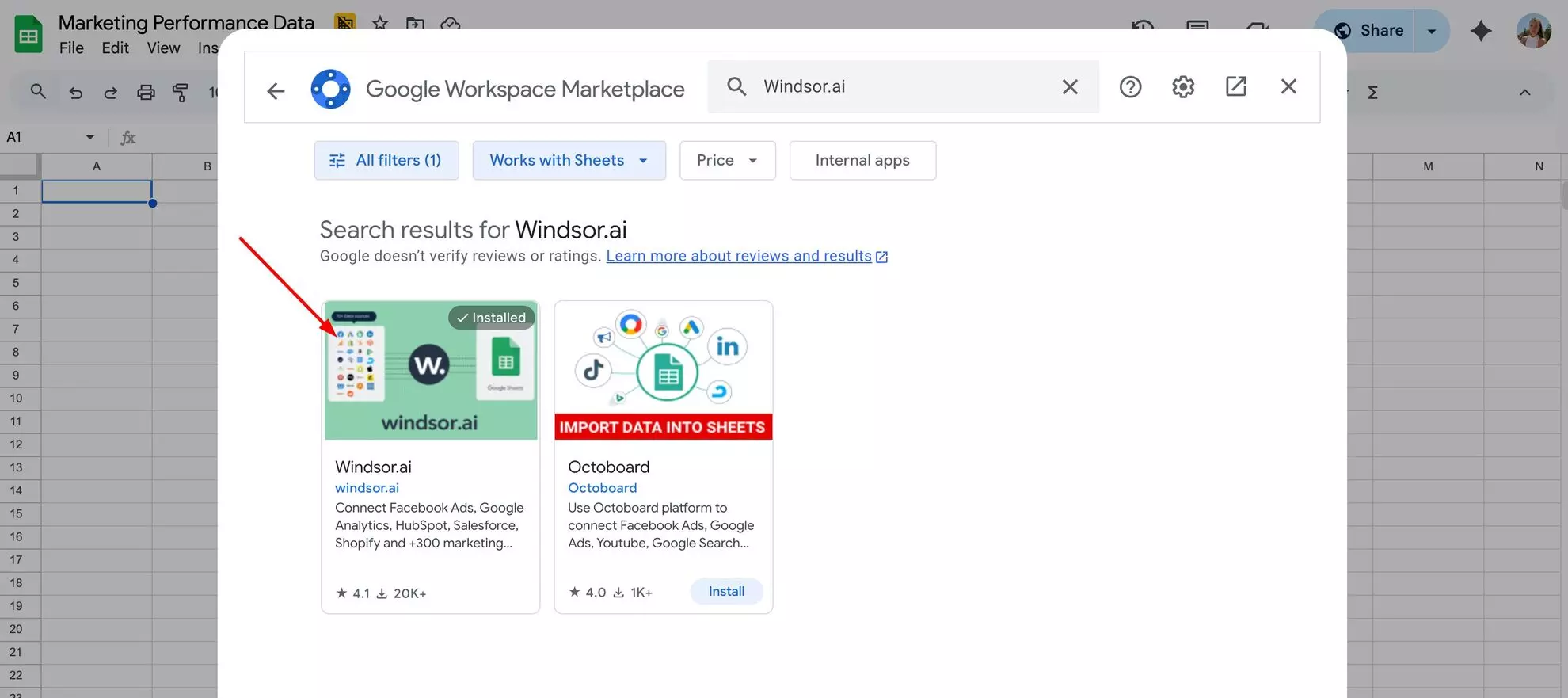
Once installed, the add-on appears under Extensions. You are now ready to sync your GA4 data to Google Sheets.
Step 5. Log in to the Windsor.ai add-on
Open the Extensions → Windsor.ai. For the first setup, you have to log in to your account through the Windsor.ai API key.
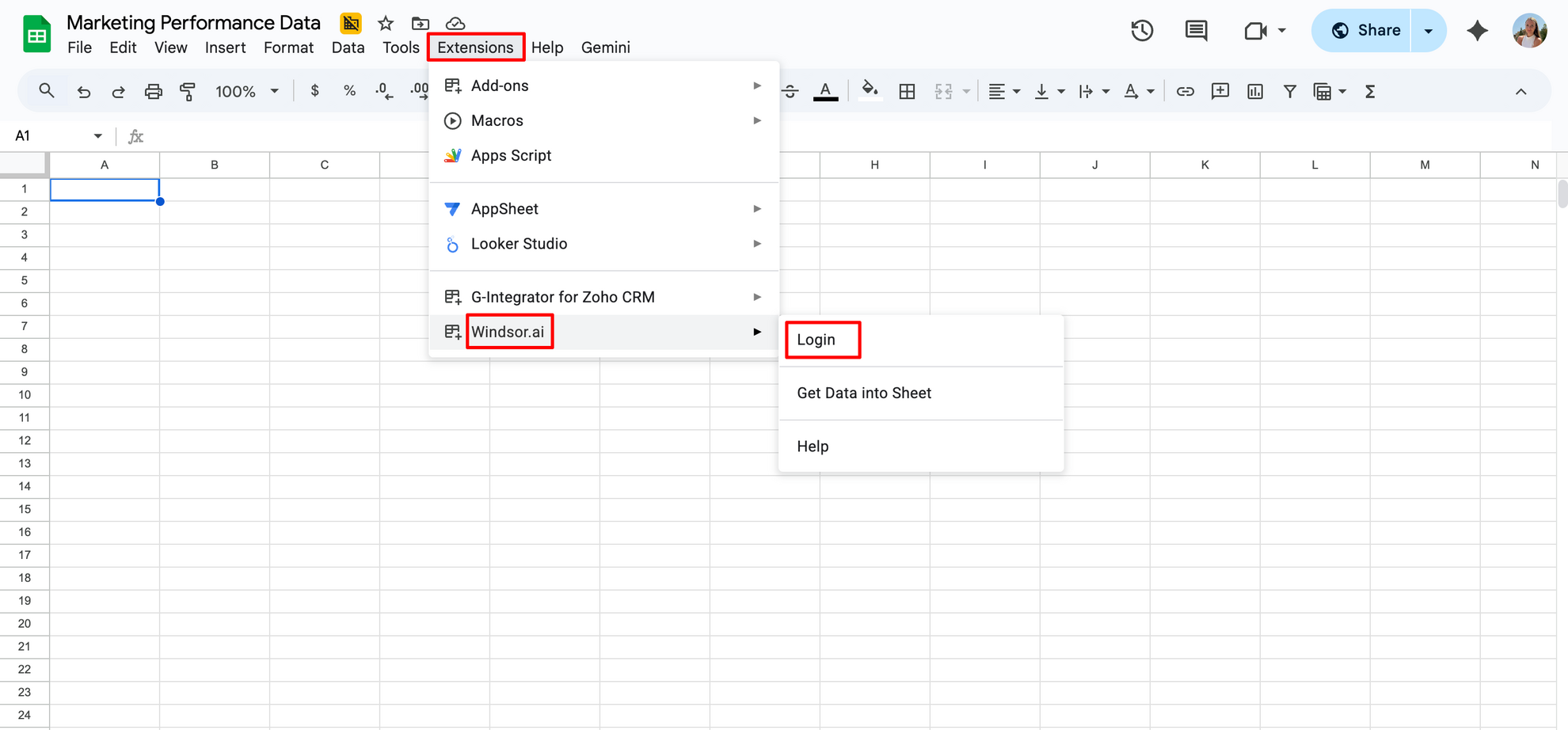
You can quickly locate your API (Application Programming Interface) key in the Windsor.ai dashboard in the query builder bar.

Copy-paste it to complete the connection between Windsor and Google Sheets.
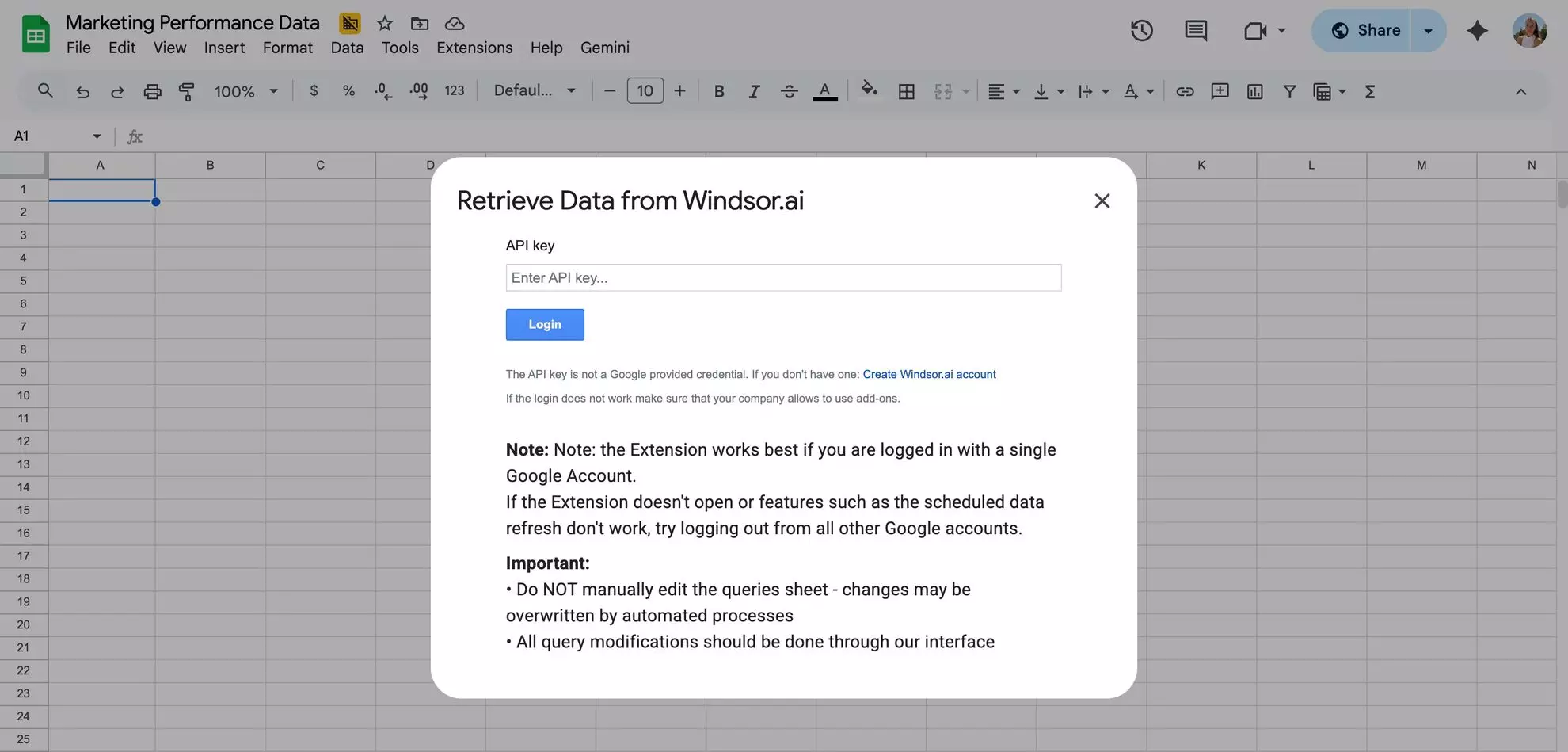
After the initial login process, the add-on is fully active and linked to your connected Windsor.ai data. You are now ready to sync your GA4 data to Google Sheets.
Step 6. Build your first GA4 query
Again, navigate to Extensions → Windsor.ai → Get Data into Sheet. The query builder will open in the right-hand panel. Click + Add new query.
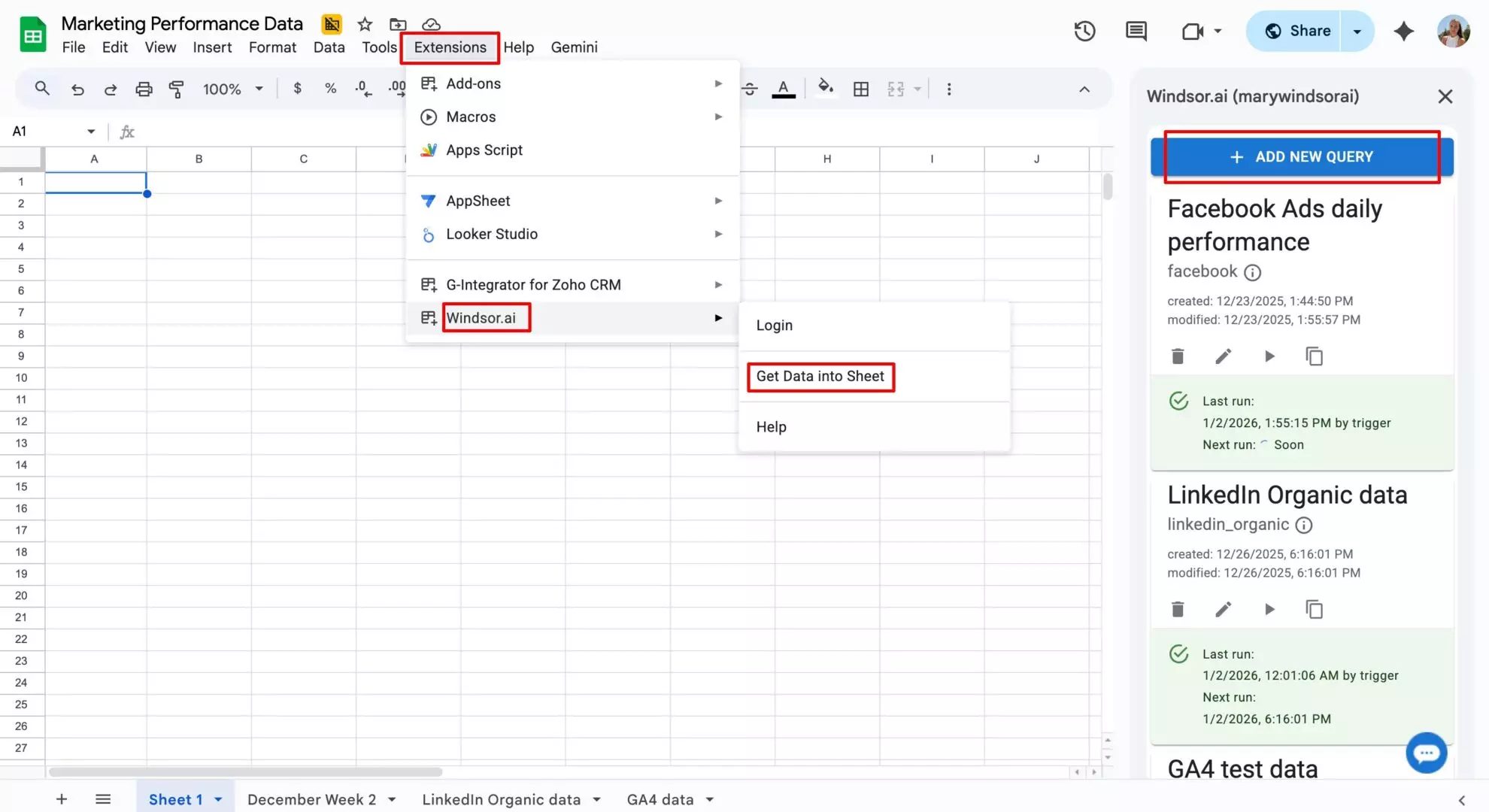
This setup determines how your data will appear in a spreadsheet. The options you choose define the column structure, so setting things up correctly now helps you avoid issues later.
In the sidebar, configure the following query parameters:
- Query name (for example, GA4 daily performance)
- Target sheet name (select an existing sheet or create a new tab where the data should be loaded)
- Data source (choose GA4)
- Accounts (select the account or accounts you want to pull data from)
- Date range (define the reporting period)
- Fields (select the metrics and dimensions you need, such as source, traffic, views, clicks, events, etc.). Windsor.ai supports 90+ metrics and 385+ dimensions from the Google Analytics API.
- Add filters if required to segment your data.

You can create multiple queries if needed. Each query can power a separate report (for example, performance stats, audience insights, account metadata, etc.).
Step 7. Set an auto-refresh schedule
Select how often your data should refresh. For most reports, daily updates are enough, while hourly refreshes are better suited for fast-changing campaigns. For time-sensitive monitoring and quick optimizations, 15- or 30-minute refresh intervals are ideal.

With our scheduled refreshes, you never need to re-run exports manually.
You can change the schedule anytime. The sync remains flexible. Adjustments take effect immediately.
Step 8. Run the data import
Verify your query parameters, and when all is correct, run the query to load the data into the sheet by clicking Schedule and load data.
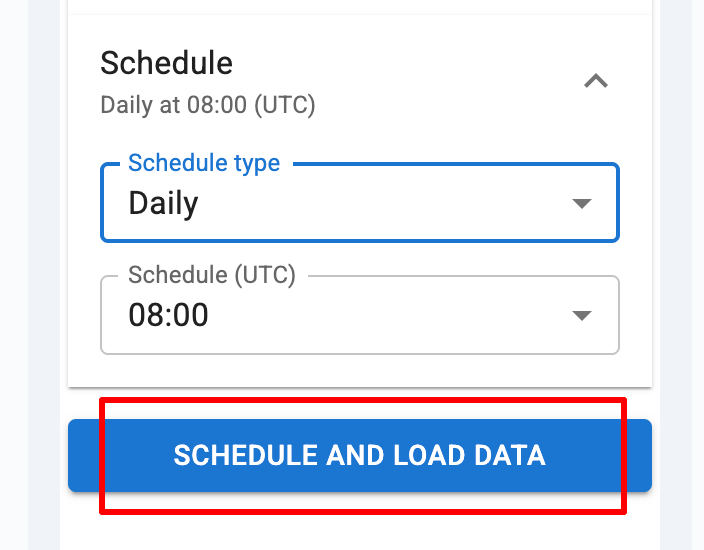
Windsor.ai may ask you to authenticate with the account you’ve used in Google Sheets and grant access to the Google Sheets file to which you’d like to stream your GA4 data. Allow all and see a success message.
Note: If you get any error on this step, click on the Schedule and load data button once again.
Data starts filling the tab with consistent columns and formatting.

All future syncs will preserve your existing charts, formulas, and pivot tables. Data will only be replaced if you choose to overwrite it by modifying a query.
If a sync fails, retries happen automatically. Errors are visible and easy to fix. Nothing fails silently.
Step 9. Managing and editing the sync
Once the sync runs, you’ll see a saved query in your Windsor.ai extension. You can manage and edit sync parameters by clicking the pencil icon on this query.

If you set a scheduled refresh, the newly created destination task for this sync will appear in your Windsor.ai dashboard under Google Sheets; you can change the sync settings right from here, even if you’ve exported data via the add-on.

With such a quick, fully automated setup, you can effectively handle long-term GA4 reporting in Google Sheets. Data always stays accurate, stable, and fresh without your manual input, saving you hours daily.
Method 2: Export GA4 data via Windsor.ai destination task
In this method, you connect your GA4 data source, customize your query in the Windsor.ai dashboard, and configure an export task for Google Sheets through a simple form.
This approach is ideal for agencies and large teams that handle multiple GA4 properties and want to quickly access client report settings from a single place.
Prerequisites:
- A GA4 account with the required permissions
- A Windsor.ai account (free or paid)
- A Google Sheets file
How to connect Google Analytics 4 data to Google Sheets via a destination task:
Step 1. Connect your GA4 account(s) to Windsor.ai
The connection steps are the same as in Method 1. Just grant access to your GA4 account and select the necessary properties.
Step 2. Customize your GA4 dataset
On the Preview and Destination screen, select Google Analytics 4 as the data source (or Blended Data for cross-channel reporting) and select the required settings.

In the Fields, pick metrics and dimensions that match your reporting needs and, optionally, apply filters.
✨ Pro tip: If you’re unsure which fields to select, use Windsor MCP for AI-powered assistance. It lets you connect your GA4 data to your favorite AI chat (ChatGPT, Claude, and others), where you can ask AI to help identify the most relevant fields for your reporting case.

Preview the data before exporting to confirm accuracy.
Step 3. Choose Google Sheets as the destination
Scroll down to the Data Destinations section and choose Google Sheets. In this dashboard, you manage all your saved destination tasks.

For the GA4 data export, click Add Destination Task.
You’ll first be asked to authorize access to your Google account and choose the spreadsheet where the data should be sent.
Then, fill in the form:

- Select the target spreadsheet and provide a name for the new sheet (tab). Windsor.ai will automatically create the tab with this name inside the selected file.
- Take a moment to review your query and confirm that all required fields and metrics are included.
- Next, enter a task name (for example, GA4 daily performance) and define the starting cell where the data should load.
- To automate updates, choose a refresh interval (daily, hourly, every 30 minutes, or every 15 minutes) and set the preferred run time.
You can also optionally enable:
- Column matching to keep existing fields aligned on every refresh
- Backfilling to pull historical data
Once everything is configured, click Test connection to verify that Windsor.ai can successfully connect to your spreadsheet. After the test passes, click Save to activate the sync and start importing data.
The task will then appear as active in the Google Sheets destinations section. A green Upload icon with an OK status confirms that the sync is running correctly.

You can make changes to this task (change a query, date range, or refresh interval) anytime right from this form.
This final step completes the Google Analytics 4 to Google Sheets integration, with data automatically appearing in your spreadsheet within minutes.
Step 4. Verify GA4 data in Google Sheets
Once the export is done, verify your data in the connected spreadsheet. Ensure that all the data is in place and check the right order of columns.

Now you can build formulas, pivot tables, or charts on top of this data. Updates will happen automatically with every new sync.
Note: Once created, the destination task remains active and automatically refreshes your data based on the schedule you set. You don’t need to reopen or rerun it manually, making this method ideal for long-term, fully automated reporting.
Why use the Windsor.ai connector to sync GA4 to Google Sheets
Windsor.ai pulls data directly from the GA4 API, ensuring high data accuracy and stable data schemas. This consistency preserves your column structure, formulas, and charts, keeping reports clean and dependable over time.
With the Windsor.ai GA4 Google Sheets connector, you get a reliable, scalable way to keep your reports accurate, structured, and automatically updated, thanks to the following key benefits:
- Direct GA4 API connection: Data is fetched straight from the GA4 API, avoiding UI-level sampling issues. What appears in Google Sheets reflects actual data rather than estimates, leading to more reliable analysis.
- Stable schemas and report integrity: Data structures remain consistent across refreshes, so formulas continue to work, and charts don’t break. This significantly reduces report maintenance.
- Automatic refresh schedules: Your data stays up to date with scheduled syncs; no manual exports or uploads required.
- Centralized GA4 property management: Easily manage and onboard multiple GA4 properties from a single interface, saving time as reporting needs grow.
- Historical data access: Retrieve and backfill historical data to support trend analysis and long-term performance reporting.
- Data blending across 350+ sources: Combine GA4 data with 350+ marketing, advertising, CRM, and sales data sources in Google Sheets to build unified, cross-channel reports without complex manual joins.
Bonus: Use a pre-built GA4 Google Sheets template for instant start
We offer a library of ready-made Google Sheets templates that allow you to visualize marketing data, including Google Analytics 4, in fully pre-designed dashboards. These templates let you start tracking performance immediately, without designing reports from scratch.
Because the layouts, metrics, and visualizations are already configured, you save significant setup time. Your GA4 reports are clear, structured, and actionable from the first sync.
Once connected, the data continues to sync in the background. There’s no need for repeated exports, manual updates, or ongoing adjustments.
GA4 Google Sheets template by Windsor.ai
🔗 Template link: Google Sheets Google Analytics 4 (GA4) Report Dashboard.
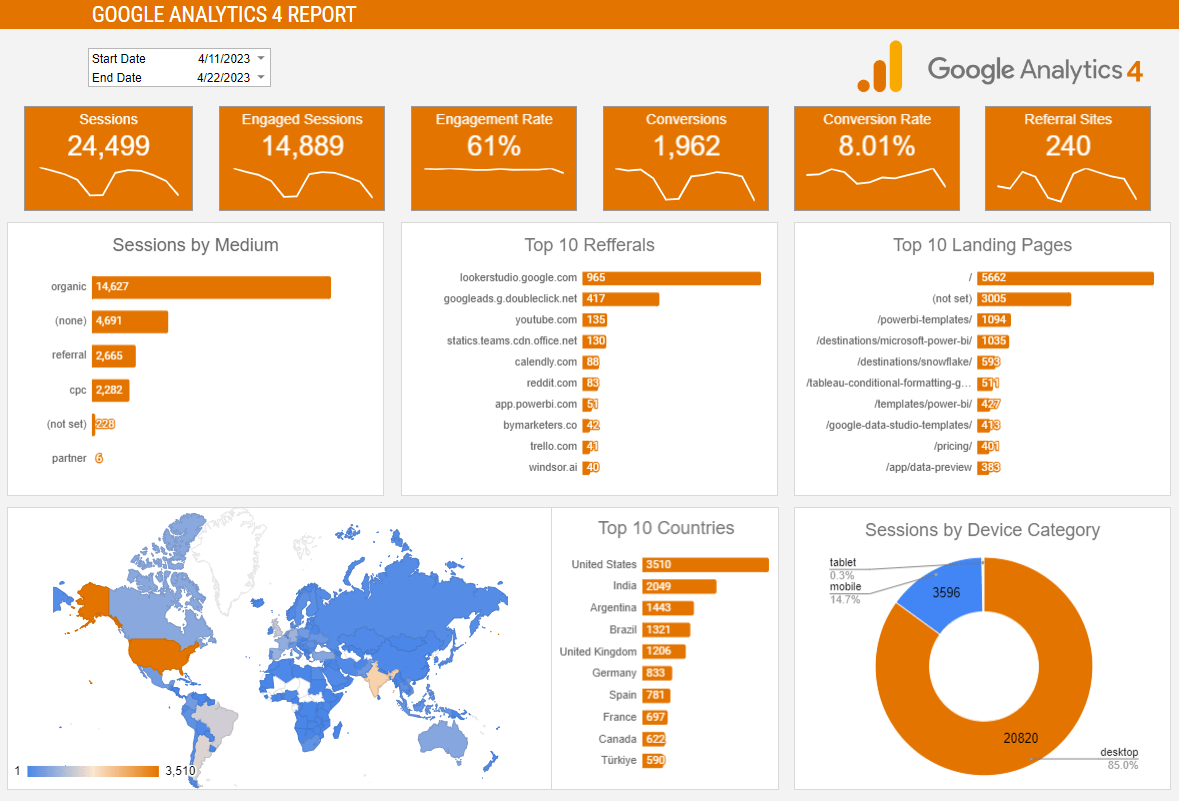
This GA4 dashboard template helps you quickly visualize key performance metrics in Google Sheets, making it easy to monitor traffic sources, user behavior, engagement, and conversions in a single, ready-to-use report. The core structure remains stable, so you can customize the dashboard without breaking formulas or charts.
How to use this template:
- Open the template link and make a copy.
- Open the Windsor.ai add-on inside Google Sheets. Connect your GA4 property. Update the existing query.
- Set a refresh schedule and load the data. The dashboard fills automatically. This is one of the fastest ways to sync GA4 to Google Sheets.
Challenges of manual GA4 reporting in Google Sheets
Manual GA4 reporting in Google Sheets gets messy fast. Repeated CSV exports lead to broken formulas and charts, delayed updates, lost historical context, and a decline in trust in the data.
Working with GA4 data in Google Sheets gets messy fast because of these challenges:
- Manual exports may work fine for small datasets or one-off reports, but problems start as soon as your reporting needs grow. Columns shift, new dimensions or metrics appear, and existing formulas begin to break. Charts stop updating or show incomplete data, forcing you to constantly troubleshoot your sheets.
- With manual exports, data becomes outdated almost immediately. Every update requires re-exporting files, re-uploading them, and fixing broken parts. No automatic refreshes make near real-time reporting impossible.
- Each export creates a new version of the data. You start spending more time investigating and fixing inconsistencies instead of analyzing results.
- Manual exports often overwrite previous data or are stored in separate files. Lack of historical data access makes it difficult to track trends over time or build long-term performance dashboards.
- Human errors while copy-pasting data, selecting the wrong export options, or forgetting to update a sheet introduce errors that are easy to miss but hard to trace later. Even small mistakes can skew results and undermine confidence in reporting.
As a result, manual GA4 reporting turns into routine maintenance work. Trust in the numbers starts to fade, collaboration becomes difficult, and decisions are made using data that feels incomplete or unreliable.
💡 Google Sheets is not the only destination for GA4 data. The same connector also feeds AI tools, so you can analyze traffic and conversions in plain language: GA4 to Claude and GA4 to ChatGPT.
Export GA4 data to Excel
The GA4 Excel connector works the same way as the Sheets add-on: connect your property once, pick your fields, and set a refresh schedule. It’s the better fit if your team’s reporting already lives in Excel workbooks rather than Sheets.
Export GA4 data to Power BI
Power BI is the single largest named destination for GA4 data on Windsor.ai by call volume. The GA4 Power BI connector supports scheduled refresh and date filtering out of the box, gaps in the native GA4 connector inside Power BI itself.
Export GA4 data to Looker Studio
For teams building dashboards in Looker Studio, the GA4 Looker Studio connector pulls the same fields as every other destination, with the same scheduled-refresh setup.
Export GA4 data to BigQuery
Exporting to a warehouse is the direct fix for GA4’s retention window: once event-level data is in BigQuery, it’s no longer subject to GA4’s own 2 or 14 month limit. The GA4 BigQuery connector covers the no-code path; see GA4 Reporting: A Complete Guide for the fields worth exporting first.
Export GA4 data to Snowflake and Tableau
The GA4 Snowflake connector and the GA4 Tableau connector follow the same connect-once, schedule-refresh pattern as every destination above.
Conclusion
GA4 reporting shouldn’t be fragile or time-consuming, and it shouldn’t be limited to GA4’s own retention window either. Manual exports introduce errors, break reports, and slow down teams, especially as data volumes and reporting frequency increase. Automation addresses these issues at the source, whichever destination you actually use.
A reliable GA4 export through Windsor.ai keeps your data structured, consistent, and always up to date, in Google Sheets, Excel, Power BI, Looker Studio, BigQuery, Snowflake, or Tableau. Formulas and charts remain intact, historical data stays accessible past GA4’s own limits, and reports refresh automatically without manual intervention.
🚀 Get your Google Analytics 4 data exporting automatically in just a few minutes with Windsor.ai. Get started for free.
FAQs
Which integration method should I choose?
If you prefer working directly inside Google Sheets, the Windsor.ai Sheets add-on is ideal. If you want centralized control, the in-app destination task is the better option.
Can I connect multiple GA4 properties to one spreadsheet?
Yes. You can use Windsor.ai to connect multiple GA4 properties to one report. You can send them to the same sheet or split them into different tabs.
Does GA4 data in Google Sheets auto-refresh?
Yes. You can set hourly, daily, or 15-min/30-min refresh schedules. Updates run in the background.
Will my formulas or charts break when GA4 data refreshes?
No. Windsor.ai keeps the column layout stable. Your formulas and charts stay intact with every sync.
Can I export historical GA4 data into Google Sheets?
Yes. You can use backfilling with a custom date range to retrieve years of past data.
Can I blend GA4 data with ad platforms in Google Sheets?
Yes. Windsor.ai supports 350+ data sources, which you can blend in the same sheet.
Is GA4 data sampled when exported to Google Sheets?
No. Windsor pulls data directly from the GA4 API. This avoids UI sampling.
Is my GA4 data secure with Windsor.ai?
Yes. Access is read-only through OAuth. Data transfer is encrypted.
Is the GA4 to Google Sheets integration really possible in 3 minutes?
For most users, yes. You simply need to connect GA4, select the fields, and schedule the export. No custom scripts are needed.
Do I need to keep the spreadsheet open for the sync to work?
No, the spreadsheet does not need to stay open. Your GA4 data in Google Sheets updates even if your computer is off. This is ideal for hands-off reporting.
Do I need coding skills to use Windsor.ai?
No. Both GA4 Google Sheets integration methods are no-code and require no ongoing maintenance.
Is Windsor.ai suitable for teams and agencies?
Yes. Windsor.ai can connect hundreds of GA4 properties, centralize task management, and manage scalable reporting, making it suitable for teams, agencies, and enterprises.


