How to Automatically Integrate Google Ads Data into Google Sheets [3-Min Setup]

Manual Google Ads reporting in Google Sheets quickly becomes a bottleneck. You export CSV files, upload them into Sheets, and fix broken formulas again and again.
This guide is for marketers, analysts, and agencies who want reliable, auto-updating Google Ads reports in Google Sheets without scripts, manual exports, or fragile setups.
With Windsor.ai’s data connectors, you can pull data directly from the Google Ads API and send it to your spreadsheet, automatically and with no code. As a result, you get clean, well-structured Google Ads data in Google Sheets with a scheduled refresh.
There are two ways to send your Google Ads data to Google Sheets using Windsor.ai:
Method 1: Via the Windsor.ai extension (add-on) for Google Sheets
Method 2: Via a destination task created in the Windsor.ai dashboard
Both methods sync Google Ads data to Sheets in under three minutes without custom scripts or manual hassle.
Read this guide for step-by-step instructions on how to integrate Google Ads data into Google Sheets using Windsor.ai and keep your reports always up to date and reliable.
2 ways to connect Google Ads to Google Sheets for auto-updating reports
We offer two simple ways to connect Google Ads to Google Sheets. One works directly inside the spreadsheet, while the other runs in the Windsor.ai dashboard. Both options let you auto-populate Google Ads data in Google Sheets on a scheduled basis.
The add-on is best if you prefer working directly in the spreadsheet interface. The destination task provides hands-off automation and lets you manage the entire integration from a single place.
Here’s how to set up the Google Ads–to–Sheets sync using each method.
📄 Step-by-step instructions: How to integrate data into Google Sheets using Windsor.ai.
Method 1. Via the Windsor.ai Google Sheets add-on
Prerequisites:
- A Google Ads account with the required permissions
- A Windsor.ai account (free or paid)
- The Windsor.ai extension for Google Sheets
- A Google Sheets file
The Windsor.ai Google Sheets add-on lets you pull Google Ads data without leaving your spreadsheet. You connect your account to Windsor.ai, choose the reporting metrics and refresh schedule you need, and load data through a handy sidebar.
Once saved, the data updates automatically, and your reports stay fresh and clean.
How to connect Google Ads data to Google Sheets via the Windsor.ai add-on:
Step 1. Connect Your Google Ads Account to Windsor.ai
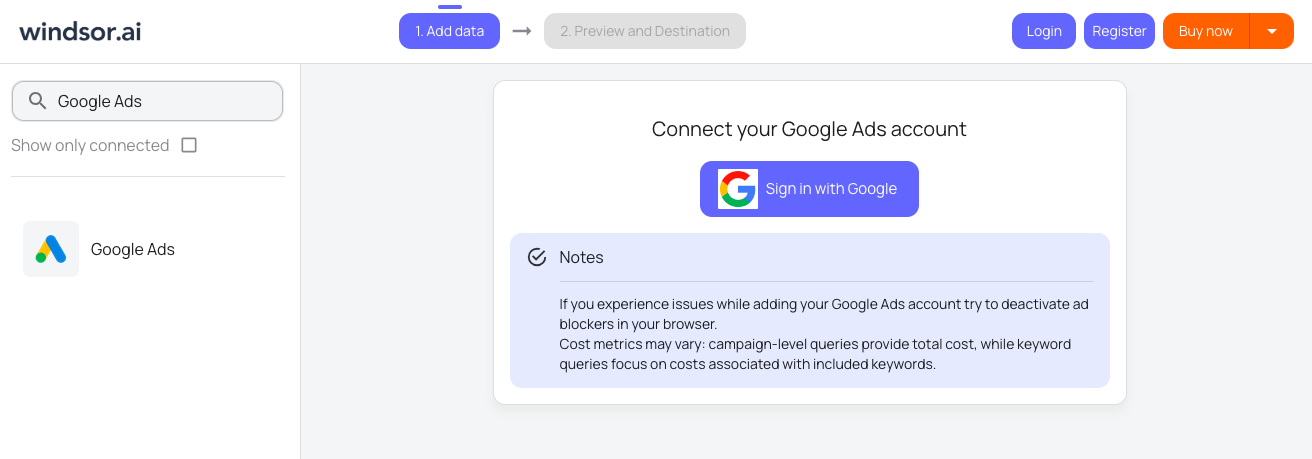
Firstly, log in to the Windsor.ai app. Select Google Ads from the list of data sources and grant access to your Google account.
Choose the ad account(s) you want to pull data from. Windsor only requests read access, so your campaigns, budgets, and bids remain untouched. Nothing can be edited or changed from this connection.
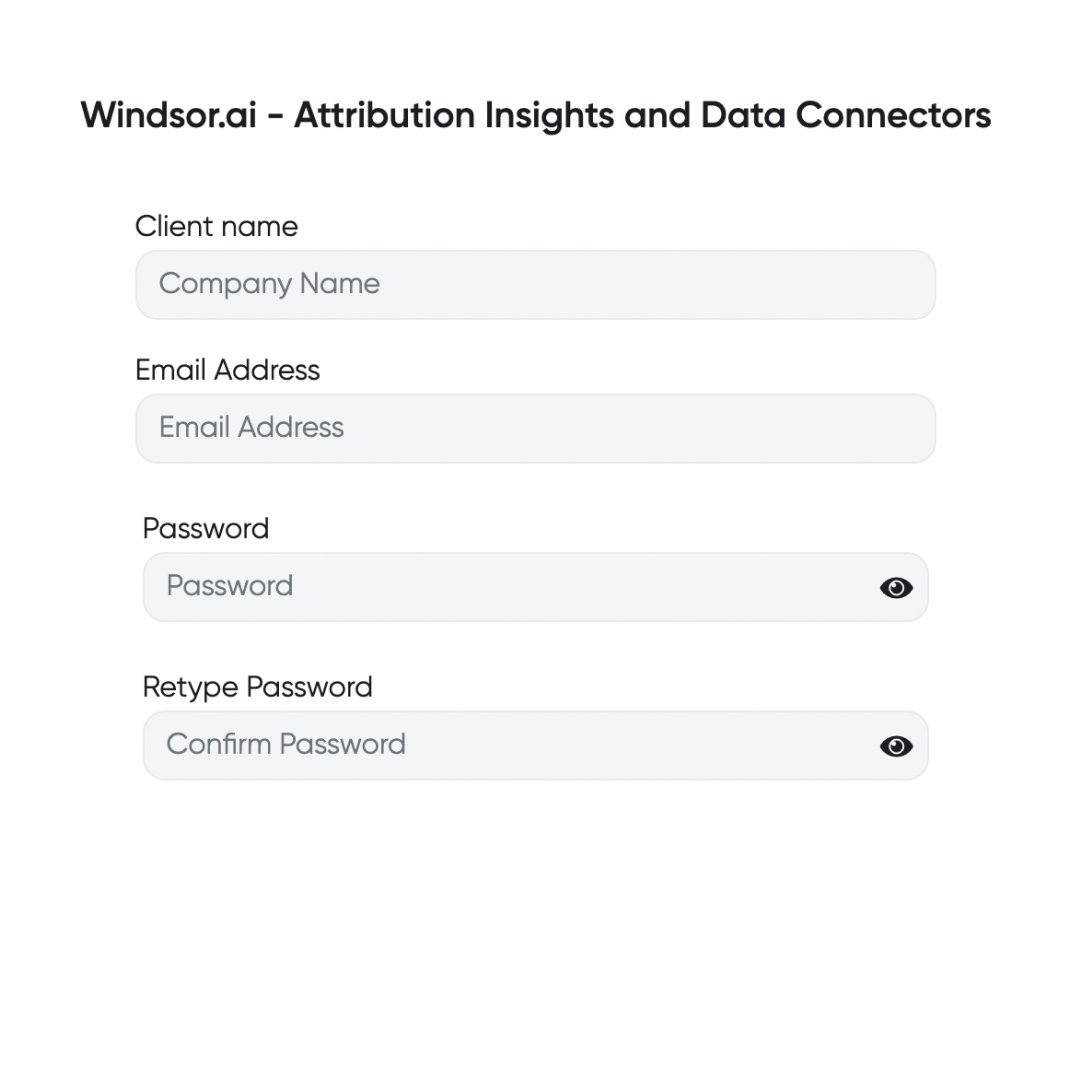
💡 Quick tip: You can immediately connect Google Ads to Windsor, and your Windsor.ai account will be created automatically after the sync.

This step automates Google Ads data extraction and allows you to retrieve hundreds of available metrics in just seconds.
Make sure your data is accessible and correct on the Preview and Destination screen.

Step 2. Open Google Sheets
Open the sheet where you want your Google Ads data to appear. If this is your first setup, a new, clean spreadsheet works best. Give the file a descriptive name so it’s easy to recognize later.
💡 Quick tip: Reports are easier to manage when each data source has its own tab. You can always blend multiple sources on a single tab once everything is working. Starting simple helps avoid confusion during the initial setup.
Step 3. Install the Windsor.ai extension
In Google Sheets, click Extensions at the top, then Add-ons, and Get add-ons.

Type Windsor.ai into the search bar.

Install the add-on and approve the required permissions. Google may show a confirmation screen during this process.
Once installed, Windsor appears inside the Extensions menu.
Step 4. Log in to the Windsor.ai extension
Open the Windsor.ai extension (Extensions → Windsor.ai → Login).

For the first connection, you’ll be prompted to paste in your Windsor’s API key (Application Programming Interface key) to link the add-on to your Windsor account.

You can find your API key in the Windsor.ai dashboard, in the query builder bar.

Once completed, the add-on connects your spreadsheet to Windsor. You only need to do this once, unless you want to sync a spreadsheet to a different Windsor’s account.
You are now ready to connect Google Ads to Google Sheets directly. The entire integration will happen inside the spreadsheet.
Step 5. Prepare your Google Ads data for integration
Again, navigate to Extensions → Windsor.ai → Get Data into Sheet. The query builder will open in the right-hand panel. Click + Add new query.

This is where you decide what the data in your sheet will look like. Your settings define the column layout. Proper setup now saves headaches later.
In the sidebar, you have to set the following:
- Query name (e.g., Google Ads daily performance)
- Target sheet name (select from existing or create a new sheet/tab where the data should be loaded)
- Data source (select Google Ads)
- Accounts (choose the account(s) you want to pull data from)
- Date range (select the reporting period)
- Fields (pick the metrics and dimensions you need, e.g., ad, spend, impressions, clicks, conversions). Windsor supports 430+ metrics and 1905+ dimensions from Google Ads

You can also apply filters and additional date options if required.
💡 Pro tip: Create multiple queries for different reporting needs (e.g., ad performance, audience insights, top campaigns, bids) to keep your spreadsheet organized and your dashboards laser-focused.
Step 6. Set a refresh schedule
Continue setting your sync by choosing how often Windsor should refresh the data, such as daily or hourly (at custom intervals). Pick a schedule that matches how frequently you review performance.

Scheduled refresh keeps your Google Ads reports in Sheets up to date without extra work. You never need to re-run imports manually.
You can adjust the refresh timing at any point. Changes will take effect on the next sync.
Step 7. Run the data import
Verify your query parameters and click Schedule and load data to initiate the first import.

If Windsor prompts you for permission, authenticate with the account you’ve used in Google Sheets and grant access to the Google Sheets file to which you’d like to stream your Google Ads data.
After a success message, you will see rows auto-populate in the sheet within a minute, with stable columns and consistent formatting.

Note: If you get any error on this step, click on the Schedule and load data button once again.
With the next syncs, your existing charts, formulas, and pivot tables will remain intact. No data is overwritten unless you choose to replace it.
After the sync runs, you’ll see this newly created destination task in your Windsor.ai dashboard under the list of Google Sheets destination tasks.

You can preview and manage this sync from either location:
1) From Google Sheets — open the Windsor.ai add-on and click the pencil icon next to the saved query:

2) From the Windsor.ai app — click the pencil icon on the destination task in the dashboard:

You have now learned how to import Google Ads data into Google Sheets using the Windsor.ai add-on. From this point forward, the report updates itself without manual intervention.
🕒 Automated reporting tools can save marketers 60–80% of their time compared to manual report creation.
Method 2. Via Windsor destination task
Prerequisites:
- A Google Ads account with the required permissions
- A Windsor.ai account (free or paid)
- A Google Sheets file
With this method, you set up the sync directly in the Windsor.ai dashboard. You create the export task once, and Windsor.ai automatically keeps your Google Ads data flowing into Google Sheets on your selected schedule.
This approach is best suited for long-term reporting and teams that prefer hands-off automation from a single tool. It’s especially useful for agencies managing multiple Google Ads to Google Sheets integrations at the same time.
How to connect Google Ads data to Google Sheets via the Windsor.ai destination task:
Step 1. Connect your Google Ads account to Windsor.ai
This step is identical to Method 1 and follows the same secure authentication flow. Start by logging in to Windsor.ai, selecting Google Ads from the list of data sources, and connecting your account(s).
Step 2. Customize your query and preview data
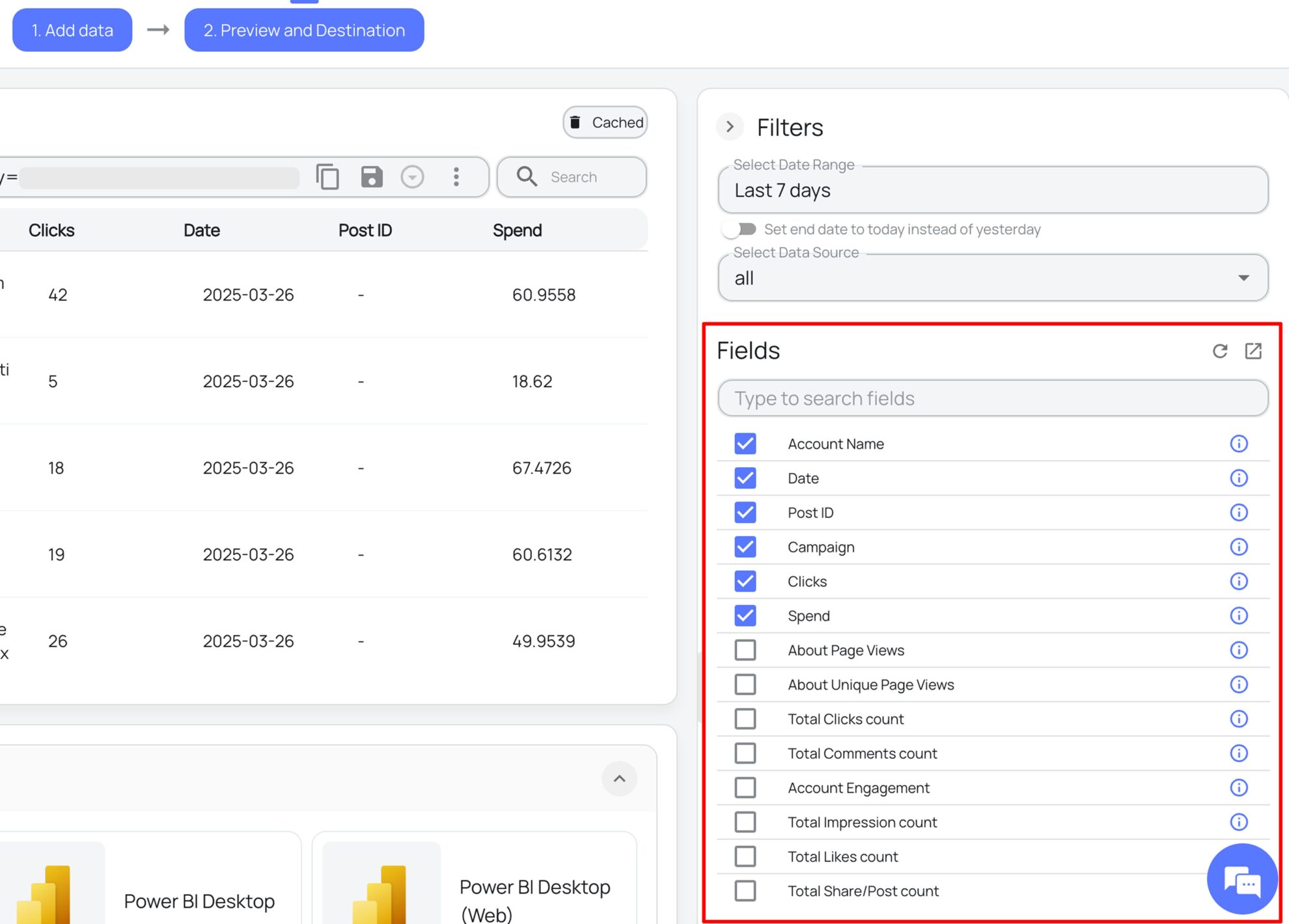
Then, go to the Preview and Destination screen. Here, you customize your query to stream only the data you need for purpose-built reporting.
Start by setting the date range and selecting the Google Ads data source (or Blended Data for a cross-channel performance overview). Then narrow the results by choosing the relevant fields, and optionally apply filters.

✨ Pro tip: If you’re unsure which fields to select, use Windsor MCP for AI-powered assistance. It lets you connect your Google Ads data to your favorite AI chat (ChatGPT, Claude, and others), where you can ask AI to help identify the most relevant fields for your reporting needs.

Use the preview table to verify the data returned by your query before loading it into Google Sheets.
Step 3. Choose Google Sheets as the destination
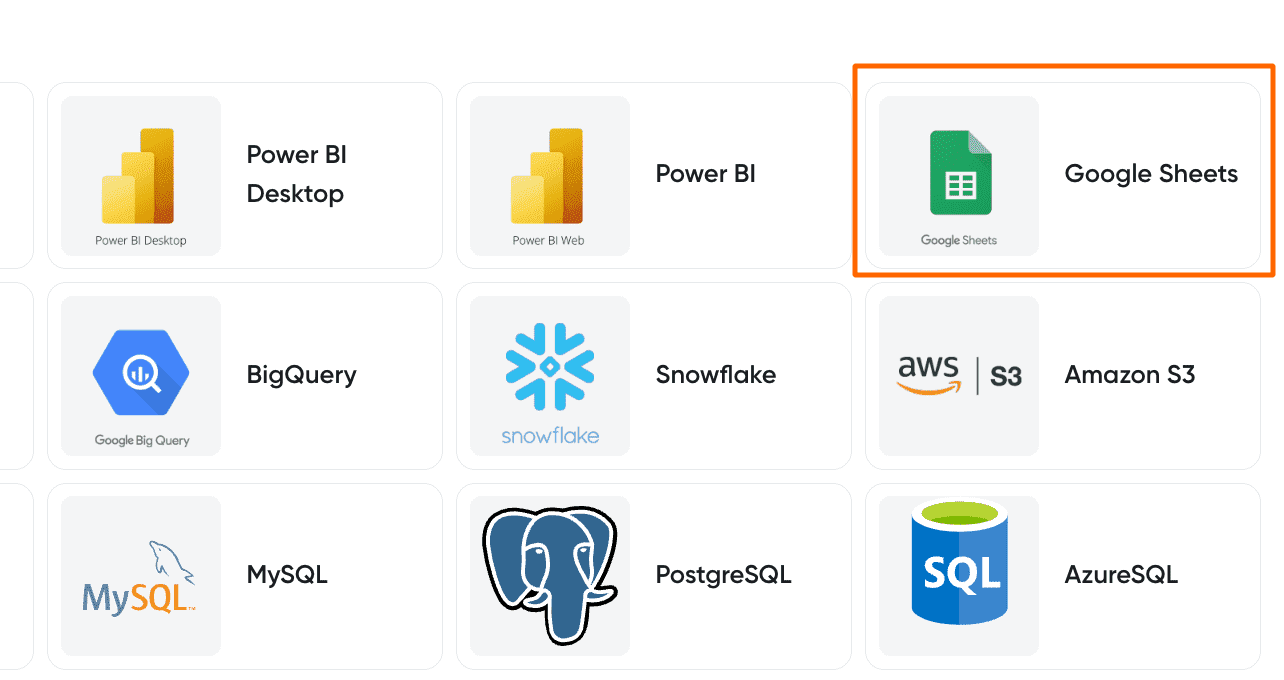
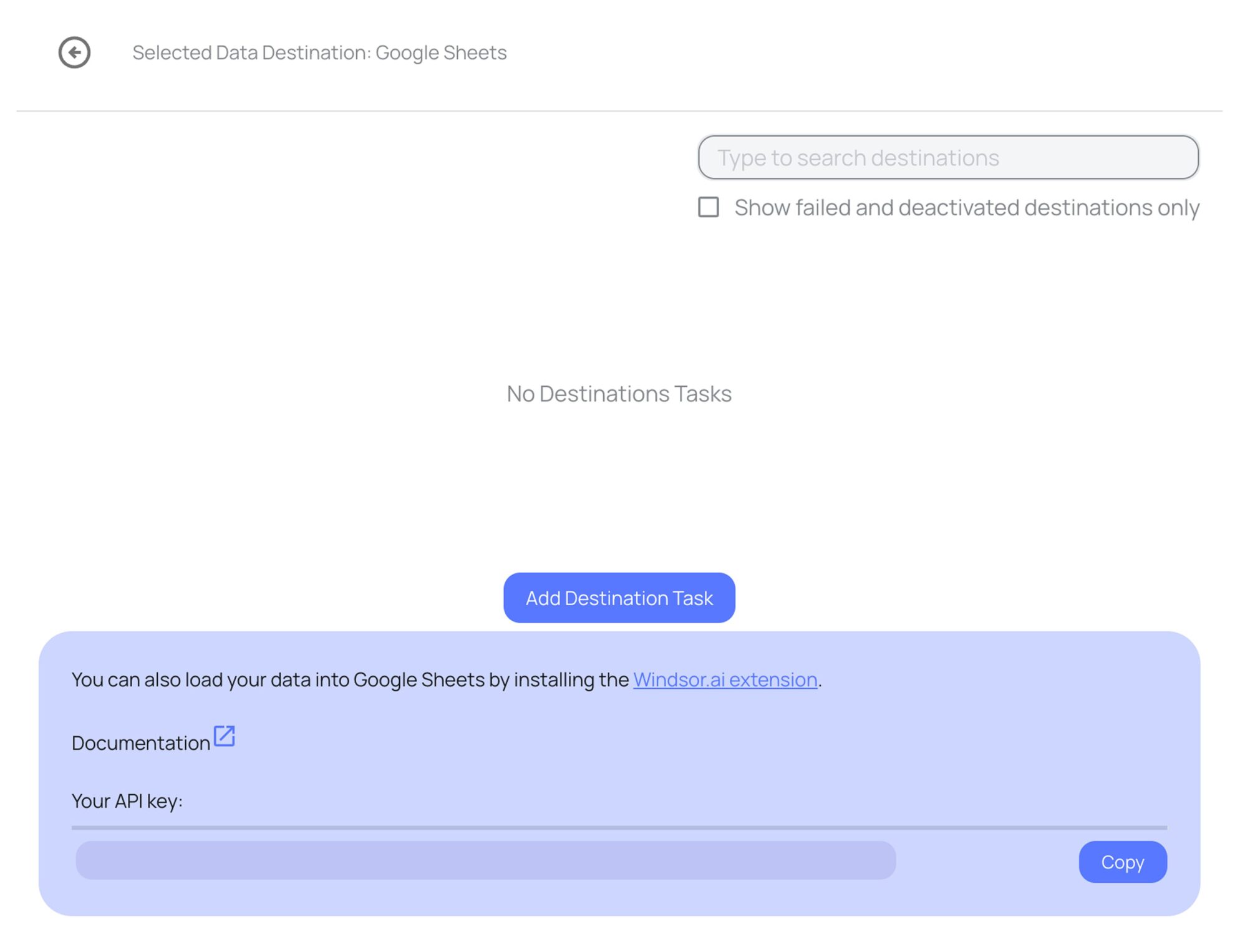
Scroll down and select Google Sheets from the list of supported destinations. In this dashboard, you manage all your saved destination tasks.

For your first export, click Add Destination Task.
You’ll be prompted to authorize your Google account and select the spreadsheet where the data should be imported.
Choose the target spreadsheet and enter a name for a new sheet (tab). Windsor.ai will automatically create this tab in the selected spreadsheet for you.
Review the query once more to ensure all essential data is included.
Next, enter a task name (for example, Google Ads daily performance) and specify the target cell where the data should be inserted. Optionally, you can enable:
- Columns to match (to update existing fields with each sync)
- Backfilling (to retrieve historical data)

To keep your reports self-updating, select a refresh schedule (daily, hourly, every 30 minutes, or every 15 minutes) and choose the time when the sync should run.
When everything is set, click Test connection to confirm that Windsor.ai can sync data to your sheet. After a successful test, click Save to start the sync and begin importing data.
You’ll see the task listed as active in the Google Sheets destination section. The green ‘upload‘ button with the status ‘ok‘ indicates that the task is active and running successfully.

This step completes the Google Ads-to-Google Sheets integration and auto-populates your data into the sheet within a minute.
Step 4. Verify your integrated Google Ads data in Google Sheets
Open the spreadsheet that you’ve connected in the destination task.
Your data will appear in the selected tab, with the column structure preserved.

From here, you can enhance your reporting and analysis using custom formulas, pivot tables, and charts.
Note: Once created, the destination task remains active and automatically refreshes your data based on the schedule you set. You don’t need to reopen or rerun it manually, making this method ideal for long-term, fully automated reporting.
“Manual exports into Google Sheets lead to inconsistent data, broken formulas, and error-prone dashboards, which automated connectors like Windsor.ai solve by pulling directly from APIs.” — Niklas Kolster, CEO & Founder of Windsor.ai.
Why use Windsor.ai for automated Google Ads to Google Sheets integration
Manual exports waste time and introduce errors. Windsor.ai fully automates Google Ads reporting, eliminating copy-pasting and manual file uploads. With scheduled refreshes, multi-account support, and a stable data structure, your reports stay accurate, current, and reliable.
Key benefits include:
- Scheduled refreshes keep your data up to date; sync as often as every 15 minutes enables timely monitoring and optimizations.
- Stable schemas and automated field mapping protect your reports from Google Ads API changes, so columns don’t shift and formulas don’t break.
- Multi-account and multi-query support lets you manage complex reporting setups at scale from a single place.
- Reduced human error means no missing rows, incorrect date ranges, or overwritten data.
- API-level data accuracy ensures your Google Sheets always reflect the aligned Google Ads data.
Bonus: use pre-built Google Ads Google Sheets templates
Windsor’s pre-built templates let you bring Google Ads data into Google Sheets and proceed with instant performance tracking, budget pacing, and planning.
Each template comes with pre-built charts and formulas. You do not need to design layouts or set up metrics manually. This saves hours on first-time setup.
The structure is already optimized for reporting. Metrics map cleanly to visuals. Nothing breaks when the data refreshes.
Simply connect your Google Ads account and set a refresh schedule. The dashboard auto-populates and self-updates, so you can focus on insights and decisions instead of building and maintaining reports. No code required.
You can customize the dashboard after the first sync. Add notes, extra tabs, or new charts.
Also, you can reuse the same template for other accounts and clients. Just update the query and refresh the data. Everyone works with the same numbers across teams and projects.
Available templates
Google Ads Overview Report Template
This template tracks key performance metrics, such as spend, conversions, and ad efficiency. It works well for weekly reviews.

Multi-Channel Budget Pacing Template
This template blends Google, Facebook, and LinkedIn data into a single dashboard, helping control spending and remaining budget across platforms. Budget drift becomes visible early.

PPC Planning Template
This template helps you plan advertising bids and budgets, which is essential for monthly or quarterly planning.

How to use Windsor.ai’s Google Sheets templates
- Open the template link and make a copy (File → Make a copy).
- Open the Windsor.ai extension and connect your account.
- Update the pre-built query by selecting your Google Ads account and refresh schedule.
- Click Save and load data, and let the dashboard auto-populate.
Why marketers struggle with manual Google Ads reporting in Google Sheets
Manual Google Ads reporting in spreadsheets sounds simple at first, but it quickly becomes a time sink. Data arrives late, small mistakes creep in, and even basic updates take longer than they should. Instead of analyzing performance, teams end up maintaining spreadsheets.
As Google Ads accounts grow, the process slows down even more. What starts as a quick export turns into a recurring operational burden.
Common pain points include:
- CSV exports don’t scale. Downloading and uploading CSV files feels manageable at first, but over time, it becomes repetitive and exhausting. Every update requires manual effort.
- Delayed data hurts optimization. When reports aren’t up to date, budget shifts happen too lat,e and bids react slowly.
- Manual workflows break at scale. Connecting Google Ads to Google Sheets for dozens of accounts is unrealistic without automation.
- Errors slip in unnoticed. A single wrong paste can break formulas or shift columns, and many issues go unnoticed until decisions are already made.
- Collaboration becomes messy. Multiple versions of the same report start circulating, making it unclear which numbers are correct.
- Historical tracking is difficult. Old files pile up, and comparing month-over-month performance becomes manual, error-prone work.
- Reporting consumes valuable time. Analysts spend hours fixing sheets instead of studying trends and driving strategy.
As accounts and campaigns grow, these issues multiply. More data means more exports, more fixes, and more time spent maintaining reports, which turns manual reporting into a daily frustration.
Conclusion
Google Ads reporting shouldn’t be fragile or time-consuming. With Windsor.ai, Google Ads data flows directly into Google Sheets in a clean, stable structure, automatically and on a schedule. That means no broken formulas, no late data, and no manual exports.
By following a simple setup, you can keep reports always up to date, align your team around a single source of truth, and spend more time optimizing performance instead of maintaining spreadsheets.
🚀 Get your Google Ads data into Google Sheets in just 3 minutes with Windsor.ai. Start your free 30-day trial now.
FAQs
1. How can I automatically get Google Ads data into Google Sheets?
You can do this using Windsor.ai data connectors in two simple ways: use the Google Sheets add-on or set up a destination task in the app. Both options automatically integrate Google Ads data into Google Sheets without writing code or exporting files. Once connected, the data auto-refreshes based on your set schedule.
2. How to import Google Ads data into Google Sheets from multiple accounts at once?
Windsor.ai lets you select multiple Google Ads account IDs in the query builder. This pulls data from all selected accounts into one unified or separate sheets. It works perfectly for agencies and teams managing many projects.
3. Can Windsor.ai sync Google Ads data to Google Sheets on a schedule?
Yes, scheduling is built in. You can choose refresh intervals like every 15 minutes, every 30 minutes, hourly, or daily. This keeps your Google Ads data in Google Sheets up to date without manual work. You can change the schedule anytime.
4. Is a 3-minute setup really enough to connect Google Ads to Google Sheets?
For most users, yes. The setup follows a few simple steps in a clear, visual interface; no scripts or complex configurations required. Just connect your Google Ads account, customize the data you need, and define the export settings. Windsor.ai handles the integration automatically.
5. Will my spreadsheet formulas break when the data refreshes?
No, they won’t. Windsor keeps column names and data structure consistent on every refresh. This means charts, pivot tables, and formulas continue to work as expected. You do not need to rebuild or fix reports after updates.
6. Can I combine Google Ads with Facebook or LinkedIn Ads data?
Yes, you can. Windsor.ai supports data blending with 300+ platforms. You can send Google Ads data to Google Sheets alongside Meta, LinkedIn, TikTok, etc. This makes cross-channel reporting much easier.
7. How do I auto-populate Google Ads data in Google Sheets using a Template?
Start by copying a Windsor.ai Google Sheets template. Then open the Windsor extension and connect your account. Update the query to select your Google Ads account. The template will auto-populate Google Ads data in Google Sheets instantly.
8. Can I import historical Google Ads data?
Yes, Windsor.ai supports historical data. You can choose a backfill period when setting up your query. This allows you to pull months or even years of past data, which is essential for trend analysis and long-term reporting.
9. Do I need to keep the spreadsheet open for the sync to work?
No, the spreadsheet does not need to stay open. Your Google Ads data in Google Sheets updates even if your computer is off. This is ideal for hands-off reporting.
10. Is my Google Ads data secure with Windsor.ai?
Yes, we handle security carefully. Windsor.ai uses OAuth authentication with read-only access to your ad accounts, so your data is encrypted during transfer and storage. No changes can be made to your campaigns.