 Destinations
 Data sources
 AI insights
 About us
 Careers
 Security
 Customer reviews
 Contact us
 Affiliate program
 Solution partners
 Template gallery
 Looker Studio templates
 Power BI templates
 Excel templates
 Google Sheets templates
 Tableau templates
 Facebook Ads templates
 Google Ads templates
 Data fields & Metrics
 AI prompt library & Guides
 Product documentation
 API documentation
 Case studies
 Blog
Blog Data models
 Windsor vs Supermetrics
 Windsor vs Funnel.io
 Windsor vs Fivetran
 Windsor vs Rivery
 Windsor vs Portermetrics
 Windsor vs Coupler.io
 Last updated: 1 September 2026




There are three ways to connect Google Sheets and BigQuery, and the right one depends on which direction the data needs to move. You can query a sheet in place from BigQuery as an external table, pull BigQuery data into a spreadsheet with Connected Sheets, or load sheet data into a native BigQuery table on a schedule with a tool like Windsor.ai.
None of the three requires code. External tables and Connected Sheets are both set up in a few clicks from the BigQuery console or the Sheets Data menu; a scheduled load takes a few minutes to configure once and then runs on its own.
| Method | Direction | Where the data lives | Best for |
|---|---|---|---|
| External table | Sheets to BigQuery | Stays in the sheet, read on demand | Small reference tables you edit by hand |
| Connected Sheets | BigQuery to Sheets | Stays in BigQuery, surfaced in the sheet | Analysts who want spreadsheet tools over warehouse data |
| Scheduled load (Windsor.ai) | Sheets to BigQuery | Written into a native BigQuery table | Data you want stored, joined and kept refreshed |
Linking Google Sheets and BigQuery solves a few practical problems:
- Querying spreadsheet data with SQL, and joining it to tables already in the warehouse
- Bringing manually maintained reference data, such as budgets, targets or channel mappings, into BigQuery reporting
- Giving people who work in spreadsheets a way to read warehouse data without exporting it
Method 1: How to query Google Sheets data in BigQuery
This method creates an external table over the sheet. BigQuery reads the file from Drive at query time, so the sheet stays the source and any edit you make shows up in the next query result. Here is how to set it up in four steps.
1. Get the necessary permissions in BigQuery
The following permissions are necessary for your Google Cloud project before you start:
- tables.create
- tables.getData
- jobs.create
2. Create a dataset in your BigQuery project
Datasets serve as folders for creating tables. So you need to create them first. Here’s how you do it.
Open BigQuery in the Google Cloud console and select your project in the Explorer panel, then create a new dataset.

3. Create a table in the dataset
Select the dataset you just created and choose Create table. Once the table exists, its Schema, Details and Preview tabs let you check what BigQuery read from the sheet.

Create the table from ‘Drive’ using the URL and specifying the file format as Google Sheets. If you wish to specify the range, use Google Sheets syntax, say ‘Sheet3!A3:H19’.
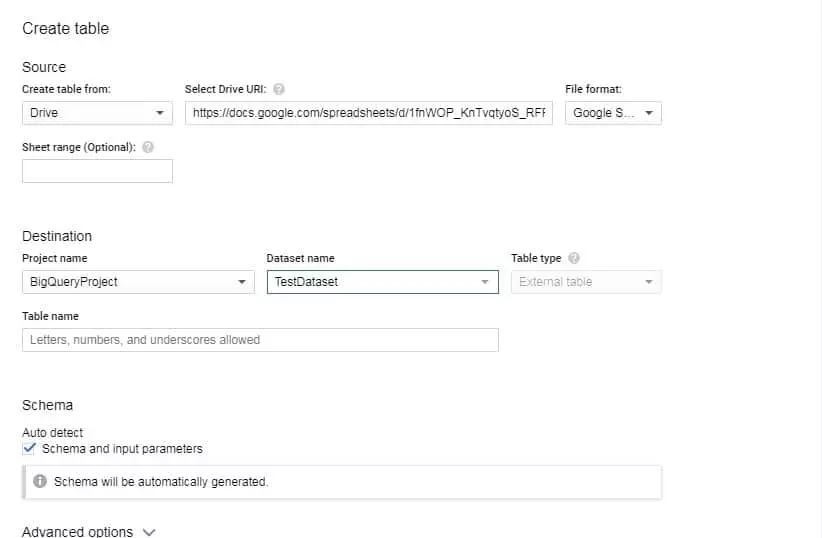
Name the table in line with BigQuery guidelines.
You may manually specify the Schema or let BigQuery auto-detect it.
Now click on ‘Create Table’ to create an external table for BigQuery to run queries on.
4. Run the query
Once the external table exists, you can query it from the BigQuery editor like any other table.

Because the table is external, BigQuery re-reads the sheet on every query. That keeps the data current, but it also means query performance depends on the size of the sheet, and you cannot use the table as the target of a scheduled load or a join-heavy pipeline. For that you need the data inside BigQuery, which is what Method 3 covers.
Method 2: Connected Sheets, for working with BigQuery data inside Google Sheets
Connected Sheets runs in the opposite direction to Method 1: BigQuery stays the source of truth and the spreadsheet becomes the interface, so you can build pivot tables and charts over warehouse data without exporting it. It requires access to a Google Cloud project with BigQuery enabled and a billing-enabled account. It’s no longer restricted to specific Google Workspace editions for basic use, though some organizations manage access to it through admin-controlled delegated access on certain Workspace plans. It allows you to save your SQL queries directly into your Google Sheets. Steps to using the Sheet’s data connector are highlighted below with the help of a public dataset:
- Step 1: For starters, open or create a Google Sheets spreadsheet.
- Step 2: Next, click on Data > Data Connectors > Connect to BigQuery.
- Step 3: Click Get Connected, and select a Google Cloud project with billing enabled.
- Step 4: Click Public datasets, search for chicago_taxi_trips, select the taxi_trips table, and click Connect. When you are connecting your own data, browse to your project and dataset instead.
You can now use this spreadsheet to create formulas, charts, and pivot tables over the connected BigQuery data. The results refresh from BigQuery rather than being pasted in, so the sheet stays in step with the warehouse.
Method 3: Load Google Sheets data into BigQuery on a schedule with Windsor.ai
The first two methods either leave the data in the sheet or leave it in BigQuery. If you want the sheet’s data stored as a native BigQuery table that refreshes on its own, and you want to blend it with your marketing data at the same time, Windsor.ai handles the load and the schedule for you.
- Connect your sources. Create a Windsor.ai account and add Google Sheets under Data Sources, along with any other platforms you want in the same table, such as Google Ads, Meta Ads or GA4.
- Build your query. On the Preview and Destination page, pick the date range, the sources and the fields you want, then check the preview.
-
Choose BigQuery as the destination. In Data Destinations, select BigQuery and authenticate your Google Cloud project.

- Configure the destination task. Enter the project, dataset and table name, set the refresh interval, and choose the columns used to match rows on each upload.
- Test and save. Once the task runs, the data lands in a native BigQuery table you can join, schedule against and query at full speed.
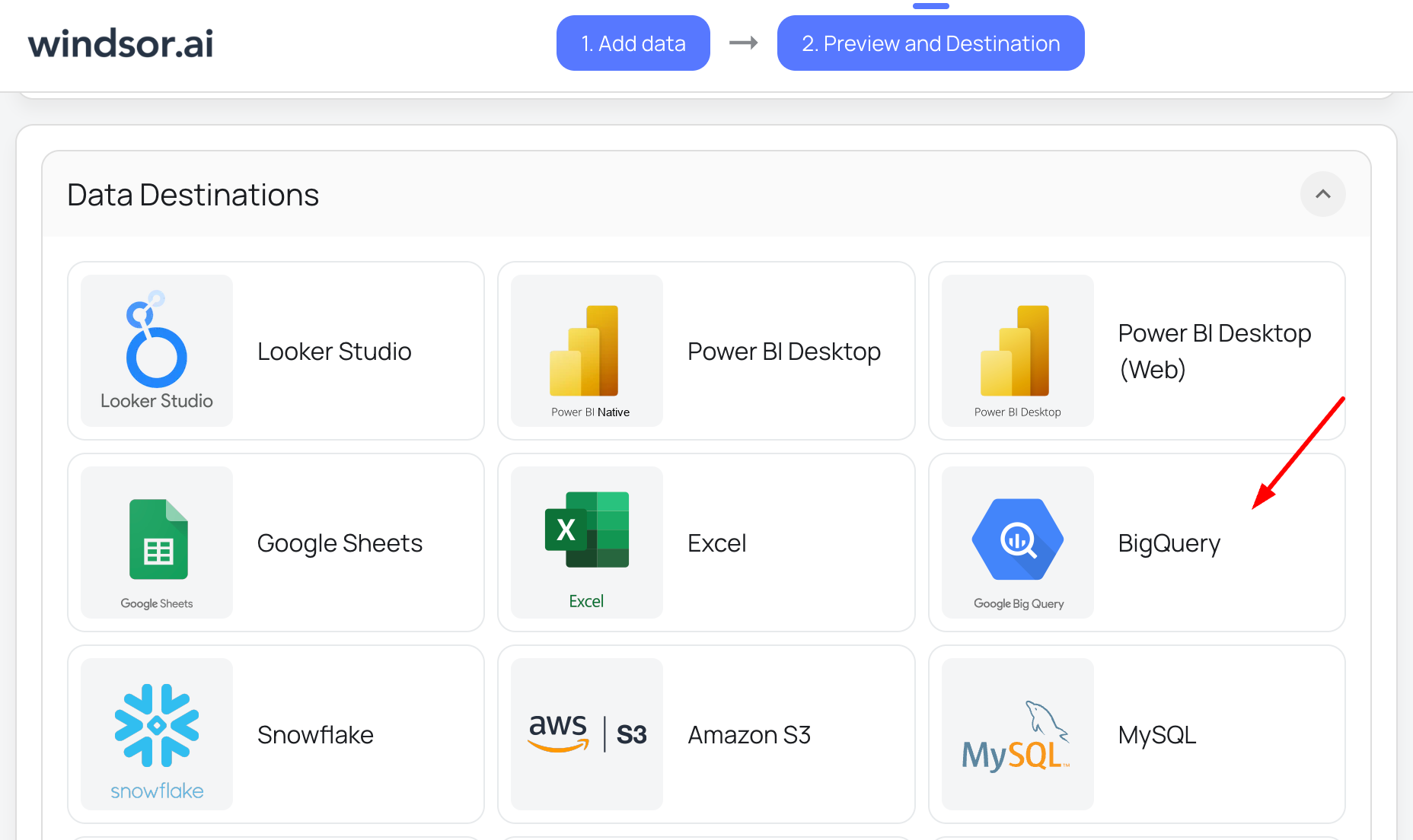
Because the same query can also write to Google Sheets, you can keep a BigQuery table and a live spreadsheet fed from one setup instead of maintaining two.
5 reasons to connect Google Sheets to BigQuery
Migrating data from Google Sheets to BigQuery offers several benefits and addresses the limitations of spreadsheets when it comes to handling large datasets and complex data analysis. Here are some reasons to consider migrating:
- Scalability: Google Sheets has limitations in terms of the amount of data it can handle efficiently. As your company grows and generates larger datasets, BigQuery can handle terabytes or even petabytes of data at scale. It provides a powerful infrastructure that can handle the storage and processing requirements of massive datasets.
- Performance: BigQuery is designed for high-performance analytics. It uses distributed computing and parallel processing to perform complex queries on large datasets quickly. This allows for faster data analysis and reporting, enabling users to gain insights more efficiently.
- Data consolidation: Google Sheets may not be the most suitable tool for consolidating data from different sources. BigQuery, on the other hand, supports data integration from various systems and sources. It allows you to centralize and unify your data in one place, making it easier to analyze and derive insights from data originating from different platforms and databases.
- Advanced analytics: BigQuery provides powerful analytical capabilities, including support for advanced SQL queries, machine learning models, and data visualization tools. It enables you to perform complex calculations, build predictive models, and create sophisticated visualizations to gain deeper insights from your data.
- Collaboration and access control: Google Sheets can become challenging to manage when multiple users need access to the same dataset simultaneously. BigQuery offers granular access control, allowing you to define permissions and roles for different users or teams. It supports collaborative work, enabling multiple users to work on the same dataset concurrently without conflicts.
Moving your data from Google Sheets to BigQuery removes the size and speed ceilings of a spreadsheet and gives you a single place to run larger, more complex analysis.
Limitations of using Connected Sheets
Connected Sheets has two limits worth knowing about before you rely on it:
- Data volume limitations: Connected Sheets supports data extracts of up to 500,000 rows or 10MB, and pivot tables of up to 100,000 results. Those ceilings are generous, but very large datasets may still need a different approach.
- Requires a Google Cloud project: To use Connected Sheets for BigQuery, you need access to a Google Cloud project with BigQuery enabled and billing set up. Some organizations additionally manage access to it through admin-controlled delegated access on certain Google Workspace plans.
These limits apply to Connected Sheets specifically, not to BigQuery itself. If you need more room or more control, query BigQuery directly or use a data integration tool to load the data as described in Method 3.
How to move data into BigQuery or Google Sheets with Windsor.ai
1. Google BigQuery
2. Google Sheets
💡 A warehouse is not the only destination for this data. Windsor.ai can also send it to an AI assistant, where you can explore it in plain language instead of SQL: BigQuery to Claude and BigQuery to ChatGPT.
Summary: Connect Google Sheets data in BigQuery
With Method 1 the sheet becomes an external data source for BigQuery, so any change you make in the sheet shows up in the next query result. When you define the table you can bound the range by giving an end row (‘Sheet3!A2:G99’), or leave it unbounded (‘Sheet3!A2:G’) so that rows added later are picked up automatically.
To query a sheet from BigQuery you need the right project permissions, a dataset and an external table. To go the other way, use Connected Sheets. To store the data in BigQuery and keep it refreshed, use a scheduled load.
Windsor.ai automates that last option for Google Sheets and every other source in your stack. Choose the platforms you want to connect, authenticate them, pick a synchronization interval, and the data starts appearing in BigQuery. If you also report in a warehouse-backed dashboard, see how to automate BigQuery pipelines and how to build an ELT pipeline into BigQuery.
Windsor.ai has a free forever plan, so get started for free.


