Destinations
 Data sources
 AI insights
 About us
 Careers
 Security
 Customer reviews
 Contact us
 Affiliate program
 Solution partners
 Template gallery
 Looker Studio templates
 Power BI templates
 Excel templates
 Google Sheets templates
 Tableau templates
 Facebook Ads templates
 Google Ads templates
 Data fields & Metrics
 AI prompt library & Guides
 Product documentation
 API documentation
 Case studies
 Blog
Blog Data models
 Windsor vs Supermetrics
 Windsor vs Funnel.io
 Windsor vs Fivetran
 Windsor vs Rivery
 Windsor vs Portermetrics
 Windsor vs Coupler.io
 Last updated: 3 September 2026




Manually exporting Facebook Ads data into Google Sheets is time-consuming and error-prone. If you’re still downloading CSVs and updating numbers by hand, you’ve probably dealt with errors, mismatched columns, and dashboards that unexpectedly break.
With Windsor.ai data connectors, you can import Facebook Ads data into Google Sheets automatically. Data flows directly from Meta API into your sheet without manual exports, and your reports always stay accurate and up-to-date.
In this guide, you’ll learn two quick, no-code ways to sync Facebook Ads to Google Sheets:
Method 1. Via the Windsor.ai Google Sheets add-on
Method 2. Via a scheduled destination task from the Windsor app
Both setups take under three minutes; no CSVs, no maintenance, no complex configuration.
2 ways to connect Facebook Ads to Google Sheets for auto-updating reports
Windsor.ai offers two ways to integrate data into Google Sheets: either by setting up a native destination task directly in your Windsor.ai dashboard or by using the external Google Sheets add-on, which requires separate installation.
The native destination method is generally faster and more straightforward, making it ideal for users who want a quick, centralized setup managed entirely from the Windsor.ai dashboard.
The Google Sheets add-on is better suited for users who prefer working directly inside Google Sheets and want full control over data imports, queries, and refreshes from a familiar spreadsheet interface.
📄 Step-by-step instructions: How to integrate data into Google Sheets using Windsor.ai.
Method 1. Via the Windsor.ai Google Sheets add-on
Prerequisites:
- A Meta Ads account with the required permissions
- A Windsor.ai account (free or paid)
- The Windsor.ai extension for Google Sheets
- A Google Sheets file
With this method, Facebook Ads data gets into a spreadsheet through the Windsor.ai extension for Google Sheets.
You connect your ad account, set the date range, choose the metrics and dimensions you need, optionally apply filters, and your Facebook Ads data is uploaded to the sheet in seconds. You can refresh the dataset manually or schedule refreshes at your preferred interval (daily, hourly, or custom).
This add-on works well for non-technical users. You control imports directly from the Google Sheets interface, which feels familiar and simple.
How to connect Facebook Ads data to Google Sheets via the Windsor.ai add-on:
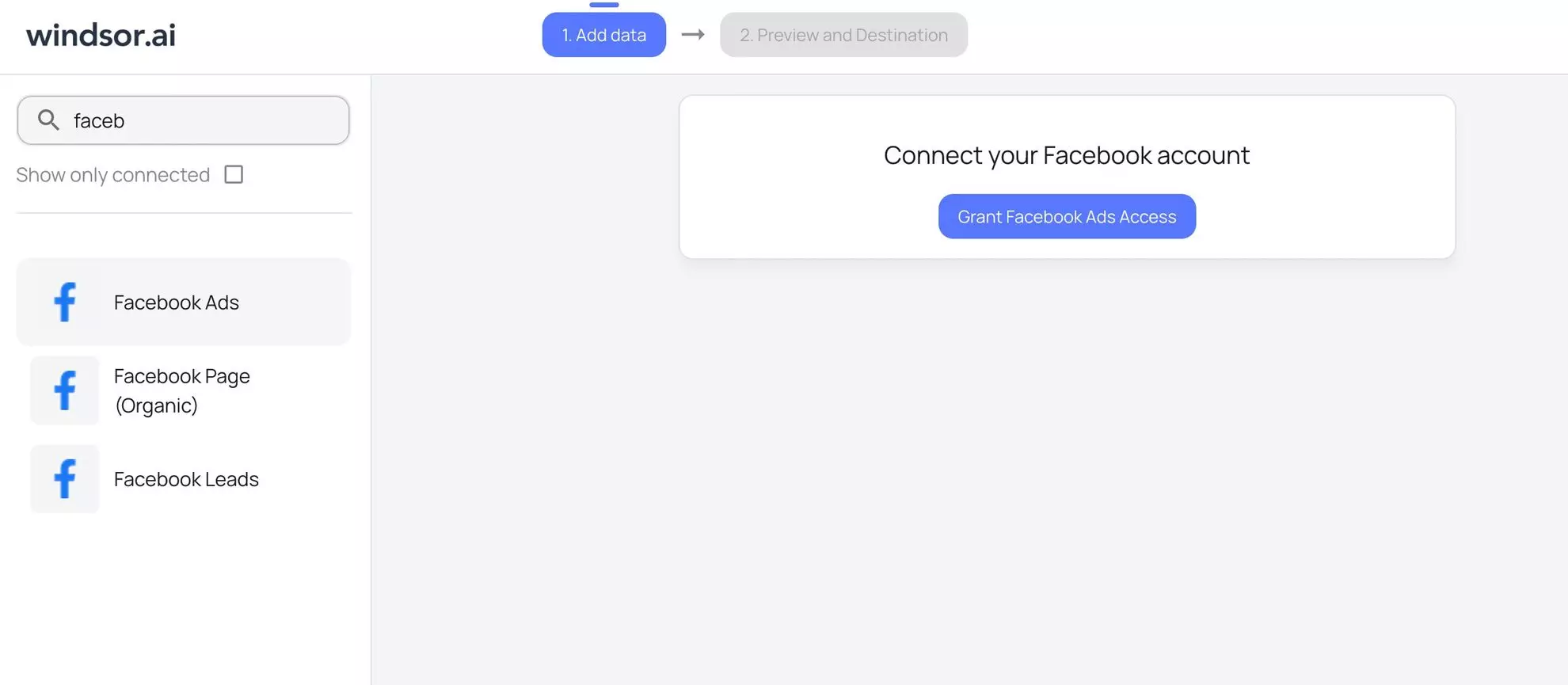
Step 1. Connect your Facebook Ads account to Windsor.ai
Since Windsor.ai acts as the connector, you first need to link your Facebook Ads account to the platform. Create a Windsor.ai account (if you don’t have one yet) and log in.
Quick tip: You can immediately connect Meta Ads to Windsor, and your Windsor.ai account will be created automatically after the sync.
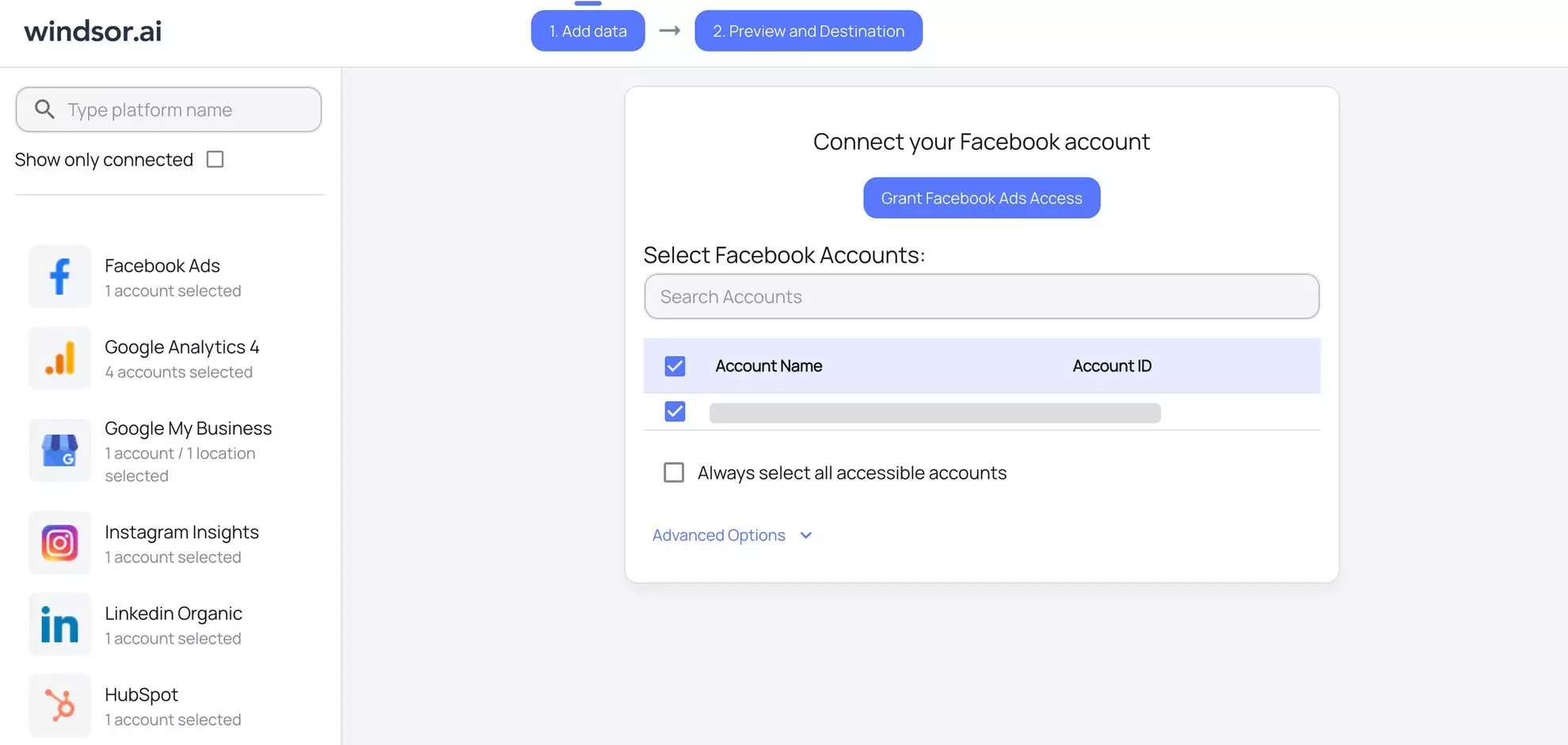
You’ll see a list of available ad accounts, then select the ones you want to pull data from.
Step 2. Open Google Sheets
Open Google Sheets in a new tab and either open an existing file or create a new one. This file will hold your reports. Make sure you have edit access.
Step 3. Install the Windsor.ai extension
In Google Sheets, go to Extensions → Add-ons → Get add-ons.

Search for Windsor.ai and press enter.

Install the Windsor.ai add-on. No configuration is needed upfront. It integrates with Sheets by default.
Once installed, you’re ready to send Facebook Ads data into Google Sheets. Everything happens inside the spreadsheet, so you don’t need to switch between tools.
Step 4. Log in to the Windsor.ai extension
Go to Extensions → Windsor.ai → Login.

To initialize the connection, paste your Windsor.ai API key. You can locate it in your windsor.ai dashboard in the query builder bar.

Paste the API key into the pop-up to finish setup.

Now, you can easily sync previously integrated Facebook Ads data into Google Sheets.
Step 5. Prepare your Facebook Ads data for integration into the sheet
Go to Extensions → Windsor.ai → Get Data into Sheet. The query builder will open in the right-hand panel. Click + Add new query.

- Name your query (e.g., Facebook Ads daily performance)
- Select the target sheet/tab where the data should be loaded
- Under Data source, select Facebook Ads
- Choose the account(s) you want to pull data from
- Set a date range
- Pick the metrics and dimensions you need (e.g., spend, impressions, clicks, conversions)

Field-level customization lets you retrieve only the data you actually need. Windsor supports 560+ metrics and 150+ dimensions from Meta (including Instagram data).
You can also apply filters and additional date options if required.
💡 Pro tip: Create separate queries for different reporting needs (e.g., performance, audience insights, top campaigns) to keep your spreadsheet well-organized and clean.
Step 6. Set a refresh schedule for the auto-updating reports
The Windsor.ai add-on supports manual batch uploads and scheduled refreshes so your spreadsheet stays up to date without regular input. You can choose intervals like daily, hourly, or every 30/15 minutes.

You can adjust the refresh schedule anytime.
Step 7. Run data import
Review your query settings, then click Schedule and load data to start the import.

You’ll be redirected to Windsor to complete the connection by authenticating with your Google account. Authenticate with the account you’ve used in Google Sheets.

Then, grant access to the Google Sheets file where you’d like to stream your Facebook Ads data to.

You’ll be redirected back to your Google Sheets file and see the success message that your destination task was scheduled.

Note: if you get any error on this step, click on the Schedule and load data button once again.
Your sheet will auto-populate with Facebook Ads data within seconds (larger datasets may take longer).

The structure is created automatically as the data loads, and formatting stays consistent thanks to Windsor.ai’s automated field mapping.
After running the sync, you can find this newly created destination task in your windsor.ai dashboard in the list of Google Sheets destination tasks.

Now you can preview and manage the settings of this sync from both places:
1) From your Google Sheets file via the Windsor.ai add-on by clicking on the pencil icon on the saved query:

2) From the app by clicking on the pencil icon on the destination task:

Method 2. Via Windsor destination task
Prerequisites:
- A Meta Ads account with the required permissions
- A Windsor.ai account (free or paid)
- A Google Sheets file
This method connects Facebook Ads to Google Sheets through the Windsor.ai app using a destination task.
You create a destination task with the required settings, link a Google Sheets file, and once the task runs, your data is delivered there automatically.
Step 1. Connect your Facebook Ads account to Windsor.ai
Similar to the add-on setup, you first need to connect your Facebook Ads account(s) to Windsor.ai.
Sign in, authorize access, and review the list of available ad accounts. Select the accounts you want to pull data from, then click Next.
Step 2. Customize your query
On the Preview and Destination screen, you can configure your reporting fields and settings using the right-hand panel.
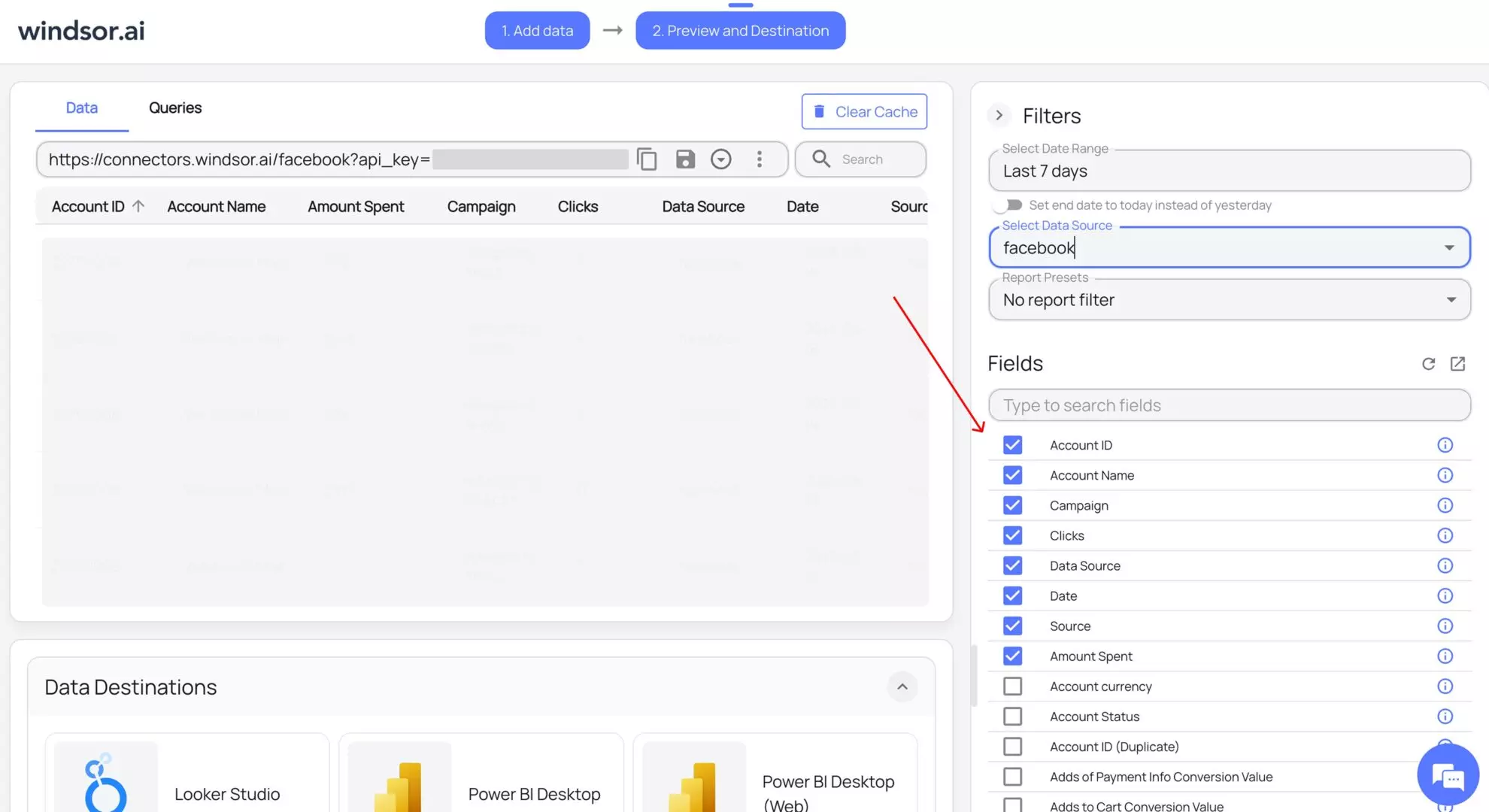
Fields:
Choose the data you want to include in your report, such as spend, impressions, clicks, conversions, ROAS, and more. You can select metrics and dimensions at the campaign or ad level.
Settings:
- Date range: choose the reporting period.
- Data source: select Facebook Ads or blended data (for cross-channel reporting).
- Accounts: select one or multiple accounts (useful for multi-account reporting).
- Advanced filters: apply additional rules to refine your query.
Selecting the right fields and settings ensures focused reporting and helps avoid bloated spreadsheets.
✨ Pro tip: If you’re unsure which fields to select, use Windsor MCP for AI-powered assistance. It lets you connect your Facebook Ads data to your favorite AI chat (ChatGPT, Claude, and others), where you can ask AI to help identify the most relevant fields for your reporting needs.

Step 3. Choose Google Sheets as the data destination
Scroll down to Data Destinations and click Google Sheets → Add destination task. A destination task defines which spreadsheet your Meta Ads data is sent to and how often it updates.

A new tab will open to authorize your Google account. Select the account connected to Google Sheets and grant Windsor.ai the required permissions.
Now, you have to enter the following details in the destination task:
- Task name: Enter any name you wish (e.g., Facebook Ads Audience Insights).
- Document: Write down the name of the existing spreadsheet you want to stream data to, or select it using the pencil button.
- Sheet name: Select the existing tab or create a new one.
- Target cell: Select a cell to insert data into (A1 notation).
- Schedule type: Define how often data should be updated in the spreadsheet (e.g., hourly, daily, every 15/30 minutes).
- Columns to match: You can pick the unique columns (e.g., id, date, campaign, etc.) Windsor should match on so that each sync updates the selected row, avoiding duplicates.
- Backfill: You can backfill historical data for long-term analysis.
- Advanced options (optional): Google Sheet Query id: The ID of the query in your Google Sheets document. This is automatically generated when you create a query.

When completed, click Test connection. If the connection is set properly, you’ll see a success message at the bottom; otherwise, an error message will appear.
When successful, click Save to run the created destination task to Google Sheets.
See the task running in the selected data destination section. The green ‘upload’ button with the status ‘ok’ indicates that the task is active and running successfully.
Data starts flowing immediately. Your sheet fills within seconds.
Step 4. Verify your integrated Meta Ads data in Google Sheets
Open the Google Sheets file linked in your destination task to confirm that the data has been successfully integrated.

Note: Once created, the destination task remains active and automatically refreshes your data based on the schedule you set. You don’t need to reopen or rerun it manually, making this method ideal for long-term, fully automated reporting.
Why use Windsor.ai for automated Facebook Ads to Google Sheets integration
Windsor.ai automates data ingestion and normalization, so you always work with clean, reliable, and up-to-date Facebook Ads data. Instead of spending time fixing numbers or exporting files, you can focus on analyzing performance and making smarter decisions.
All this becomes possible due to the following features:
Scheduled refresh (incl. near real-time updates)
Windsor keeps your data fresh by auto-updating it on your preferred schedule, from daily updates to near real-time syncs every 15 minutes. No manual exports, no chasing the latest numbers.
Multi-account reporting at scale
Easily pull data from dozens or even hundreds of Facebook Ads accounts in a single setup. Multi-account support makes client reporting simple, consistent, and easy to manage in one spreadsheet.
Data blending with 350+ data sources
Windsor connects to 350+ data sources across marketing, sales, CRM, e-commerce, and analytics platforms. You can automatically combine Facebook Ads data with Google Ads, LinkedIn, Shopify, and more, keeping cross-channel reporting in one place and making performance comparisons much easier.
Normalized data structure
Your data stays clean and stable across every sync. Field names and column structures never shift unexpectedly, protecting your formulas, charts, and dashboards from breaking.
No-code setup and maintenance
Connect Facebook Ads to Google Sheets using a pre-built, no-code workflow. Marketers, analysts, and non-technical users can set up and manage multi-channel integrations without engineering support.
Low-maintenance, long-term automation
Once configured, Windsor runs syncs in the background with minimal oversight. Your Facebook Ads reports stay up to date automatically; you only revisit your setup when adjustments are required.
Fewer errors, higher data trust
By eliminating manual uploads and updates, Windsor significantly reduces human error. Your numbers stay consistent, accurate, and trustworthy across all reports and files. This keeps everyone on the team on the same page. Every member sees the same numbers in one sheet. There is no confusion about which version is correct or whether the data is up to date.
Bonus: Use pre-built Facebook Ads Google Sheets templates
Windsor.ai makes Facebook Ads reporting in Google Sheets even faster with ready-made templates that include pre-configured queries. You can start analyzing data immediately using clean, well-structured dashboards that highlight the most important metrics. Once set up, the data refreshes automatically.
Windsor.ai Google Sheets templates include commonly used Facebook Ads metrics and are designed for clarity and ease of use, so you don’t have to build complex charts from scratch.
Available templates:
- The Facebook Ads Overview Report provides a high-level view of performance at a glance. Track spend, clicks, conversions, and trends over time. This template is ideal for quick weekly or executive check-ins.
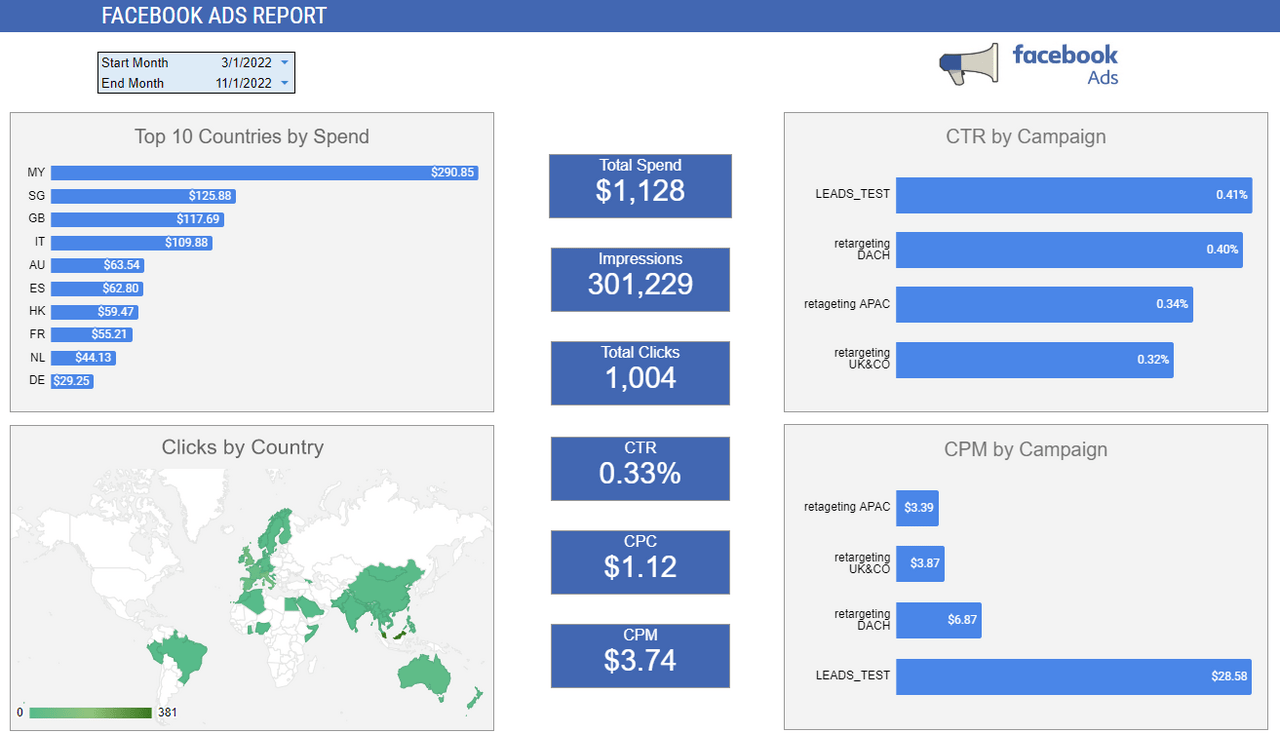
- The Budget Pacing Template is built for multi-platform reporting. This template syncs data from Facebook Ads, Google Ads, and LinkedIn Ads, helping you monitor spend across channels and stay on budget.

How to use these templates:
- Open the template link and make a copy. This creates your own editable version. You control access and sharing.
- Go to Extensions and open Windsor.ai. Connect your Facebook Ads account. Adjust query metrics and settings if needed.
- Run the update and watch the dashboard fill with your data.
Once connected, the template updates automatically on your chosen schedule; there’s no need to reconnect it each time.
Why marketers struggle to move Facebook Ads data into Google Sheets
Most traditional methods of importing Facebook Ads data into Google Sheets rely on manual CSV exports. The lengthy process, combined with the complexity of reporting across multiple ad accounts and the lack of automated updates, slows decision-making and increases the risk of errors.
Here are the main challenges of manual Meta Ads to Google Sheets integration:
CSV exports create reporting fatigue
Many marketers end up downloading CSV files repeatedly just to keep reports up to date. Each export takes time and creates yet another version of the data that becomes outdated almost immediately.
Delayed data slows decisions and optimization
When reporting depends on manual spreadsheet updates, real-time visibility is hard to achieve. By the time the data lands in Google Sheets, it’s often already outdated. These delays make it harder to make informed decisions, test new ideas, and optimize campaigns on time.
Multi-account reporting becomes unmanageable
Managing multiple ad accounts in a single spreadsheet quickly becomes painful. Each account requires its own export, cleanup, and formatting. By the time everything is merged, the process feels error-prone and exhausting. As the number of accounts grows, spreadsheets become harder to maintain and easier to break.
⚙️ Windsor.ai eliminates these challenges by automating the entire data integration flow. Your Facebook Ads data in Google Sheets stays up to date on a schedule, with no manual exports, copy-pasting, or cleanup required.
💡 Google Sheets is not the only destination for Facebook Ads data. The same connector also feeds AI tools, so you can analyze campaign performance in plain language: Facebook Ads to Claude and Facebook Ads to ChatGPT.
Conclusion
Manual Meta Ads reporting in Google Sheets is slow, repetitive, and frustrating. Downloading CSVs, cleaning them up, and pasting data into spreadsheets wastes valuable time and introduces unnecessary risk at every step.
By auto-populating Facebook Ads data in Google Sheets with Windsor.ai, you get self-updating reports built on reliable, consistent data. Set up the integration once and work with continuously fresh data long term without extra effort.
🚀 Get your Facebook Ads data into Google Sheets in just 3 minutes with Windsor.ai. Get started for free.
FAQs
Can Windsor update data daily or hourly?
Yes, scheduling Google Sheets refreshes with Windsor.ai is flexible. You can refresh every 15 minutes, hourly, or daily.
Can I combine Facebook Ads with other platforms?
Yes, Windsor connects to more than 300 data sources. You can combine Facebook Ads with Google Ads, LinkedIn, Shopify, and other used channels to keep all metrics aligned in one place. This also streamlines cross-platform analysis.
Do Windsor.ai's templates for Google Sheets refresh automatically?
Yes, our templates refresh automatically once connected. Updates depend on your chosen schedule, so dashboards stay live without manual work or repeated setup.
Do I need coding skills to import Facebook Ads data into Google Sheets with Windsor.ai?
No coding or technical skills are required. Windsor.ai works entirely through a user-friendly web app interface or a Google Sheets add-on. Anyone can set it up without programming knowledge.
Will my Google Sheets formulas and charts break after updates?
No. Your formulas and charts stay exactly where they are. Windsor keeps column names and positions consistent, so updates do not break your dashboards.
Can I import historical Facebook Ads data into Google Sheets?
Yes, you can import years of past data by choosing a backfilling period. This helps you compare older data with your current results.
Is Facebook Ads data synced in real-time?
Windsor does not stream data in real-time, but it can update spreadsheets as frequently as every 15 minutes. This is sufficient for most performance monitoring and reporting needs.
Can multiple team members access the same Google Sheet?
Yes. The data is in Google Sheets, so you can share it with your team like you normally would. Everyone sees the same up-to-date numbers in a single sheet.
Is my Facebook Ads data secure when using Windsor.ai?
Yes. Windsor uses secure authentication and read-only access for Facebook Ads. Your data is encrypted and handled according to standard security practices.