 Destinations
 Data sources
 AI insights
 About us
 Careers
 Security
 Customer reviews
 Contact us
 Affiliate program
 Solution partners
 Template gallery
 Looker Studio templates
 Power BI templates
 Excel templates
 Google Sheets templates
 Tableau templates
 Facebook Ads templates
 Google Ads templates
 Data fields & Metrics
 AI prompt library & Guides
 Product documentation
 API documentation
 Case studies
 Blog
 Data models
 Windsor vs Supermetrics
 Windsor vs Funnel.io
 Windsor vs Fivetran
 Windsor vs Rivery
 Windsor vs Portermetrics
 Windsor vs Coupler.io
Quantcast Connector
Send your Quantcast campaign data to Claude, ChatGPT, Google Sheets, Data Studio, BigQuery and other destinations with Windsor.ai. Report on spend, reach, viewability and results per campaign, ad set and creative without exporting CSV files.
Forget CSVs. Stop copy/paste. Connect data in 2 minutes. No code required.
 Free forever plan
No credit card needed



Make the most out of your Quantcast data with Windsor.ai
Choose the Quantcast fields you need from the field reference, or create custom fields from them.
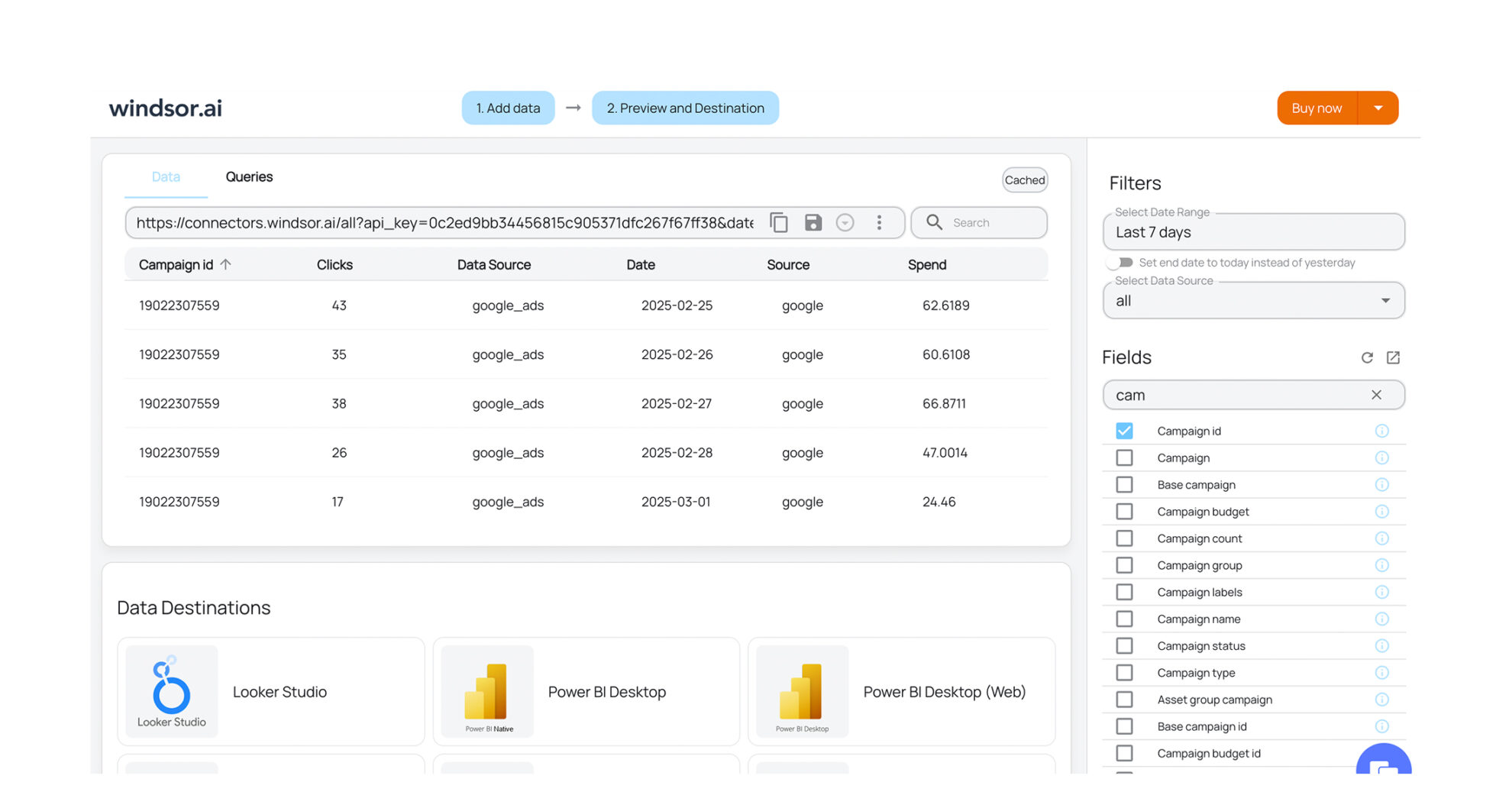
Windsor.ai’s dashboard templates for Data Studio, Power BI and other BI tools are a starting point: add your Quantcast fields next to the sources a template already covers.
Send your Quantcast data to any destination
Import your Quantcast data into any destination using Windsor.ai.





















Load Quantcast data with Windsor.ai's connector
Quantcast reports campaign delivery inside its own platform. To put those numbers next to other ad platforms, analytics or CRM data, teams usually export a report and combine files by hand.
Windsor.ai connects Quantcast with your account ID, API key and API secret, then sends the fields you pick to your AI assistant, spreadsheet, BI tool or data warehouse.


How to export Quantcast data with the Windsor.ai connector
Sign up and start for free
Create your Windsor.ai account and log in.
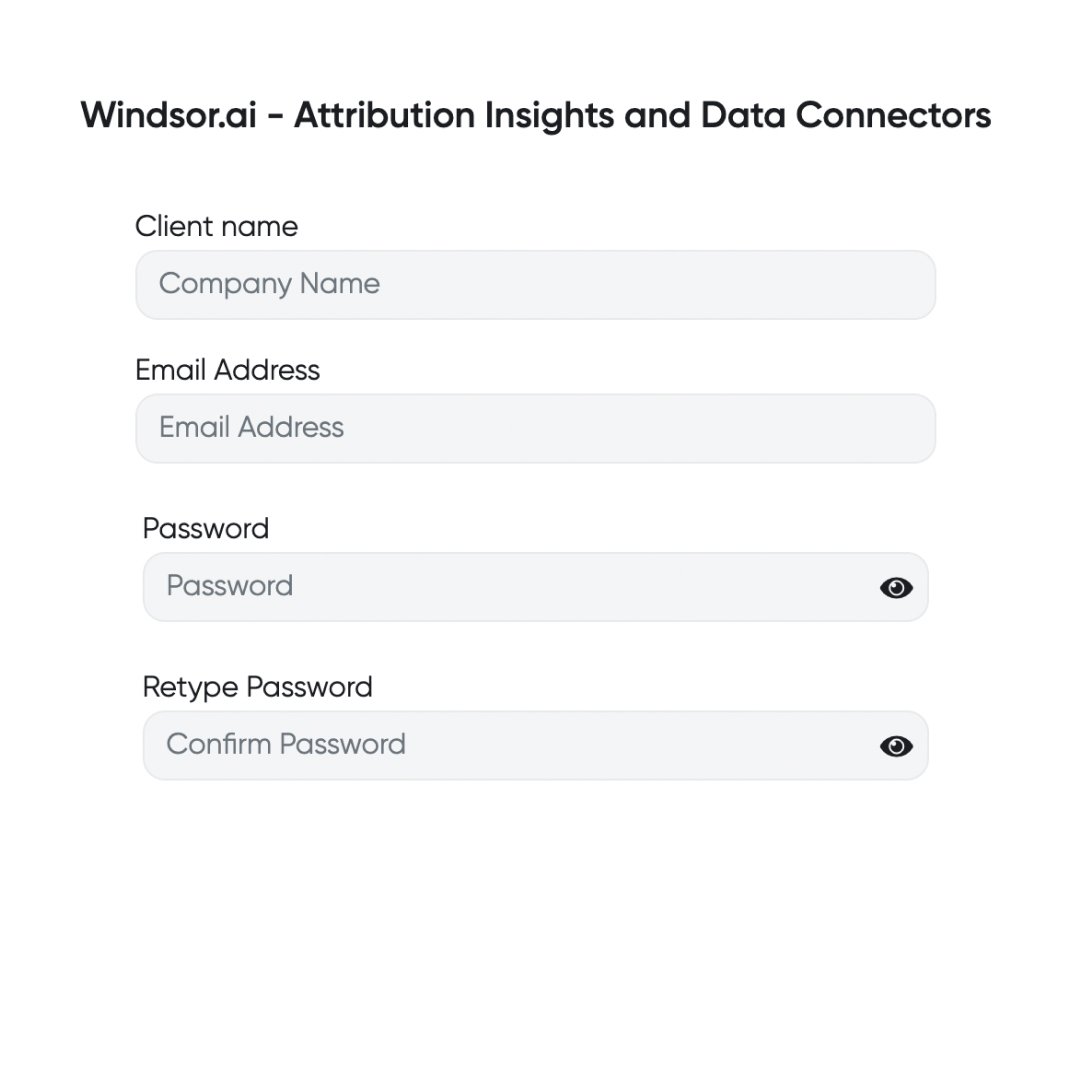
Select Quantcast as a data source
In your dashboard, choose Quantcast and enter your Quantcast account ID, API key and API secret. In Quantcast, the account ID is listed in the Accounts section of the Org Manager page, and you create the API key and secret under My Profile, in the API Key section.
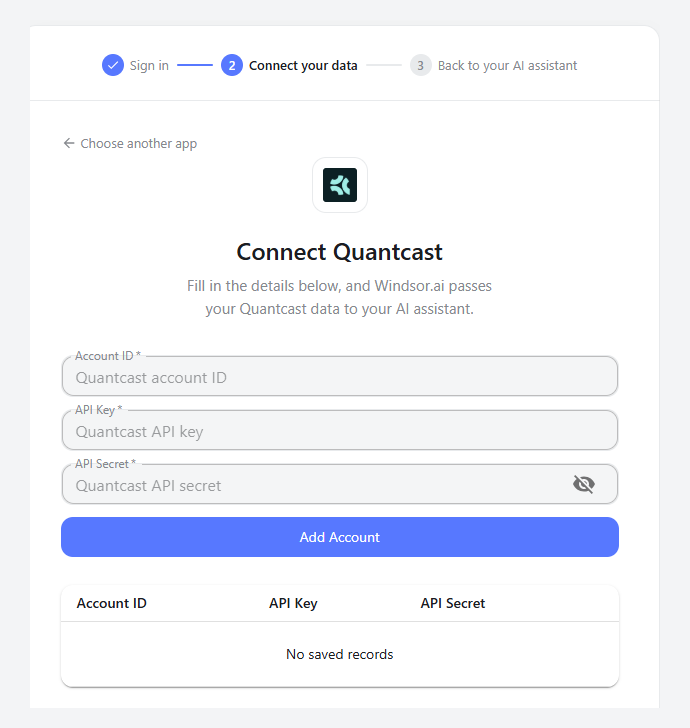
Choose report fields and metrics
Select the fields you want in your report, for example Campaign Name, Budget Delivered, Impressions and Viewability.

Select a data destination
Choose the destination for your Quantcast data, such as Claude, ChatGPT, Google Sheets, Data Studio or BigQuery.

FAQs
Why use the Windsor.ai connector for Quantcast data?
The connector sends Quantcast fields to your AI assistant, spreadsheet, BI tool or warehouse without a CSV export, and puts them next to data from 350+ other sources, such as Google Ads, Meta Ads or GA4. Windsor.ai reads Quantcast data only and cannot change campaigns in Quantcast. The write actions list shows the sources Windsor.ai can make changes in.
How much does it cost to integrate Quantcast with Windsor.ai?
The free forever plan covers 1 data source, so connecting Quantcast on its own costs nothing and needs no credit card. Combining Quantcast with other sources needs a paid plan: $19/month for 3 sources or $99/month for 7. See the pricing page.
How long does it take to connect Quantcast to a destination?
A few minutes, with no code. You enter your Quantcast account ID, API key and API secret in Windsor.ai, pick the fields and choose a destination.
What data can I extract from Quantcast?
Windsor.ai gives access to 47 Quantcast fields. These are the groups; the Quantcast field reference lists all of them:
- Delivery and spend: Impressions, Budget Delivered, Clicks (General IVT), Clicks (Advanced IVT), Currency.
- Reach and viewability: Device Reach, Household Reach, Measured Impressions, Viewable Impressions, Viewability.
- Video and audio: Completed Views, Completed Views (Audible And Visible), Completed Listens.
- Results and revenue: Results, Click Results, View Results, Revenue.
- Campaign structure: Campaign Name, Campaign ID, Ad Set Name, Ad Set ID, Creative Name, Creative ID, Channel.
- Device: Device Type, Operating System.
Do you have helpful links to get started with Quantcast and Windsor.ai?
Yes. The Quantcast field reference lists every field with its description, and the Data integration documentation covers the setup step by step.
For setup with a specific destination, see Connect Quantcast to Claude and Connect Quantcast to ChatGPT.
To compare Quantcast with other ad platforms, read the guide on using Windsor.ai for paid media.
Other popular Windsor.ai connectors

Instagram Insights

HubSpot
Salesforce

LinkedIn Ads

Microsoft Ads (Bing Ads)
Tired of manual Quantcast data exports? Get started with Windsor.ai today and connect Quantcast once


