 Destinations
 Data sources
 AI insights
 About us
 Careers
 Security
 Customer reviews
 Contact us
 Affiliate program
 Solution partners
 Template gallery
 Looker Studio templates
 Power BI templates
 Excel templates
 Google Sheets templates
 Tableau templates
 Facebook Ads templates
 Google Ads templates
 Data fields & Metrics
 AI prompt library & Guides
 Product documentation
 API documentation
 Case studies
 Blog
Blog Data models
 Windsor vs Supermetrics
 Windsor vs Funnel.io
 Windsor vs Fivetran
 Windsor vs Rivery
 Windsor vs Portermetrics
 Windsor vs Coupler.io
Connect HubSpot to Excel
Easily integrate your HubSpot data into Excel with the Windsor.ai ETL connectors.
Our platform automates HubSpot reporting, turning raw data into clear, actionable analytics that drive smarter business strategies and boost ROI.
Forget CSVs. Stop copy/paste. Connect data in 2 minutes. No code required.
 Sign up with Google
 Free forever plan
No credit card needed
Free forever plan
No credit card needed










Transform raw data into actionable insights with HubSpot to Excel integration
Seamlessly integrate your HubSpot CRM data into Excel to gain powerful insights across marketing, sales, and customer service. Analyze performance, streamline workflows, and unlock the following key benefits:

Automate reporting
Automatically sync your HubSpot data with Excel to get up-to-date insights into leads, conversions, and sales activity, without manual exports or delays.

Customize dashboards
Create dynamic reports in Excel to track key CRM metrics like lead sources, conversion rates, pipeline performance, and others. Share real-time insights across teams to align efforts, uncover opportunities, and make the most out of your HubSpot analytics for smarter, data-driven strategy.

Get a unified view of customer journey
Merge HubSpot CRM data with other sources in Excel to map the entire customer lifecycle, from first interaction to deal closure. This unified view helps you identify gaps, optimize touchpoints, and improve customer engagement throughout the sales process.
Using Windsor.ai connector to import data from HubSpot into Excel
Most traditional methods for integrating HubSpot with Excel involve manual exports, complex setups, or costly tools. Windsor.ai removes these barriers with a no-code ELT connector that automates data syncing for streamlined reporting and smarter CRM analysis.
In just a few steps, Windsor.ai connects your HubSpot data to Excel, helping you track leads, monitor customer journeys, and optimize your sales pipeline.
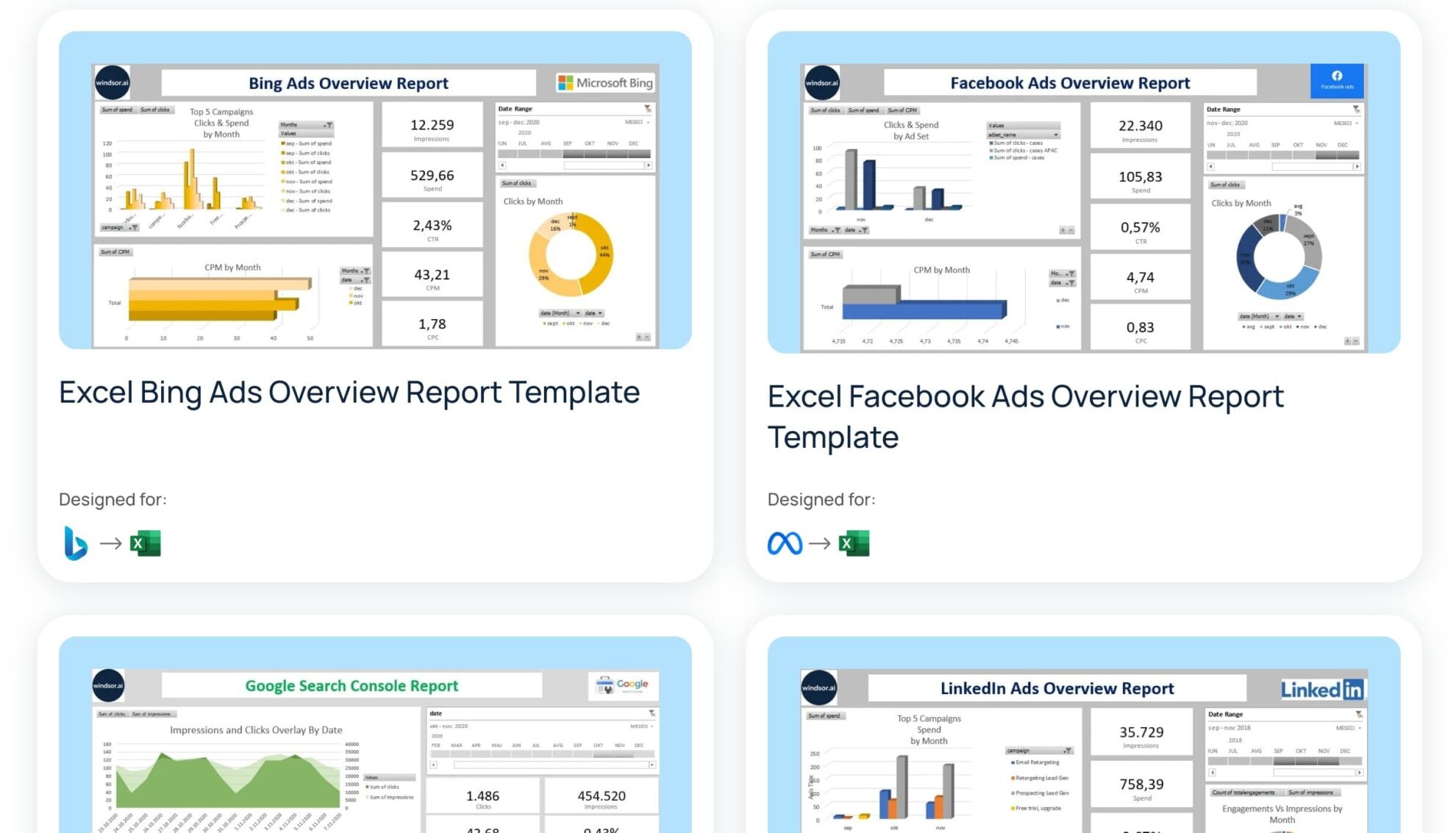














How to connect HubSpot to Excel in Windsor.ai
Make sure you have the following prerequisites before setting up the connector:
- HubSpot account
- Excel document
- Active Windsor.ai account
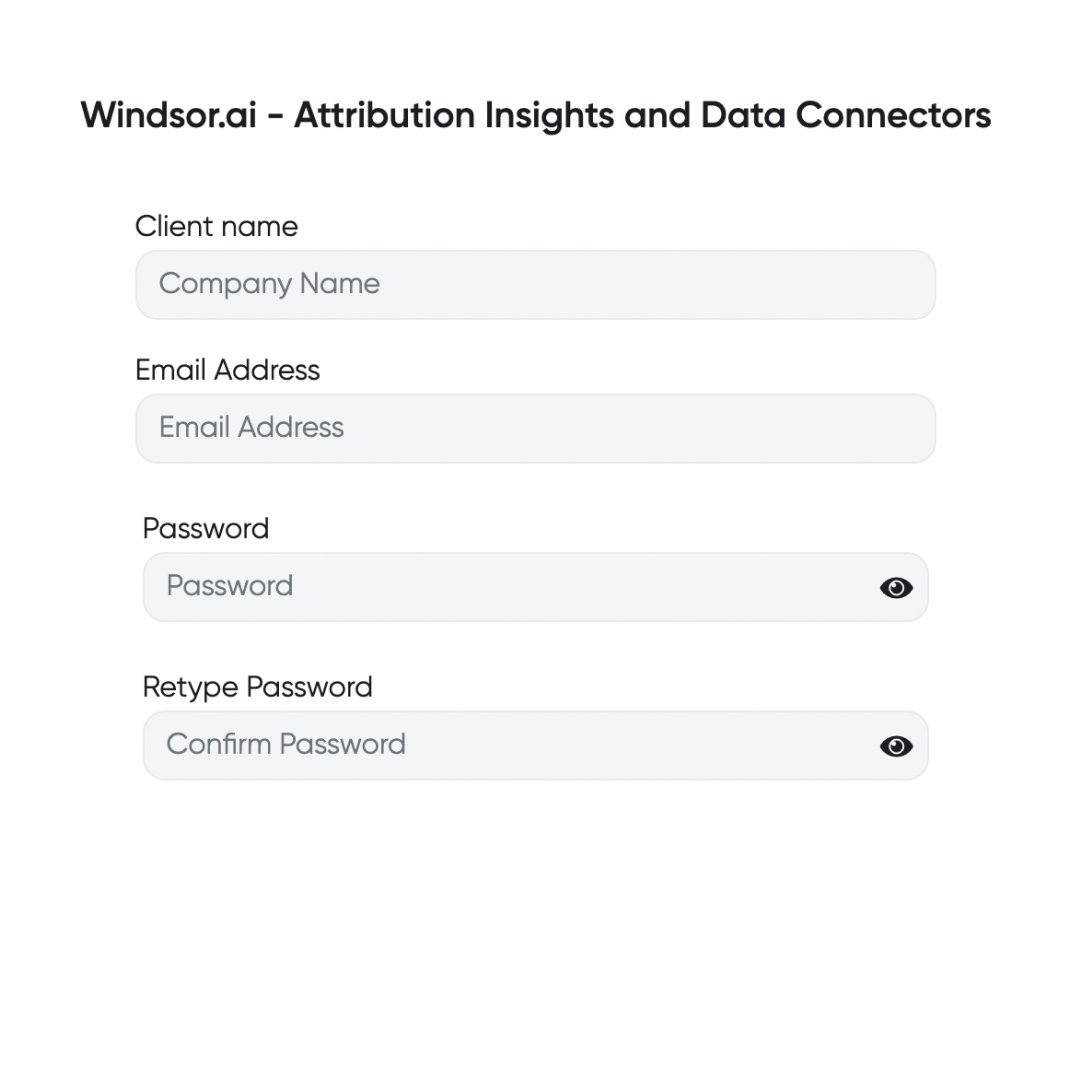
Register and log in to Windsor.ai
Create a new Windsor.ai account or log in if you already have one.
Connect a data source
Connect HubSpot in your Windsor.ai dashboard. Select the necessary account(s) you want to pull data from and click “Next.”

Select your destination
Choose “Excel” as the data destination and copy your API Key. Find the API key provided in the instructions below.

Sync Windsor.ai data with Excel
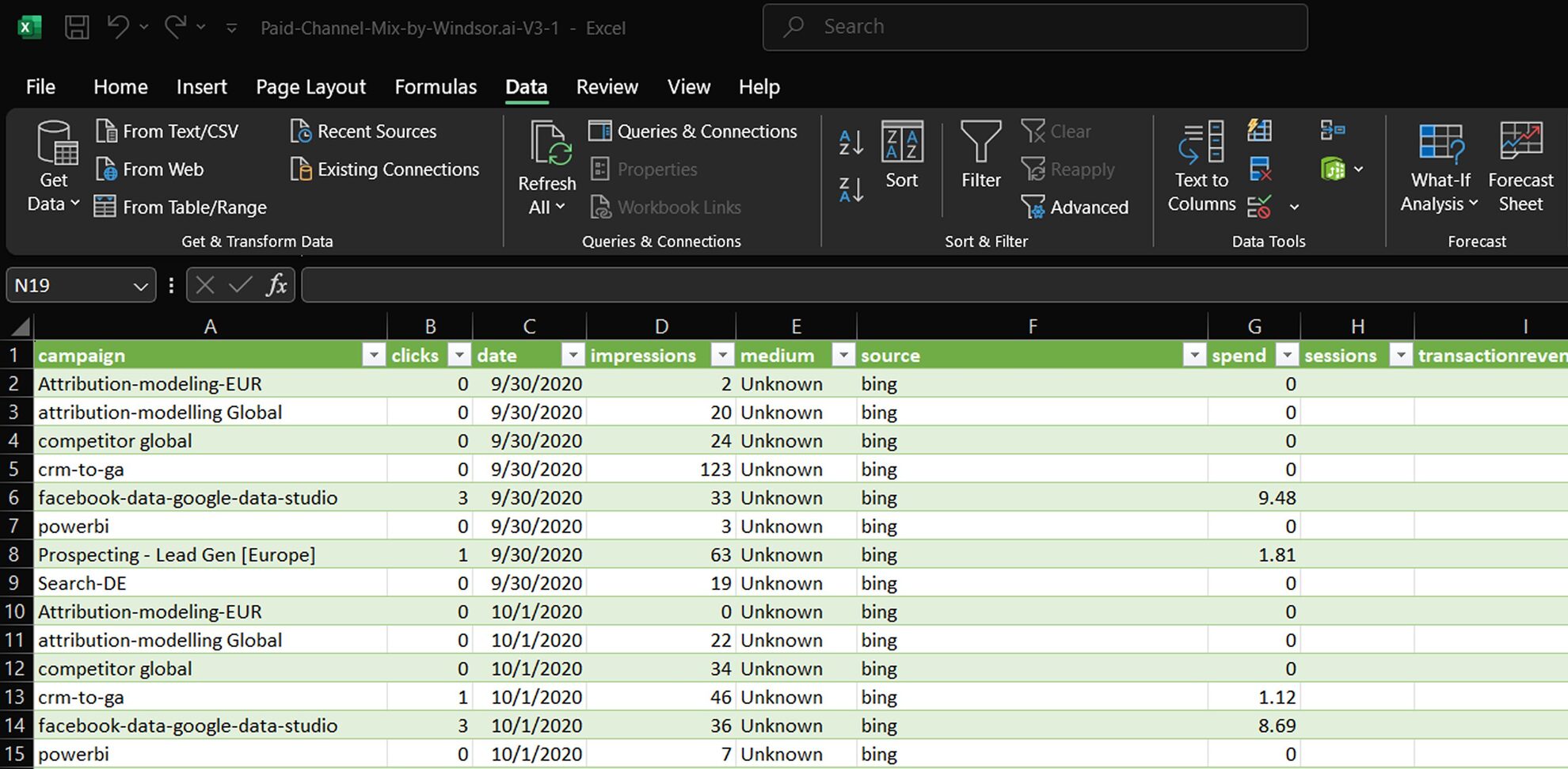
Go to Excel, click “Data” -> “Web,” and paste your previously copied API key URL in the pop-up.

Visualize your data
Congratulations, you’ve connected your spreadsheet with Windsor.ai and integrated HubSpot data into Excel!
FAQs
What is Excel?
Excel is a powerful spreadsheet tool that helps you organize, explore, and make sense of your data, from tracking performance and planning budgets to building reports and visualizing trends. Excel makes working with data simple and efficient with features like formulas, pivot tables, and charts, turning raw numbers into clear insights that drive smarter decisions.
Do you have helpful links to get started with integrating HubSpot and Excel using Windsor.ai?
Yes, we have helpful resources to help you get started. You can explore our official documentation and ready-to-use templates for seamless HubSpot to Excel integration with Windsor.ai:
How much does it cost to integrate HubSpot into Excel with Windsor.ai?
Windsor.ai’s pricing for HubSpot to Excel data integration can vary depending on your use case. We offer absolutely transparent pricing plans for diversified business needs and budgets.
How much time do I need to create a HubSpot and Excel integration?
Windsor.ai provides a user-friendly interface and a robust data connector that extracts, transforms, and loads HubSpot data into Excel in under 5 minutes, making the process quick and hassle-free.
Tired of manual HubSpot data exports? Try Windsor.ai today to automate your reporting


