 Destinations
 Data sources
 AI insights
 About us
 Careers
 Security
 Customer reviews
 Contact us
 Affiliate program
 Solution partners
 Template gallery
 Looker Studio templates
 Power BI templates
 Excel templates
 Google Sheets templates
 Tableau templates
 Facebook Ads templates
 Google Ads templates
 Data fields & Metrics
 AI prompt library & Guides
 Product documentation
 API documentation
 Case studies
 Blog
Blog Data models
 Windsor vs Supermetrics
 Windsor vs Funnel.io
 Windsor vs Fivetran
 Windsor vs Rivery
 Windsor vs Portermetrics
 Windsor vs Coupler.io
37 Free Monitoring Dashboard Report Templates and Examples (Data Studio, Power BI, Tableau, Google Sheets, Excel)
Pick a free monitoring dashboard template for Data Studio, Power BI, Tableau, Google Sheets or Excel, built for GA4, HubSpot, Shopify, Stripe, Instagram, LinkedIn, Facebook Page or ad platform data.
Most templates show your metrics by day, so a drop or a jump shows up the next day.
Every template comes with setup steps for connecting your accounts through Windsor.ai.





















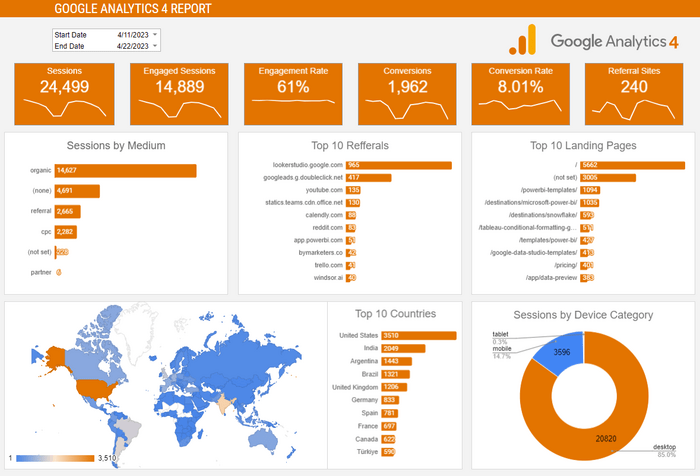
Google Analytics 4 (GA4) Dashboard Template on Power BI


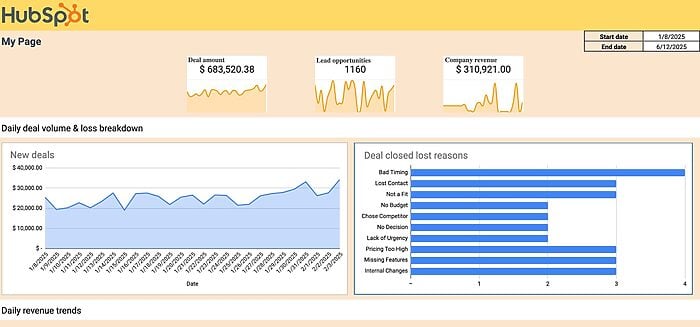
Hubspot Google Sheets Dashboard Template

Instagram Ads Google Sheets dashboard template
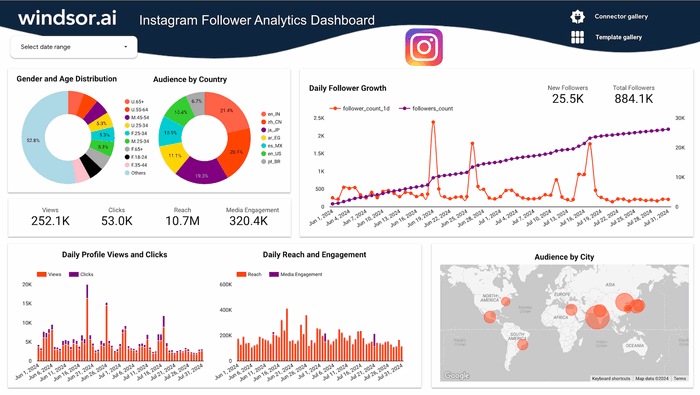
Instagram Follower Tracker: Track Growth Over Time

Instagram Organic Google Sheets Dashboard Template
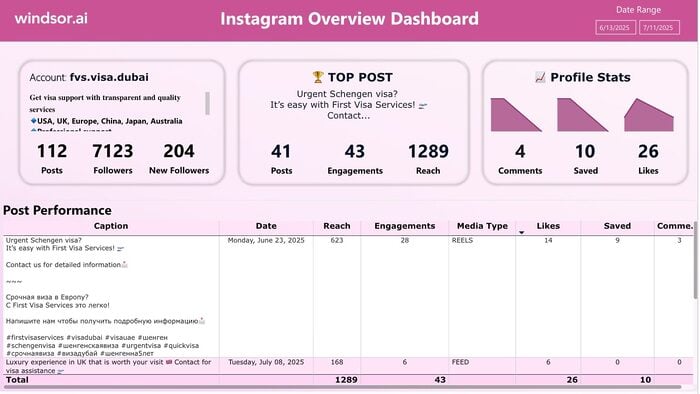
Instagram Power BI Dashboard Template
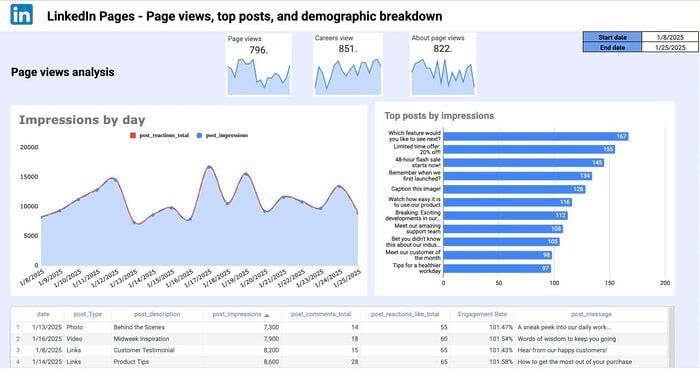
LinkedIn Page Google Sheets Report Template
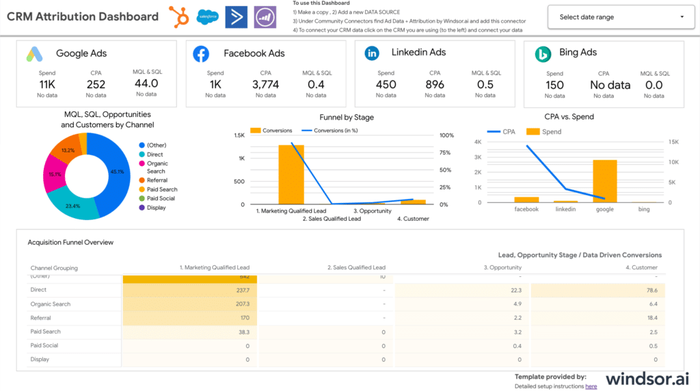
Looker Studio CRM Attribution Dashboard Template
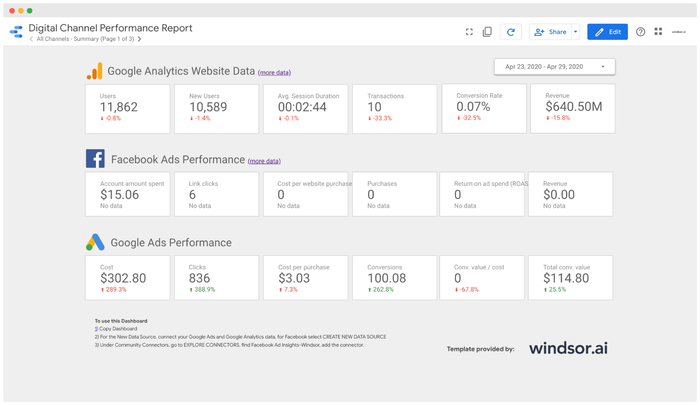
Looker Studio Facebook Ads E-commerce Dashboard Template

Looker Studio Google Analytics 4 Dashboard Template
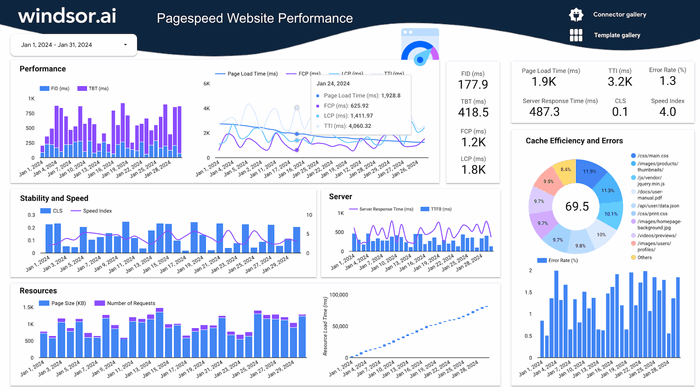

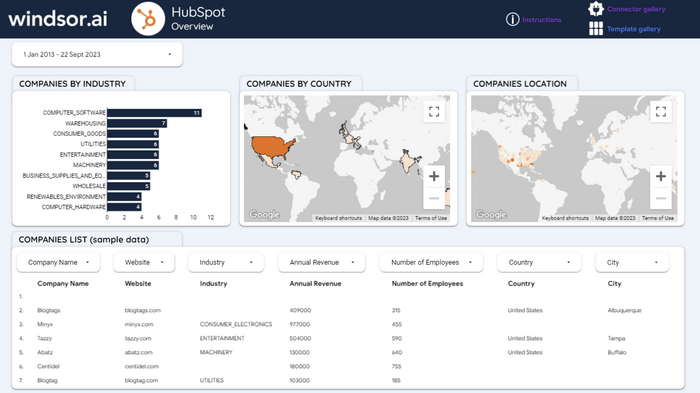
Looker Studio HubSpot Dashboard Template
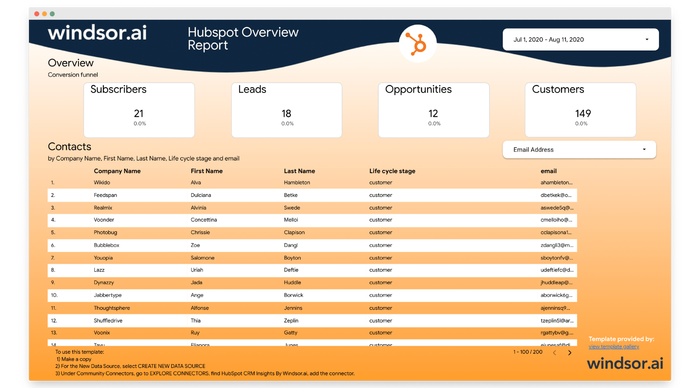
Looker Studio HubSpot Overview Report
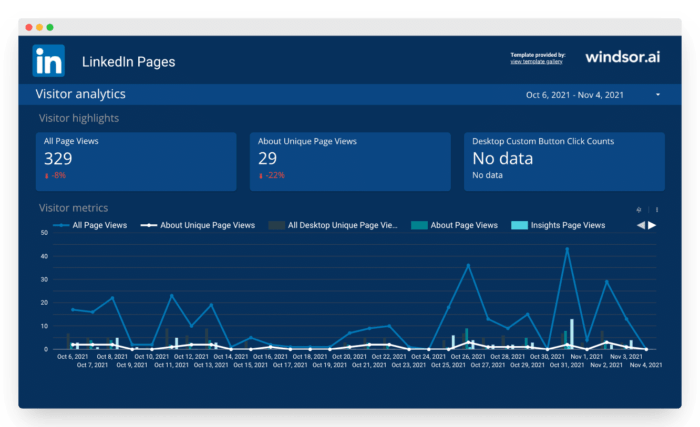
Looker Studio LinkedIn Pages Overview Report
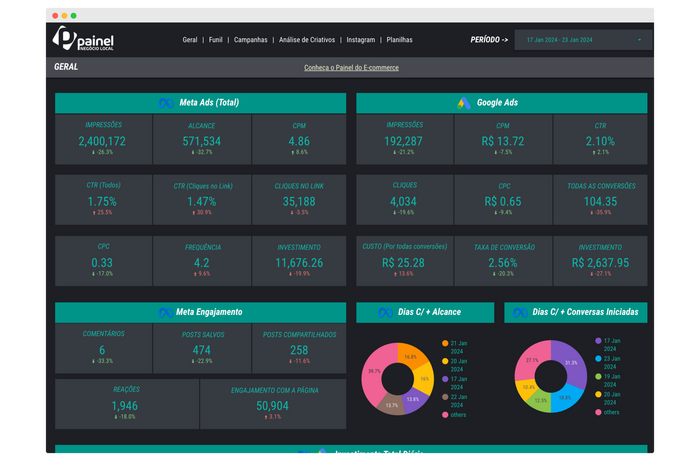
Looker Studio Painel Para Negócios Locais
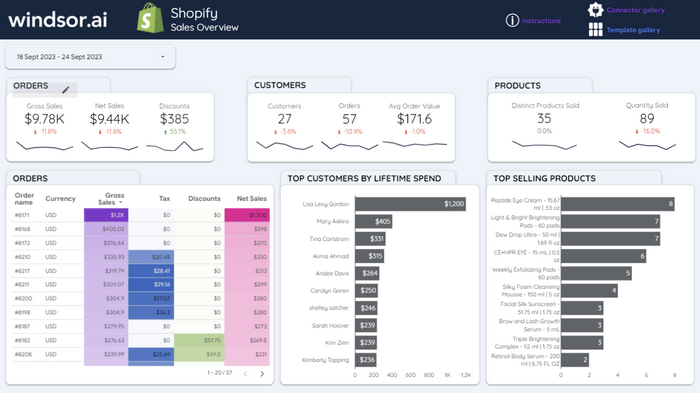
Looker Studio Shopify Dashboard Template
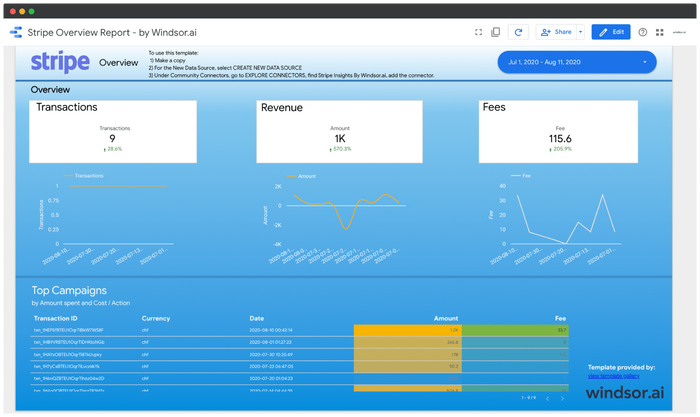
Looker Studio Stripe Overview Report
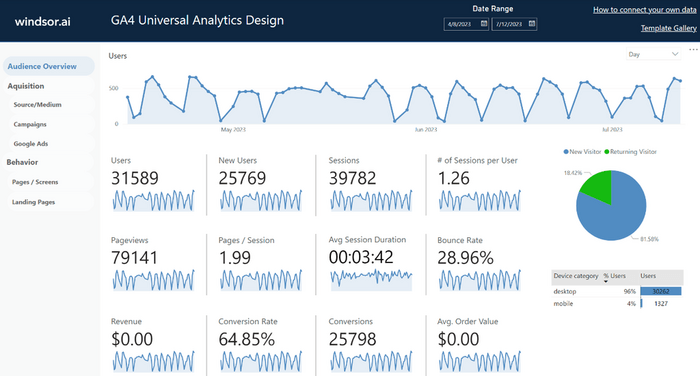
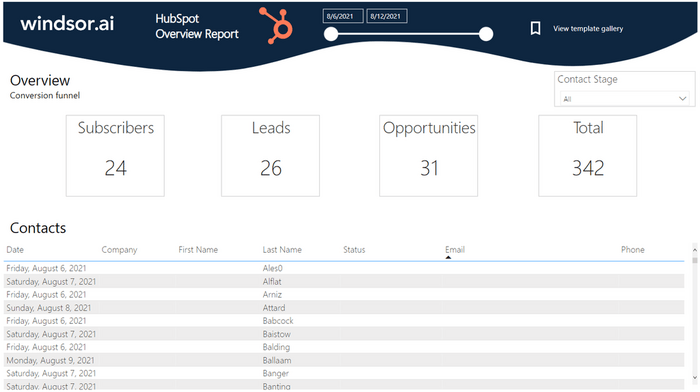
Power BI HubSpot Overview Dashboard Template
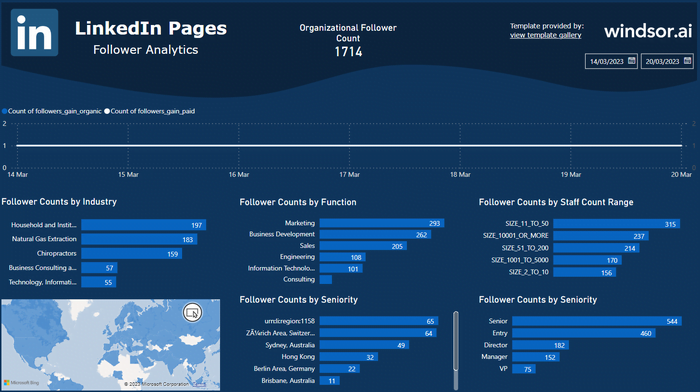
Power BI LinkedIn Page Insights Dashboard Template
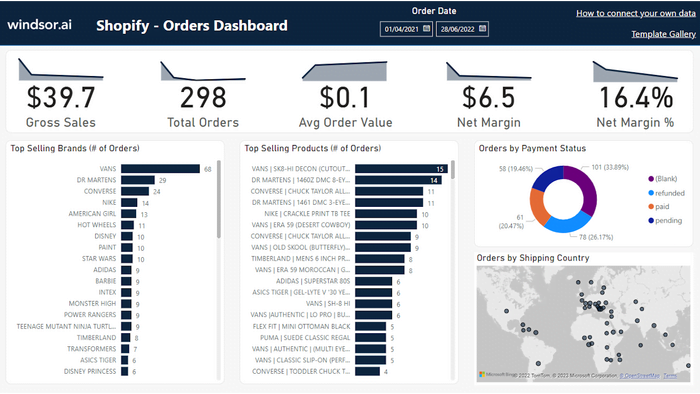
Power BI Shopify Overview Dashboard Template
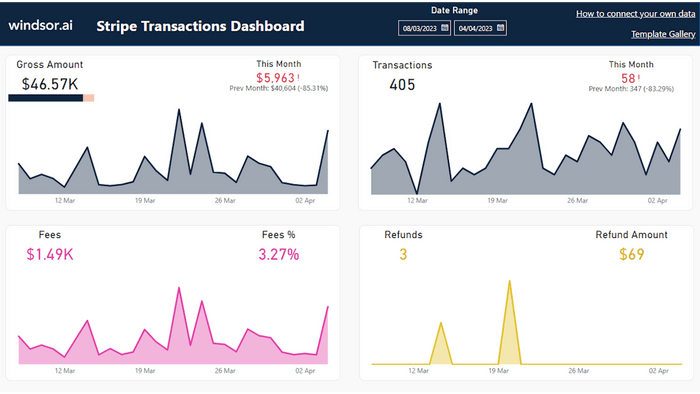
Power BI Stripe Transactions Dashboard Template
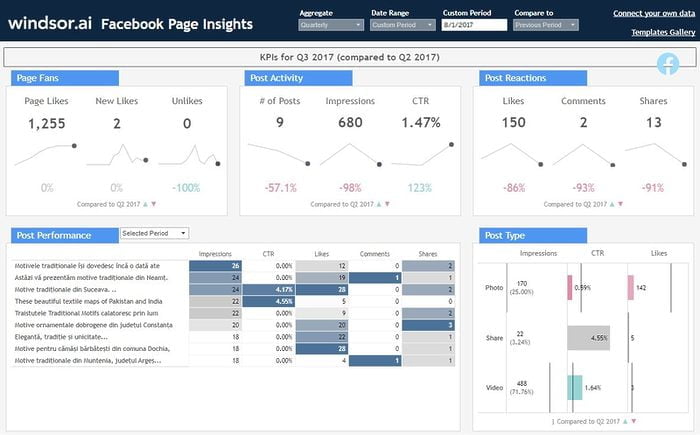
Tableau Facebook Page Insights Dashboard Template

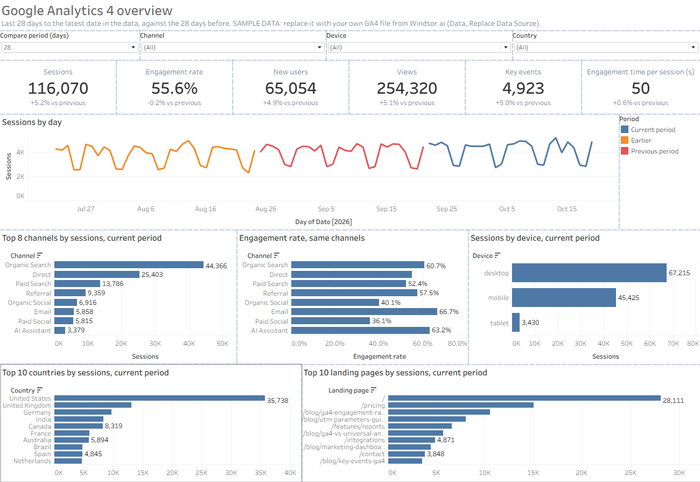
Tableau Google Analytics 4 Dashboard Template
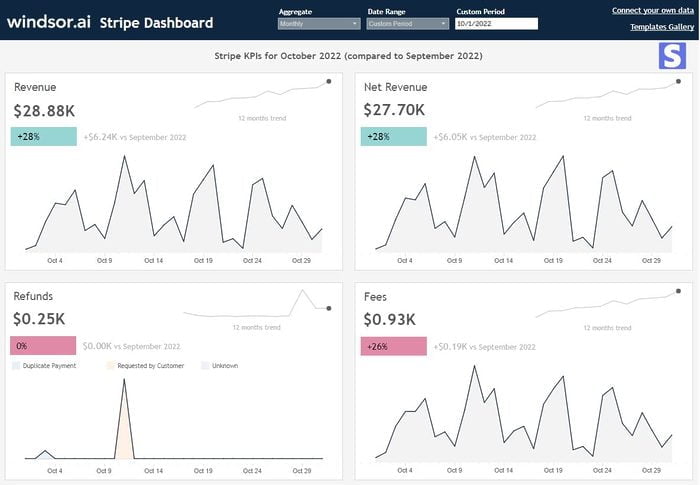
Tableau Stripe Dashboard Template
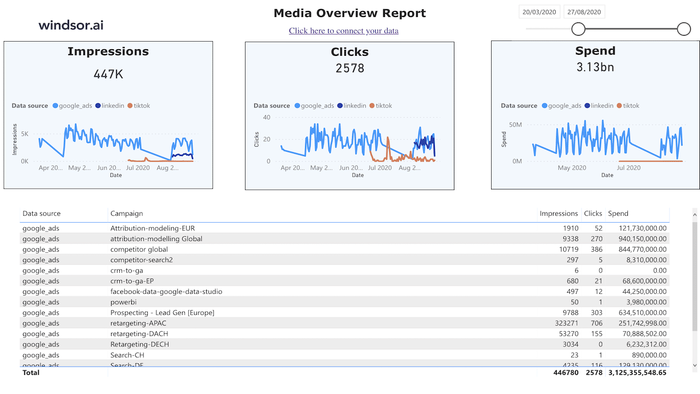
Tableau Web Media Overview Dashboard Template



What is a monitoring dashboard?
Use a monitoring dashboard to track daily marketing performance and catch unusual changes. Compare sessions, key events, ad spend, and leads with their typical levels to see when something is off. Each morning, marketing leads and analysts can check the dashboard, then drill into the channel, campaign, or page behind any unexpected movement.
The templates on this page are built for marketing and sales monitoring, not server or network monitoring. Windsor.ai brings data from 350+ sources, including GA4 and HubSpot, into Data Studio, Power BI, Tableau, Excel, and Google Sheets.
Which monitoring dashboard template to pick
The table lists all 37 templates in this gallery, grouped by data source. Google renamed Looker Studio back to Data Studio in April 2026, but some template pages still say Looker Studio.
| Template | Tool | Platforms | Best for | Key metrics |
|---|---|---|---|---|
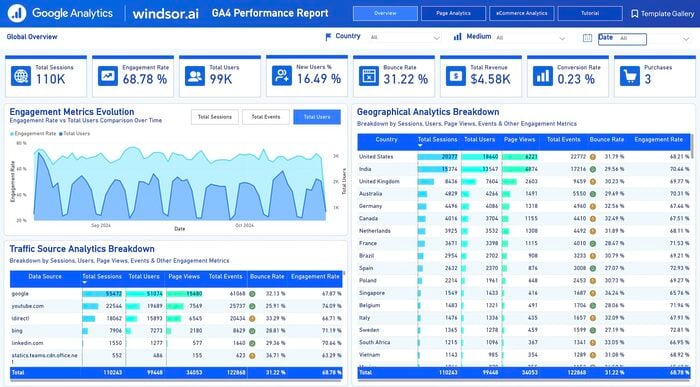
| Google Sheets GA4 Report | Google Sheets | GA4 | Daily traffic and engagement in a spreadsheet | sessions, engaged sessions, engagement rate, conversions, conversion rate, referral sites, by date, source, medium, country and device |
| Data Studio GA4 | Data Studio | GA4 | Traffic, landing pages and conversions in a five-page report | visitors, landing pages, acquisition by source and campaign, conversions, device, country, new vs. returning visitors |
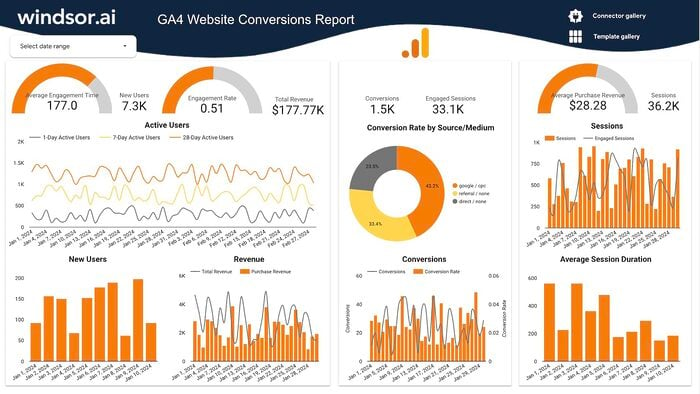
| Data Studio GA4 Website Conversions | Data Studio | GA4 | Key events and the share of users who trigger them | key events, user key event rate, active users, revenue, engagement rate |
| Power BI GA4 | Power BI | GA4 | Sessions, revenue and conversions by page and country | sessions, users, engagement rate, revenue, conversion rate, by traffic source, country and page |
| Power BI GA4 Universal Analytics Design | Power BI | GA4 | GA4 data in the old Universal Analytics layout | users, new users, sessions, page views, bounce rate, average session duration, revenue, conversions, conversion rate, average order value |
| Tableau Google Analytics | Tableau | GA4 | Traffic by channel, device and page | sessions, page views per session, bounce rate, average session duration, top referrals, most visited pages, by channel, device and country |
| Data Studio PageSpeed Insights | Data Studio | PageSpeed Insights | Page load speed across pages and sites | speed index, First Contentful Paint, cache hit rate, errors |
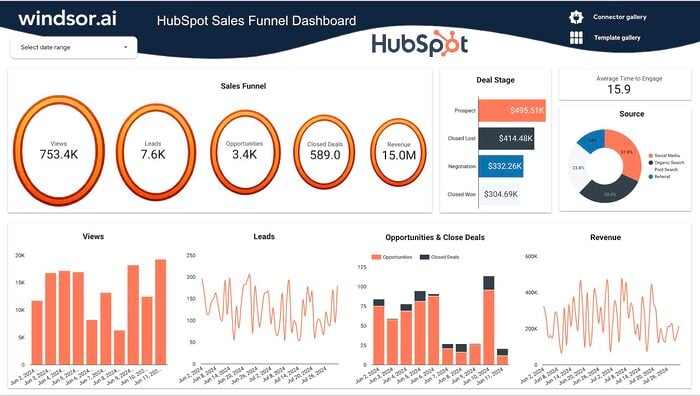
| Data Studio HubSpot | Data Studio | HubSpot | Contacts, companies and pipeline | contacts, leads, opportunities, customers, pipeline, company industry and location |
| Data Studio HubSpot Sales Funnel | Data Studio | HubSpot | Contacts and deals at each funnel stage | prospects, leads, deals by pipeline stage, closed deals |
| Data Studio HubSpot Marketing | Data Studio | HubSpot | Marketing Hub results | emails, leads, deals by pipeline stage |
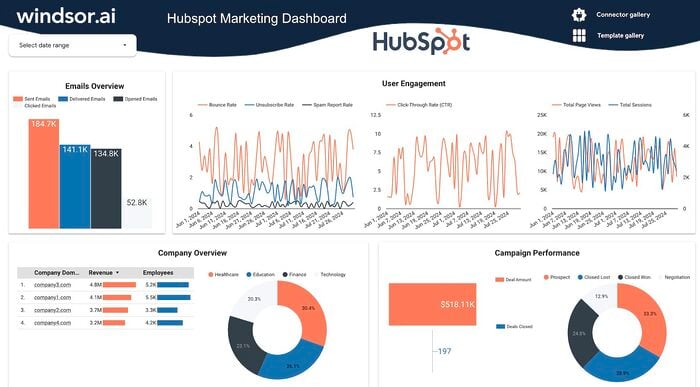
| Data Studio HubSpot Overview Report | Data Studio | HubSpot | Email and deal performance | emails sent, delivered, opened and clicked, CTR, bounce and unsubscribe rates, page views, sessions, deal amount by stage |
| Power BI HubSpot Overview | Power BI | HubSpot | Contacts by lifecycle stage | subscribers, leads, opportunities, contacts by stage and company |
| Google Sheets HubSpot | Google Sheets | HubSpot | Deals, revenue and lost-deal reasons | deal amount, lead opportunities, company revenue, traffic sources, deal lost reasons |
| Data Studio CRM Attribution | Data Studio | Google Ads, Meta Ads, LinkedIn Ads, Microsoft Ads, plus HubSpot, Salesforce or another CRM | Ad channels next to CRM leads | leads and cost per lead by channel group |
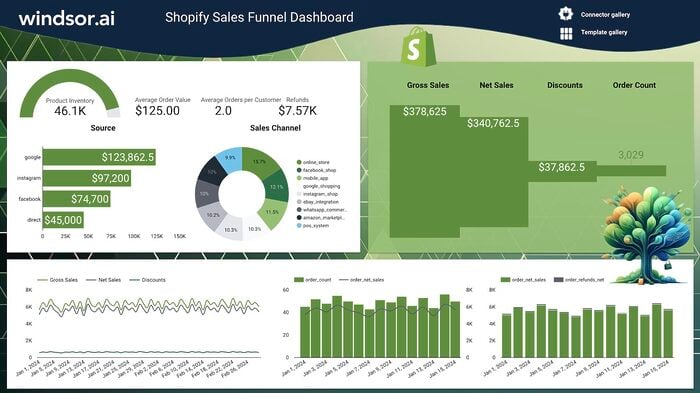
| Data Studio Shopify | Data Studio | Shopify | Sales, customers and best-selling products | sales over time, customers, top customers, best-selling products, average order value |
| Data Studio Shopify Sales Funnel | Data Studio | Shopify | Store visitors to buyers | sales, orders, inventory, customers |
| Power BI Shopify Overview | Power BI | Shopify | Orders, margin and customer value | gross sales, orders, average order value, net margin, customers, spend per customer |
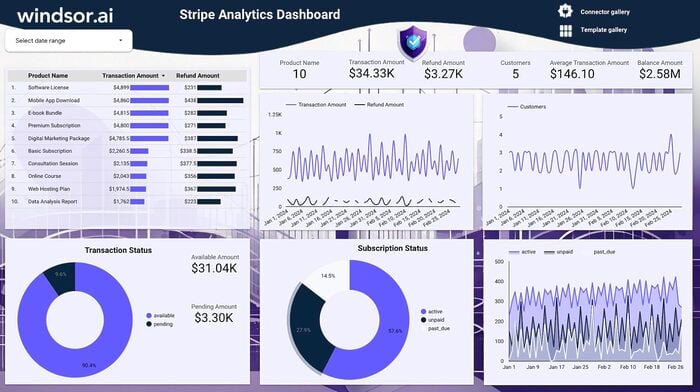
| Data Studio Stripe Analytics | Data Studio | Stripe | Revenue, refunds and payouts | revenue, refunds, payouts, payment methods, transaction status, subscriptions |
| Power BI Stripe Transactions | Power BI | Stripe | Transactions, fees and refunds | transactions, gross and net amount, fees, fee share, refunds, refund reason |
| Data Studio Stripe Overview | Data Studio | Stripe | A list of transactions with fees | transaction ID, description, status, customer email, date and time, fee, amount |
| Tableau Stripe | Tableau | Stripe | Revenue, refunds and fees | revenue, net revenue, transactions, refunds, refund value, refund reason, fees |
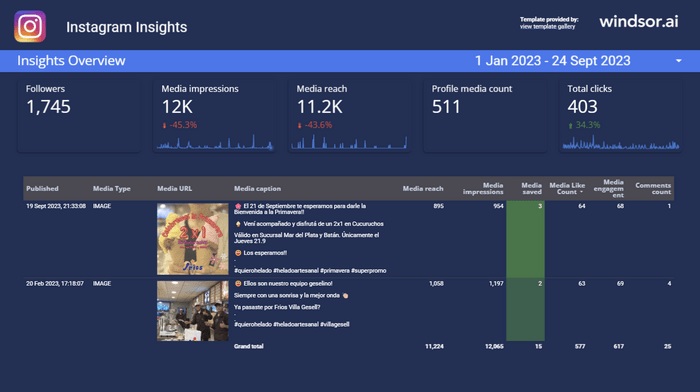
| Data Studio Instagram Follower Tracker | Data Studio | Follower count by day | followers, new follows and unfollows, reach, profile views | |
| Data Studio Instagram Insights | Data Studio | Account growth and post results | followers, impressions, profile visits, post likes, comments and reach | |
| Google Sheets Instagram Organic | Google Sheets | Follower changes and post engagement | follows, unfollows, impressions, post impressions, likes, comments, shares | |
| Power BI Instagram | Power BI | Profile, posts and audience | followers, new followers, post reach, impressions, likes, saves, comments, audience age, gender and country | |
| Google Sheets LinkedIn Page | Google Sheets | LinkedIn Page | Page views and top posts | page views, careers views, impressions by day, post engagement, follower job function, seniority and industry |
| Data Studio LinkedIn Pages | Data Studio | LinkedIn Page | Visitors and post updates | visitors, page views, post impressions and engagement |
| Power BI LinkedIn Page Insights | Power BI | LinkedIn Page | Followers, visitors and post engagement | followers by industry, function and country, visitors, page views, impressions, clicks, likes, comments, shares |
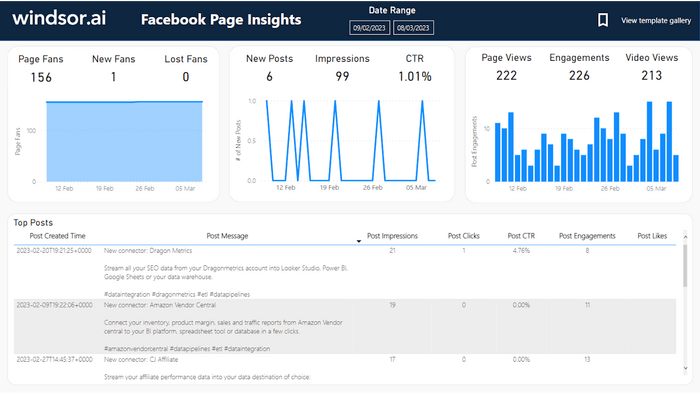
| Power BI Facebook Page Insights | Power BI | Facebook Page | Fans, reach and post engagement | page fans, new and lost fans, impressions, page views, engagements, video views, post clicks |
| Tableau Facebook Page Insights | Tableau | Facebook Page | Page likes and post engagement | total page likes, new likes, unlikes, page posts, post impressions, post clicks, CTR, post likes, comments, shares |
| Google Sheets Instagram Ads | Google Sheets | Meta Ads (Instagram placements) | Instagram ad spend and clicks by campaign | impressions, clicks, spend, CTR, by date, campaign and country |
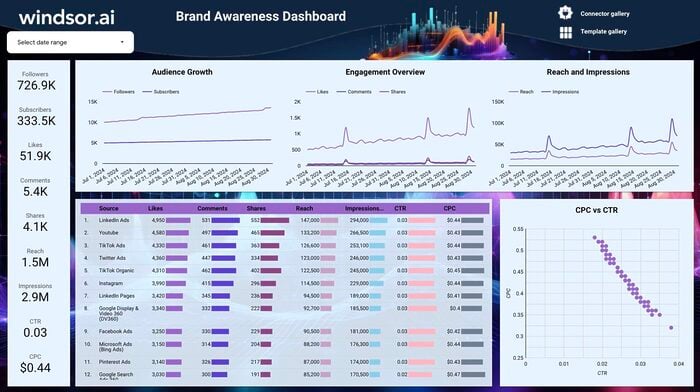
| Data Studio Brand Awareness | Data Studio | LinkedIn Ads, YouTube, TikTok Ads, X (Twitter) Ads, Instagram, Meta Ads, Microsoft Ads, Pinterest Ads, Search Console | Reach and follower growth across channels | followers and subscribers, likes, comments, shares, reach, impressions, CTR, CPC, cost |
| Data Studio Marketing Agency Report | Data Studio | Google Ads, Meta Ads, LinkedIn Ads and other ad platforms, plus GA4 and Search Console | Cross-channel results for a client | impressions, clicks, conversions, cost, ROAS, CPA, reach, CTR |
| Tableau Web Media Overview | Tableau | Google Ads, Meta Ads, DV360, LinkedIn Ads, Microsoft Ads, TikTok Ads and other ad platforms, plus GA4 | Paid media results by channel | clicks, impressions, spend, sessions, by source, medium and campaign |
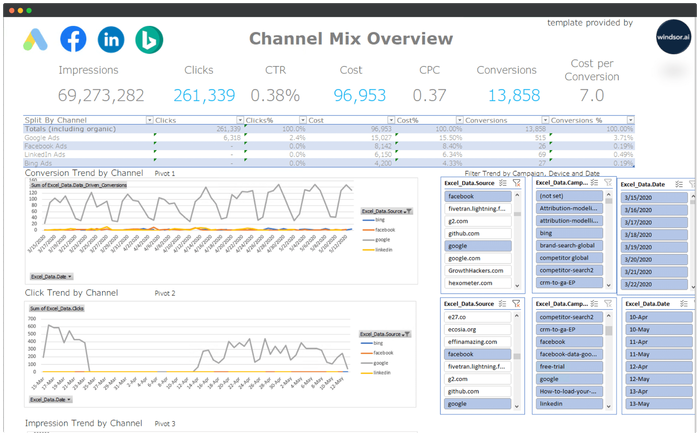
| Excel Marketing Reporting | Excel | Google Ads, Meta Ads, Microsoft Ads, LinkedIn Ads and other ad platforms, plus GA4 | Paid channel mix in a spreadsheet | impressions, clicks, CTR, cost, CPC, conversions, cost per conversion |
| Data Studio Painel Para Negócios Locais | Data Studio | Meta Ads, Google Ads | Ad results for a local business, in Portuguese | impressions, reach, CTR, CPC, cost per lead, cost per message, likes, comments, shares, by age, gender, keyword and creative |
| Data Studio Facebook Ads E-commerce | Data Studio | Meta Ads, Google Ads, GA4 | Meta Ads and store results in one report | spend, clicks, impressions, GA4 conversions, revenue |
Monitoring dashboard example: daily GA4 sessions against a same-weekday baseline
This example uses Windsor.ai’s GA4 property for Q3 2026 (1 July to 30 September) in the Google Sheets GA4 Report template. It adds one tab that compares each day with the same weekday in the previous four weeks and flags the days that differ by more than 25%.
Step 1: Connect GA4. Sign in at onboard.windsor.ai, choose the GA4 connector, and select your property.
Step 2: Load the template. Copy the Google Sheets GA4 Report template. Install the Windsor.ai extension for Google Sheets. In Windsor.ai, choose Google Sheets as the destination. Copy your API key from that page. In the sheet, click Login in the extension and enter your API key. Then click Get Data into Sheet to run the template’s GA4 query.
Start the date range four weeks before the first day you want to check, because the baseline needs those weeks. For Q3, that means loading 3 June to 30 September. The Windsor.ai field for GA4 key events is conversions.
| Source | Windsor.ai fields | Date range | Used for |
|---|---|---|---|
| GA4 | date, sessions, engaged_sessions, conversions | 3 June to 30 September 2026 | Daily sessions, engagement rate and key events, and the four-week baseline |
| GA4 | date, source, medium, sessions, engaged_sessions | 24 August to 30 September 2026 | Which sources explain a flagged day |

Step 3: Add a daily check tab. Put one row per day with sessions (column C), engaged sessions, and key events. Add three columns: Baseline in G, Change vs. baseline in H, and Alert in I. Cell B3 holds the alert threshold (25%).
| Column | Formula (row 35 is 1 July) | What it shows |
|---|---|---|
| Baseline | =AVERAGE(C28,C21,C14,C7) |
Average sessions on the same weekday in the four previous weeks |
| Change vs. baseline | =IF(G35=0,0,C35/G35-1) |
How far the day is above or below its baseline |
| Alert | =IF(ABS(H35)>$B$3,"Check","") |
“Check” when the change is larger than the threshold in B3 (25%) |
A same-weekday baseline matters because weekend traffic is lower. On windsor.ai, an average weekend day in July and August had 50% of the sessions of an average weekday.

| Period | Days flagged (more than 25% from baseline) | Largest change vs. baseline |
|---|---|---|
| 1 July to 31 August | 0 of 62 | +11.9% (2 July) |
| 1 to 30 September | 20 of 30 | +124% (20 September) |
In July and August, every day stayed within 12% of its baseline, so the check raised no alerts. In September, it flagged 20 days. The first two were Saturday 5 and Sunday 6 September. On Thursday 3 September, sessions were 12.5% above baseline, below the threshold. Saturday 5 September gained about the same number of sessions, but its weekend baseline was half the size, so the change was +26.4%.
Step 4: Split the flagged days by source. Pull sessions by source and medium for the flagged days and for the same weekdays four weeks earlier, then divide each source’s increase by the total increase. This example compares 21 to 24 September with 24 to 27 August.
| Source / medium | Share of the increase in sessions |
|---|---|
| chatgpt.com / ai-assistant | 28.8% |
| accounts.google.com / referral | 24.0% |
| (direct) / (none) | 22.6% |
| claude.ai / ai-assistant | 14.4% |
| (not set) / (not set) | 5.2% |
| google / organic | 2.1% |
| All other sources | 2.9% |
Sessions from chatgpt.com and claude.ai brought 43% of the increase. Their share of daily sessions rose from 1.9% on 8 September to 10.3% on 9 September, and to 24.2% on 21 to 24 September.
Sessions returning from Google’s sign-in page (accounts.google.com) rose in the same weeks. These are visitors coming back after signing in with Google. Add accounts.google.com to the list of unwanted referrals in GA4 to keep those sessions under the source that brought them. The engagement rate stayed above its same-weekday baseline on 18 of the 20 flagged days. On 21 to 24 September, 71% of chatgpt.com sessions were engaged, against 62% for the whole site on the same days.
The alerts stopped on 27 September because the baseline now averaged the higher September weeks. From 27 to 30 September, sessions stayed above the same weekdays in late August but within 25% of the baseline. When a change lasts, note the date it started (the first week of September here) and compare later weeks with the weeks before that date.
The numbers show a stable site for two months, then a lasting rise in sessions from early September, and AI assistant referrals brought 43% of the increase from 21 to 24 September. The Google Sheets GA4 Report template shows the same daily sessions and engagement rate, split by source and medium.

What KPIs does a monitoring dashboard track?
Track these metrics every day, each next to its usual level. Windsor.ai pulls the fields from the source; calculate the baselines and changes in the dashboard.
- Change vs. baseline: the day’s value divided by the average of the same weekday in the previous four weeks, minus 1. Set the alert threshold above the usual day-to-day change. In the example above, 25% raised no alerts in two normal months.
- Engagement rate: engaged sessions divided by sessions. A jump in sessions with a falling engagement rate points to bots or broken tracking.
- Key events per session: key events divided by sessions, to see whether extra visits also bring sign-ups or purchases.
- Share of sessions by source: each source’s sessions divided by all sessions. A new source with a growing share shows where a change comes from.
- (not set) share: sessions GA4 couldn’t assign to a source, divided by all sessions. A rising share points to a tagging or consent problem.
- Spend vs. baseline: daily ad spend divided by the average of the same weekday in the previous four weeks, minus 1, for the templates that include ad platforms.
- Change in new contacts and deals: for HubSpot templates, new contacts and deals this week divided by the average of the previous four weeks, minus 1, with contacts by lifecycle stage and deals by deal stage.
- Net follower change: new followers minus lost followers per day, for Instagram and Facebook Page templates.
What to include in a monitoring report
A monitoring report shows which metrics moved outside their usual range, when the change started, and which source, campaign, or page explains it.
Keep the same layout every day so readers know where each number is. Split the data by date, source and medium, campaign, landing page and device.
For example, a marketing lead’s daily report could show sessions, engagement rate, and key events at the top, with each metric compared against its baseline. Next, include an eight-week trend chart with the baseline and a table highlighting flagged days and the three sources that changed most. Finish with the latest complete day available in GA4, noting that daily figures can take 24 to 48 hours to settle.
Browse the full template gallery for dashboards by platform and tool, or see the GA4 dashboard templates for reports built on GA4 alone. How to use Windsor.ai for web analytics shows how to ask an AI assistant which channels and pages changed.
FAQs
Do these dashboards update in real time?
No. Google typically processes a day of GA4 data within 12 hours, although the numbers can continue to change for 24 to 48 hours. See Google’s data freshness guide. GA4’s Realtime report shows activity from the last 30 minutes, but it supports fewer dimensions and metrics.
Because these templates read processed GA4 data, they generally reflect activity through the previous day. Data Studio and Power BI update when their reports refresh. Tableau loads Windsor data from a CSV, Google Sheets or BigQuery. Update the CSV to get fresh data. Excel retrieves data through Power Query when you select Data > Refresh All. For Google Sheets, set a refresh schedule in the Windsor.ai extension.
Can a template send an alert when a metric drops?
No. The templates help you monitor metrics, but they don’t send alerts by email or message when something changes. Add an alert column like the one shown above, then check it each morning. If you use Data Studio, you can schedule a daily PDF report by email.
Can I use these templates for server or IT monitoring?
No. These templates track marketing and sales data, including website traffic, page speed, ads, CRM, social media, e-commerce, and payments. Server, network, and application monitoring requires tools that read system metrics and logs. Windsor.ai connects to some IT sources, including Datadog, but the templates on this page aren’t designed for IT monitoring.
Is there a monitoring template for Google Sheets or Excel?
Yes. Five of the templates run in Google Sheets: GA4, HubSpot, Instagram Organic, Instagram Ads, and LinkedIn Page. The Excel Marketing Reporting workbook shows ad performance by channel, including impressions, clicks, cost, and conversions. To track other data in Excel, connect it through Windsor.ai with Excel and add a baseline column to compare results against typical levels.
Turn your data into a strategic asset. Get instant insights across all your platforms with Windsor.ai


