 Destinations
 Data sources
 AI insights
 About us
 Careers
 Security
 Customer reviews
 Contact us
 Affiliate program
 Solution partners
 Template gallery
 Looker Studio templates
 Power BI templates
 Excel templates
 Google Sheets templates
 Tableau templates
 Facebook Ads templates
 Google Ads templates
 Data fields & Metrics
 AI prompt library & Guides
 Product documentation
 API documentation
 Case studies
 Blog
Blog Data models
 Windsor vs Supermetrics
 Windsor vs Funnel.io
 Windsor vs Fivetran
 Windsor vs Rivery
 Windsor vs Portermetrics
 Windsor vs Coupler.io
Connect Pinterest Analytics to Looker Studio in Minutes
Directly connect Pinterest Analytics to Looker Studio in an easy-to-use format.
Forget CSVs. Stop copy/paste. Connect data in 2 minutes. No code required.
 Sign up with Google
 Free forever plan
No credit card needed
Free forever plan
No credit card needed










Why integrate Pinterest Analytics with Looker Studio?

Monitor key metrics in real time
By integrating Pinterest Analytics with Looker Studio (Google Data Studio), you can monitor key metrics such as audience growth, engagement, and click-through rates in real-time which allows you to quickly identify trends and make data-driven decisions to optimize your Pinterest marketing strategy.

Automate your reporting process
Looker Studio helps you automate your reporting process and schedule regular reports to be sent to your team or stakeholders, allowing you to save time and focus on other important tasks.

Compare Pinterest with your other social media channels
By connecting both platforms, you can compare data from Pinterest and other social media channels, such as Instagram Insights, to get a full picture of your social media marketing efforts. This can help you identify areas for improvement and make more informed decisions.
Using Windsor.ai connector to import data from Pinterest Analytics into Looker Studio
The Pinterest Analytics Looker Studio Connector pulls metrics and dimensions for Pinterest Analytics. The Insights are retrieved at the campaign and ad levels.
Once the user successfully logs into the connector he can then choose the metrics and dimensions he is interested to create a report on.















How to connect Pinterest Analytics to Looker Studio with Windsor.ai
Do you plan to connect and visualize your Pinterest Analytics in Looker Studio? Follow the tutorial below. To set up the connector, you should have a Pinterest Analytics advertiser account (visit our privacy policy and terms of use), a Google account for the Pinterest Analytics to Looker Studio integration, and a Windsor.ai account.
For more detail, see our Looker Studio documentation.
Step 1: Select Pinterest Analytics as a Data Source and grant access to Windsor.ai.
You need to select Pinterest Analytics as a Data Source and grant access to Windsor.ai.
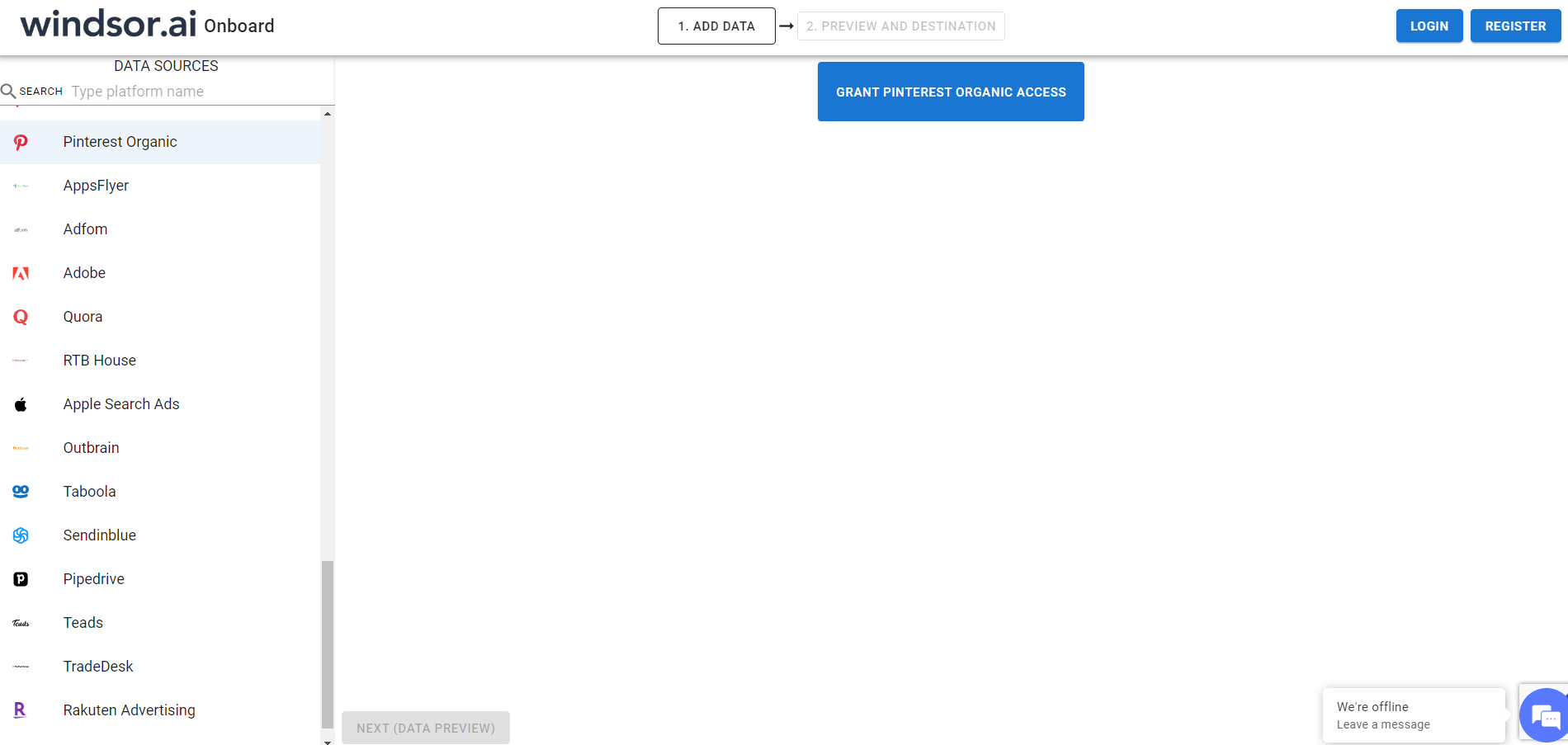
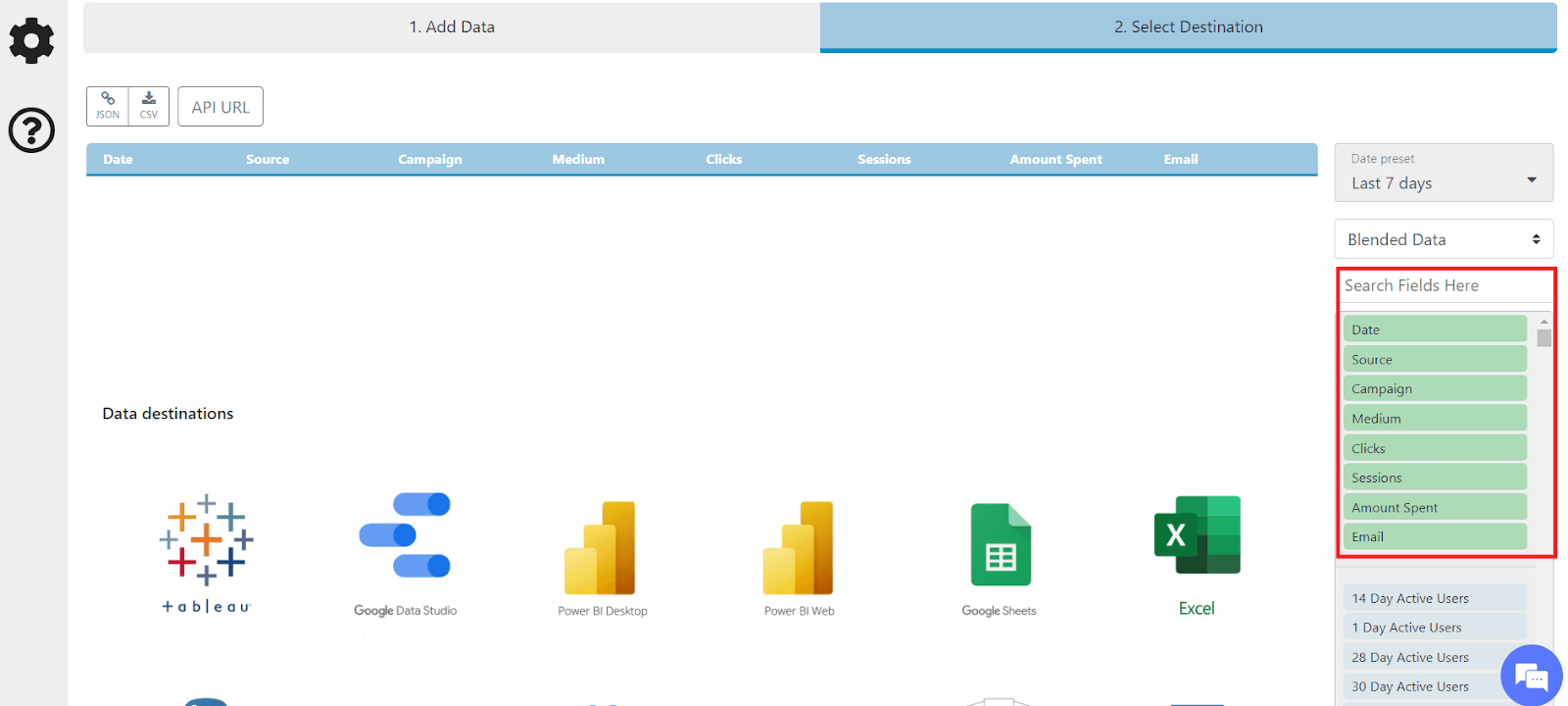
Step 2: Select the fields on the right.
Select the fields on the right to later use in your data source. For example, you can include metrics such as Cost per Click, Cost per Action or Total Spend.
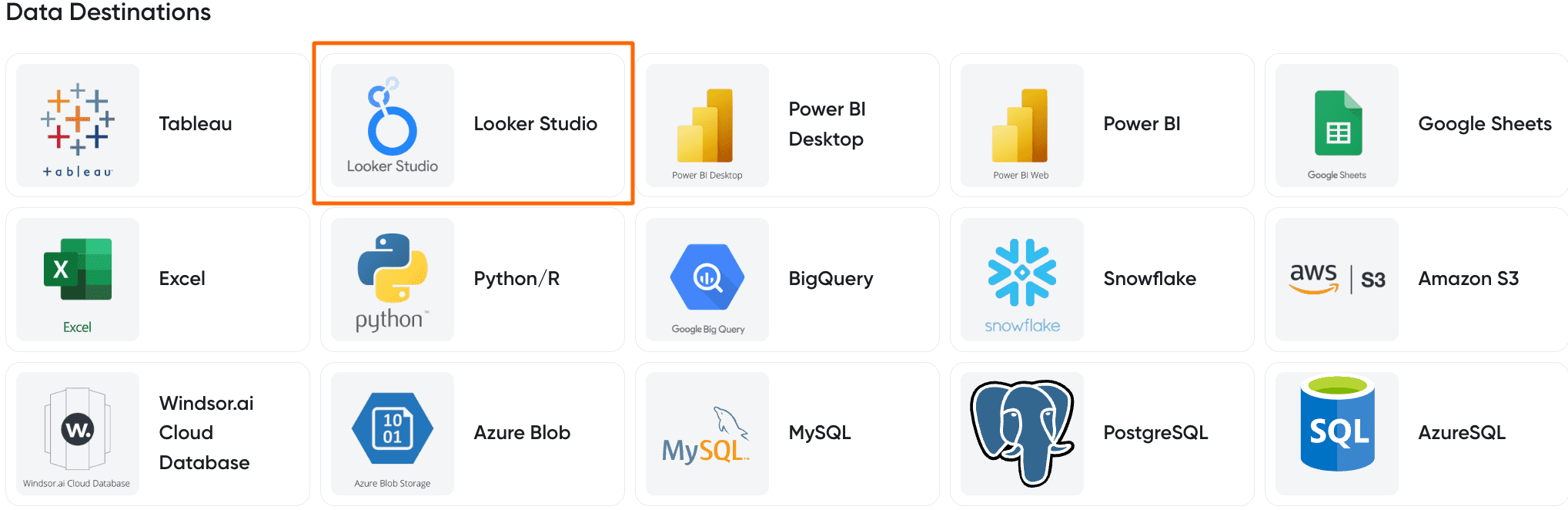
Step 3: Select Looker Studio as your destination.
Go to “Select Destination” and choose Looker Studio.
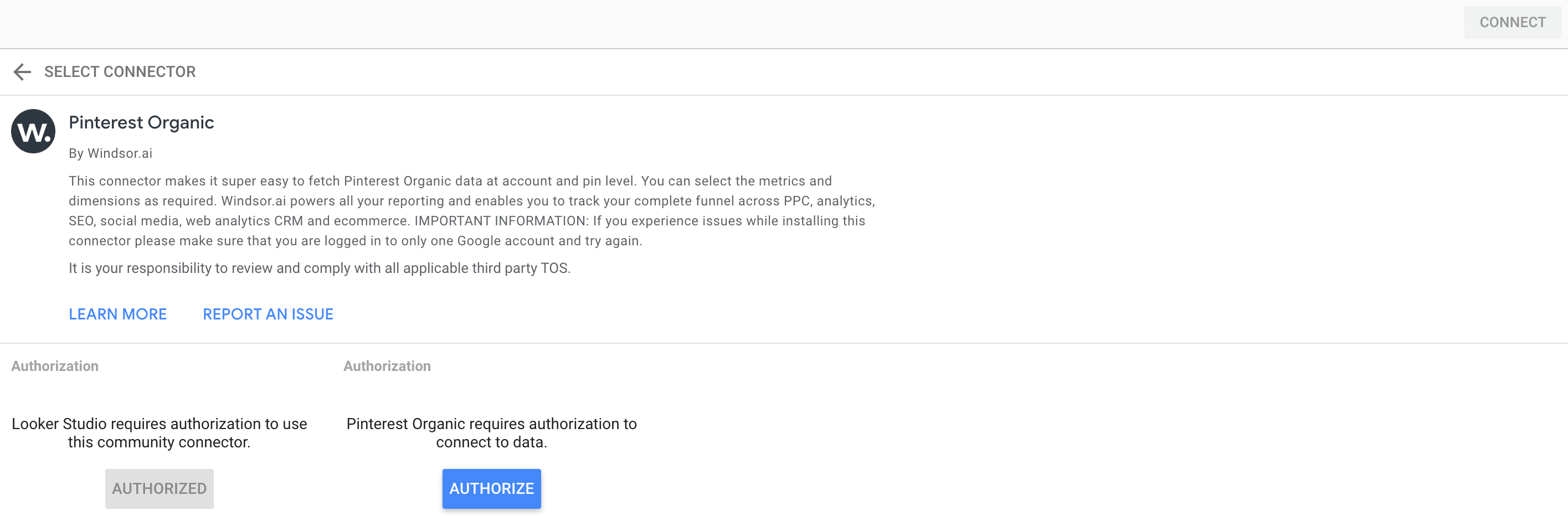
Step 4: Connect and authorize access to your data source.
Once done, select “connect” and authorize access to your data source.
Tired of manual Pinterest Analytics data exports? Get started with Windsor.ai today to automate your reporting


